Installing and Configuring Ubuntu Unity 18.04.2 from Scratch
A while back I went abroad and got to enjoy an internet without the Great Firewall. Then I came home and my laptop started crashing like it had caught a virus. First the DNS service wouldn’t start, then the network died, and finally the kernel panicked. After a whole lot of fiddling I got it barely running, but it felt like the system was on life support. So I decided to reinstall.
Reinstalling is not a simple matter for me, because I run Ubuntu Unity, and Ubuntu has abandoned Unity. There’s no derivative left either — someone did maintain an Ubuntu Unity image, but that maintainer got cancer, and coding from a wheelchair every day is no joke.
In the end I had to rely on myself and install a “clean” Ubuntu Unity 18.04.2 step by step.
1. Download and install the Ubuntu Minimal CD
If you want a clean Ubuntu Unity, the only way is to do a netinstall from the Minimal CD, much like installing Arch Linux.
https://help.ubuntu.com/community/Installation/MinimalCD
The install is roughly the same as regular Ubuntu, except when you get to the software selection screen, remember to select nothing.
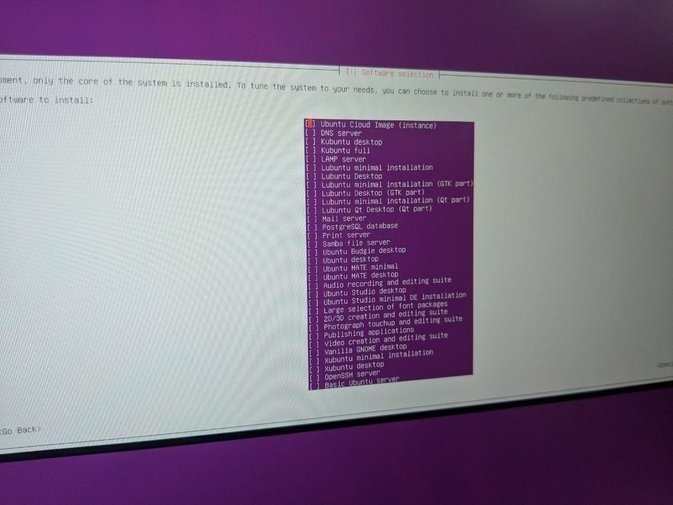
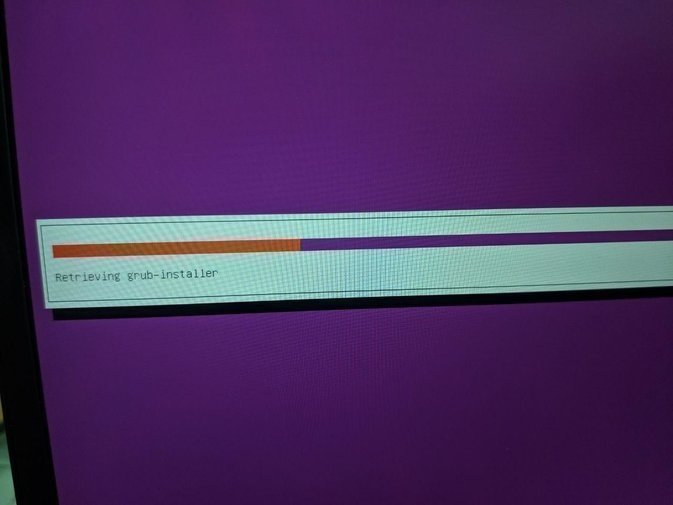
Once it’s done you’ll boot into a plain command-line interface. Of course, remember you need a network connection during the install. I don’t know about wireless — best to have a wired connection.
After booting into the system, make sure your network works, then enter the following command to install the whole Ubuntu Unity desktop package.
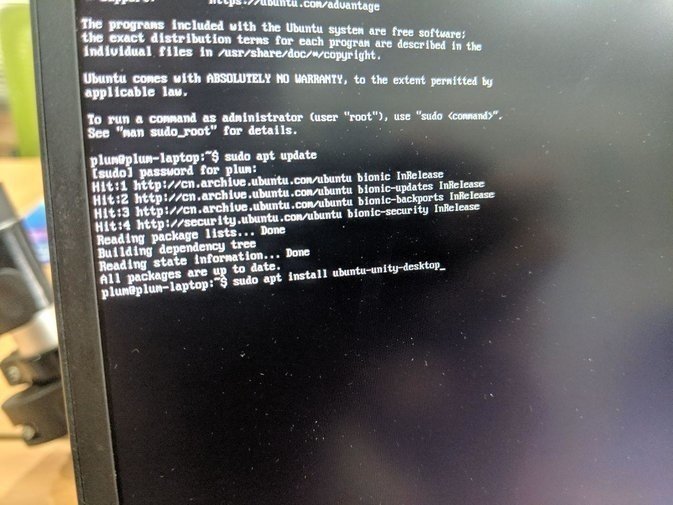
sudo apt install ubuntu-unity-desktop
Reboot after it finishes, and your system will have a pure Ubuntu Unity desktop.
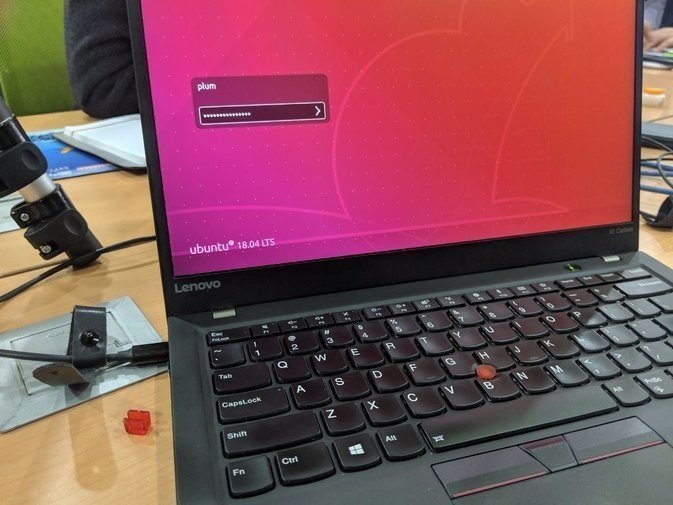
Now on to the initial setup after the install. Let me jot down some notes.
Install common software and themes
sudo add-apt-repository ppa:papirus/papirus -y
sudo add-apt-repository ppa:atareao/telegram -y
sudo add-apt-repository ppa:numix/ppa -y
sudo add-apt-repository ppa:atareao/atareao -y
sudo add-apt-repository ppa:gottcode/gcppa -y
sudo add-apt-repository ppa:nextcloud-devs/client -y
sudo add-apt-repository -u ppa:snwh/ppa -y
sudo add-apt-repository ppa:ubuntuhandbook1/shutter -y
sudo add-apt-repository ppa:kasra-mp/ubuntu-indicator-weather -y
sudo add-apt-repository ppa:ubuntu-toolchain-r/test -y
sudo add-apt-repository -u ppa:snwh/ppa -k
sudo apt-get install fcitx fcitx-sunpinyin fcitx-module-cloudpinyin gtk2-engines-murrine:i386 libudev1:i386 vlc i965-va-driver vainfo gimp inkscape openshot shutter filezilla audacity classicmenu-indicator numix-gtk-theme shimmer-themes numix-icon* caffeine leafpad git unity-tweak-tool fcitx-mozc ibus-qt4 curl ctags vim-doc vim-scripts cscope fonts-dejavu indent vim vim-gnome exuberant-ctags  psensor libluajit-5.1-2 python3-pip  ubuntu-make ppa-purge jayatana compizconfig-settings-manager zsh telegram wget papirus-folders papirus-icon-theme filezilla-theme-papirus exfat-fuse exfat-utils ttf-bitstream-vera gtk2-engines-pixbuf gnome-themes-standard paper-icon-theme indicator-weather gcc-8 nextcloud-client focuswriter paper-icon-theme -y

sudo chmod 777 -R /opt/telegram
Fix Unity’s fractional scaling — install this if you need 1.5x scaling
sudo add-apt-repository ppa:arter97/unity
sudo apt dist-upgrade
LibreOffice
sudo add-apt-repository ppa:libreoffice/ppa
Install common plugins and small utilities
wget https://launchpadlibrarian.net/292068009/indicator-sound-switcher_2.1.1ubuntu0-1_all.deb
wget http://ppa.launchpad.net/nilarimogard/webupd8/ubuntu/pool/main/s/syspeek/syspeek_0.3+bzr26-1~webupd8~zesty_all.deb
wget https://www.dropbox.com/download?dl=packages/ubuntu/dropbox_2019.01.31_amd64.deb
wget https://dl.google.com/linux/direct/google-chrome-stable_current_amd64.deb
wget https://jaist.dl.sourceforge.net/project/deadbeef/debian/deadbeef-static_0.7.2-2_amd64.deb
wget https://launchpadlibrarian.net/330848294/libgtk2-appindicator-perl_0.15-1build5_amd64.deb
Install common codecs and remove the useless snappy
sudo apt remove snapd
sudo apt install ubuntu-restricted-extras
Install Terminator
sudo apt-get install terminator
sudo update-alternatives --config x-terminal-emulator
gsettings set org.gnome.desktop.default-applications.terminal exec 'terminator'
TLP
sudo apt-get install tlp tlp-rdw tp-smapi-dkms acpi-call-dkms thermald powertop
Python3
sudo pip3 install pep8
sudo pip3 install jedi
Install ZSH and change the theme
sh -c "$(wget https://raw.github.com/robbyrussell/oh-my-zsh/master/tools/install.sh -O -)"
wget --no-check-certificate https://raw.githubusercontent.com/seebi/dircolors-solarized/master/dircolors.ansi-dark
mv dircolors.ansi-dark .dircolors
eval `dircolors ~/.dircolors`
git clone https://github.com/sigurdga/gnome-terminal-colors-solarized.git
cd gnome-terminal-colors-solarized
./set_dark.sh
Install arc-flatabulous-theme
sudo apt install sassc autoconf automake pkg-config libgtk-3-dev git -y
git clone https://github.com/cnsworder/arc-flatabulous-theme && cd arc-flatabulous-theme
./autogen.sh --prefix=/usr --disable-transparency
sudo make install
Kill the ugly default fcitx manager
sudo apt remove fcitx-ui-qimpanel
Getting around the Great Firewall
sudo add-apt-repository ppa:fsgmhoward/shadowsocks-libev
sudo apt install simple-obfs
sudo vim /etc/shadowsocks-libev/config.json
sudo vim /lib/systemd/system/shadowsocks-libev.service
sudo vim /lib/systemd/system/shadowsocks-libev-local.service

sudo vim /etc/systemd/resolved.conf
sudo systemctl stop systemd-resolved.service
https://github.com/shawn1m/overture

sudo bash -c 'cat >> /etc/sysctl.conf' << EOF\
\
net.core.default_qdisc=fq\
net.ipv4.tcp_congestion_control=bbr\
EOF
sudo sysctl -p\
Hi-Res and Bluetooth LDAC
sudo add-apt-repository ppa:eh5/pulseaudio-a2dp -y
sudo apt-get install  pulseaudio-module-bluetooth

sudo vim /etc/pulse/daemon.conf

resample-method = soxr-vhq
default-sample-format = s32le
default-sample-rate = 192000
alternate-sample-rate = 96000

pulseaudio -k
pulseaudio --start

sudo vim /etc/pulse/default.pa

# LDAC Standard Quality
load-module module-bluetooth-discover a2dp_config="ldac_eqmid=sq"

# LDAC High Quality; Force LDAC/PA PCM sample format as Float32LE
#load-module module-bluetooth-discover a2dp_config="ldac_eqmid=hq ldac_fmt=f32"
Disable the whitedot background in Lightdm
gsettings set com.canonical.unity-greeter draw-grid false
sudo xhost +SI:localuser:lightdm
sudo su lightdm -s /bin/bash
gsettings set com.canonical.unity-greeter draw-grid false
Theme your Unity Dash Button
wget /launcher_bfb.png
sudo mv /usr/share/unity/icons/launcher_bfb.png /usr/share/unity/icons/launcher_bfb.png.bak
sudo cp launcher_bfb.png /usr/share/unity/icons/
VMWARE FIX Kernel 5.0
git clone -b workstation-15.0.2 https://github.com/mkubecek/vmware-host-modules.git
cd vmware-host-modules
tar -cf vmmon.tar vmmon-only
tar -cf vmnet.tar vmnet-only
sudo cp -v vmmon.tar vmnet.tar /usr/lib/vmware/modules/source/
sudo vmware-modconfig --console --install-all
coyq
sudo add-apt-repository ppa:hluk/copyq-beta
sudo apt install copyq
Fix the trackpoint and touchpad — the trackpoint stops working after wake, and the touchpad has no palm detection
sudo vim /lib/systemd/system-sleep/trackpad

#!/bin/sh

case $1/$2 in
  pre/*)
    echo "Going to $2..."
    # Place your pre suspend commands here, or `exit 0` if no pre suspend action required
    modprobe -r psmouse
    ;;
  post/*)
    echo "Waking up from $2..."
    # Place your post suspend (resume) commands here, or `exit 0` if no post suspend action required
    sleep 2
    modprobe psmouse
    ;;
esac

sudo chmod 755 /lib/systemd/system-sleep/trackpad

wget https://launchpadlibrarian.net/408808293/libinput-tools_1.12.6-1_amd64.deb
wget https://launchpadlibrarian.net/408808294/libinput10_1.12.6-1_amd64.deb
wget https://launchpadlibrarian.net/408808292/libinput-bin_1.12.6-1_amd64.deb
Enable Thinkpad X1 Carbon Trackpoint
sudo vim /etc/modprobe.d/blacklist.conf
comment out the line:
blacklist i2c_801
Change Dir to English
export LANG=en_US
xdg-user-dirs-gtk-update
export LANG=zh_CN
Change default fonts to WQY-microhei
sudo apt install fonts-wqy-* xfonts-wqy
sudo apt install
sudo gedit /etc/fonts/conf.avail/69-language-selector-zh-cn.conf
sudo apt remove fonts-noto-cjk
sudo apt remove fonts-noto-mono
sudo apt install
with this:
<?xml version="1.0"?>
<!DOCTYPE fontconfig SYSTEM "fonts.dtd">
<fontconfig>
  <match target="pattern">
    <test qual="any" name="family">
      <string>serif</string>
    </test>
    <edit name="family" mode="prepend" binding="strong">
      <string>Bitstream Vera Serif</string>
      <string>HYSong</string>
      <string>AR PL UMing CN</string>
      <string>AR PL UMing HK</string>
      <string>AR PL ShanHeiSun Uni</string>
      <string>AR PL New Sung</string>
      <string>WenQuanYi Bitmap Song</string>
      <string>AR PL UKai CN</string>
      <string>AR PL ZenKai Uni</string>
    </edit>
  </match>
  <match target="pattern">
    <test qual="any" name="family">
      <string>sans-serif</string>
    </test>
    <edit name="family" mode="prepend" binding="strong">
      <string>Bitstream Vera Sans</string>
      <string>WenQuanYi Micro Hei</string>
      <string>WenQuanYi Zen Hei</string>
      <string>Droid Sans Fallback</string>
      <string>HYSong</string>
      <string>AR PL UMing CN</string>
      <string>AR PL UMing HK</string>
      <string>AR PL ShanHeiSun Uni</string>
      <string>AR PL New Sung</string>
      <string>AR PL UKai CN</string>
      <string>AR PL ZenKai Uni</string>
    </edit>
  </match>
  <match target="pattern">
    <test qual="any" name="family">
      <string>monospace</string>
    </test>
    <edit name="family" mode="prepend" binding="strong">
      <string>Bitstream Vera Sans Mono</string>
      <string>WenQuanYi Micro Hei Mono</string>
      <string>WenQuanYi Zen Hei Mono</string>
      <string>Droid Sans Fallback</string>
      <string>HYSong</string>
      <string>AR PL UMing CN</string>
      <string>AR PL UMing HK</string>
      <string>AR PL ShanHeiSun Uni</string>
      <string>AR PL New Sung</string>
      <string>AR PL UKai CN</string>
      <string>AR PL ZenKai Uni</string>
    </edit>
  </match>
</fontconfig>
Install WPS Office
wget http://kdl1.cache.wps.com/ksodl/download/linux/a21//wps-office_10.1.0.5707~a21_amd64.deb
wget http://kdl.cc.ksosoft.com/wps-community/download/fonts/wps-office-fonts_1.0_all.deb
wget http://kr.archive.ubuntu.com/ubuntu/pool/main/libp/libpng/libpng12-0_1.2.54-1ubuntu1_amd64.deb
sudo dpkg -i libpng12-0_1.2.54-1ubuntu1_amd64.deb
sudo dpkg -i wps-office_10.1.0.5707~a21_amd64.deb
sudo dpkg -i wps-office-fonts_1.0_all.deb
Configure libinput
sudo vim /usr/share/X11/xorg.conf.d/40-libinput.conf
add
Option "Tapping" "on"
Option "NaturalScrolling" "true"
Option "ClickMethod" "clickfinger"
Option "DisableWhileTyping" "True"
and these to trackpoint
Option "AccelProfile" "flat"
Option "AccelSpeed" "0.0"
Kill the thermal wall
sudo apt install git virtualenv build-essential python3-dev libdbus-glib-1-dev libgirepository1.0-dev libcairo2-dev

git clone https://github.com/erpalma/lenovo-throttling-fix.git

sudo ./install.sh

sudo vim /etc/lenovo_fix.conf

[BATTERY]
# Other options here...
PL2_Tdp_W: 40
Trip_Temp_C: 75

[AC]
# Other options here...
PL1_Tdp_W: 34
PL2_Tdp_W: 40
Trip_Temp_C: 90

[UNDERVOLT]
# CPU core voltage offset (mV)
CORE: -80
# Integrated GPU voltage offset (mV)
GPU: -75
# CPU cache voltage offset (mV)
CACHE: -80
# System Agent voltage offset (mV)
UNCORE: -75
# Analog I/O voltage offset (mV)
ANALOGIO: 0

sudo service lenovo_fix restart
Add a script to auto-rescale
sudo vim /opt/kits/rescale.sh

#!/bin/bash

xrandr --query  | grep ' connected' | grep 2560 > /dev/null
result=$?

if [ $result -ne 0 ]; then
  	# HD
	gsettings set org.gnome.nautilus.icon-view default-zoom-level standard
#	gsettings set org.gnome.desktop.interface cursor-size 24
#	export QT_SCREEN_SCALE_FACTORS=1
#	export QT_AUTO_SCREEN_SCALE_FACTOR=1
	pidof fcitx | xargs kill
	pidof nautilus-desktop | xargs kill
	nohup fcitx  1>/dev/null 2>/dev/null &
	nohup nautilus-desktop  1>/dev/null 2>/dev/null &
else
	# WQHD
	gsettings set org.gnome.nautilus.icon-view default-zoom-level large
#	gsettings set org.gnome.desktop.interface cursor-size 42
#	export QT_SCREEN_SCALE_FACTORS=1.5
#	export QT_AUTO_SCREEN_SCALE_FACTOR=0
	pidof fcitx | xargs kill
	pidof nautilus-desktop | xargs kill
	nohup fcitx  1>/dev/null 2>/dev/null &
	nohup nautilus-desktop  1>/dev/null 2>/dev/null &
fi
Bind it to C+A+R, then just hit it whenever you switch monitors.
That’s the setup done.
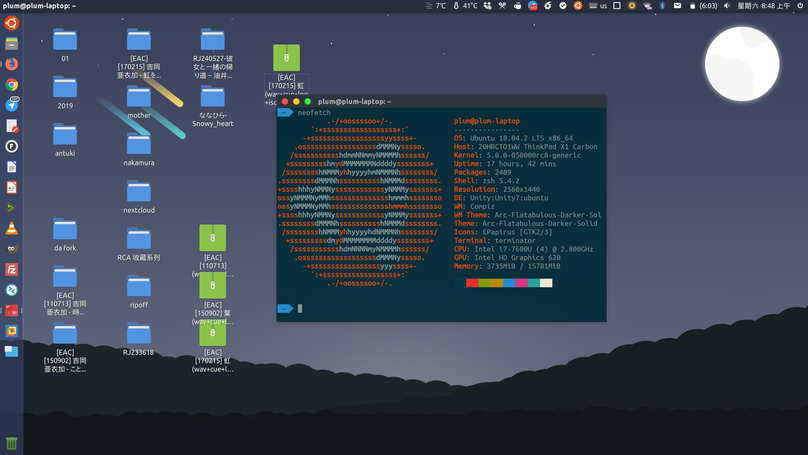
Known issues so far:
- After changing the desktop wallpaper, the Login Background Screen doesn’t follow. (Already fixed, see here.)
- After installing clipboard managers like Copyq or clipt, restarting via the top-right menu takes 30 seconds before it actually does anything.
Comments are hosted on the Chinese main site. This mirror is read-only.