Swapping an HDR Screen into a ThinkPad X1 Carbon 2017
My ThinkPad X1 Carbon 2017 has the top-spec WQHD screen, but the next generation, the ThinkPad X1 Carbon 2018, offered a WQHD HDR panel: 500 nits, glossy, and with a ridiculously wide color gamut. The catch, of course… that config only exists on the 2018.
But the 2018 and 2017 share like 90% of the chassis, and a lot of parts have compatible FRUs—batteries, fans—so the screen should be swappable too. Nobody had tried it, until recently when good news finally showed up on 51nb.
Someone on Taobao was already selling a panel labeled “B140QAN02.0,” and from what I could dig up that’s exactly the HDR panel from the X1 Carbon 2018. As for whether it fits the 2017 X1 Carbon, a guy on 51NB said it could be done. He was in Zhengzhou too, and when I asked he guaranteed a perfect swap—but wanted 830 yuan for the whole job. Since he was nearby he could come do it on-site, the whole process taking about half an hour, with a 350 yuan deposit up front.
From what he said I pieced together a few things:
- Half an hour means it’s fast—probably just pop the old one out and drop the new one in. No chassis mismatch.
- The 350 yuan deposit is probably the wholesale or cost price of the panel itself, similar to what the same screen goes for on Taobao.
- After asking whether mine was the WQHD 2017, he dropped the mod fee from 890 to 830—meaning 60 yuan of that was for the screen cable.
So doing it myself should be feasible, and I’d save nearly 400 in labor. I decided to try.
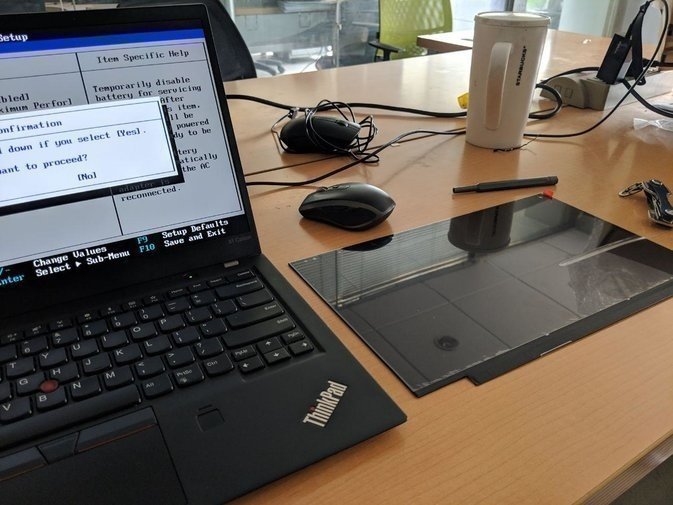
Buy the screen on Taobao—make sure it’s the panel labeled “B140QAN02.0”, which is the top-spec HDR WQHD one from the ThinkPad X1 Carbon 2018.
Once it arrives, you can start the teardown.
- First disable the battery in the BIOS. (Otherwise enjoy your barbecue.)
- Remove the bottom cover, find the hinge, and get ready to take the hinge off. (Removing it makes it easier to pry the screen off; otherwise you’ll snap the bezel next to it.)
- With the hinge off, disconnect the screen cable and camera cable, then you can lift out the display panel.
- Use a fingernail or a small card to run along the edge of the screen and pry from the inside.
- Then you can slowly pull the B-cover off—and you’ll be disappointed to find that the B-cover is held on with double-sided tape.
- With the B-cover off, disconnect the LCD cable, pull the screen, and put the new one in.
- If your machine isn’t the WQHD version, you’ll also need a new screen cable, which you can buy on Taobao.
- Even if it is WQHD, you still have to peel the cable off and reinstall it, because the position doesn’t line up—you need to stretch it and re-stick it to the back plate.
- The bottom shield over the screen module slides off to one side; route the cable inside it. If you break it like I did, Taobao is your only hope.
- Finally, mount the screen, put the shield back, pop the B-cover on temporarily, and reinstall the screen. Done.
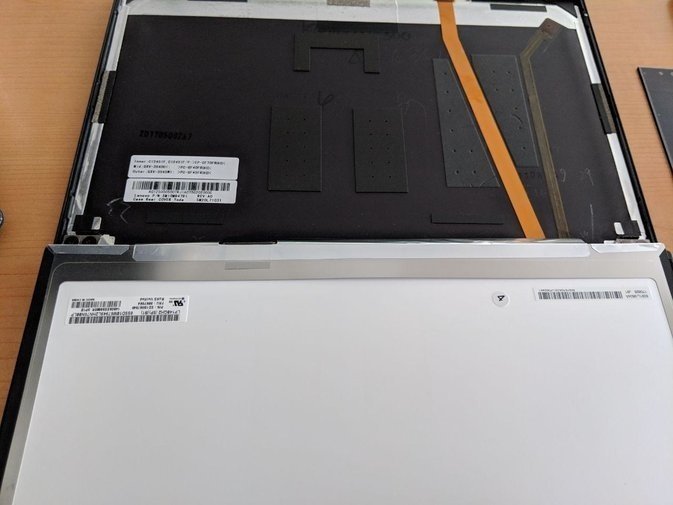
Why “temporarily”? Because you can’t actually get it back on. That B-cover is double-sided tape—one-time use. Once you peel it, it’ll never sit flush again no matter how you stick it. Feels awful.
So what’s the fix? Taobao. You can buy a B-cover for the X1 Carbon 2017, but the ones I found were all the non-IR camera version, and mine has the IR camera. Then I noticed something clever: the IR-camera B-cover for the X1 Carbon 2018 doesn’t have a shutter. Which means the two are probably interchangeable.
And they are.
Just buy an X1C 2018 B-cover with IR.
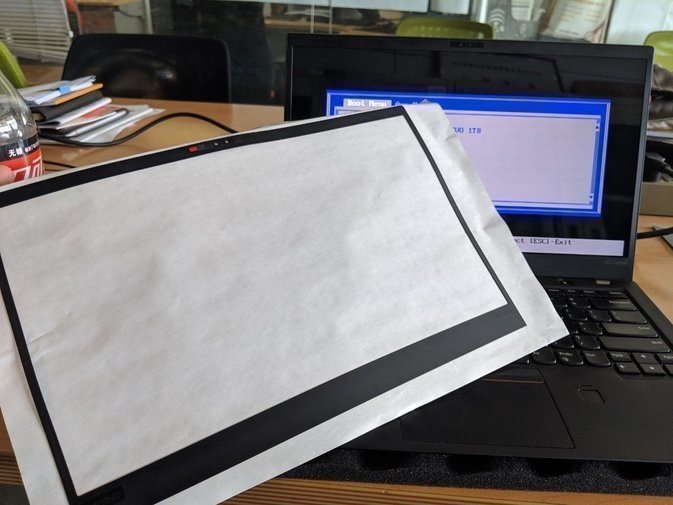
When it arrives, peel off the old garbage B-cover, stick on the new one, and press it flat.
I also swapped the speakers while I was in there—the originals were distorting, so I replaced them.
The mod went well overall. The new screen works perfectly, color calibration and standby are fine, and it even supports Intel PSR—though I felt YouTube videos stuttered with it on, so I turned it off in the end.
Two big impressions after the swap:
- Holy shit, it’s bright. 500 nits indeed.
- Bruh, it’s red. Like, seriously red—the screen leans hard toward red.
If yours is red too, grab the ICC profile for the ThinkPad X1 Carbon 2018 HDR screen from Notebookcheck and it becomes tolerable. Even then the red is overly vivid; you’ll need time to adjust.
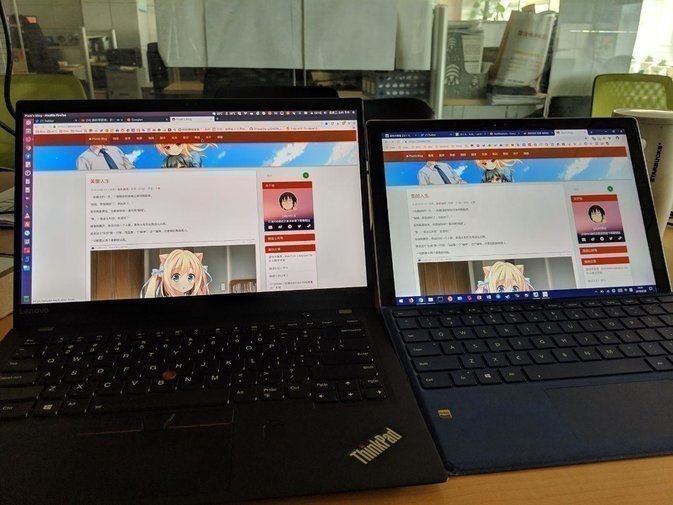
As for whether it’s worth it: if you’re on 1080p, I’d say go for it, and pick up a screen cable while you’re at it. If you already have the 2K panel, it depends—the original matte screen gets marks from the keyboard pressing into it, and after a while it looks ugly. You could swap it too, since the glossy panel is glass and way more durable than plastic.
Last last last last thing, most important: buy a new B-cover, because the original is one-time use and won’t stick back on.
Actually, I originally wanted to go 4K. I heard the Yoga 920 Pro’s 4K panel should fit too, but… mediocre gamut, mediocre brightness, and it’s PWM dimming. Forget it. I’ll wait for the 4K HDR on the ThinkPad X1 Carbon 2019.
Comments are hosted on the Chinese main site. This mirror is read-only.