Enabling touchpad gestures in Ubuntu 20.04
Wayland already has built-in touchpad gesture support, but Wayland still isn’t usable — at the very least the mouse stutter under load hasn’t been fixed — so let’s talk about Xorg instead.
If you’re on Wayland you can just install an extension:
https://extensions.gnome.org/extension/2781/custom-3-finger-gestures/
Using touchpad gestures under Xorg requires libinput-gestures:
https://github.com/bulletmark/libinput-gestures
First, add your user to the input group:
sudo gpasswd -a $USER input
Then install the build dependencies:
sudo apt-get install libinput-tools xdotool
Now the install itself; add anything missing on your own if dependencies are short:
git clone https://github.com/bulletmark/libinput-gestures.git
cd libinput-gestures
sudo make install
sudo ./libinput-gestures-setup install
Then set it to autostart:
libinput-gestures-setup autostart
libinput-gestures-setup start
You can also run libinput-gestures-setup manually in a terminal to check for errors. Usually it’ll say permission denied — make sure you did the first step and added your user to the input group, and logging out after adding it does nothing, you need to reboot.
Once you’ve confirmed libinput-gestures-setup runs, you can install the gesture management software.
git clone https://gitlab.com/cunidev/gestures
cd gestures
sudo python3 setup.py install
Now you’ll have the gestures tool; use xdotool to add whatever actions you want:
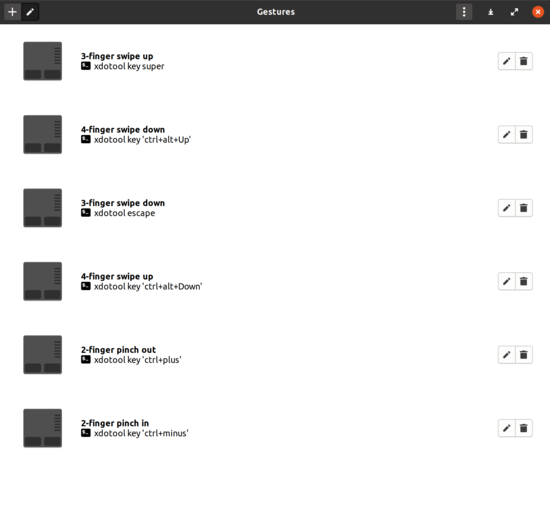
For example, xdotool key "ctrl+alt+Down" is the corresponding keypress — go wild with it as needed.
Overall libinput-gestures is pretty responsive, it just still can’t match Wayland’s instant Mac OS-style swiping.
Plagiarism source: How to Enable Mac-like Gestures on Ubuntu 20.04
Comments are hosted on the Chinese main site. This mirror is read-only.