Enabling IR Face Unlock on a ThinkPad X1 Carbon Under Ubuntu Linux
Plenty of laptops ship with an IR infrared camera so you can unlock with your face. Surface especially has it as standard — on Windows 10 the feature is called Windows Hello. Basically you flip the lid open, it scans your face, and you’re in. No typing a password.
Can you use this on Linux?
Yes.
Just use this project called howdy.
https://github.com/boltgolt/howdy
Installation
To install howdy on Ubuntu Linux you can add the PPA.
sudo add-apt-repository ppa:boltgolt/howdy
sudo apt update
sudo apt install howdy
For other systems, refer to the official install guide.
One thing to keep in mind: during installation howdy pulls in a bunch of third-party Python packages via pip and other package managers, so make sure your network is in “science mode” — otherwise it’s painfully slow. You can also force it through a proxy with something like proxychains4.
As far as I can tell, howdy uses something like OpenCV to do the actual face recognition. It drags in a lot of dependencies and eats a ton of disk space. You noble, high-born Archers with OCD can choose not to install it.
Configuration
After installing, you can’t use it right away — some adjustments are needed. The ThinkPad X1 Carbon 2017 with the IR camera version actually has two cameras: an IR one and a regular one. First you need to figure out which is the IR camera.
sudo apt install v4l-utils
Install the v4l-ctl tool to check camera status.
v4l2-ctl --list-devices
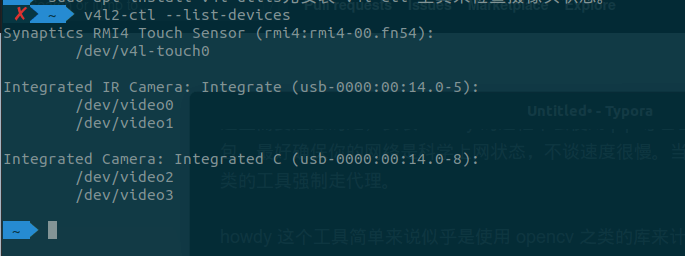
As you can see I have two cameras — one IR, one regular. Note that the IR camera is /dev/video0.
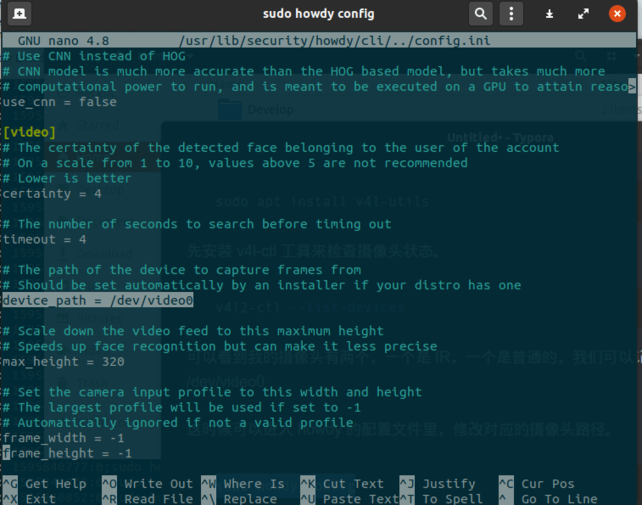
Now go into howdy’s config file, change the camera path to match, and tweak a few settings.
sudo howdy config
Change the following entries:
device_path = /dev/video0  #修改 IR 摄像头路径
dark_threshold = 100 #修改 IR 摄像头的暗光阈值,可以调高一点,这样在暗光下也能识别
force_mjpeg = true #如果你摄像头支持 mjpeg 格式,就可以用这个

Once the config is edited, test whether the camera works.
sudo howdy test
You might run into an error like “setMouseCallback on Qt windows”. The cause is probably that howdy’s install script pulls OpenCV from pip, and newer OpenCV has issues on Ubuntu. Uninstall the pip version and switch back to the one from the official Ubuntu repos.
sudo pip remove  opencv-python
sudo apt install libopencv-dev python3-opencv
In theory, test it again after installing and you’re good to go. First, add your own face with the command:
sudo howdy add
Each face entry can have a label — type whatever you want.
Try locking the screen and staring straight into the IR camera to see if it unlocks directly. That worked for me, and my environment is Gnome-Shell 3.36.3 — the thing all those noble Archers despise. Maybe the exalted KDE works too.
A few questions:
Q: Sometimes unlocking fails with “Unknown Error 1”.
A: That’s a permissions problem. You can grant permissions to the relevant files:
sudo chmod o+x /lib/security/howdy/dlib-data
sudo chmod a+x /lib/security/howdy/recorders/
Or you could
sudo chmod a+x -R /lib/security/howdy/recorders/
but I don’t really recommend that one.
Q: After enrolling my face, can I unlock while wearing glasses / a mask?
A: No. I suggest enrolling your face in every state — one without glasses, one with glasses, one with glasses and a mask… And enroll each face several times to improve recognition rates. Though I can’t guarantee someone else won’t impersonate you if you enroll with a mask on.
Q: Can it recognize me in the dark?
A: I tested it — the IR camera handles it fine. Low light is no problem. To all the people claiming it can’t unlock in low light: do you even have an IR camera?
Q: Can a regular camera recognize you?
A: Yes — just put the regular camera in the config file. But it probably won’t work in low light.
Q: After enrolling my face, every time I open a Terminal and run sudo it scans my face instantly? That’s terrifying.
A: You can configure this in detail with the howdy config command. See the official Wiki for more.
Comments are hosted on the Chinese main site. This mirror is read-only.