Hands-on: Pinebook Pro
Is the Pinebook Pro a computer you can actually daily drive?
Preface:
I picked up a Pinebook Pro back around 2019. I vaguely remember the other machine I was fiddling with at the time was a Chuwi Minibook. Nearly a year and a half went by and the Pinebook Pro spent most of it collecting dust, until my ThinkPad X1 Carbon 2017 went missing a while back. I really had no computer to use, so I dug it out and used it as my “main machine” for a stretch.
And honestly, when the Pinebook Pro first launched, the ecosystem around it was pretty incomplete (though already a big step up from the old Pinebook). Now that I have a new temporary main laptop, I can set the Pinebook Pro aside for the time being. The days of using it were an interesting and painful memory, but it was also a chance to seriously try out this “open-source Arm Linux laptop” and see its strengths and weaknesses. So I figure I’ve earned the right to give it a subjective review here.
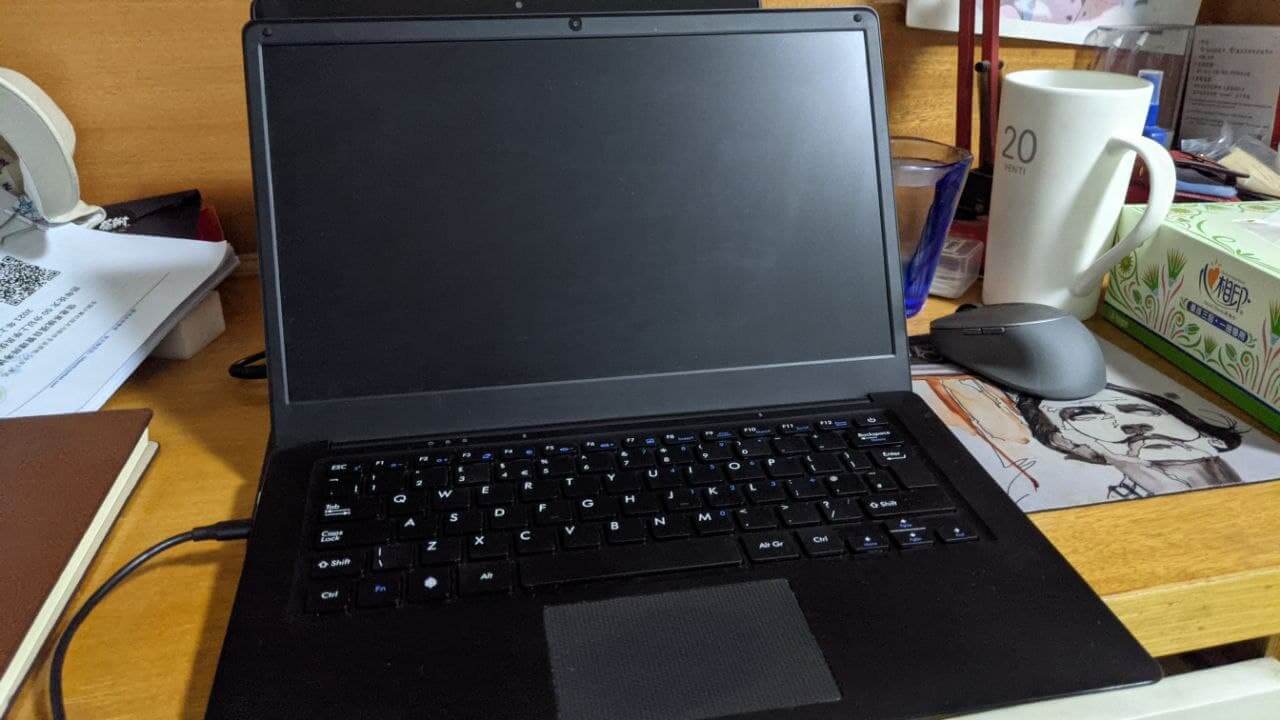
Build:
The Pinebook Pro uses better materials than the previous Pinebook: aluminum alloy. But overall it doesn’t come across as any more genuinely “premium,” because there are four rubber pads around the screen, and once you close the lid the protruding camera and rubber feet drag the whole thing’s classiness straight down. The metal parts don’t fit together tightly in a lot of places either. Especially after you open up the back to get at the mainboard, when you try to screw it back on you’ll find it hard to line up all at once. I think it’s mold tolerance.
The Pinebook Pro keyboard is… an average keyboard. Not great, not terrible. I think it’s OK, acceptable, a pass. The trackpad, though, is pretty dumb — the cheap plastic trackpad of a bargain netbook, you know the type. The other thing I really have to gripe about is the screen. They advertise a badass 1080P IPS panel, but what they don’t tell you is it’s a BOE “low color gamut IPS.” You can look up the model number on Pine64’s official site, and it really does seem to have no merits beyond the “1080P” and “IPS” tags. I wondered whether I could swap the panel. In theory yes, since the connector is right there — just pry open the B side and replace it…
But in practice it doesn’t seem that simple. The panel’s parameters are written into the system bootloader and even the kernel, and the Pinebook Pro isn’t a “standard computer” so much as a “tablet converted into a computer.” So if you swap the LCD on a whim, you’ll probably run into display problems with the panel. How big? Can’t adjust the backlight, or does it just not display at all? I’m poor, I don’t have the money to test it, so anyway I don’t think you should casually swap it. Besides, that big white screen — you get used to it after a while.
Another corner cut on the Pinebook Pro is the speakers. They’re really bad, and they’re soldered in, though it seems they can be replaced with a bit of soldering skill.
Installing NVME:
The Pinebook Pro’s big selling point is NVME drive support. That’s seriously cool — the read/write speed boost has to be amazing. But installing NVME requires buying an adapter card from the official store, and that card had problems at first: too long, screw caps too tall, so when you stuffed it into the machine it pushed up the trackpad. Later Pine64 mailed me an “NVME retrofit kit” all the way from the US, saying it solved the adapter install issue. I opened it up: fuck, it was just a shorter screw.
Installing the drive isn’t really a problem. Mine was from the first batch, which came with a 128GB EMMC — the Rock64-compatible kind. Later I got a Lenovo NVME SSD and plugged it in, ready to go big with dual drives and dual boot. Turns out that was where the problems started.
Operating system:
What Pine64 sells is increasingly like what Oneplus does these days: they only sell hardware, and the system is left to someone else or tossed to the community.
So picking an OS for the Pinebook Pro is a hard choice. At first it shipped with Debian 10 or 11, and that system was fine everywhere, the XFCE4 environment was light and snappy, but Chinese support was bad. The system had basically stripped out everything related to CJK languages, as if it had completely forgotten its Pinebook Pro was assembled in Shenzhen.
Later Pinebook Pro started pushing Manjaro ARM. That system is decent too — same experience as desktop Manjaro, and apart from needing to spend ages tuning font rendering, I don’t see many downsides.
But when I tried to install the system onto the NVME, the problem appeared…
The Pinebook Pro doesn’t boot from NVME by default!
In other words, that NVME expansion can only be used for storage…
Naturally someone solved it later. They wrote a bootloader to the EMMC — boot to EMMC by default, then the EMMC bootloader starts the NVME. A bit roundabout but usable.
There’s also a more blunt approach: flash the bootloader into SPI, then use a switch on the mainboard to disable the EMMC and get native NVME boot. That’s what I did. Risky, but generally it won’t blow up in your face.
I figured now that I could boot from NVME, I could set up my system properly.
I installed Ayufan’s Ubuntu Focal directly, went through the usual Linux optimization, installed various Gnome-shell extensions and tweaks, and could even install flatpak apps (though most don’t have arm64 builds). Jionglian even heard I was on ARM64 and compiled an arm64 flatpak of fcitx5 just for me (you can find arm64 fcitx5 on flathub now). Really, thanks Jionglian — if he didn’t play Genshin I’d love him even more.
Just when I thought the Pinebook Pro was more or less set up, all kinds of small problems started showing up.
Keyboard firmware:
In the early days after I got the Pinebook Pro, the damn keyboard was hard to use — it would lock up or stop responding mid-typing, and it would also trigger phantom trackpad touches. Absolute misery. Later I found out it could be fixed with firmware, and some developers released updated firmware you could flash yourself. After that the problem improved a lot.
NVME system can’t suspend:
This is the biggest problem. If you put the system on NVME, the Pinebook Pro can’t successfully suspend after you close the lid — the whole computer either freezes or doesn’t sleep at all and dies with a drained battery. I saw plenty of foreigners bothered by this. A certain kernel developer, Mawei, knows about it too, but his answer was the same as the other developers':
“What’s the point of a laptop suspending? Isn’t shutting down fine!”
OK then. There are guides online for getting suspend working on the Pinebook Pro, but those only cover EMMC system partitions. With NVME it’s unsolvable.
Some developers say they’re busy fixing it, but it’s been at least half a year with no news.
So you’re facing weird choices: give up suspend, or move the system to EMMC and give up NVME performance. Or put the boot partition on EMMC and mount the nvme device when mounting root…
Anyway, it’s twisted.
NVME system randomly freezes
The system with NVME as root randomly freezes. The cause is the device’s power supply, and you can fix it by adding a line of parameters.
Overall performance:
Overall performance is better than expected. It can actually run a Gnome-shell environment reasonably well, and with a bunch of extensions enabled it doesn’t feel terribly laggy. It genuinely counts as “usable.” It has eight cores; I don’t know how the big.LITTLE split works out, but at least it can handle web browsing.
I watched a lot of Youtube on the Pinebook Pro. Apart from the lousy speakers, it’s totally acceptable. Earlier this year I wrote quite a few articles on it. Because it kept freezing, I had to use vim — at least it auto-saves after a crash.
I saw people online running Quake3 on the Pinebook Pro, which shows the basic performance is about there — roughly a 2010 laptop level. 4GB of RAM, and it can open a decent number of tabs.
The only headache is finding software. Because it’s arm64, you have to dig through repos and flatpak yourself, but the common stuff is there, and Gnome-shell extensions are all cross-platform, so basically no problem.
There’s even WPS for arm64, which probably owes something to Loongson and friends. Of course it’s still far behind a Macbook M1 or whatever.
Battery life:
Battery life basically meets what you’d want from a laptop. If you use EMMC as the system partition, you can get about 6–8 hours, but if you use NVME as the system partition it’s a bit shorter, around 5 hours — still strong, considering some tablets can’t even last that long.
And the best part is it supports Type-C charging, no PD needed, just a normal phone charging current.
Applying a skin:
The Pinebook Pro has an open-source skin project. You can download the skin PDF from the Wiki and take it to the phone-sticker sellers on eBay to get one made. I got a Dbrand-style set and it looks pretty good.
Is the Pinebook Pro a computer you can daily drive?
Finally, to answer the question in the title. My answer is “basically yes.” At least performance isn’t an issue, but there are still a few big mountains:
- You need some Linux habits (meaning if you’ve never used Linux and look down on it, forget this thing)
- Low color gamut screen (no idea if it can be swapped)
- nvme doesn’t support suspend
- arm64 software is a bit sparse, especially my beloved typora (still, thanks Jionglian — it’d be better if you didn’t play Genshin)
Even so, this is the best-performing Linux Arm device I’ve used in my life. I’ve been unlucky and short on money lately, so I’m still debating whether to sell it. But if the NVME suspend problem gets solved, I’ll probably keep it.
Appendix:
Manually compiling the kernel https://github.com/xmixahlx/pbp-tools
Installing Ubuntu 20.04 with suspend support on the Pinebook Pro (EMMC only) https://forum.pine64.org/showthread.php?tid=10279
Pinebook Pro official Wiki (including skin and LCD panel data) https://wiki.pine64.org/index.php/Pinebook_Pro_Main_Page
Comments are hosted on the Chinese main site. This mirror is read-only.