Surface Pro 4: First Thoughts
Maybe It Can Still Be Saved: Surface Pro 4 Modding Log
Another exam came up in the first half of the year, so I’ve been in study mode again lately.
I’ve been wanting to try the “all-digital” paperless study thing — reading PDFs, books, and magazines on a tablet. I’d been using a Lenovo Chromebook Duet, but the stylus on that thing is godawful, and the screen aspect ratio isn’t 4:3 either, which feels like a waste.
Then I remembered the very chicken-rib Surface Pro 4 I had lying around. It’s got a 3:2 screen and a 12-inch size — just right for reading books and magazines.
Let’s look at the basic specs first:
CPU: Skylake i5-6300u
RAM: 4GB
Storage: 128GB NVMe SSD
As you can see, here in 2022 a Windows machine with 4GB of RAM is basically unusable. The CPU feels salvageable — ancient, sure, but it’s battle-tested 14nm at this point. The drive is too small and probably needs fixing too. And this thing has been used for who knows how many years, so the battery’s down to about 60% capacity and needs replacing.
Upgrade
Back when the Surface Pro 4 launched, it was called “basically unrepairable and unupgradable.” But that was ages ago — Taobao is full of Surface repair and upgrade shops now. The upgrades come in two flavors:
The first is just swapping the motherboard. Since the CPU and RAM are all soldered together, you can go from a mid-tier Surface Pro 4 to the top spec and trade in your old board. That’s the safest route, but it’s also absurdly expensive. Years ago I saw a top-spec upgrade for 2300 RMB, and it’s still 2300 today — the price hasn’t budged. 2300 is enough to buy a used Surface Pro 6.
The second is doing what laptop repair guys do — desolder and swap the RAM chips directly. Cheapest option, but possible stability issues, and it lives or dies on the technician’s skill. But this is just a chicken-rib junk tablet, not my main machine. If it lasts a year, it lasts a year.
Sticking to my cheapskate principles, I found the cheapest modder on Taobao and went with:
CPU: Skylake i5-6300u -> unchanged
RAM: 4GB -> 16GB (reball and swap the chips)
Storage: 128GB NVMe SSD -> 512GB SSD (direct swap after teardown)
New battery
Came out to almost 1000 RMB. Honestly not that cheap. But you can’t buy the upgraded specs for another 1000 on top of that, so in the end it depends on how much use I get out of it.
Everyone knows the Surface Pro 4 has that “flickering screen” quality issue — tons of users hit it back in the day. Our beloved Canadian engineer Zhang-chan had this problem, I think he even asked me about it way back when, and I believe Microsoft eventually gave those users free replacements.
I never ran into it. I’d always assumed my screen was from the supplier that didn’t flicker — until a while ago when the female teacher used this thing for an online class livestream and the screen started flickering right there.
That’s when I realized: the flickering only shows up when the machine is under heavy load and overheating. The reason I’d never seen it was that I hadn’t abused the thing hard enough.
Wait — I played Galgame on this for years. Was it really always under low load?
I declined the screen replacement during the upgrade. One, too expensive. Two, I’m only reading PDFs, still low load, so it shouldn’t flicker.
The keyboard that came with it is pretty beat up too, but it works fine. Since I mainly use it as a tablet and don’t type much, I put the keyboard away and just use it occasionally. No point spending 300 RMB on eBay for a replacement.
The machine was done in about 5 days, and the shop sent back the original drive they’d pulled. The replacement they put in should be an SN550 — good enough. Once it arrived I found some small issues. The most obvious was a yellowish tint on the corners of the screen — my guess is they used non-OEM adhesive to glue it back. Not noticeable unless you look closely, so I let it slide.
Installed Windows 11 and it’s actually pretty decent — snappy, and most importantly the RAM is finally enough. But I quickly found a problem:
Pressing the middle area of the screen caused display corruption. I looked it up and that spot is right over the display cable behind the screen.
So I contacted the shop and mailed it back. They took a full 2 weeks to test and fix it before sending it back. The shop said the cable issue was an easy fix, but after fixing the screen the keyboard stopped being recognized, so that took a while.
When it came back the problem was gone, and the yellow corner had moved from the top-left to the top-right — which only confirms my theory. Overall though I’m reasonably happy with it. At least the RAM is enough now, and Firefox doesn’t stutter just opening.
Let me talk about the experience briefly. First, here’s what I use this thing for, by category:
Video sites:
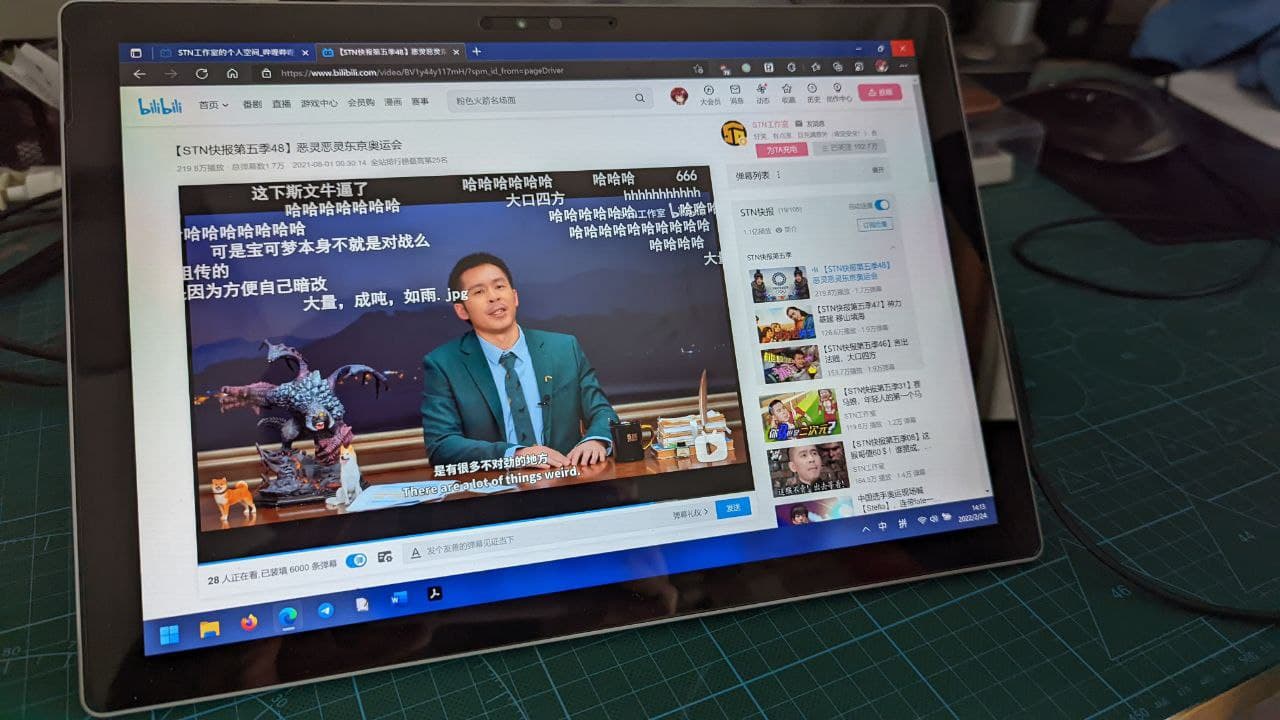
Mainly YouTube and Bilibili. Honestly, video playback on this is pretty good — big screen, decent speakers (though not as good as the Surface Pro 8). The big problem is power draw.
I monitored it and found that watching video with Firefox pulls about 12W. There is a workaround though: Edge drops it to 8W, and with Edge’s efficiency mode on it goes even lower.
On Bilibili with danmaku on the power draw goes back up, so that’s when I’d recommend the UWP version.
Reading documents and scribbling:
I searched for a long time for a PDF reader and was surprised to find that none of them on Windows are actually good.
I ended up settling for Adobe DC. It’s powerful at least, but it doesn’t have the reading mode I want — like 1:1 page display, tap to flip pages, that kind of thing. You’re stuck dragging the scrollbar.
The stylus is impressive though — it’s a Surface after all. No magnetic charging, but the battery inside lasts a long time anyway.
Web browsing
Holding the 3:2 screen vertically gives you a big advantage for reading web pages. I highly recommend Edge: low resource usage, multi-platform sync, and battery-friendly. With lots of RAM I can keep programs open left and right and switch without worrying about stutter.
Can it run Linux?
I actually tried to see if Linux would be more power-efficient on this thing, but reality was harsh.
The Linux kernel these days can basically drive the Surface Pro 4 perfectly (camera included), but power management is still a mess. The worst offender is touch: on the Surface Pro, Linux implements touch through a userspace service, and if it crashes, touch dies with it. Touch isn’t very responsive either, and the power draw itself isn’t great. I tried Fedora with a special kernel for a while and gave up.
Of course, if you have special needs you can look into it yourself: https://github.com/linux-surface/linux-surface
All in all, under 1000 RMB got me this tablet upgrade, and for me it’s not bad. Everything about it is fine except the battery life — it’s easy to accidentally hit 15W and suddenly you’ve got 2 hours left. You can cap power draw to about 80% via the registry for longer battery life, but then the touchscreen and IME stutter, so it’s not really worth it.
Anyway, I’ll make do for now. It’s just a reading tablet, and it handles that task more than well enough.
Maybe in a year there’ll be a mature, cheap Surface Pro X and I can move to the Win11 Arm platform, which would solve the battery problem perfectly.
Comments are hosted on the Chinese main site. This mirror is read-only.