Living with Steam Deck
Steam Deck: A Full Hands-On Log
Preface: my history of buying Windows handhelds
The first Windows handheld I bought was probably back in 2015 — also the industry’s first Windows handheld, the first-generation GPD Win.
I backed it on Indiegogo. Honestly, I knew it was made by a company in Shenzhen, China, but I had no idea it would later go on sale in the domestic market. I paid in converted USD, and the shipping date was half a year out.
What happened next a lot of people probably know already: GPD brought the machine into mainland China, put it up for preorder on JD.com, created a Discord group, and kicked off all kinds of shameless marketing.
I was in the first batch of people to join the Discord group, and I even added the two founders on Discord — one was “Wangcai,” the other “Lao Zhu.” I told them I was an Indiegogo backer but physically in mainland China, so could they just ship domestically. Lao Zhu said no problem, and sent it by SF Express.
The machine arrived quickly and I wrote a short review. I was actually fairly satisfied with it — mainly because it was small and had everything you’d expect. There were some QC issues, but nothing major. What dissatisfied me most was the screen’s severe color shift, basically no calibration, and the low resolution — a lot of Galgame couldn’t show the full picture.
Later I backed the first-generation GPD Pocket. That product’s build quality was far better than the Win’s: all-metal body, genuinely nice to use as a tiny computer. But I have to say, for performance’s sake GPD set very aggressive power limits on many of its products, which made battery life pretty poor.
After that I went on to buy GPD Pocket 2 MAX, Chuwi minibook, GPD Pocket 3, and recently even picked up an Ayaneo Air Plus at a low price…
So I’ve used a fair number of portable Windows devices, and they always had something unsatisfying. Even with the GPD Win, I never actually finished a single game on it — too hot, battery life too bad, and too much fiddling required. Many times I’d spend a whole day getting one game to run, and by the time it worked I’d lost interest in playing.
There was a time I thought Windows handhelds — or X86 handhelds in general — would just always be like this. Then I met the Steam Deck, and it got me to finish several AAA titles, even got me willing to spend a decent chunk of money buying games on Steam.
It also cemented one belief and opinion of mine:
The Steam Deck is currently the only X86 handheld worth buying.
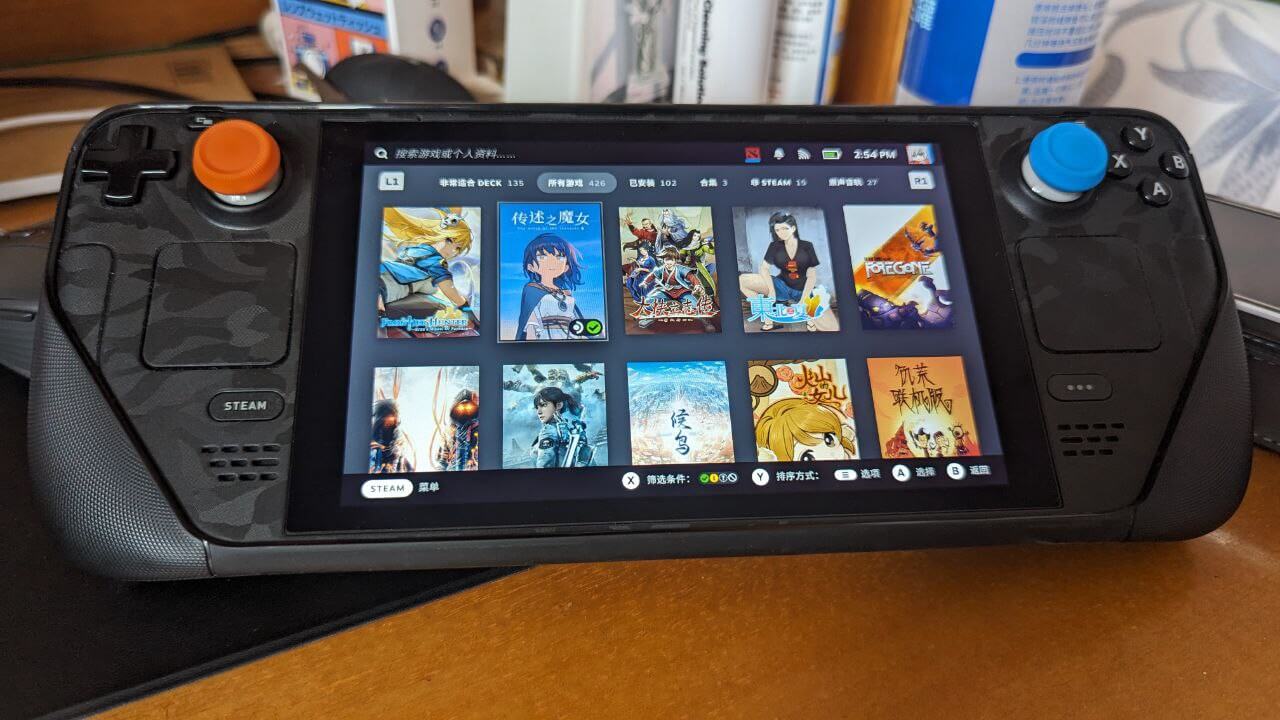
How and where to buy a Steam Deck
Once upon a time you had to preorder and queue on the official site; now it’s in stock, so obviously no need for that hassle. The buying channels are also much clearer:
1. Taobao / Xianyu / Pinduoduo / JD International
These are resellers flipping units. On Xianyu it might be secondhand. Sellers vary wildly in quality, so you need some judgment — best to read lots of reviews and buy from bigger sellers. Prices won’t be especially cheap either. I strongly advise against buying a “pre-modded” unit; get an original one if you can. Modding a Steam Deck yourself isn’t hard, and buying a modded one just gives the seller an excuse to mess with it.
2. Buy from the official website
The official page is the Steam store. You need a US-region VPN + a US account + a forwarding service. Sounds like a hassle, but if you shop overseas regularly it might not be so bad.
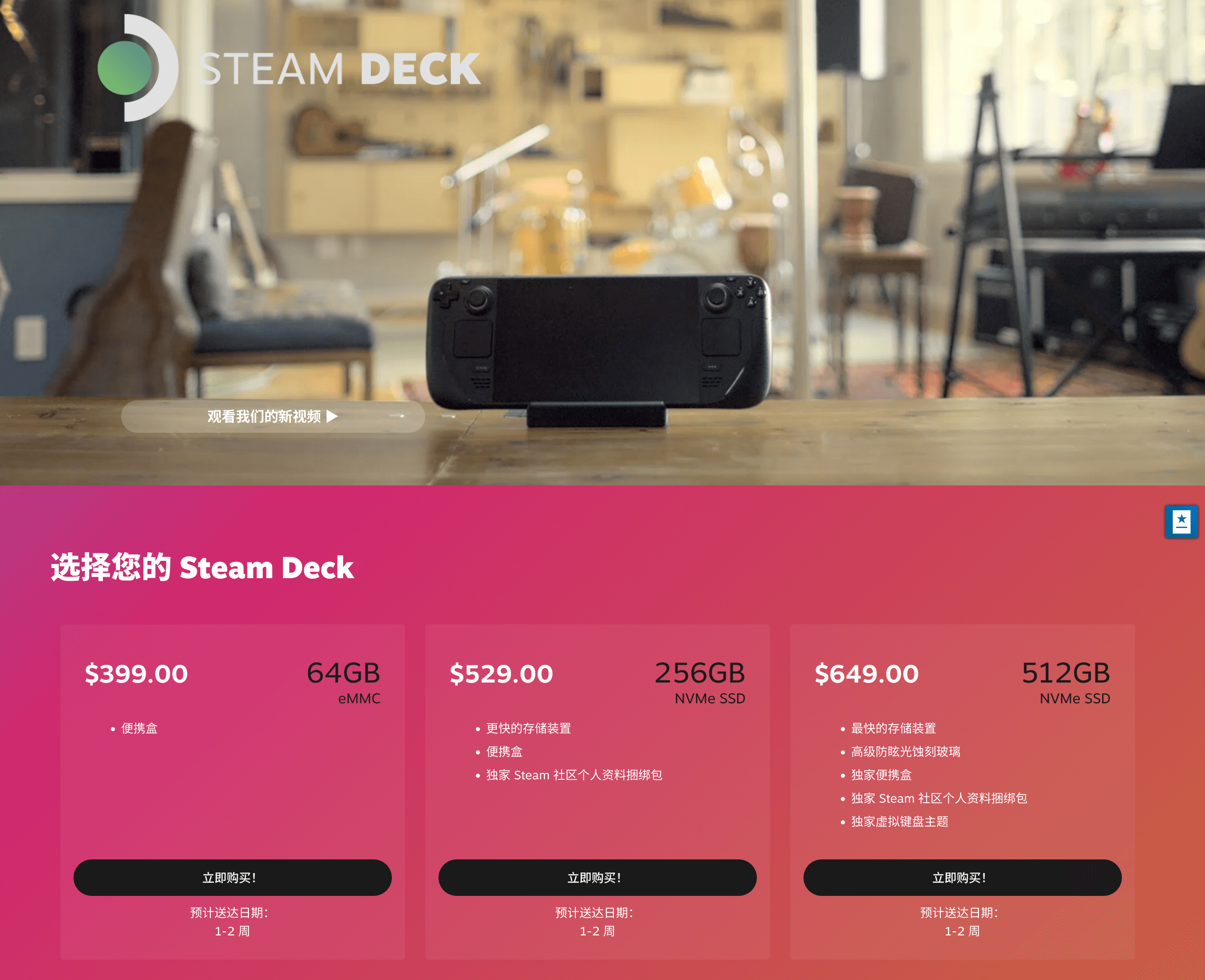
Purchase link: https://store.steampowered.com/steamdeck/
A US VPN shouldn’t be too hard. Registering a US account is more of a pain — you can pay someone on Taobao to register one. For forwarding, pick a bigger one; I used Tranship China. If you don’t have a forwarding account, you can also buy a registration code on Taobao.
After ordering officially you pay in USD — either directly, or try buying gift cards on Taobao and paying with those. I don’t know if the discount is still significant now; when I bought the base model, using gift cards brought it to about 2,100 RMB.
For forwarding via Tranship China, I recommend going straight with FedEx. It’s pricier but fastest and safest. Worth noting FedEx “always gets taxed” — the tax is somewhere between 200 and 500, depending on your luck. But if you can get it for 2,100, plus shipping and tax, it’s still way cheaper than the current Taobao price.
The official store now also sells “refurbished” units, cheaper still — 20% off. If you have a channel, that’s a great deal.
3. Official Asian distributors
Authorized sales agents for “Japan, Taiwan, Hong Kong” — you can register and buy just like the official site, only the forwarding options are more plentiful, at the cost of a steeper price. I strongly suspect the domestic units come from here.
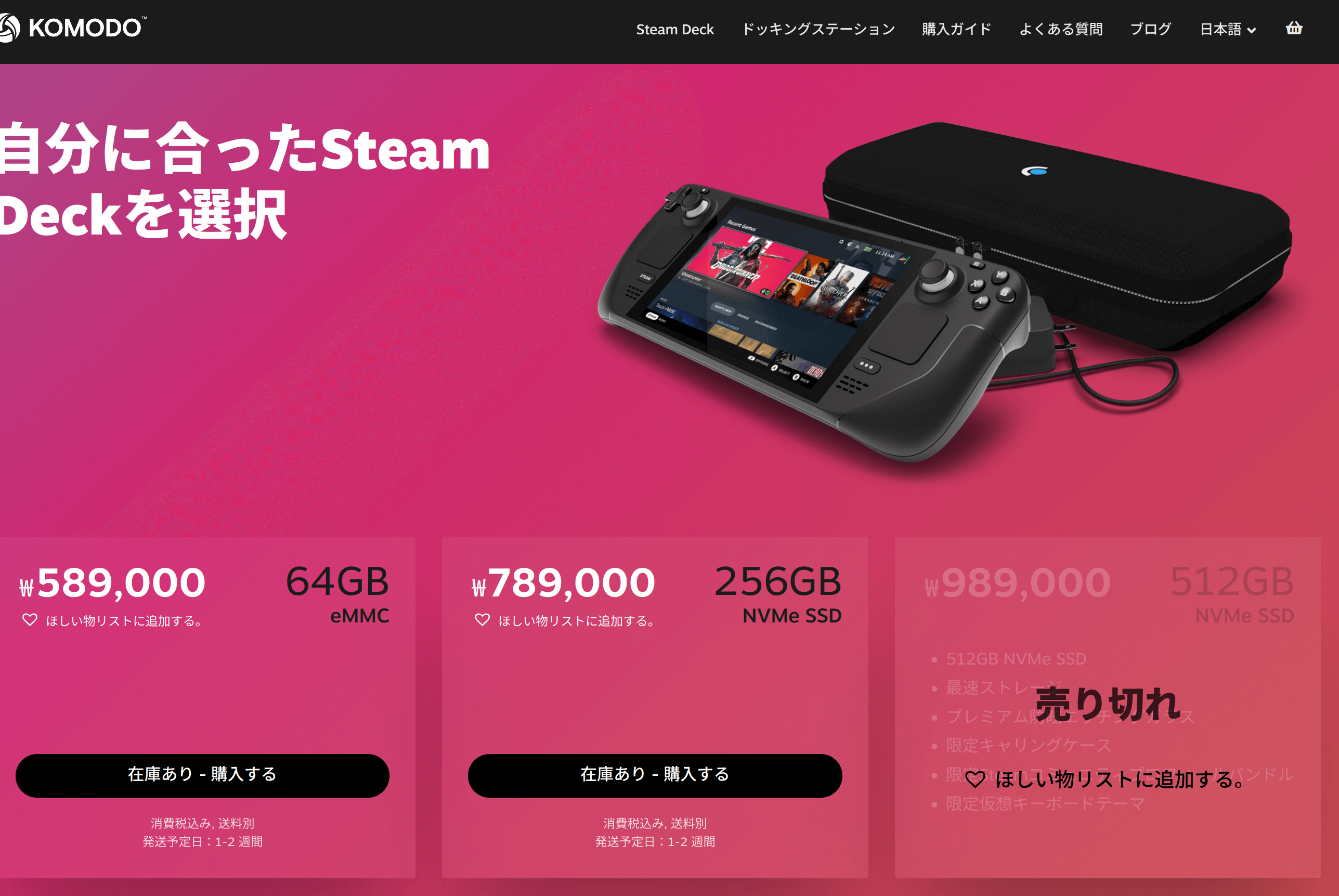
Purchase link: https://steamdeck.komodo.jp/
Overall, unless you have “brand-new-unit OCD” and no idea how to do the US official import route, I don’t recommend trying this channel. It’s not as “authentic” or “cheap” as the US route, and not as convenient or fast as Taobao — no advantage at all, except that you’re guaranteed to receive a brand-new, unmodded unit.
About the “new” and “old” versions of the machine
There are rumors online that the latest batch of Steam Decks — a “new revision” — completely redesigned the cooling module, with some photos as evidence. In fact those photos aren’t a “new version” at all; they’re engineering samples.
Original motherboard:
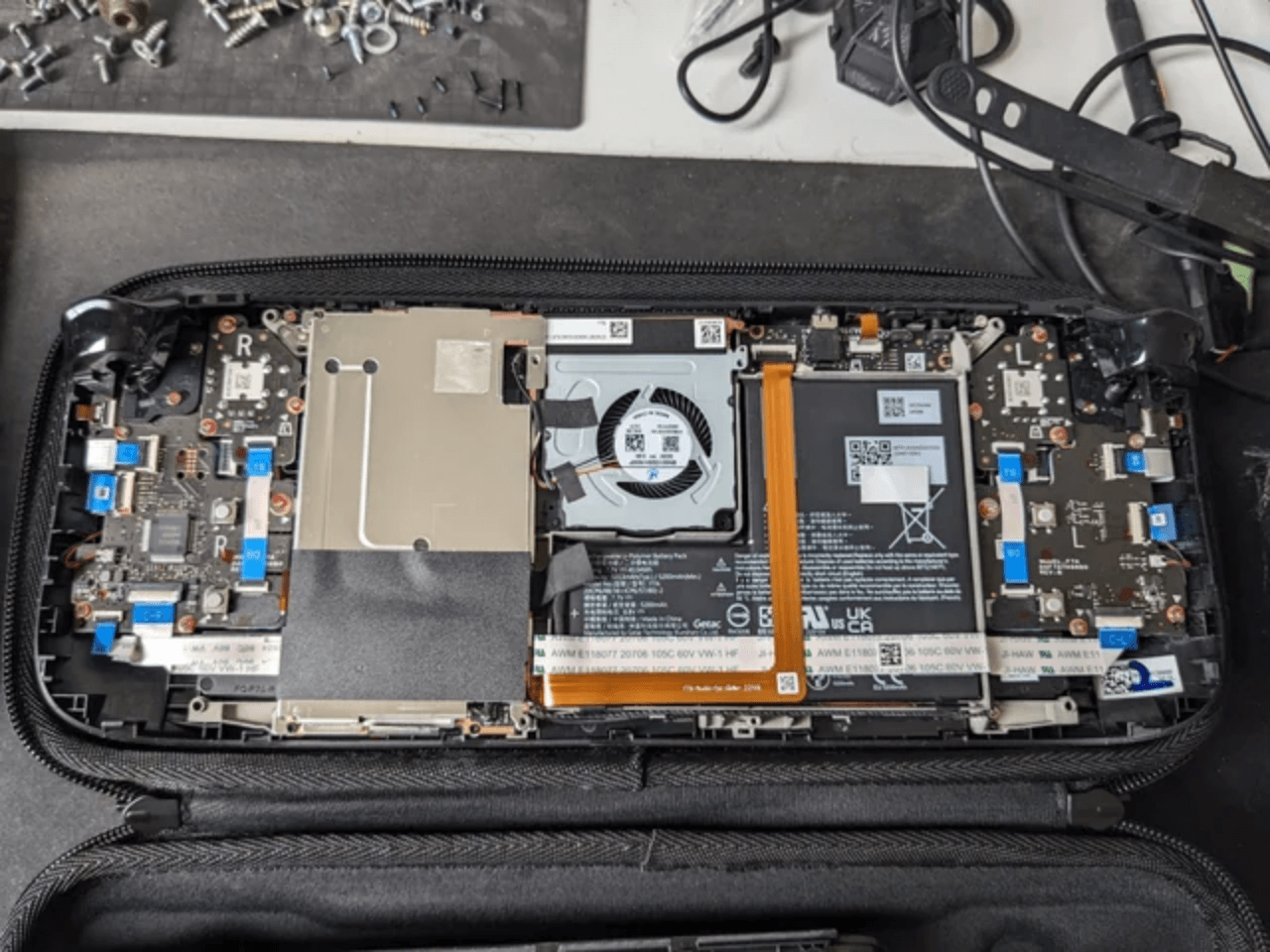
The so-called “new motherboard”:
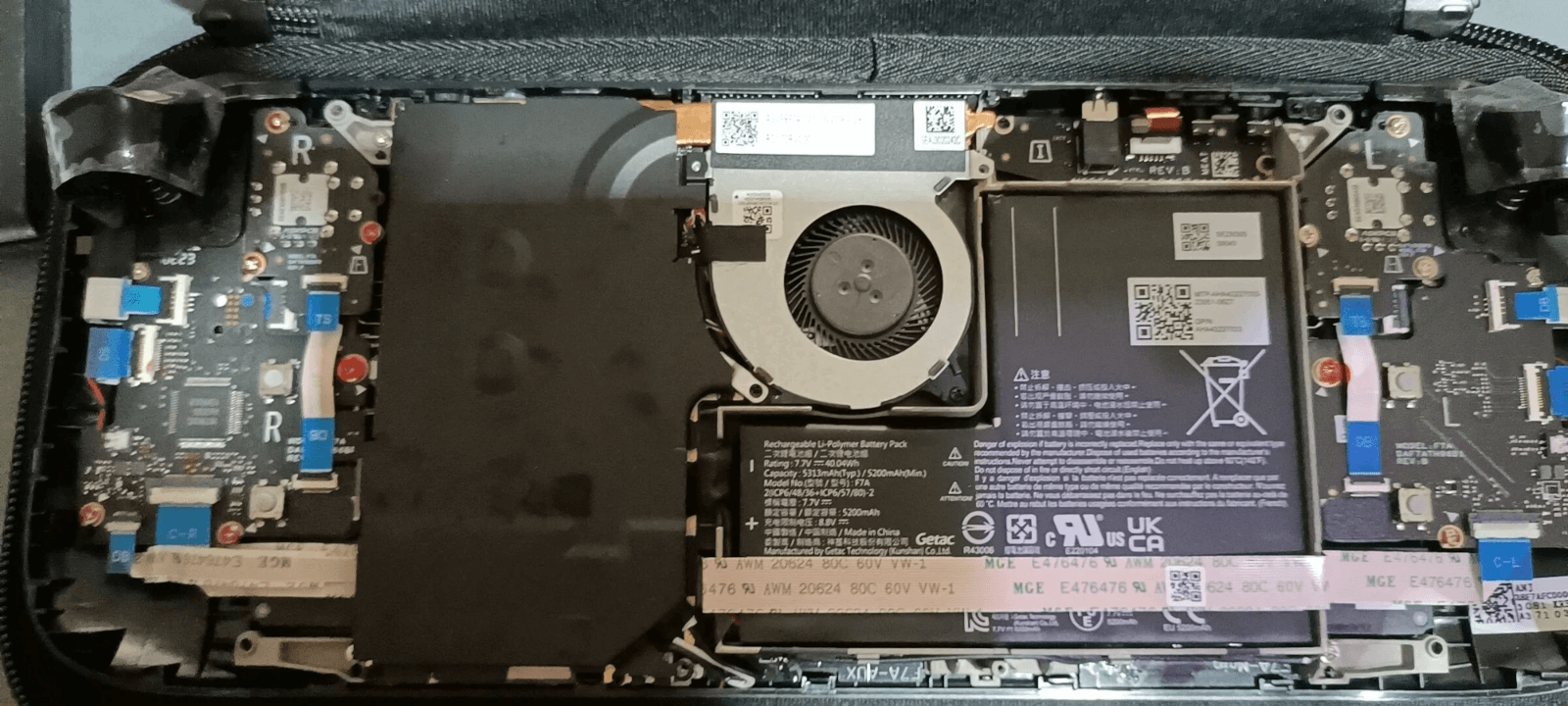
Judging by the new batch of units people abroad have received, none of them use this new design, and machines with this “new design” only show up in mainland China’s secondhand market. So it’s most likely early test engineering samples that leaked out, being passed off by sellers as “new-design machines” to scam people. Strongly do not recommend buying.
Steam Deck accessories: what to buy and what I recommend
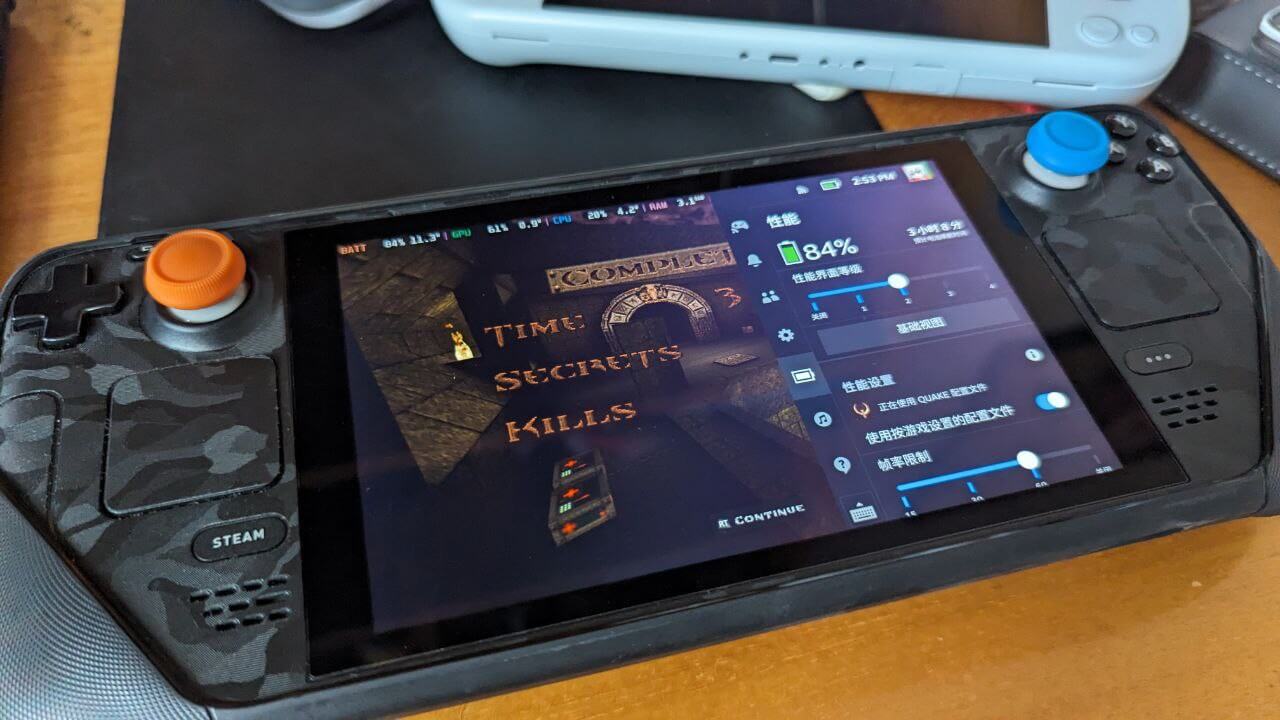
Screen protector: AR film
As a screen-protector person, I of course had to put one on my Deck. There are mainly two choices right now: tempered glass film, and the newer AR film.
I personally went with AR film, because it genuinely reduces light reflection and makes your screen look “blacker.” The AR films on the market also have an oleophobic layer, resisting fingerprints. From my own testing, this film isn’t just a simple “hydrogel film” or “soft film” — it has some tempered-glass characteristics, e.g. it will crack and shatter if you bend it.
The downsides of AR film are obvious. First, it’s too expensive — you can shop around for cheaper ones, but the cheap ones probably won’t have an oleophobic coating. Second, it’s not very scratch-resistant; after all it can’t match glass hardness, and constant rubbing will leave marks. But the Deck is a gaming device — nobody’s rubbing the screen every day, right?
If you don’t like AR film, there are way more tempered glass options. Taobao has plenty of cheap, good ones with coatings — just pick one.
Case: JSAUX detachable modular case
I’ve bought quite a few Deck cases, cheap and expensive. The best I’ve used so far is JSAUX’s modular shell — best in-hand feel, and it comes with a front-panel cover you can snap on and toss straight into a bag, no worries about the machine getting crushed or bumped.
The case also supports mounting modules — kickstand, external battery, external cooling plate, etc. Very practical.
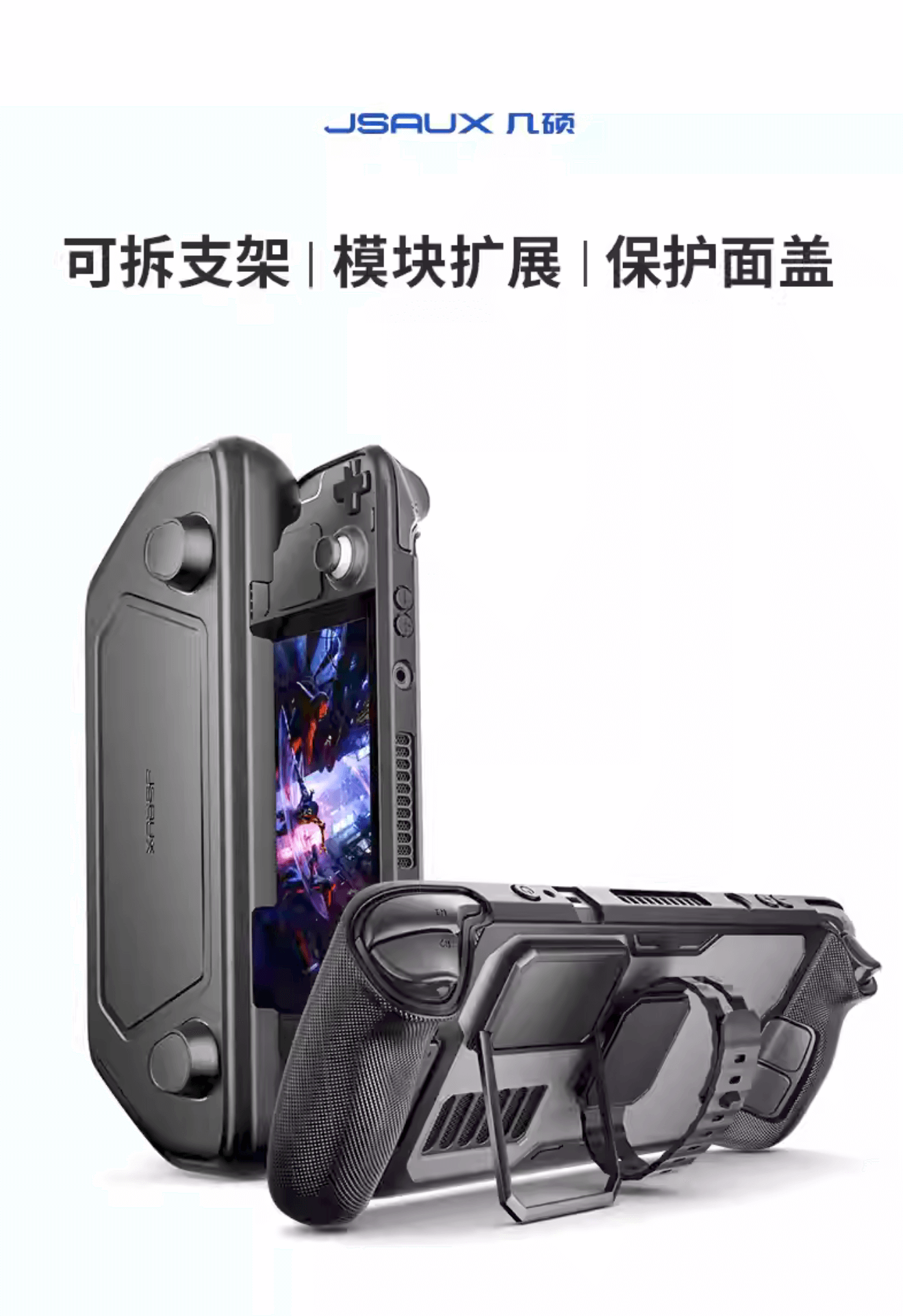
And honestly my reason for recommending it is simple: it’s the best-feeling, most portable case I’ve used, with no issues in any of the cutouts.
I bought Dbrand’s Killswitch, even the 2.0 version, but after getting it I found the whole shell doesn’t really fit snugly — especially the cutouts around the screen on the upper half, which show obvious warping. And the Kill Switch’s port is recessed so deep that when you use the Dock you even need an extension adapter. Unbearable.
All of which makes it even harder for me to accept that the Killswitch costs more than JSAUX’s detachable case. Why buy the more expensive one when there’s a cheaper one?
Of course JSAUX also makes plenty of clear cases and all kinds of modded accessories. They don’t fit as snugly as the original, but the quality is passable and it meets a lot of users’ needs.
Stick protection ring: Teflon tape
This is the accessory I consider most necessary, because the Steam Deck’s sticks are fairly large, and during use there’s a serious problem: the ring around the stick scrapes against the machine.
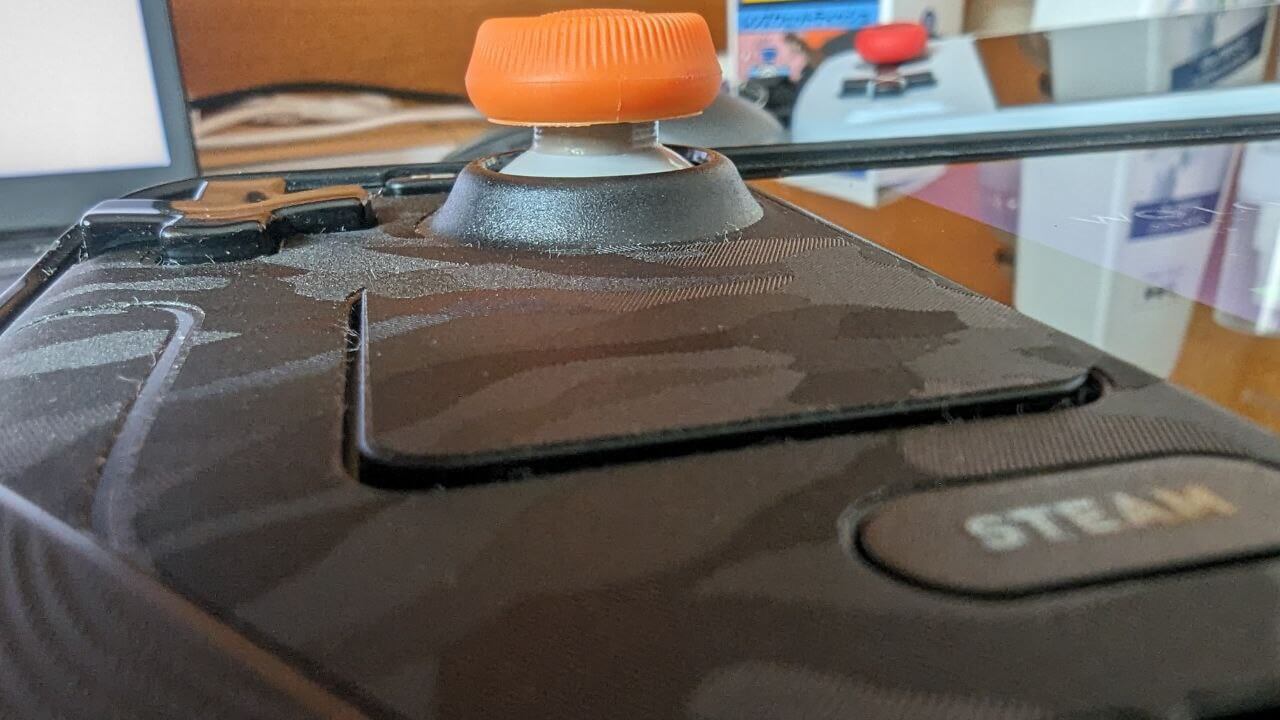
I don’t know which genius came up with such a simple fix, but someone put appropriately sized Teflon tape on Taobao specifically for the worn stick area — you can just stick a ring of tape on the inside of the stick when you get it. The material is very wear-resistant and also very slick, perfect for this use case.
Taobao also sells “protection rings” directly, but I personally think they’re not as good as Teflon tape.
Stick caps: Dbrand Portal series / JSAUX
Although the Steam Deck’s default sticks feel pretty good, they scratch easily. If that bothers you, you can use stick caps. But the Steam Deck’s stick caps can’t just slip on like other consoles’ and controllers’, because the Deck’s default sticks have capacitive touch.
That is, both of the Steam Deck’s sticks have touch functionality, currently used in connection with the gyroscope. When the player’s hands touch the sticks, the system enables the gyro; when the hands leave, the gyro is disabled.
If you just slap on a stick cap, that touch functionality stops working, and when you play FPS games you lose the system’s default gyro on/off support — you either keep it always on or always off, hard to control flexibly.
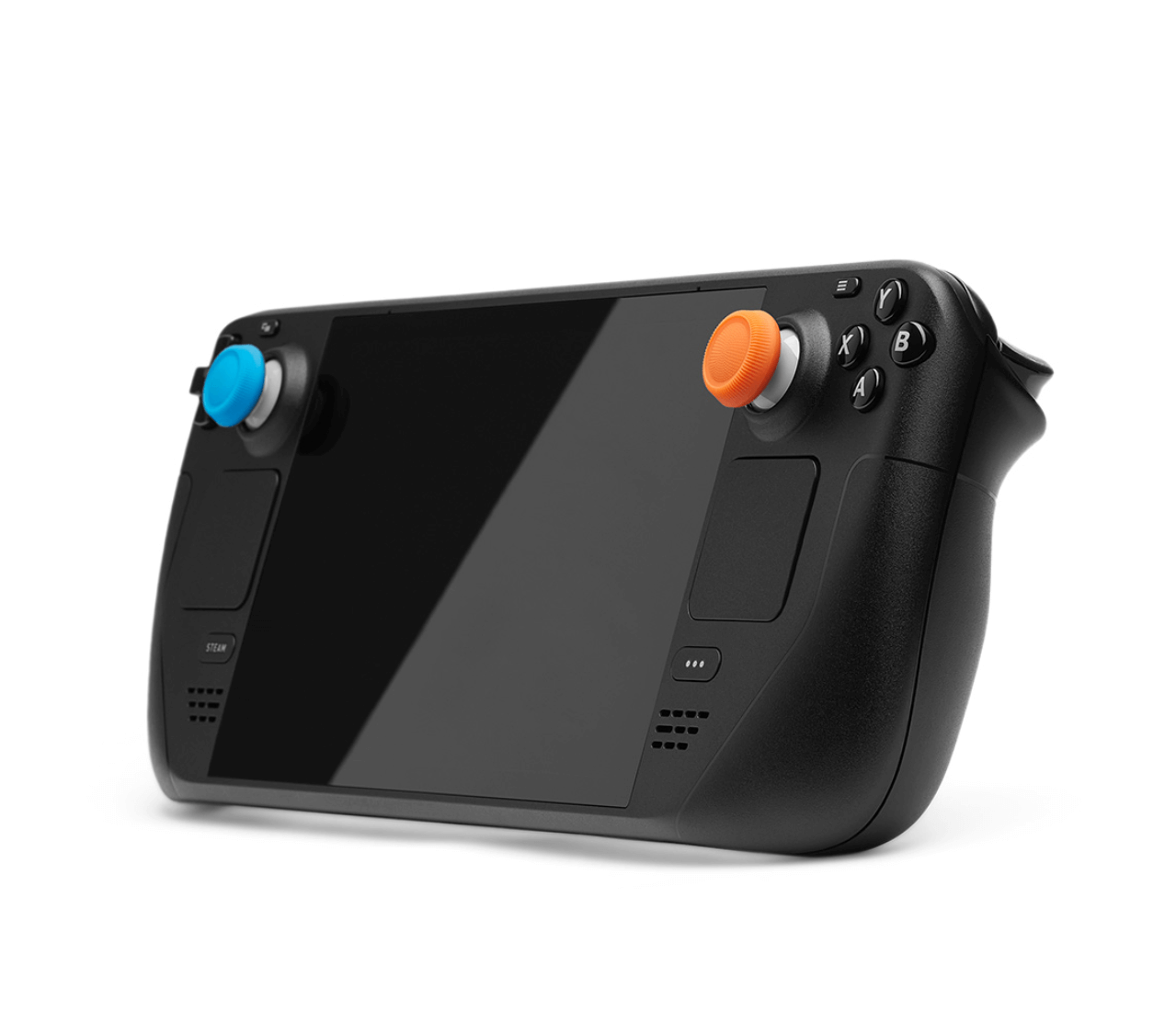
Right now the only ones worth considering are Dbrand’s and JSAUX’s. Dbrand’s has a Portal-colorway set that looks great and feels well made, but it’s very hard to buy. JSAUX’s is easier to buy but uglier.
Skins: Dbrand / Jifu
You can protect the Deck itself with a skin, but the only one still worth buying is the most “overpriced” Dbrand. If you can, order from the official site overseas — they ship anywhere in the world. But if you’re in mainland China, it’s inconvenient to buy, or you think it’s too expensive, you can find the “Jifu” shop on Taobao — essentially a “high-quality knockoff” of Dbrand. The cutout details may not match the original, but it’s at least 90% there. Most importantly it’s cheap, and you can add the shop owner on WeChat to make detailed requests.
Upgrading the SSD and TF expansion
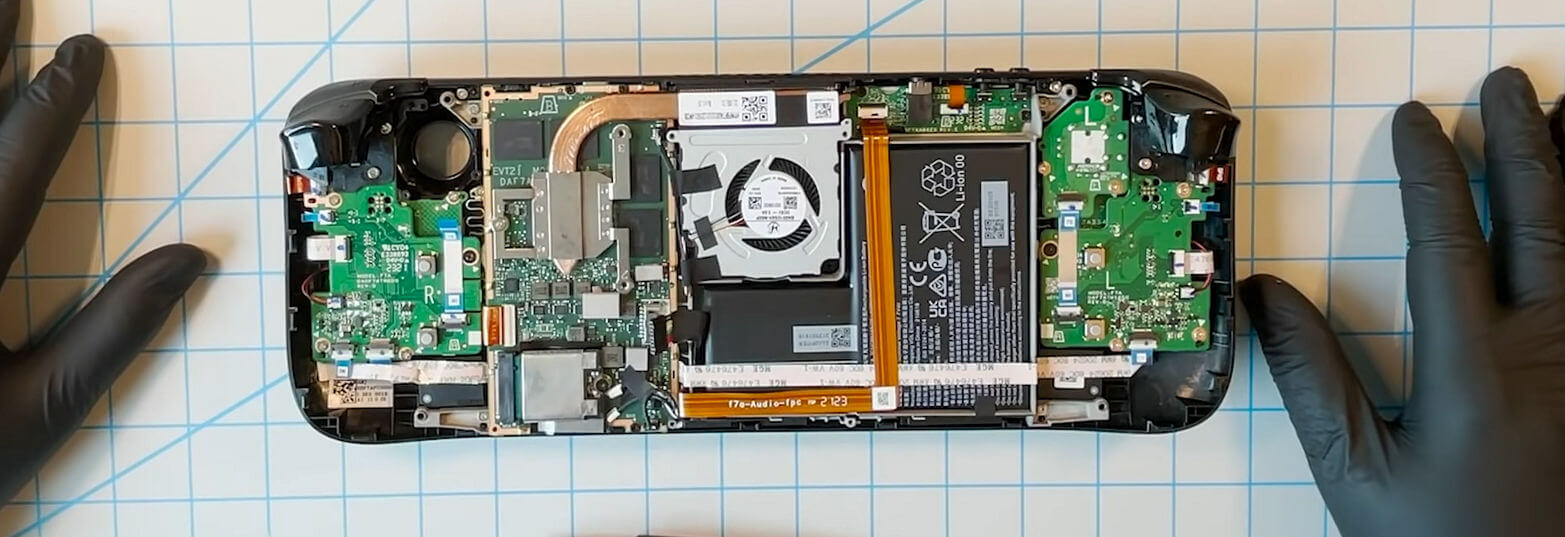
The Steam Deck uses a 2230 SSD — in some sense the same size as Surface’s. Considering the Deck is easy to disassemble, I still recommend buying the base model and upgrading it yourself. As for the upgrade SSD, I don’t think you need to fuss over it — just buy a normal one from a major brand.
There are already plenty of upgrade/swap videos online, and Valve has an official teardown tutorial video too. If you really can’t do it, you can find a Taobao shop to swap it for you. Pinduoduo even sells copper heatsinks for this SSD — I personally think they do nothing, but adding one doesn’t hurt.
Valve’s official video: “Take a look inside Steam Deck™!”: https://www.youtube.com/watch?v=Dxnr2FAADAs
Besides upgrading the SSD, you can also expand with a TF card. Because SteamOS caps the read speed of all storage devices, putting games on an expansion card won’t noticeably slow them down — basically identical to the SSD. You might find that magical, but it’s not magical at all: the principle is that SteamOS limits read speed, making the two match.
After swapping the SSD, remember to download the official recovery image and restore the system following the tutorial. https://store.steampowered.com/steamos/download?ver=steamdeck
SteamOS section: optimizing Chinese fonts
SteamOS supports Chinese fonts, but like most Linux distributions, it has the “Chinese-Japanese” font mixing problem. You can check whether the “画” character the system displays is connected or not — the main cause is the system confusing some Chinese (especially Simplified Chinese) fonts with Japanese kanji, causing display problems.
The fix is to handle it via fontconfig files. As everyone knows, SteamOS is a Linux system, so of course you can do this. For details, refer to this article’s explanation — I think it’s written in great detail:
“Linux 下的字体调教指南”: https://szclsya.me/zh-cn/posts/fonts/linux-config-guide/
I’ll attach the config file I use here; remember to install the noto-cjk font family first.
<?xml version="1.0"?>
<!DOCTYPE fontconfig SYSTEM "urn:fontconfig:fonts.dtd">
<fontconfig>

  <match target="font">
    <edit mode="assign" name="rgba">
      <const>rgb</const>
    </edit>
  </match>
   <match target="font">
<edit name="autohint" mode="assign">
	<bool>false</bool>
	</edit>
 </match>
<match target="font">
<edit name="hinting" mode="assign">
	<bool>true</bool>
	</edit>
	 </match>
  <match target="font">
    <edit mode="assign" name="hintstyle">
      <const>hintnone</const>
    </edit>
  </match>

  <match target="font">
    <edit mode="assign" name="antialias">
      <bool>true</bool>
    </edit>
  </match>

    <!-- 针对 Emoji 字体单独设置,防止无法显示的问题 -->
  <match target="font">
    <test name="family" qual="any">
      <string>Noto Color Emoji</string>
    </test>
        <edit name="rgba" mode="assign">
      <const>rgb</const>
    </edit>
        <edit name="embolden" mode="assign">
      <bool>false</bool>
    </edit>
         <edit mode="assign" name="lcdfilter">
    <const>lcddefault</const>
  </edit>
    <edit name="scalable" mode="assign">
      <bool>true</bool>
    </edit>
    <edit name="embeddedbitmap" mode="assign">
      <bool>true</bool>
    </edit>
    <edit name="hinting" mode="assign">
      <bool>true</bool>
    </edit>
        <edit name="autohint" mode="assign">
      <bool>false</bool>
    </edit>
  <edit name="antialias" mode="assign">
      <bool>true</bool>
    </edit>
        <edit name="hintstyle" mode="assign">
      <const>hintslight</const>
    </edit>
  </match>

  <!-- Default system-ui fonts -->

   <match target="pattern">
    <test name="family">
      <string>system-ui</string>
    </test>
    <edit name="family" mode="prepend" binding="strong">
      <string>sans-serif</string>
    </edit>
  </match>

  <!-- 默认 emoji 字体。 -->
  <match target="pattern">
    <test name="family" qual="any">
      <string>emoji</string>
    </test>
    <edit name="family" mode="prepend" binding="same">
      <string>Noto Color Emoji</string>
    </edit>
  </match>

<!-- 替换 Apple Color Emoji 字体。 -->
    <match target="pattern">
    <test name="family" qual="any">
      <string>Apple Color Emoji</string>
    </test>
    <edit name="family" mode="assign" binding="same">
      <string>Noto Sans</string>
    </edit>
  </match>

<!--
      替换 Apple Color Emoji 字体。  -->
    <match target="pattern">
    <test name="family" qual="any">
      <string>SF Pro Icons</string>
    </test>
    <edit name="family" mode="assign" binding="same">
      <string>Noto Color Emoji</string>
    </edit>
  </match>

 <!-- 替换 Apple 字体。 -->
    <match target="pattern">
    <test name="family" qual="any">
      <string>PingFang SC</string>
    </test>
    <edit name="family" mode="assign" binding="same">
      <string>Noto Sans CJK SC</string>
    </edit>
  </match>

 <!-- 替换 Windows 字体。 -->
    <match target="pattern">
    <test name="family" qual="any">
      <string>Microsoft Yahei</string>
    </test>
    <edit name="family" mode="assign" binding="same">
      <string>Noto Sans CJK SC</string>
    </edit>
  </match>
    <match target="pattern">
    <test name="family" qual="any">
      <string>arial</string>
    </test>
    <edit name="family" mode="assign" binding="same">
      <string>Noto Sans</string>
    </edit>
  </match>

      <!-- 替换 Apple字体。 -->
    <match target="pattern">
    <test name="family" qual="any">
      <string>SF Pro</string>
    </test>
    <edit name="family" mode="assign" binding="same">
      <string>Noto Sans</string>
    </edit>
  </match>

  <!-- Map fonts that are commonly used by web pages to our preferred fonts -->
  <match target="pattern">
    <test qual="any" name="family"><string>Liberation Sans</string></test>
    <edit name="family" mode="assign" binding="same"><string>sans-serif</string></edit>
  </match>

  <match target="pattern">
    <test qual="any" name="family"><string>Tahoma</string></test>
    <edit name="family" mode="assign" binding="same"><string>sans-serif</string></edit>
  </match>

  <match target="pattern">
    <test qual="any" name="family"><string>Arial</string></test>
    <edit name="family" mode="assign" binding="same"><string>sans-serif</string></edit>
  </match>

  <match target="pattern">
    <test qual="any" name="family"><string>Liberation Mono</string></test>
    <edit name="family" mode="assign" binding="same"><string>monospace</string></edit>
  </match>

  <!-- Default font for the zh_CN locale (no fc-match pattern) -->
  <match>
    <test compare="contains" name="lang">
      <string>zh_CN</string>
    </test>
    <edit mode="prepend" name="family">
      <string>Noto Sans CJK SC</string>
    </edit>
  </match>

  <!-- Default sans-serif fonts-->
  <match target="pattern">
    <test name="family">
      <string>sans-serif</string>
    </test>
    <edit name="family" mode="prepend" binding="strong">
      <string>Noto Sans CJK SC</string>
      <string>Noto Sans</string>
      <string>Noto Color Emoji</string>
    </edit>
  </match>

  <!-- Default serif fonts-->
  <match target="pattern">
  <test name="family">
    <string>serif</string>
  </test>
  <edit name="family" mode="prepend" binding="strong">
      <string>Noto Serif CJK SC</string>
      <string>Noto Serif</string>
      <string>Noto Color Emoji</string>
    </edit>
  </match>

  <!-- Default monospace fonts-->
  <match target="pattern">
    <test name="family">
      <string>monospace</string>
    </test>
    <edit name="family" mode="prepend" binding="strong">
      <string>Noto Sans Mono</string>
      <string>Noto Sans Mono CJK SC</string>
      <string>Noto Color Emoji</string>
    </edit>
  </match>

    <match target="pattern">
    <test name="lang" compare="contains">
      <string>en</string>
    </test>
    <test name="family" compare="contains">
      <string>Noto Sans CJK SC</string>
    </test>
    <edit name="family" mode="prepend" binding="strong">
      <string>Noto Sans</string>
    </edit>
  </match>

  <match target="pattern">
    <test name="lang" compare="contains">
      <string>en</string>
    </test>
    <test name="family" compare="contains">
      <string>Noto Serif CJK SC</string>
    </test>
    <edit name="family" mode="prepend" binding="strong">
      <string>Noto Serif</string>
    </edit>
  </match>

  <match target="pattern">
    <test name="lang">
      <string>zh-CN</string>
    </test>
    <test name="family">
      <string>Noto Sans CJK SC</string>
    </test>
  </match>

  <match target="pattern">
    <test name="lang">
      <string>zh-CN</string>
    </test>
    <test name="family">
      <string>Noto Serif CJK SC</string>
    </test>
  </match>

  <match target="pattern">
    <test name="lang">
      <string>zh-CN</string>
    </test>
    <test name="family">
      <string>Noto Sans Mono CJK SC</string>
    </test>
  </match>

  <match target="pattern">
    <test name="lang">
      <string>zh-HK</string>
    </test>
    <test name="family">
      <string>Noto Sans CJK SC</string>
    </test>
    <edit name="family" binding="strong">
      <string>Noto Sans CJK HK</string>
    </edit>
  </match>

  <match target="pattern">
    <test name="lang">
      <string>zh-HK</string>
    </test>
    <test name="family">
      <string>Noto Serif CJK SC</string>
    </test>
    <edit name="family" binding="strong">
      <!-- not have HK -->
      <string>Noto Serif CJK TC</string>
    </edit>
  </match>

  <match target="pattern">
    <test name="lang">
      <string>zh-HK</string>
    </test>
    <test name="family">
      <string>Noto Sans Mono CJK SC</string>
    </test>
    <edit name="family" binding="strong">
      <string>Noto Sans Mono CJK HK</string>
    </edit>
  </match>

  <match target="pattern">
    <test name="lang">
      <string>zh-TW</string>
    </test>
    <test name="family">
      <string>Noto Sans CJK SC</string>
    </test>
    <edit name="family" binding="strong">
      <string>Noto Sans CJK TC</string>
    </edit>
  </match>

  <match target="pattern">
    <test name="lang">
      <string>zh-TW</string>
    </test>
    <test name="family">
      <string>Noto Serif CJK SC</string>
    </test>
    <edit name="family" binding="strong">
      <string>Noto Serif CJK TC</string>
    </edit>
  </match>

  <match target="pattern">
    <test name="lang">
      <string>zh-TW</string>
    </test>
    <test name="family">
      <string>Noto Sans Mono CJK SC</string>
    </test>
    <edit name="family" binding="strong">
      <string>Noto Sans Mono CJK TC</string>
    </edit>
  </match>

  <match target="pattern">
    <test name="lang">
      <string>ja</string>
    </test>
    <test name="family">
      <string>Noto Sans CJK SC</string>
    </test>
    <edit name="family" binding="strong">
      <string>Noto Sans CJK JP</string>
    </edit>
  </match>

  <match target="pattern">
    <test name="lang">
      <string>ja</string>
    </test>
    <test name="family">
      <string>Noto Serif CJK SC</string>
    </test>
    <edit name="family" binding="strong">
      <string>Noto Serif CJK JP</string>
    </edit>
  </match>

  <match target="pattern">
    <test name="lang">
      <string>ja</string>
    </test>
    <test name="family">
      <string>Noto Sans Mono CJK SC</string>
    </test>
    <edit name="family" binding="strong">
      <string>Noto Sans Mono CJK JP</string>
    </edit>
  </match>

  <match target="pattern">
    <test name="lang">
      <string>ko</string>
    </test>
    <test name="family">
      <string>Noto Sans CJK SC</string>
    </test>
    <edit name="family" binding="strong">
      <string>Noto Sans CJK KR</string>
    </edit>
  </match>

  <match target="pattern">
    <test name="lang">
      <string>ko</string>
    </test>
    <test name="family">
      <string>Noto Serif CJK SC</string>
    </test>
    <edit name="family" binding="strong">
      <string>Noto Serif CJK KR</string>
    </edit>
  </match>

  <match target="pattern">
    <test name="lang">
      <string>ko</string>
    </test>
    <test name="family">
      <string>Noto Sans Mono CJK SC</string>
    </test>
    <edit name="family" binding="strong">
      <string>Noto Sans Mono CJK KR</string>
    </edit>
      </match>

<!-- Fallback fonts preference order -->
  <alias>
    <family>sans-serif</family>
    <prefer>
      <family>Noto Sans</family>
      <family>Noto Sans CJK SC</family>
      <family>Noto Sans CJK TC</family>
      <family>Noto Sans CJK JP</family>
      <family>Noto Sans CJK KR</family>
      <family>Noto Color Emoji</family>
      <family>Noto Emoji</family>
    </prefer>
  </alias>
  <alias>
    <family>serif</family>
    <prefer>
      <family>Noto Serif</family>
      <family>Noto Serif CJK SC</family>
      <family>Noto Serif CJK TC</family>
      <family>Noto Serif CJK JP</family>
      <family>Noto Serif CJK KR</family>
      <family>Noto Color Emoji</family>
      <family>Noto Emoji</family>
    </prefer>
  </alias>
  <alias>
    <family>monospace</family>
    <prefer>
      <family>Noto Sans Mono CJK SC</family>
      <family>Noto Sans Mono CJK TC</family>
      <family>Noto Sans Mono CJK JP</family>
      <family>Noto Sans Mono CJK KR</family>
      <family>Noto Color Emoji</family>
      <family>Noto Emoji</family>
    </prefer>
  </alias>

     <selectfont>
    <rejectfont>
      <pattern>
        <patelt name="family" >
          <!-- This font is causing problem with GitHub -->
          <string>Nimbus Sans</string>
        </patelt>
      </pattern>
    </rejectfont>
  </selectfont>

</fontconfig>
Save this file as local.conf and drop it in the corresponding system directory — normally that’s ~/.config/fontconfig/
You may need to reboot your machine. Or maybe not.
The SteamOS Part: Installing the emudeck Emulator Bundle
I don’t think it’s necessary, but plenty of people probably still want to run emulators on the Steam Deck. The hardware is strong; it may not be pleasant for AAA titles, but old games are no problem.
There’s a project called emudeck that sets up emulators for the Steam Deck in one go.
emudeck official site: https://www.emudeck.com/
Installing is simple: download a shortcut from the site, then run it.
All the emulators install via flatpak, so you also get the latest updates. As for how well it works — I haven’t used it, so I don’t know. But judging from other people’s test videos on YouTube, it’s decent.
One thing worth saying: I really don’t recommend changing any of emudeck’s default settings. It touches too many emulators, and a lot of the scripts and config files are wild — default paths or hardcoded values everywhere. Change them and you’ll likely run into all sorts of bizarre problems.
And don’t forget that early versions of emudeck hardcoded your home directory as /home/deck/. If you’re on holoiso, tough luck.
SteamOS: Enabling the beta channel and rolling back to stable
SteamOS is a custom Linux distro based on Archlinux. Yes, even as an Arch hater I can now proudly say “btw i use arch.” That said, the system seems to use a structure like Fedora Silverblue, where the upper-layer software and the underlying system are isolated. On one hand this keeps the base system stable; on the other, the front-end software can be upgraded and downgraded freely.
So you can easily upgrade SteamOS to the beta channel and then roll back, and you won’t lose the games you’ve already installed (though the pre-rendered files will most likely be gone).
The latest version right now is the much-anticipated SteamOS 3.5 major update, still in pre-release. The new version bumps the kernel to Linux 6.1. Even though that version has a ton of optimizations for APUs, SteamOS 3.5 still doesn’t look stable enough. Sticking with the default Stable channel is safest — this is just a game console, after all, and playing games smoothly is what matters.
Of course, since the system can be upgraded and downgraded freely, if you’re really bored you can give it a try.
SteamOS: Game playability references and power settings
One big advantage of SteamOS is the system’s dynamic power adjustment for games, plus the high efficiency of the Deck’s custom SoC. That lets a lot of games run decently at around 10W, giving roughly 2 hours of battery life — often close to the original Switch.
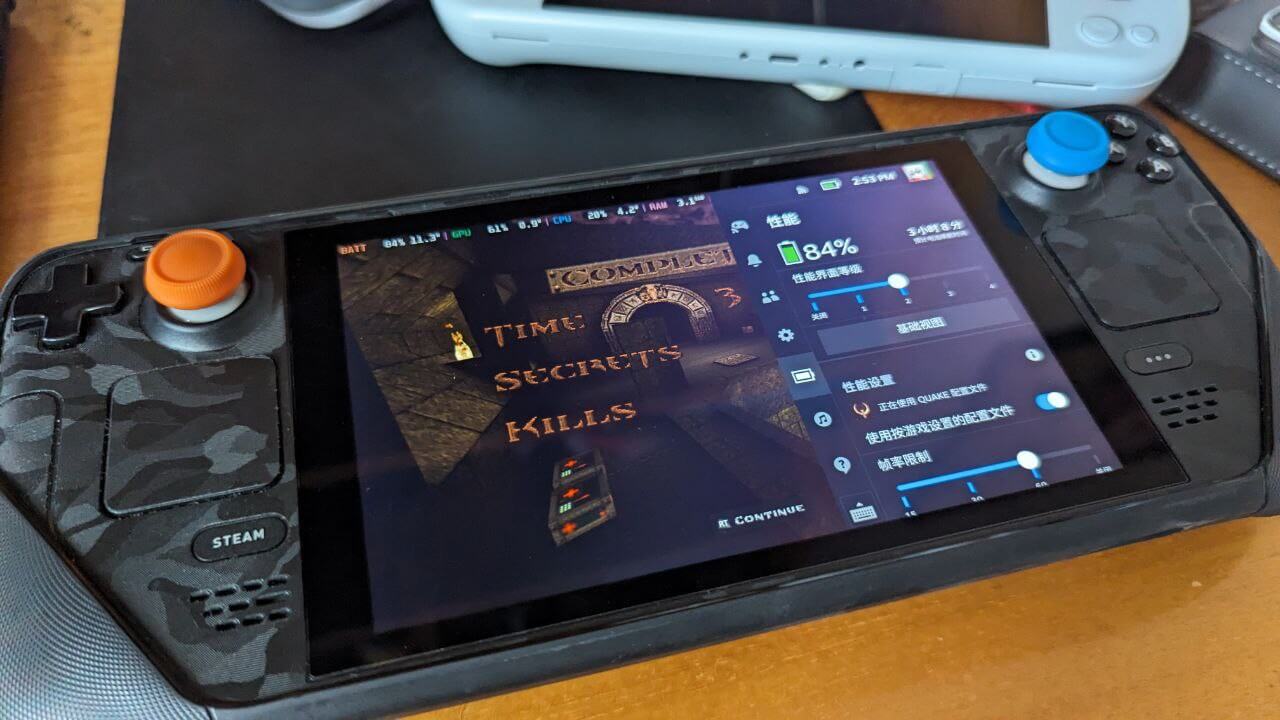
For power tweaking I personally recommend two sites. One is the well-known https://SteamDeckhq.com/,专属于新游戏可以关注这个,总会有文章告诉你这个游戏在 for how a game runs on the Deck, or how to adjust power and visuals for the best efficiency. The other is https://www.protondb.com/,算是一个数据库,可以在上面搜索你的游戏,也可以登陆你的, where you log into your Steam account and directly see the games you already own, check compatibility under the Deck and SteamOS, find fixes for games that won’t launch, and read optimization guides. Also be sure to look at how the comments are labeled — some are Steam Deck users, some are Linux desktop users, and they’re useful in different ways.
SteamOS: A few simple optimizations
Even though SteamOS looks pretty polished now, the internet is still full of “optimization tutorials” for it. So far I think only three are actually useful:
- CryoUtilities from developer cryobyte33 https://github.com/CryoByte33/steam-deck-utilities
- ProtonGE, an enhanced version of the official Proton compatibility layer https://github.com/GloriousEggroll/proton-ge-custom
- Entering the BIOS and raising the VRAM allocation to 4GB
Let’s start with CryoUtilities. Its biggest optimization is changing SteamOS’s default swap policy (Swappiness), because right now SteamOS pushes swap priority to the max. I honestly find that hard to understand — why does a 16GB gaming device need swap priority cranked that high? If memory were tiny, sure. It has been shown to give around a 5 fps boost in some games. Some people find it useful, others say “the defaults must be the defaults for a reason,” so it’s up to you.
Comparison test video: https://www.youtube.com/watch?v=We5eSEFpibI
Related coverage: https://www.gamingonlinux.com/2023/02/cryoutilities-2-boosts-steam-deck-performance/
ProtonGE is a third-party build of SteamOS’s default Proton compatibility layer, adding a lot of aggressive new features on top of the original. Installing it is simple: install ProtonUP via Flatpak, then use that tool to install the new ProtonGE build with a few clicks.
Honestly I didn’t see any performance gain from ProtonGE. What it did do was fix launch problems for a lot of games — for example, I used it to run “Sword and Fairy 7” and the crashes stopped. If you often play games officially marked “unsupported” on SteamOS, you can install this runtime to make it easier to debug different versions. It may help performance in some games, but it may also bring more instability. Generally I don’t think it’s necessary — just use the official Proton, which already has an aggressive “Experimental” branch.
How to install Proton-GE: https://overkill.wtf/proton-ge-how-to-steam-deck/
Last is the BIOS tweak to change VRAM size. I think it might help, but under Linux — i.e. default SteamOS — it probably does nothing, because SteamOS adjusts this dynamically and won’t let your game feel “out of VRAM.”
If you install Windows on the Steam Deck, though, this option is very useful, because Windows doesn’t adjust VRAM dynamically. Pushing it straight to 4G really can improve the experience in many games.
Some people also claim they get higher frame rates in SteamOS after setting it to 4G, but nobody has produced convincing test data yet. I lean toward “don’t touch it.”
So my attitude toward “optimization” is: just play with the defaults and stop messing around.
SteamOS: Frame limiting and input latency
This issue rarely gets mentioned, but I’ve definitely felt it — especially in games like Wo Long: Fallen Dynasty that require precise “deflect” timing. I kept failing for no apparent reason.
A bit of searching turned up the cause: SteamOS’s built-in frame limiter greatly increases input latency.
Media reported on this a year ago: https://wccftech.com/steam-deck-framerate-limiter-adds-substantial-input-latency-new-report-suggests/
Some outlets also said the later “allow tearing” option in SteamOS can reduce latency: https://www.gamingonlinux.com/2022/10/vrr-external-screens-and-allow-tearing-options-coming-to-steam-deck/
But in my own experience it didn’t.
After testing by feel, the best approach is to completely turn off SteamOS’s frame limiter and use the game’s own. At least after I did that, my deflect success rate in Wo Long went way up.
If you’re hitting the same problem, try this approach.
Someone on Reddit also posted a method to “lock 40 fps” while reducing latency — no idea if it actually works: https://www.reddit.com/r/SteamDeck/comments/vwckdi/input_latency_on_the_steam_deck_what_its_like_now/?sort=new
Windows — is it worth it? SteamOS is actually the biggest advantage
A lot of people in China considering a Steam Deck worry about one thing: SteamOS isn’t Windows, so won’t compatibility be bad?
In my experience, SteamOS crushes every other Windows handheld. Never mind the rest — one feature alone is enough:
You can press the power button mid-game to suspend, wait half a day, press it again, and the game picks up right where it left off — no crashes, no freezes, no dead machine. That matches the intuition of most handhelds. Some games under Windows can do this too, but big AAA titles can’t, and standby even drains more power. And remember, SteamOS draws almost nothing in standby.
Many people worry about SteamOS’s “compatibility layer,” but that layer is actually an advantage thanks to targeted optimization. SteamOS distributes pre-rendered content directly to you, easing GPU load, and the compatibility layer can conveniently adjust graphics API calls for a second round of optimization — similar to what Chinese phone makers call “targeted optimization.” And thanks to the layer’s versatility, you can play DX9-era old games on SteamOS that Win 11 can no longer run because they’re too old.
SteamOS also has extremely powerful power adjustment, done by calling the SoC’s own parameters directly rather than by post-hoc limiting tools like Ryzenadj — a fundamental difference in efficiency. Stack up the optimizations and you get the Steam Deck’s high performance at low power, and that efficiency translates into better battery life and experience.
Of course, Valve lets you install Windows on the Deck, and even provides driver links. All you do is boot a Windows installer from USB like on any normal PC, install, then install the drivers.
Valve’s official Steam Deck Windows install guide: https://store.steampowered.com/news/app/1675200/view/3131696199122435099
Using Windows on the Steam Deck does cost you several core features:
- Instant suspend/resume and extremely long standby
- Dynamic TDP power adjustment
- The compatibility layer’s old-game experience
- The excellent efficiency at low power from pre-pixel rendering
What you get is the Windows ecosystem. Whether it’s worth it is your call. You can also dual-boot, or even install Windows on a TF card — though I don’t recommend running an OS off a TF card, because it’s too slow.
Related Q&A:
The Steam Deck’s performance is already behind — why not buy a Windows handheld with a newer CPU?
True, in many benchmarks the Steam Deck’s performance is capped by its 15W TDP, and many 6800U or even 7840U handhelds can post better numbers at 28W or 30W.
But I don’t think the Steam Deck’s performance is behind. Its GPU is on the same level as the 6800U — if anything’s behind, it’s the CPU, and for the newest games the GPU clearly matters more. And right now the Steam Deck’s low-power advantage is still obvious: at 10W it still beats the 6800U and even the newest 7840U.
Besides, if you need 30W TDP to run games, total system power climbs to a scary near-50W. Many handhelds only have a battery around 40kWh — do you really want a “handheld” with under an hour of battery life?
And even after cranking power, the 6800U and 7840U only gain about 5 FPS at minimum settings. I’ll just say the classic line:
If a game doesn’t run well on the Steam Deck, it probably won’t run well on the 6800U or 7840U either.
Does the ROG Ally crush the Steam Deck?
Same as the previous question. The ROG Ally costs more than the Steam Deck. Its performance is a bit better, but the battery hasn’t improved and Windows itself hasn’t improved either. In use I’d say it’s worse than the Steam Deck — unless you like playing plugged in for long stretches, in which case it’s fine.
That said, the ROG Ally’s screen and overall build quality are far better than the so-called “Chinese handhelds.” If you really need a Windows handheld, it’s your first choice.
The Steam Deck can’t run pirated games…
Personally I don’t recommend piracy unless you genuinely can’t afford it (like those absurdly expensive Galgame). That said, the Steam Deck can run pirated games: just import the downloaded exe into the SteamOS game library and call the Proton layer to run it. Most work fine, especially if the game is Steam Deck Verified on Steam.
The principle is basically the same as running an exe with Wine on Linux — and in 2023, Wine is very strong.
The Steam Deck can’t run Genshin…
Wrong. You really can play Genshin on the Steam Deck. Besides installing Windows, there’s another way: install a tool called “An Anime Game launcher” under SteamOS. It automatically downloads all the virtualization runtimes and the Genshin installer, supports both the global and Chinese servers, and most importantly auto-patches the anti-cheat so players can run it directly through Wine.
https://github.com/an-anime-team/an-anime-game-launcher
Of course, this launcher doesn’t only work on SteamOS — theoretically any Linux system can play Genshin.

I haven’t played Genshin on the Deck, though — downloading and installing takes too long. I’ll just grab my newly bought Y700 2023 tablet and yell “Genshin, launch.”
I want to play eroge — is the Steam Deck suitable?
Depends. If you just want to play Galgame on Steam, it’s fine — most run well, though you’ll probably need to use the touchpad as a mouse.
If you want to run monthly new releases, I’d say give up. In most cases the Proton layer can run a new eroge, but nobody guarantees you can finish it — you never know when it’ll crash: during the OP, at the first choice, or during some inexplicable scene. After a crash you won’t find a solution, because it’s a new release and nobody will help you. You can only rely on your own experience, trying things on WineHQ — a real waste of time.
You could install Windows to play eroge, but I still think the trade-off isn’t worth it for the reasons above.
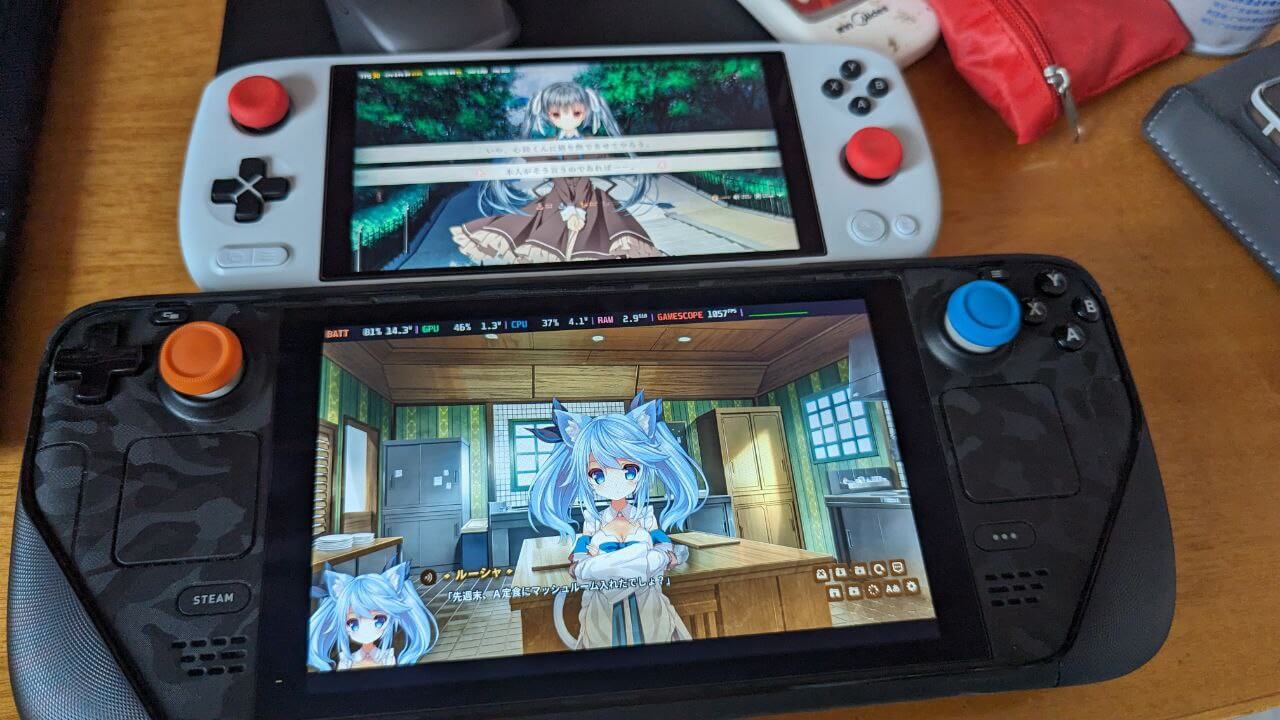
Oh right, one more important point: the screen resolution is too low and many fonts are hard to read. If that matters to you, 1080p should be the minimum.
Is the Steam Deck’s screen garbage?
If we’re only talking color gamut, yes — the Steam Deck’s screen is garbage, covering just over 60% sRGB. But in terms of how it looks, this panel is actually decent. First, it’s a warm screen, very comfortable to look at. Second, there’s no severe color cast, so switching between devices doesn’t cause serious discomfort.
I need to emphasize one thing: color accuracy > color gamut.
What we need most of the time is accurate color, not just a high gamut. Many Chinese handhelds brag about 100% sRGB coverage but don’t calibrate at all, with severe color cast, and look much worse than the low-gamut Steam Deck.
Besides… the Steam Deck doesn’t support HDR yet, so you probably can’t play HDR games on it anyway. A bright 60% sRGB screen that looks decent is already fine.
And SteamOS 3.5 will bring an official vibrancy adjustment to further improve the picture.
Are the Steam Deck’s touchpads useless?
A lot of people hate the Steam Deck’s touchpads and think they’re useless — that’s dead wrong.
In my view they’re one of the Steam Deck’s core strengths, because many old games have little to no controller support, especially old FPS titles.
For example, there was a single-player campaign game related to Counter-Strike called “Counter-Strike: Condition Zero” — I think that’s the name — built on the classic CS 1.6 engine. It has almost no controller support, only keyboard and mouse. On the Steam Deck, with the touchpad you can pull off keyboard-and-mouse-like controls and enjoy these old games, and the touchpad is accurate for aiming — sometimes better than the stick.
Not to mention strategy and dialogue-raising games like Volcano Princess, where many actions need mouse assistance, and the touchpad fills that gap nicely.
Oh right — many Galgame marked “Fully Compatible with Steam Deck” just assume you’ll use the touchpad, or give you a stick-as-mouse mode, while the game’s own menus still don’t support any stick. Lazy as hell (looking at you, Karakara and Frontwing). Reminds me of GIGA’s Switch ports of their new releases, which don’t even support the touchscreen. Cutting corners like that, no wonder they went under.
Anyway, with these two touchpads your game range expands a lot — old games and games unsuited to sticks all become playable, and control is even good. That’s an advantage nobody else can match.
What are the Steam Deck’s clear shortcomings right now?
There are shortcomings. I’d say the main ones are:
- No rumble. The Steam Deck’s vibration motors are tied to the two touchpads, so you rarely get the kind of rumble an Xbox controller gives, and most games don’t support it — and even when they do, it’s very faint.
- Non-OLED screen. I don’t think the current screen is that bad, but compared to Nintendo, which is nailed to the pillar of shame labeled “e-waste,” the Steam Deck’s screen is worse than the original Switch’s — that’s a bit much. An OLED upgrade model would be better.
- Small battery. The Steam Deck is big but the battery is only 40kWh. I feel they could clearly fit a larger one; no idea why they didn’t. Even 50kWh would make this handheld much better.
- Too bulky. The Steam Deck feels great in the hands, but it’s still too big to count as portable, which leaves breathing room for Chinese handhelds focused on 6-inch and 5.5-inch sizes.
- Needs a VPN. According to other users, downloading games alone doesn’t need one and connects directly, and Steam has plenty of CDNs in China. But if you want to enjoy the community, you’ll want a VPN, maybe even one on the router.
I’m waiting for the second generation, because it’ll be better.
A lot of people think that, but unfortunately Valve has publicly said the second-gen Steam Deck won’t come soon — what comes next will likely be a “refreshed model,” with improvements to the screen and battery life. So we can guess the new version will basically be an upgraded model with an OLED panel and a bigger battery, with no performance gain. They really learned from the Switch.
I can understand why they don’t casually upgrade the SoC: new APUs are powerful but mostly need high TDP to unleash it, and Valve clearly designed its SoC around efficiency — and a handheld should prioritize efficiency anyway. The next genuinely efficient chip probably won’t arrive for 3–5 years.
But if it’s just a screen and battery upgrade with more for the same price, I think the refreshed model would still be worth buying.
I heard a third party released a new screen for the Deck…
There’s a project called DeckHD that lets you upgrade your Steam Deck screen for $99. People have already reviewed the final product, and my conclusion is “better not to upgrade.”
Purchase site: https://www.deckhd.com/
Test video: https://www.youtube.com/watch?v=JgbegDcFlDo
First off, I somehow brain-farted and bumped the resolution up to 1920x1200. On one hand, you have to flash a third-party modified BIOS just to support that resolution. On the other, it directly spikes the game load. Games that ran perfectly fine at 800p suddenly can’t keep up at this resolution, and I have to drop it back down. Completely pointless.
Also, the new screen’s color gamut isn’t great either—still can’t hit 100% sRGB, color accuracy is a mess, viewing angles are garbage. I honestly think this is just a screen ripped out of some Chinese tablet, maybe that crappy one from the GPD Pocket 3. Upgrading to this screen is probably not an upgrade at all—more like a downgrade.
Why do you recommend the Steam Deck so strongly? Is it really that good?
Thinking about it, I recommend the Steam Deck not because it’s perfect, but because it does everything a “handheld” should do:
- The only X86 handheld with its own OS and UI.
- The only X86 handheld with dedicated optimization and high power efficiency.
- The only handheld that lets you “turn it on and play.”
- The only handheld you can tinker with—or not.
- The only handheld with the best bang for your buck.
So sometimes it’s not that the Steam Deck is so great, but that other manufacturers are just that bad. Plus, Valve is actively engaging with the community and improving the gaming ecosystem, while Windows handhelds sometimes suffer from lazy manufacturers, and sometimes from being dragged down by Windows itself.
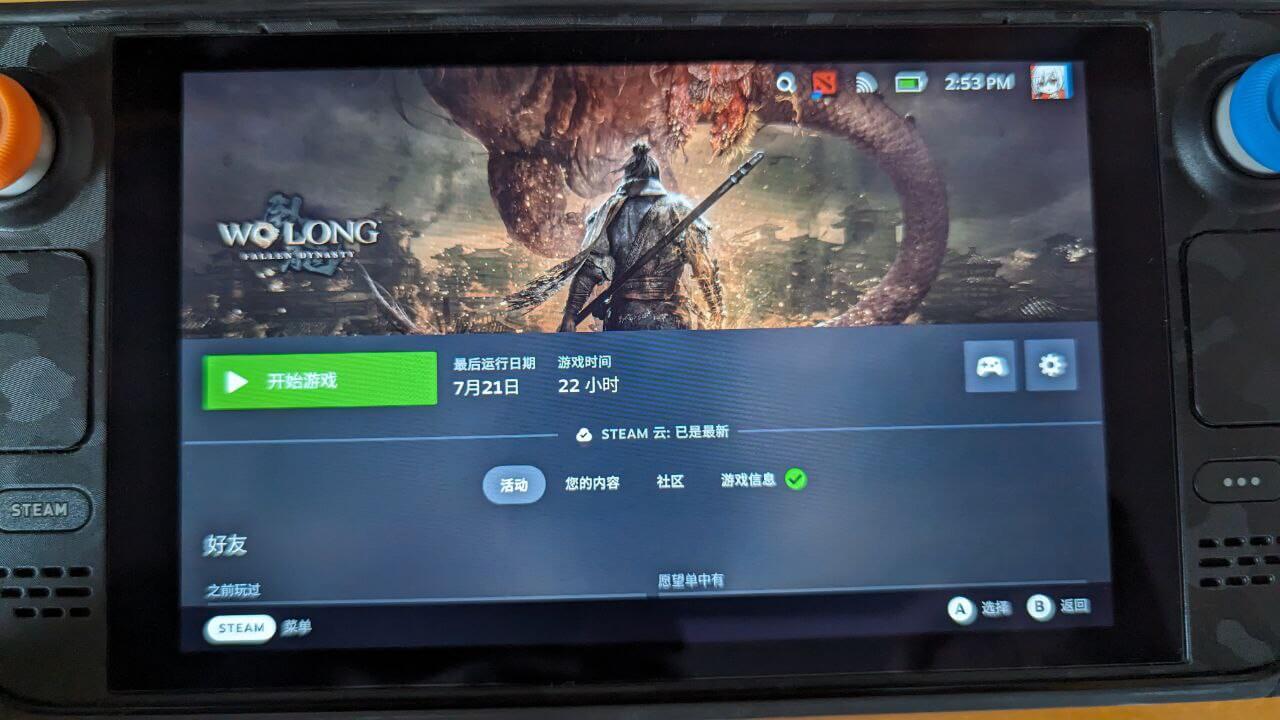
With the Steam Deck, I also don’t recommend “overthinking it.” Just turn it on, download a game, and start enjoying it. Sometimes the more you optimize, the worse it gets.
So if there were ever a Windows UI specifically tailored for “handheld gaming devices,” with proper game management and a store you can navigate with a controller to buy games—where players can just turn it on and play, the system is pure, no extra junk—then maybe Windows handhelds would actually have a future…
Wait, wouldn’t that just make them the same as current “regular handhelds”?
Comments are hosted on the Chinese main site. This mirror is read-only.