Fedora 40 Installation and Configuration Guide
This article has been updated for Fedora 42: /archives/14050/
But this article is still worth reading — check out the ideas in here first, then go look at the updated steps
Longtime readers of my blog probably know I used to be a loyal Ubuntu user, running GNOME Shell, and I enjoyed poking fun at irrational KDE and Arch Linux users. Of course, back in 2021 I actually started migrating my main distro from Ubuntu to Fedora — at first it was just “let’s try it out,” but one thing led to another and I’ve been using it ever since.
So here’s this guide/manual thing. Its main purpose is to help people who have no idea how to install, use, or configure Fedora, to clear up their confusion, and to share some of my own experience in the hope it helps more people.
Of course I’ve got a selfish reason too: recording my own configuration process so I can look it up later.
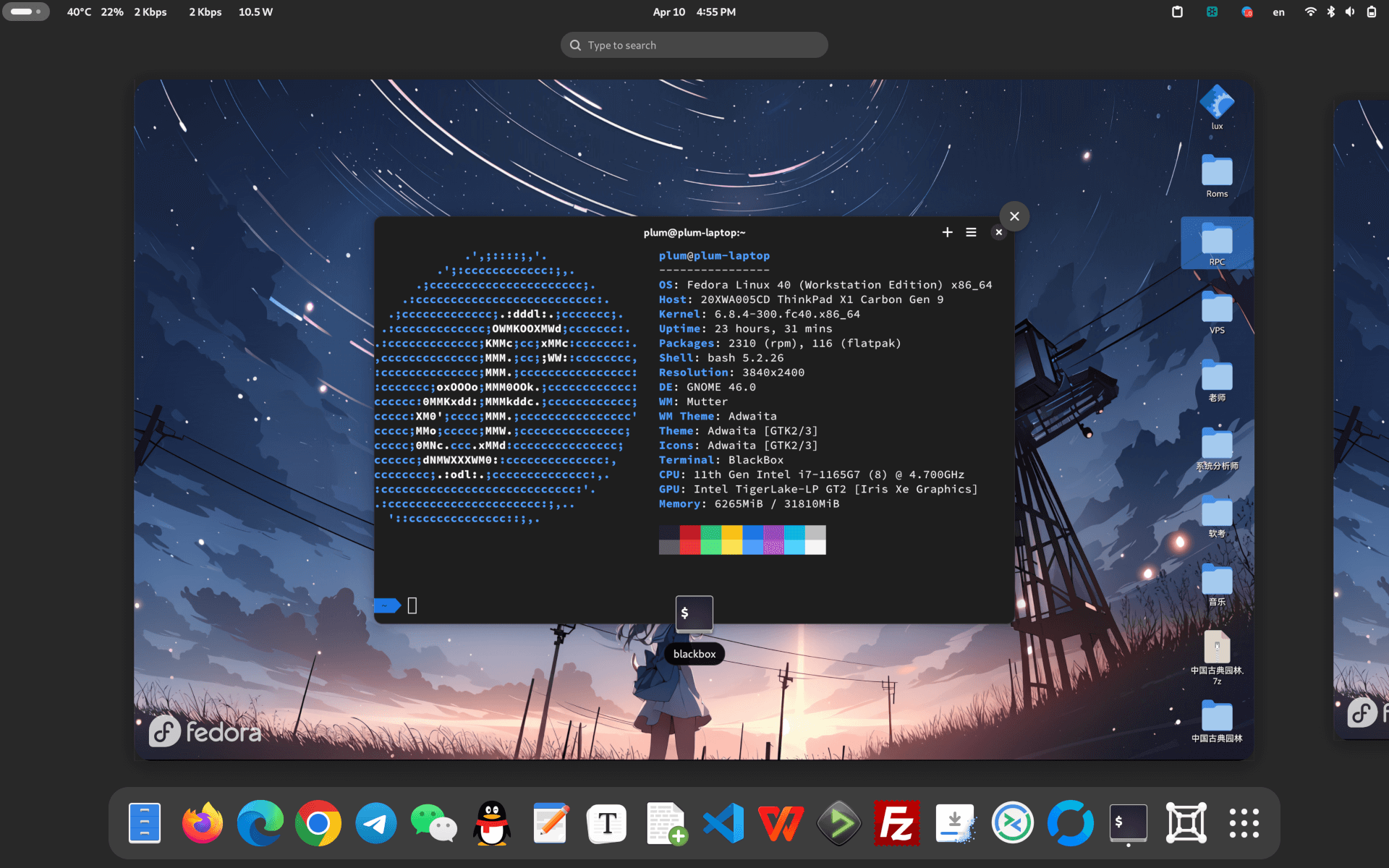
Why Fedora?
Before I start, I think I should explain why I gave up Ubuntu for Fedora. First, Ubuntu has been mindlessly pushing its own snap format for years now. I can’t say the format is bad, but it has serious limitations — startup speed, updates, that sort of thing. What I really can’t stand is that Canonical (the company behind Ubuntu) forced snap on default apps before many of its features were even finished, replacing the default Firefox with the snap version and actively obstructing users who tried to install the deb version.
The snap version of Firefox has plenty of problems on its own — font rendering, no notification support… it can’t even update while the browser is running. I stuck with it on one machine for over half a year and finally couldn’t take it anymore.
And now snap is starting to infect Ubuntu Server too. I know snap can package CLI software and that’s convenient in some ways, but forcing everything through snap is disgusting… especially when Flatpak is already the de facto industry standard. Still pushing snap is just gross.
Meanwhile I heard Ubuntu 24.04 LTS would double down on the snap push, which makes me even more inclined to recommend Fedora to former Ubuntu users.
Having complained that much, I should also explain why I chose Fedora Workstation over Arch, Gentoo, Debian, NixOS, openSUSE, or whatever. First, I’m not a fan of so-called “rolling release” distros. The concept sounds nice, but it brings a lot of hidden risks — the classic problem is that it often “rolls over and dies.” Sure, you can say you’ll just read the docs and fix it quickly, but for someone like me who needs a “stable working environment,” a sudden break can make my computer unusable, and I can’t guarantee I’ll have time to fix it. If you have plenty of time, or you’re trying Linux on a secondary machine, then Arch, Gentoo, or even Debian are worth messing around with.
“Immutable distros” like NixOS and Fedora Silverblue are trendy lately, but I think they’re still immature and create a “contradiction” for users. In my view, immutable distros are aimed at people who “don’t really understand computers” — the system is safe and reliable. But for someone like me who configures the system constantly, “immutable” just means restrictions and inconvenience. Why would I choose that? Aren’t snapshots good enough? And the container-based approach to installing different systems on immutable distros is something you can already do on a regular distro, so there’s no advantage. For now it’s still “more fun than useful” — fine to play with, but not ready as a daily driver.
Fedora is backed by Red Hat, and its software development process and bug-fixing speed — especially for GNOME components — are much better than Ubuntu’s. You don’t get the awkward situation where a package pulled from Debian has a bug, nobody fixes it, and you’re stuck hunting for a PPA. Plus I’m a GNOME user, so Fedora gets the “favored child” treatment in the GNOME world. Using it is only natural.
Is Fedora a testing ground? For guinea pigs? Unstable?
There are lots of rumors about Fedora, but the two most common are:
“Fedora is a testing ground for new tech, for guinea pig users.”
“Fedora is super aggressive, so it’s unstable.”
The first one is kind of true, but the second is debatable. Fedora does adopt new tech aggressively — most new Linux features land there first and quickly make it into stable releases, including Wayland, btrfs, the latest GNOME Shell, etc. But that doesn’t mean “unstable.”
In Fedora’s stable releases, every package is a proper “stable” version. Fedora has never packaged beta components. Take Fedora 40: all GNOME components, from mutter to gnome-shell, from Text Editor to Terminal, are stable versions. Even the tiny dependencies are stable. If everything is stable, how can you call it “unstable”? The “rolling release” distros people love also keep rolling out stable versions of system components. Theoretically Fedora and those rolling distros should have similar stability — maybe Fedora is even a bit better. So where does “unstable” come from?
Sure, new versions of components always have bugs, but users report new bugs quickly and they get fixed quickly. As long as you don’t go crazy messing things up, Fedora itself is stable enough.
Also, Fedora’s dnf update tool is more reliable for cross-version upgrades. I’ve upgraded through several major versions without issues.
Why is my Fedora / Linux always unstable?
First, are you using an Nvidia GPU?
For most people, the root cause of an unstable Linux system or a broken update is Nvidia’s proprietary driver. I can handle it myself, but I still don’t recommend Linux to people unfamiliar with it who have Nvidia GPUs, because every update can break the driver.
If you have Intel integrated graphics or AMD integrated graphics with open-source drivers, things are much better.
Second, have you installed too many so-called “optimizations” and “plugins”?
I don’t recommend heavy “optimization” of Linux. Any system becomes unstable after heavy modification. I’ve seen many people complain Linux is unstable, and when I ask, they’ve done some “optimization” — or found a “one-click optimization script” online. Those scripts and articles are often years old and expired. Newbies run them without understanding, and of course the system ends up a mess.
Also, those “deeply optimized” Linux setups create bigger risks with every update and are more likely to break. This guide writes out every step clearly, explaining the purpose and trade-offs, so readers can judge whether to do it and troubleshoot if something goes wrong.
The philosophy of this guide: GNOME-focused, all native, original flavor
Since I use a Pixel with stock Android, this guide’s approach to Fedora and GNOME Shell is also about staying native — change as little as possible, keep the default fonts and UI, and use system defaults for installation and configuration.
GNOME Shell with as few extensions as possible, fully embracing the native workflow. The filesystem is btrfs, the default. Many people still think ext4 performs better than btrfs, but we’re in the SSD era now — the speed difference is imperceptible, while btrfs snapshots make your life much happier. The current instability in btrfs is with RAID, which personal users won’t use anyway. And come on, is ext4 guaranteed to never lose files? The best countermeasure is backup, backup, backup!
As for the SWAP partition, just follow the default. ZSWAP is mature enough now, used on plenty of Android phones. Leave it enabled by default; no need to manually partition swap.
The best installation choice for Fedora is naturally Wayland, not X11 — X11 is clearly on its way out. I can’t think of a reason to keep using X11 except for Nvidia discrete GPU users. And I don’t really recommend Fedora for Nvidia users anyway, since broken drivers are the norm — Ubuntu is better for that. This guide is mainly for Intel and AMD integrated graphics users.
Enough rambling. Here’s the main part:
Configuring update sources
First, decide on the installation configuration. This guide uses: Fedora + GNOME Shell + Wayland + btrfs, all following Fedora’s official recommendations.
Of course you can install KDE or X11 too, and some parts of this guide (like font rendering) apply to KDE as well.
Install the system. I recommend choosing the default “erase entire disk” option with btrfs. The default partitioning keeps about 500MB for the boot partition — you must keep this, because current GRUB doesn’t fully support booting from a btrfs boot partition. It might boot, but it’ll throw errors.
So don’t give in to OCD and make the boot directory btrfs too. Keep it separate, and give it 500MB to 1GB to store various kernels, so it doesn’t fill up with kernels later.
You can choose Chinese or English during installation. I chose English because GNOME’s Chinese localization is ugly and many menu translations are weird.
First thing after installation:
Update the system:
sudo dnf update
Then:
Enable the rpmfusion repo:
sudo dnf install https://mirrors.rpmfusion.org/free/fedora/rpmfusion-free-release-$(rpm -E %fedora).noarch.rpm https://mirrors.rpmfusion.org/nonfree/fedora/rpmfusion-nonfree-release-$(rpm -E %fedora).noarch.rpm
This repo contains some non-open-source software, but it has strong official backing and is essential for Fedora users.
Install gnome-tweaks:
sudo dnf install gnome-tweaks
A must-have tweak tool for GNOME users. It lets you change many things, including enabling hidden minimize and maximize window buttons.
Add a Flathub China mirror:
sudo flatpak remote-modify flathub --url=https://mirror.sjtu.edu.cn/flathub
Adding a mirror speeds up Flathub. If you’re not in mainland China, skip this.
https://mirror.sjtu.edu.cn/docs/flathub
Add a China mirror for Fedora’s default repo:
See here for the method: https://mirror.sjtu.edu.cn/docs/fedora/linux
But I personally don’t think it’s necessary. Fedora’s update system already supports mirror detection, and the official repo can install new packages faster.
Installing Chinese fonts and configuring font rendering
First, let me describe the default Chinese display issues after installing Fedora: glyphs look crooked; some characters display wrong, like the “画” in “绘画” becoming the Japanese kanji “画”; English and Chinese fonts have mismatched heights when mixed; and the colon in the system menu bar and lock screen clock is spaced too wide…
Let’s start with the crooked glyphs — that’s a font rendering issue.
Fedora’s default font rendering is “grayscale” + “slight” hinting. Many online guides tell you to switch to “RGB subpixel rendering,” but I don’t recommend it. For one, it’s nominally outdated — GTK4 has been continuously optimizing font rendering, partly for better fractional scaling support and partly for improved clarity, all of which target grayscale + slight. RGB subpixel rendering doesn’t benefit. Also, subpixel rendering causes other problems, especially on tablets: rotate from landscape to portrait and fonts look “colorful” and blurry — that’s the downside. macOS abandoned this rendering long ago too, so there’s no need to stick with it.
https://blog.gtk.org/2024/03/07/on-fractional-scales-fonts-and-hinting/
You can fix this by writing your own Fontconfig, as I’ll explain later.
Next, the wrong glyphs.
Many people have mentioned this. Source Han Sans is a family covering several CJK languages. Many glyph codepoints are shared, so programs can’t always tell if a character is Chinese or Japanese, or traditional vs simplified Chinese, causing display errors.
This can also be fixed with a Fontconfig file.
Another common issue: mismatched heights when mixing English and Chinese fonts.
The root cause is again Source Han Sans. Fonts have a “baseline” for horizontal alignment, but the damn thing about Source Han Sans is the huge empty space below the baseline. When displayed alongside English, it looks uneven. Fortunately it only affects some programs, mainly UI display — most things, including web pages, look fine.
The fix is simple: find a font that pairs perfectly with English baselines and use Fontconfig. Is there such a font? Yes — HarmonyOS Sans from Huawei’s HarmonyOS.
Apparently this problem only exists in the “English environment”; Chinese environment is fine. If it looks okay to you, no need to change.
Finally, the chronic issue that’s bothered me forever: the clock width in the system menu bar and lock screen.
If you casually use gnome-tweaks or similar to change the system font to “Microsoft YaHei” or another favorite, you’ll notice an awkward thing: your menu bar clock gets wider, your lock screen clock gets wider, and especially the colon in the middle takes up a huge amount of space.
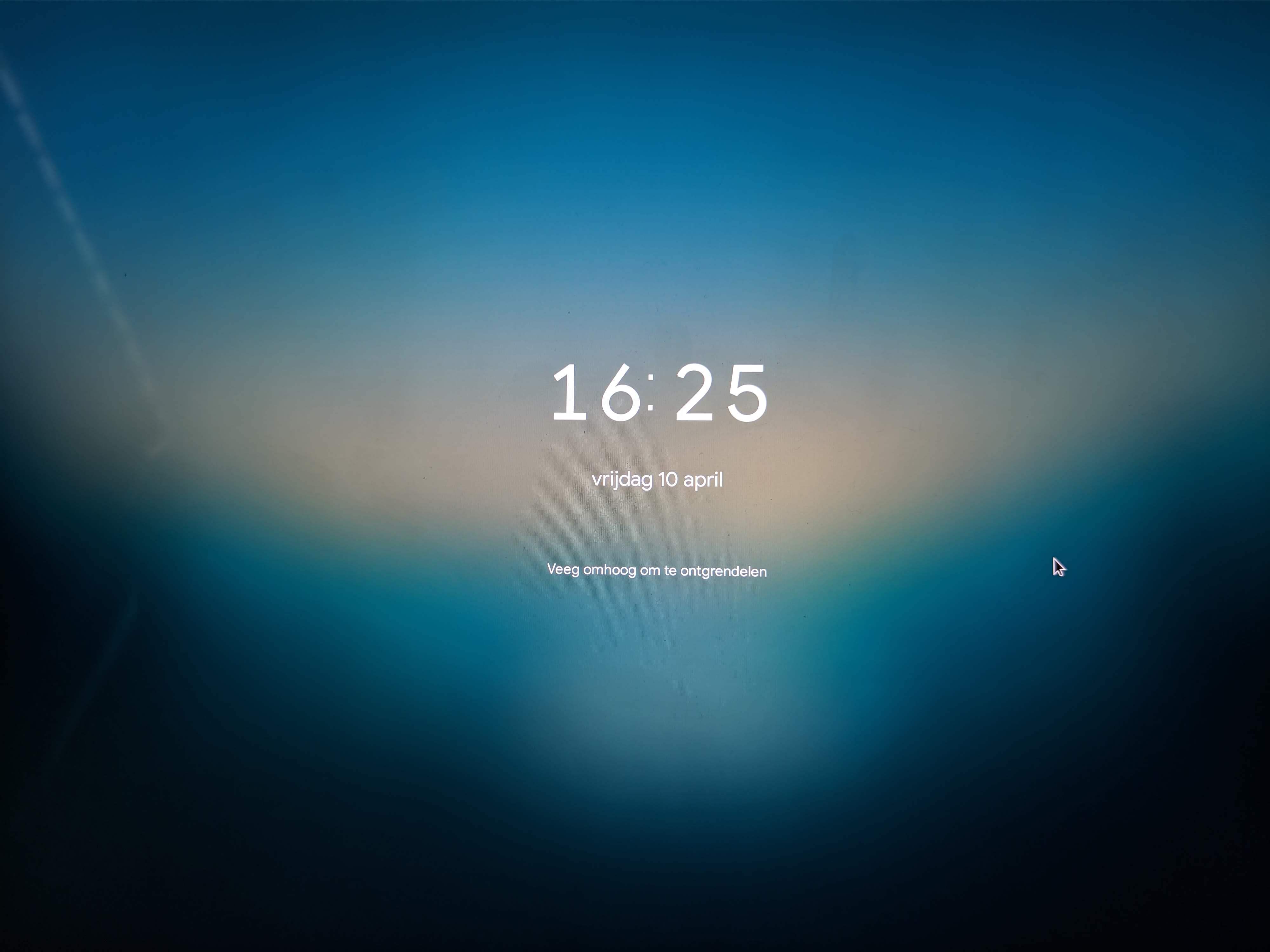
Many people have reported this:
https://gitlab.gnome.org/GNOME/gnome-shell/-/issues/2618
The reason is funny: the “colon” in the clock isn’t actually a colon, but a “Ratio” character — like the separator in a sports score. Most fonts display this character wide, and only a few fonts display it narrow, one of which is GNOME Shell’s default font, Cantarell.
In other words, to get normal spacing in the clock, you have to use the default Cantarell font.
To fix this, you again need Fontconfig.
Now let’s configure:
First, download HarmonyOS Sans from the official HarmonyOS documentation:
https://developer.huawei.com/consumer/en/doc/design-guides-V1/font-0000001157868583-V1 https://github.com/ajacocks/harmonyos-sans-font
Extract the fonts to ~/.local/share/fonts in your home directory, or as root copy them to /usr/share/fonts/.
Next, create a local file: ~/.config/fontconfig/fonts.conf
Write the following:
<?xml version="1.0"?>
<!DOCTYPE fontconfig SYSTEM "urn:fontconfig:fonts.dtd">
<fontconfig>
    <!-- 设置字体渲染方式,使用灰度,不使用 rgb -->
  <match target="font">
    <edit mode="assign" name="rgba">
      <const>none</const>
    </edit>
  </match>
   <match target="font">
<edit name="autohint" mode="assign">
	<bool>false</bool>
	</edit>
 </match>
<match target="font">
<edit name="hinting" mode="assign">
	<bool>true</bool>
	</edit>
	 </match>
	     <!-- 设置字体渲染方式,可以使用 none,也可以使用 slight,我喜欢 none-->
  <match target="font">
    <edit mode="assign" name="hintstyle">
      <const>hintnone</const>
    </edit>
  </match>

  <match target="font">
    <edit mode="assign" name="antialias">
      <bool>true</bool>
    </edit>
  </match>

    <!-- 针对 Emoji 字体单独设置,防止无法显示的问题,emoji 字体不能使用 none 渲染 -->
  <match target="font">
    <test name="family" qual="any">
      <string>Noto Color Emoji</string>
    </test>
        <edit name="rgba" mode="assign">
      <const>none</const>
    </edit>
        <edit name="embolden" mode="assign">
      <bool>false</bool>
    </edit>
         <edit mode="assign" name="lcdfilter">
    <const>lcddefault</const>
  </edit>
    <edit name="scalable" mode="assign">
      <bool>true</bool>
    </edit>
    <edit name="embeddedbitmap" mode="assign">
      <bool>true</bool>
    </edit>
    <edit name="hinting" mode="assign">
      <bool>true</bool>
    </edit>
        <edit name="autohint" mode="assign">
      <bool>false</bool>
    </edit>
  <edit name="antialias" mode="assign">
      <bool>true</bool>
    </edit>
        <edit name="hintstyle" mode="assign">
      <const>hintslight</const>
    </edit>
  </match>

  <!-- Default system-ui fonts -->

   <match target="pattern">
    <test name="family">
      <string>system-ui</string>
    </test>
    <edit name="family" mode="prepend" binding="strong">
      <string>sans-serif</string>
    </edit>
  </match>

  <!-- 默认 emoji 字体。 -->
  <match target="pattern">
    <test name="family" qual="any">
      <string>emoji</string>
    </test>
    <edit name="family" mode="prepend" binding="same">
      <string>Noto Color Emoji</string>
    </edit>
  </match>

<!-- 替换 Apple Color Emoji 字体。 -->
    <match target="pattern">
    <test name="family" qual="any">
      <string>Apple Color Emoji</string>
    </test>
    <edit name="family" mode="assign" binding="same">
      <string>Noto Sans</string>
    </edit>
  </match>

<!--
      替换 Apple Color Emoji 字体。  -->
    <match target="pattern">
    <test name="family" qual="any">
      <string>SF Pro Icons</string>
    </test>
    <edit name="family" mode="assign" binding="same">
      <string>Noto Color Emoji</string>
    </edit>
  </match>

 <!-- 替换 Apple 字体。 -->
    <match target="pattern">
    <test name="family" qual="any">
      <string>PingFang SC</string>
    </test>
    <edit name="family" mode="assign" binding="same">
      <string>Noto Sans CJK SC</string>
    </edit>
  </match>

   <!-- 替换 Windows 字体。 -->
    <match target="pattern">
    <test name="family" qual="any">
      <string>Microsoft Yahei</string>
    </test>
    <edit name="family" mode="assign" binding="same">
      <string>Noto Sans CJK SC</string>
    </edit>
  </match>

   <!-- 替换 MS 字体。 -->
    <match target="pattern">
    <test name="family" qual="any">
      <string>arial</string>
    </test>
    <edit name="family" mode="assign" binding="same">
      <string>Noto Sans</string>
    </edit>
  </match>

      <!-- 替换 Apple字体。 -->
    <match target="pattern">
    <test name="family" qual="any">
      <string>SF Pro</string>
    </test>
    <edit name="family" mode="assign" binding="same">
      <string>Noto Sans</string>
    </edit>
  </match>

  <!-- Map fonts that are commonly used by web pages to our preferred fonts -->
  <match target="pattern">
    <test qual="any" name="family"><string>Liberation Sans</string></test>
    <edit name="family" mode="assign" binding="same"><string>sans-serif</string></edit>
  </match>

  <match target="pattern">
    <test qual="any" name="family"><string>Tahoma</string></test>
    <edit name="family" mode="assign" binding="same"><string>sans-serif</string></edit>
  </match>

  <match target="pattern">
    <test qual="any" name="family"><string>Arial</string></test>
    <edit name="family" mode="assign" binding="same"><string>sans-serif</string></edit>
  </match>

  <match target="pattern">
    <test qual="any" name="family"><string>Liberation Mono</string></test>
    <edit name="family" mode="assign" binding="same"><string>monospace</string></edit>
  </match>

  <!-- Default sans-serif fonts-->
  <match target="pattern">
    <test name="family">
      <string>sans-serif</string>
    </test>
    <edit name="family" mode="prepend" binding="strong">
      <string>Noto Sans CJK SC</string>
      <string>Noto Sans</string>
      <string>Noto Color Emoji</string>
    </edit>
  </match>

  <!-- Default serif fonts-->
  <match target="pattern">
  <test name="family">
    <string>serif</string>
  </test>
  <edit name="family" mode="prepend" binding="strong">
      <string>Noto Serif CJK SC</string>
      <string>Noto Serif</string>
      <string>Noto Color Emoji</string>
    </edit>
  </match>

  <!-- Default monospace fonts-->
  <match target="pattern">
    <test name="family">
      <string>monospace</string>
    </test>
    <edit name="family" mode="prepend" binding="strong">
      <string>Noto Sans Mono</string>
      <string>Noto Sans Mono CJK SC</string>
      <string>Noto Color Emoji</string>
    </edit>
  </match>

    <!-- Default font for the zh_CN locale (no fc-match pattern) -->

    <match target="pattern">
    <test name="lang" compare="contains">
      <string>en</string>
    </test>
    <test name="family" compare="contains">
      <string>Noto Sans CJK SC</string>
    </test>
    <edit name="family" mode="prepend" binding="strong">
      <string>HarmonyOS Sans SC</string>
      <string>Noto Sans CJK SC</string>
      <string>Noto Sans</string>
      <string>Noto Color Emoji</string>
    </edit>
  </match>

  <match target="pattern">
    <test name="lang" compare="contains">
      <string>en</string>
    </test>
    <test name="family" compare="contains">
      <string>Noto Serif CJK SC</string>
    </test>
    <edit name="family" mode="prepend" binding="strong">
      <string>Noto Serif CJK SC</string>
      <string>Noto Serif</string>
      <string>Noto Color Emoji</string>
    </edit>
  </match>

  <match target="pattern">
    <test name="lang">
      <string>zh-CN</string>
    </test>
    <test name="family">
      <string>Noto Sans CJK SC</string>
    </test>
  </match>

  <match target="pattern">
    <test name="lang">
      <string>zh-CN</string>
    </test>
    <test name="family">
      <string>Noto Serif CJK SC</string>
    </test>
  </match>

  <match target="pattern">
    <test name="lang">
      <string>zh-CN</string>
    </test>
    <test name="family">
      <string>Noto Sans Mono CJK SC</string>
    </test>
  </match>

  <match target="pattern">
    <test name="lang">
      <string>zh-HK</string>
    </test>
    <test name="family">
      <string>Noto Sans CJK SC</string>
    </test>
    <edit name="family" binding="strong">
      <string>Noto Sans CJK HK</string>
    </edit>
  </match>

  <match target="pattern">
    <test name="lang">
      <string>zh-HK</string>
    </test>
    <test name="family">
      <string>Noto Serif CJK SC</string>
    </test>
    <edit name="family" binding="strong">
      <!-- not have HK -->
      <string>Noto Serif CJK TC</string>
    </edit>
  </match>

  <match target="pattern">
    <test name="lang">
      <string>zh-HK</string>
    </test>
    <test name="family">
      <string>Noto Sans Mono CJK SC</string>
    </test>
    <edit name="family" binding="strong">
      <string>Noto Sans Mono CJK HK</string>
    </edit>
  </match>

  <match target="pattern">
    <test name="lang">
      <string>zh-TW</string>
    </test>
    <test name="family">
      <string>Noto Sans CJK SC</string>
    </test>
    <edit name="family" binding="strong">
      <string>Noto Sans CJK TC</string>
    </edit>
  </match>

  <match target="pattern">
    <test name="lang">
      <string>zh-TW</string>
    </test>
    <test name="family">
      <string>Noto Serif CJK SC</string>
    </test>
    <edit name="family" binding="strong">
      <string>Noto Serif CJK TC</string>
    </edit>
  </match>

  <match target="pattern">
    <test name="lang">
      <string>zh-TW</string>
    </test>
    <test name="family">
      <string>Noto Sans Mono CJK SC</string>
    </test>
    <edit name="family" binding="strong">
      <string>Noto Sans Mono CJK TC</string>
    </edit>
  </match>

  <match target="pattern">
    <test name="lang">
      <string>ja</string>
    </test>
    <test name="family">
      <string>Noto Sans CJK SC</string>
    </test>
    <edit name="family" binding="strong">
      <string>Noto Sans CJK JP</string>
    </edit>
  </match>

  <match target="pattern">
    <test name="lang">
      <string>ja</string>
    </test>
    <test name="family">
      <string>Noto Serif CJK SC</string>
    </test>
    <edit name="family" binding="strong">
      <string>Noto Serif CJK JP</string>
    </edit>
  </match>

  <match target="pattern">
    <test name="lang">
      <string>ja</string>
    </test>
    <test name="family">
      <string>Noto Sans Mono CJK SC</string>
    </test>
    <edit name="family" binding="strong">
      <string>Noto Sans Mono CJK JP</string>
    </edit>
  </match>

  <match target="pattern">
    <test name="lang">
      <string>ko</string>
    </test>
    <test name="family">
      <string>Noto Sans CJK SC</string>
    </test>
    <edit name="family" binding="strong">
      <string>Noto Sans CJK KR</string>
    </edit>
  </match>

  <match target="pattern">
    <test name="lang">
      <string>ko</string>
    </test>
    <test name="family">
      <string>Noto Serif CJK SC</string>
    </test>
    <edit name="family" binding="strong">
      <string>Noto Serif CJK KR</string>
    </edit>
  </match>

  <match target="pattern">
    <test name="lang">
      <string>ko</string>
    </test>
    <test name="family">
      <string>Noto Sans Mono CJK SC</string>
    </test>
    <edit name="family" binding="strong">
      <string>Noto Sans Mono CJK KR</string>
    </edit>
      </match>

<!-- Fallback fonts preference order -->
  <alias>
    <family>sans-serif</family>
    <prefer>
      <family>Noto Sans</family>
      <family>Noto Sans CJK SCNoto Sans CJK SC</family>
      <family>Noto Sans CJK TC</family>
      <family>Noto Sans CJK JP</family>
      <family>Noto Sans CJK KR</family>
      <family>Noto Color Emoji</family>
      <family>Noto Emoji</family>
    </prefer>
  </alias>
  <alias>
    <family>serif</family>
    <prefer>
      <family>Noto Serif</family>
      <family>Noto Serif CJK SC</family>
      <family>Noto Serif CJK TC</family>
      <family>Noto Serif CJK JP</family>
      <family>Noto Serif CJK KR</family>
      <family>Noto Color Emoji</family>
      <family>Noto Emoji</family>
    </prefer>
  </alias>
  <alias>
    <family>monospace</family>
    <prefer>
      <family>Noto Sans Mono CJK SC</family>
      <family>Noto Sans Mono CJK HK</family>
      <family>Noto Sans Mono CJK JP</family>
      <family>Noto Sans Mono CJK KR</family>
      <family>Noto Color Emoji</family>
      <family>Noto Emoji</family>
    </prefer>
  </alias>

     <selectfont>
    <rejectfont>
      <pattern>
        <patelt name="family" >
          <!-- This font is causing problem with GitHub -->
          <string>Nimbus Sans</string>
        </patelt>
      </pattern>
    </rejectfont>
  </selectfont>

</fontconfig>
Full file link: https://gist.github.com/plumlis/32ed3e293e6be2386715d69fb25a7878
文档的内容解释可以参考:Linux 下的字体调校指南
https://szclsya.me/zh-cn/posts/fonts/linux-config-guide/
实际上我这个配置文件就是参考这篇文章调教出来的。
Once the config is in place, log out and back in, and you’ll see font display is mostly optimized.
This config is tailored to my system: Fedora GNOME default English UI. The main strategy is:
- Don’t modify the system’s default font configuration at all. Default UI font is Cantarell, terminal monospace is Source Pro — keep it original.
- English UI prefers Cantarell to ensure the clock " : " displays correctly. Chinese content, including system UI and desktop icons, uses HarmonyOS Sans SC to keep everything on the same baseline, avoiding height mismatch.
- Other environments’ default fonts (Firefox, other apps) follow Source Han Sans logic: cn content shows simplified Chinese, tw/hk shows traditional, jp shows Japanese, kr shows Korean, etc.
- Default rendering is grayscale + slight/none, ensuring correct rendering.
- Some other emoji rendering optimizations.
- Font rendering priority order and replacement for common web CSS fonts. For example, Apple and Microsoft fonts display with Source Han Sans.
- Some say the English/Chinese height mismatch doesn’t exist in a Chinese system environment, in which case my fontconfig won’t affect it, since it only writes specific font config for English.
You can also try installing “common Windows fonts” like Arial, Times New Roman, but I don’t recommend it unless you have a specific need.
sudo dnf install curl cabextract xorg-x11-font-utils fontconfig -y
sudo rpm -i https://downloads.sourceforge.net/project/mscorefonts2/rpms/msttcore-fonts-installer-2.6-1.noarch.rpm
Of course there are also the traditional “WenQuanYi” fonts, including bitmap fonts that can replace “SimSun.”
sudo dnf install "wqy-*"
Flatpak software font rendering
After correctly configuring font rendering, you’ll notice apps installed via Flatpak still have ugly fonts — they don’t seem to apply your rendering settings.
Try running
flatpak --user override --filesystem=~/.config/fontconfig:ro
to let Flatpak apps read your fontconfig.
If that doesn’t work, open the config path for the Flatpak app:
~/.var/app/[程序名字]/config
Create a fontconfig directory inside, copy your ~/.config/fontconfig/fonts.conf there, and restart the Flatpak app.
Installing common extensions:
Open the official GNOME Shell extensions site:
The first time, it’ll prompt you to install a browser extension. Click “Click here to install browser extension.” After installing, you can install extensions. It currently supports Firefox and Chrome; Edge probably not.
Here are some extensions I think are worth using:
Essential:
Taskbar support so minimized apps like Telegram show an icon https://extensions.gnome.org/extension/615/appindicator-support/
Caffeine to temporarily prevent sleep https://extensions.gnome.org/extension/517/caffeine/
GTK4 desktop icons extension to show desktop icons (GNOME has none by default) https://extensions.gnome.org/extension/5263/gtk4-desktop-icons-ng-ding/
Hot edge extension to show the dock when you move the mouse to the bottom edge https://extensions.gnome.org/extension/4222/hot-edge/
Auto-switch between dark and light mode based on time (also supports wallpaper switching) https://extensions.gnome.org/extension/2236/night-theme-switcher/
Show Caps Lock and other lock key states, can be set to hide by default and only show when locked https://extensions.gnome.org/extension/36/lock-keys/
Show memory and CPU usage, temperature, and current power draw https://extensions.gnome.org/extension/1460/vitals/
Optional extensions:
Blur effects: may cause crashes and performance drops https://extensions.gnome.org/extension/3193/blur-my-shell/
Smart window tiling https://extensions.gnome.org/extension/3733/tiling-assistant/
Old desktop icons extension — less integrated than the new GTK4 one, but better performance https://extensions.gnome.org/extension/2087/desktop-icons-ng-ding/
Just Perfection: a highly customizable extension to toggle all windows and effects https://extensions.gnome.org/extension/3843/just-perfection/
You can get a Windows 10/11-style dock in the top-left corner https://extensions.gnome.org/extension/5180/rocketbar/
There are plenty of other extensions on the site too — search around with keywords and dig in yourself. But I wouldn’t install too many. The more extensions you pile on, the higher the risk of slowdowns and instability. Keep it lean.
Managing extensions
In Fedora’s default app list you’ll find a program called “Extensions.” Run it and you can manage what you’ve installed, tweak settings, or uninstall stuff. A lot of extensions hide their settings windows in here.
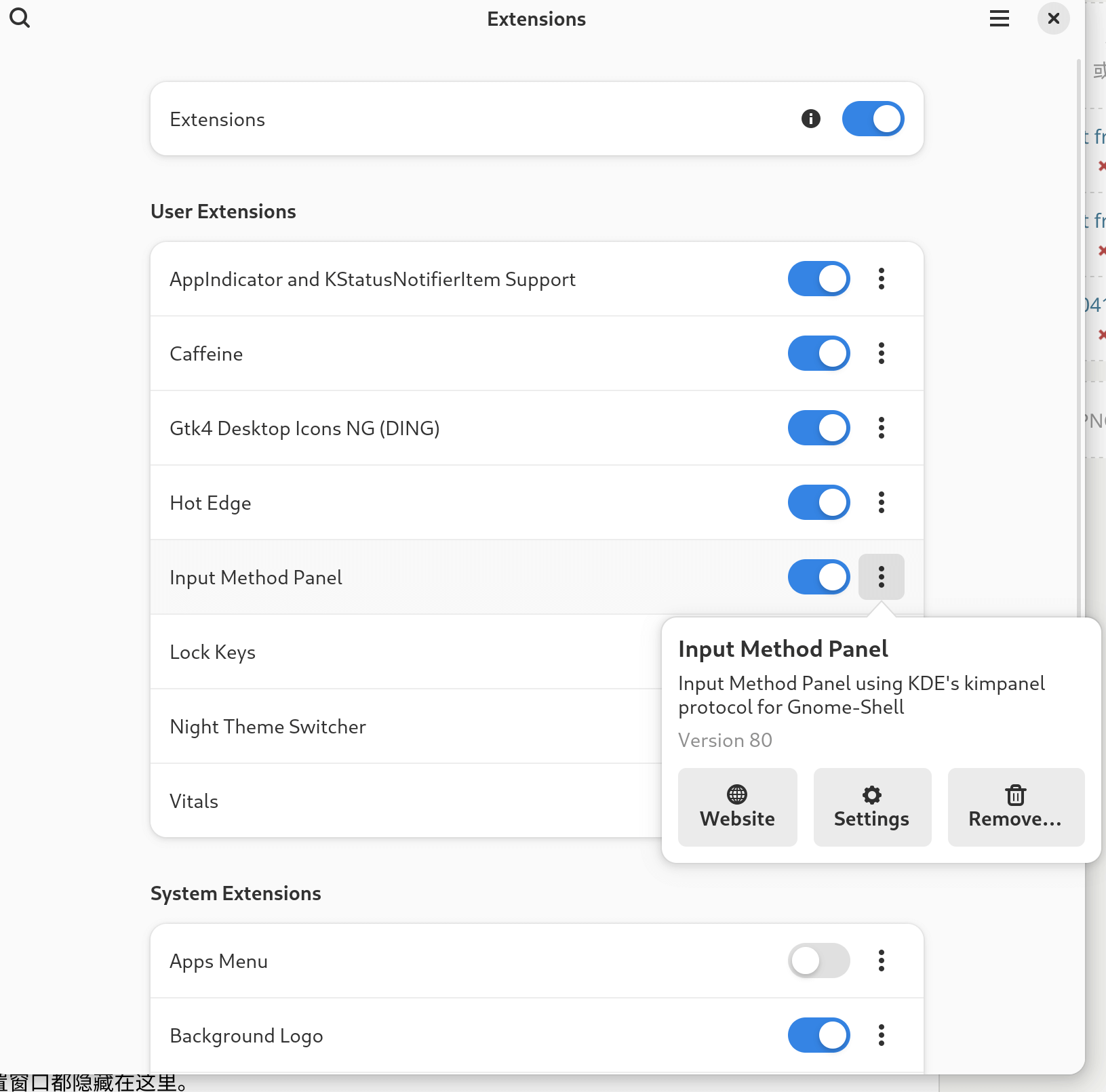
Worth noting: Fedora actually ships with a few extensions preinstalled. I don’t think there’s any reason to turn them on. That said, the one called Fedora Logo is worth a shot — slapping a watermark logo on your desktop actually looks pretty good, imo.
Installing the Fcitx5 Chinese/Japanese input method
In theory GNOME’s native input method should be iBus. I tried it. Unfortunately iBus is just terrible, and the terribleness comes down to three things:
Type too fast and it frequently freezes. People have been filing bugs forever, the devs keep optimizing it, but after all these years of optimization it still freezes…
Poor QT program support. In a lot of QT apps you simply can’t enable the input method. Don’t ask — the answer is always “switch to a GTK program.”
Fedora’s default packaging doesn’t enable “cloud pinyin.” This is the most absurd one. iBus’s pinyin does support cloud input, but Fedora disabled it when packaging, with the reasoning “not open source, privacy concerns.” And they didn’t even give users a choice — like offering an open build on rpmfusion or something. You want cloud input, you compile it yourself. Fucking stupid…
So weighing everything, I recommend all GNOME users switch to fcitx5. It’s genuinely the best input solution right now.
Installation is simple:
sudo dnf install fcitx5-chinese-addons fcitx5-autostart
If you want Japanese input too:
sudo dnf install fcitx5-mozc
After installing, logging out and back in should get the input method working by default — but the input window will probably look ugly. I suggest installing a GNOME extension to beautify it:
https://extensions.gnome.org/extension/261/kimpanel/
Log out and back in, and the input window now matches GNOME’s default style. Feels much more integrated.
The extension’s default font is kind of ugly though. I recommend changing the font to Noto Sans CJK SC Regular in the extension settings. In testing, that was the only font that didn’t cause the window to jump around during fast typing.

Fcitx5 itself has plenty of settings and tricks — search online for details, things like emoji input and importing large dictionaries. Don’t forget to turn on cloud input; you can pick Baidu Cloud.
Installing some basic software:
Chinese fonts and input method are configured. Time to install some basic software. For the really fundamental stuff we’ll use RPM; for the rest, flatpak. Using flatpak wherever possible means fewer headaches when upgrading.
Install Logitech mouse control software solaar (Logitech mice only)
sudo dnf install solaar
Install the GTK4 terminal Blackbox
flatpak install flathub com.raggesilver.BlackBox
Install the Typora text editor
flatpak install flathub io.typora.Typora
If you don’t like paying for Typora, you can go with Ghostwriter
flatpak install flathub org.kde.ghostwriter
Install common software
sudo dnf install vlc filezilla remmina easytag file-roller
VLC player, filezilla FTP tool, remmina remote desktop, easytag music IDTag editor, file-roller for archives — pick and choose whatever you need.
As for the browser, I recommend Firefox. For screenshots, GNOME’s own tool is already plenty powerful.
A few more tools you might actually use:
GPU Screen Recorder (a streaming/recording tool that reads GPU info directly, low overhead)
flatpak install flathub com.dec05eba.gpu_screen_recorder
Rustdesk (a solid remote tool, similar to Sunflower or todesk; get the flatpak version)
https://github.com/rustdesk/rustdesk/releases
WeChat flatpak version
flatpak install flathub com.tencent.WeChat
Steam (it’s in RPMFusion too, but I personally think the flatpak version is better)
flatpak install flathub com.valvesoftware.Steam
Celluloid: an MPV frontend video player
flatpak install flathub io.github.celluloid_player.Celluloid
NetEase Cloud Music player
flatpak install flathub io.github.qier222.YesPlayMusic
Motrix download tool
flatpak install flathub net.agalwood.Motrix
LinuxQQ
flatpak install flathub com.qq.Discord
Video editor Kdenlive
flatpak install flathub org.kde.kdenlive
And Microsoft’s duo: Edge and VSCode
https://www.microsoft.com/en-us/edge/download
https://code.visualstudio.com/download
Plus Google Chrome
https://www.google.com/chrome/
All of these you can just download as RPM and install.
For more new software, check flathub regularly — there’s always something new to find:
Installing a clean WPS Linux
WPS does have a Linux version, but the Chinese and English builds differ. The Chinese WPS Linux bundles cloud services and is genuinely obnoxious to run. The English version doesn’t have that stuff, so we just install the English version, copy the Chinese language pack in, and switch to Chinese.
First download and install the English version — get the RPM: https://www.wps.com/office/linux/
Then download the Chinese version, matching architecture. deb or rpm doesn’t really matter here — just download, extract, and find the corresponding path inside the archive
/./opt/kingsoft/wps-office/office6/mui/
You’ll see a bunch of language files in there. Extract them, then with root permissions copy them into the directory of your already-installed English WPS Linux:
/opt/kingsoft/wps-office/office6/mui/
Then edit the config file ~/.config/Kingsoft/Office.conf
Change
[General]
languages=
PersistentStatus=0
to
[General]
languages=zh_CN
PersistentStatus=0
Restart WPS and you’re done. Future updates won’t be affected.
Reference: https://gist.github.com/YcSmile/039024e79b9d7dca38e80fdca7890620
If WPS complains about missing fonts on launch, download the fixes here: https://github.com/dv-anomaly/ttf-wps-fonts
The latest WPS Linux has a broken bold display issue. Grab the patch here: https://bbs.deepin.org/post/270242
Download the DEB, extract, and copy the files into the corresponding opt directory.
Enabling VA-API video acceleration
Fedora removed a lot of video acceleration support for copyright reasons, but RPMFusion can add it back:
sudo dnf install mesa-va-drivers-freeworld mesa-vdpau-drivers-freeworld
$ sudo dnf swap mesa-va-drivers mesa-va-drivers-freeworld
$ sudo dnf swap mesa-vdpau-drivers mesa-vdpau-drivers-freeworld
Install additional codecs
$ sudo dnf groupupdate multimedia --setop="install_weak_deps=False" --exclude=PackageKit-gstreamer-plugin
$ sudo dnf groupupdate sound-and-video
$ sudo dnf install @multimedia @sound-and-video ffmpeg-libs gstreamer1-plugins-{bad-\*,good-\*,base} gstreamer1-plugin-openh264 gstreamer1-libav lame\*
Reference: https://kcore.org/2022/12/01/fedora37-codecs/
Worth noting: every time mesa updates, the corresponding rpmfusion freeworld package lags behind and you may get dependency errors on update. Just wait a few days and update again.
Using iwd as the Wi-Fi management backend
iwd is Intel’s official Wi-Fi management module. For Intel wireless cards it offers better performance and stability. Only recommended for Intel wireless card users — if you’re not sure your card is Intel, don’t blindly change this.
$ sudo dnf install iwd
$ echo -e "[device]\nwifi.backend=iwd" | sudo tee /etc/NetworkManager/conf.d/10-iwd.conf
$ sudo systemctl mask wpa_supplicant
Reboot for it to take effect. You’ll probably need to re-add the wireless networks you’d previously added. Old and new wireless entries may also conflict by name — delete the old ones and add new ones.
If after rebooting the results aren’t what you hoped, you can restore the default backend:
$ sudo rm /etc/NetworkManager/conf.d/10-iwd.conf
$ sudo systemctl unmask wpa_supplicant
Reference: https://thedestitutedeveloper.blogspot.com/2021/01/enabling-iwd-on-fedora-33.html
Laptop battery life configuration
Right now the main approach to laptop battery optimization on Linux is TLP; most others aren’t much different.
On Fedora, especially with GNOME, I think just enabling the built-in Powertop optimization service is enough.
First install Powertop
sudo dnf install powertop
Then enable the service
sudo systemctl enable powertop.service
You can check current system power draw yourself
sudo powertop
Why do I say TLP isn’t necessary? Because TLP’s optimization approach is basically squeezing performance out of the CPU via the kernel in exchange for battery life — and most of what you gain is idle battery life. Under full load, battery life doesn’t really change. At this stage, Linux laptop power management is all about whether the machine supports screen PSR2, the machine’s own peripheral power draw, and the CPU’s operating strategy. The first two we can barely do anything about — it depends on the machine’s compatibility. The CPU power adjustment is literally one command, and GNOME’s built-in tuning already handles it well enough.
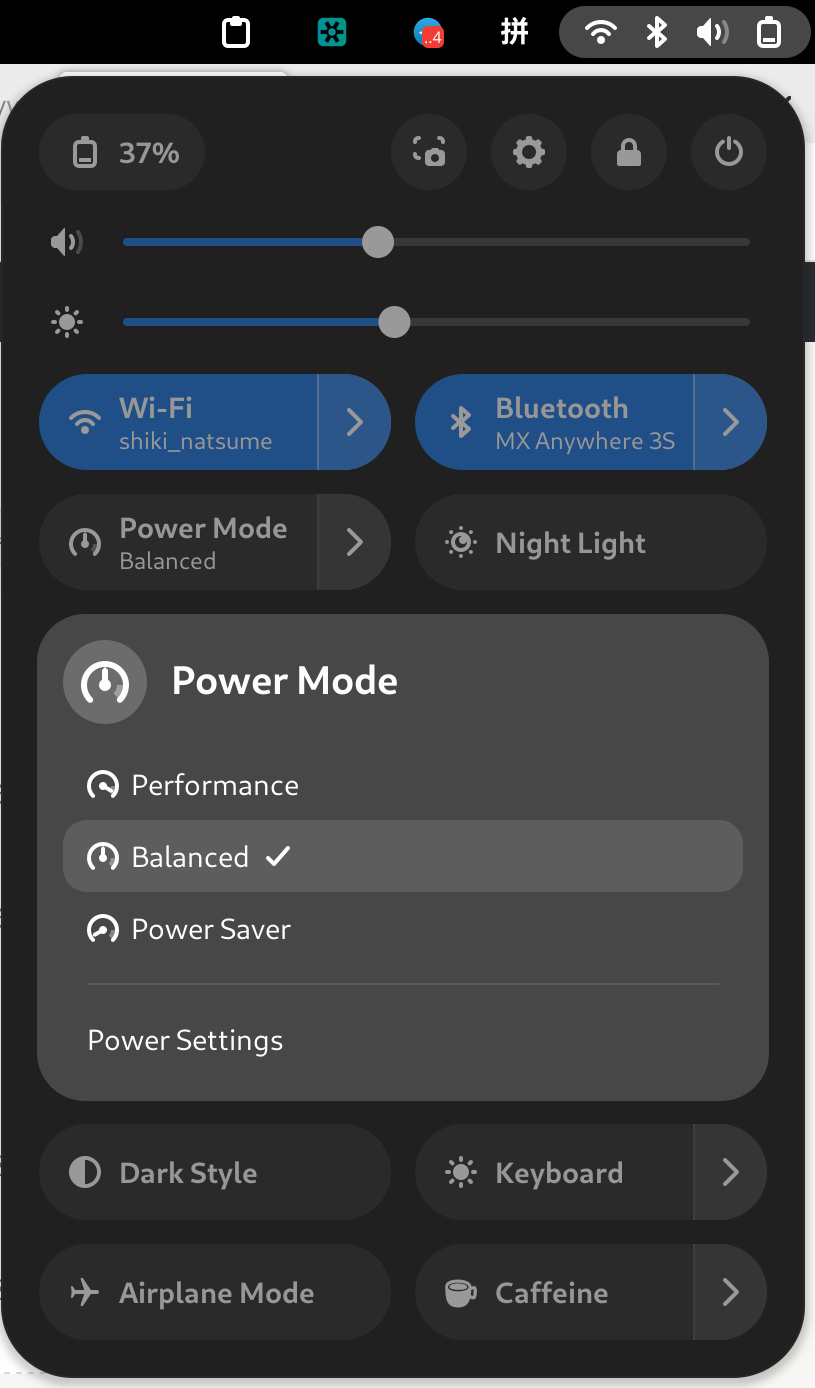
Especially with power-profiles-daemon 0.21: even on the same “Balanced” profile, it automatically adjusts based on whether the machine is plugged in. Plugged in, it performs a bit better; on battery, it lasts a bit longer. If you really want full performance, just switch to the “Performance” profile yourself.
As for other optimization tricks like auto-cpufreq — they’re all just trading clock speed for battery life. I don’t think it’s worth castrating your laptop’s performance into a eunuch just for a bit more battery life. That’s a net loss.
Installing BTRFS snapshot management
First install the tools:
sudo dnf install btrfs-assistant
After that you’ll see the program in your apps.
Since btrfs is COW (Copy on Write) throughout, snapshots and backups are extremely easy. This tool makes snapshot backups very convenient.
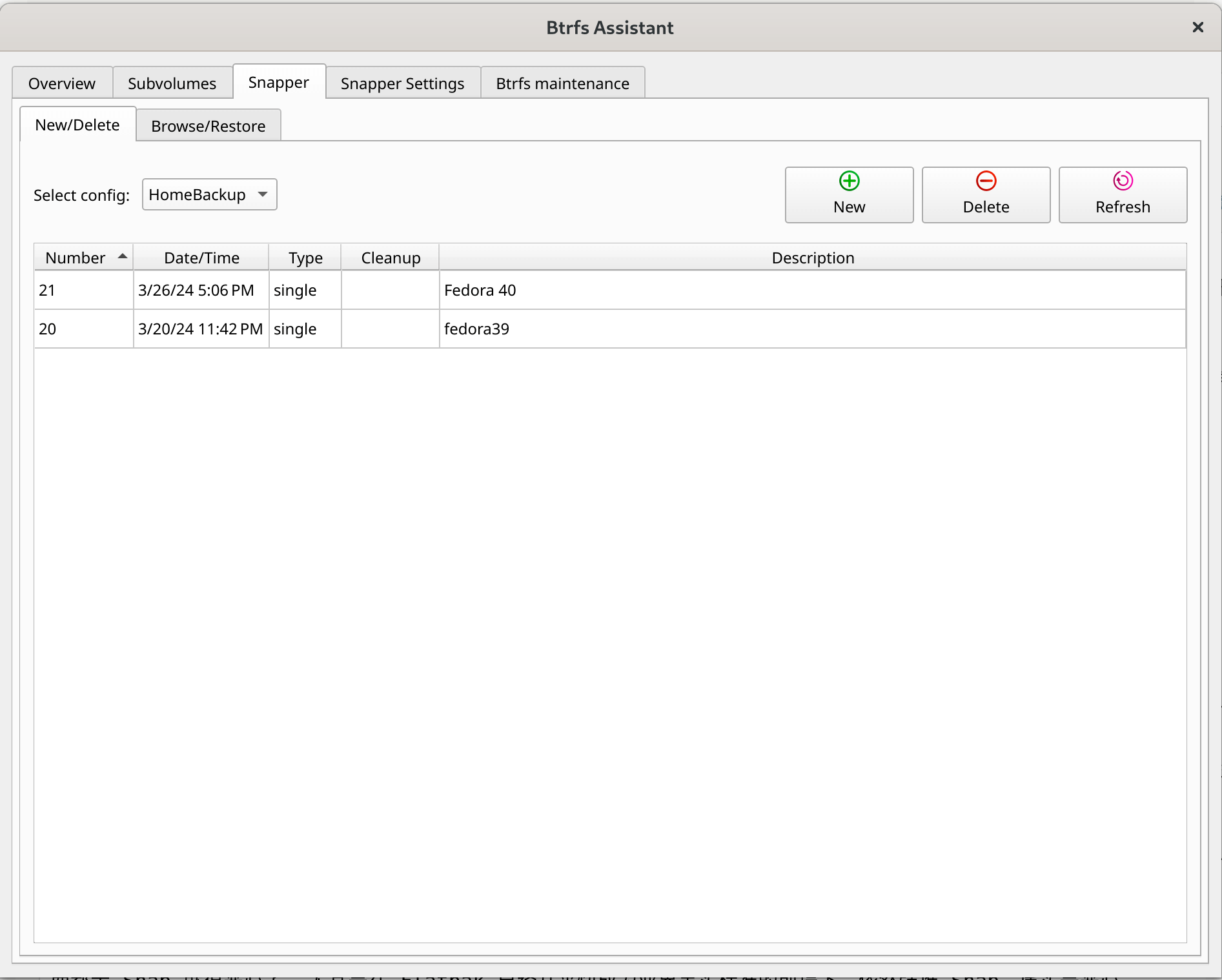
The default btrfs install mounts two volumes — root for the system and home for the user directory. Both can be snapshotted, backed up, and restored independently, and this tool makes it dead simple.
The tool even supports automatic backups and snapshots, but I wouldn’t recommend it. Sometimes snapshots cause flatpak programs to run slowly and require a reboot to recover.
Virtual machine choice: GNOME Boxes
There are plenty of VM options on Linux — the well-known VirtualBox, VMware, and GNOME’s own GNOME Boxes.
Here’s why GNOME Boxes became my choice. First, if you use VirtualBox or VMware, your machine needs Secure Boot disabled, otherwise kernel module compilation fails. Either you manually sign after every kernel update, or you don’t use it.
GNOME Boxes is based on KVM, so it’s naturally free of that restriction.
If your system doesn’t have it, install it:
sudo dnf install gnome-boxes
And in theory KVM performs better than VirtualBox anyway, so there’s even more reason to use it. The biggest issue with KVM right now is that Windows emulation is mediocre. It’s not that it can’t emulate Windows — it’s still the graphics performance driver that can’t keep up. I recommend using a 2D acceleration driver like QXL for Windows; if you really need high-end 3D performance, you’ll have to do GPU passthrough.
As for emulating Linux, performance is excellent.
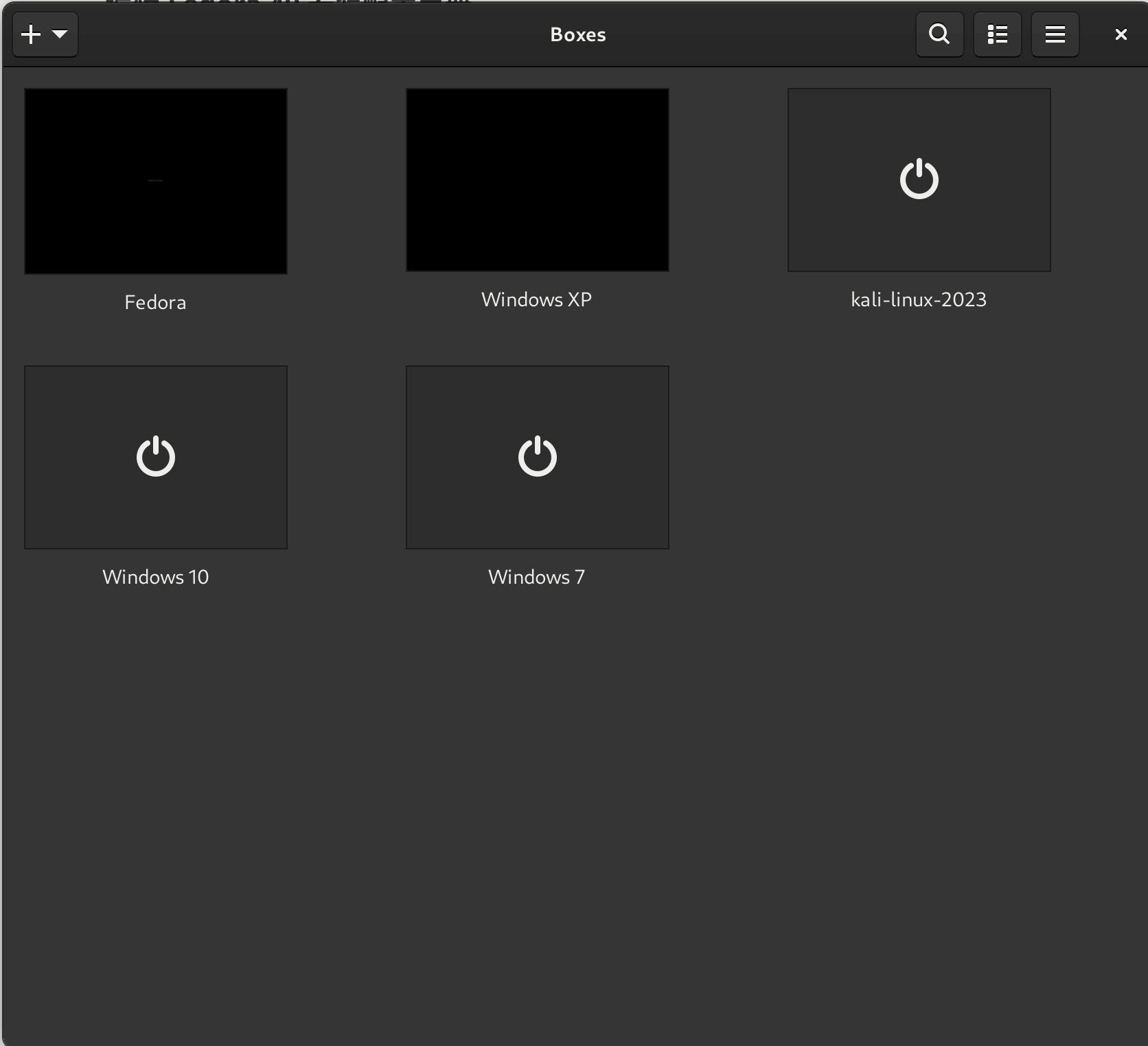
If GNOME Boxes’ interface is too minimal and you can’t figure it out, install another control GUI:
sudo dnf install virt-manager
Then it’ll make sense.
Installing clipboard manager Gpaste
There are plenty of clipboard managers on Linux — cross-platform CopyQ, various extensions that support it — but I still rate Gpaste highest.
The reason is simple: it’s stable. It runs as a background service rather than just relying on an extension to record things, and it’s deeply integrated with GNOME. As a GNOME user it’s the natural first choice.
Installation:
sudo dnf install gpaste
Then remember to enable the gpaste extension in the Extensions app.
Three ways to install Telegram
Telegram is a cross-platform chat app, and there are three ways to install it on Fedora:
- Via RPMFusion:
sudo dnf install telegram-desktop
This is a Fedora repackaging and seems to lose some new features, and you can’t enable Beta.
- Via Flatpak:
flatpak install flathub org.telegram.desktop
- Direct from the official site:
https://desktop.telegram.org/
Download the Linux package and write your own shortcut. This is the method I use — you can enable the Beta channel and auto-updates. You’ll need to put the binary in the opt directory yourself and give it write permissions.
Enabling GTK4’s Vulkan backend
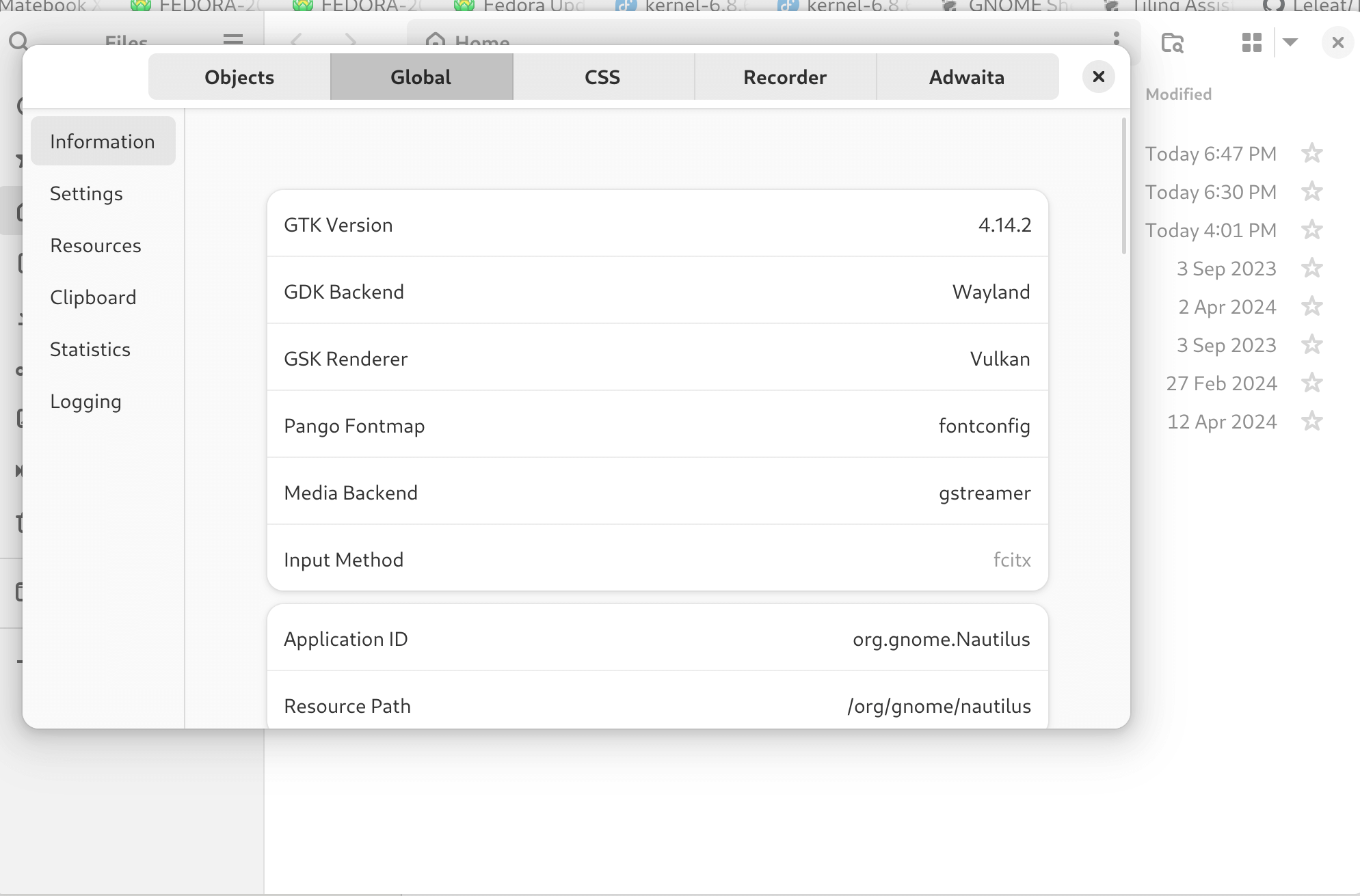
If you’re on Wayland, starting with Fedora 40 you can enable GTK’s new Vulkan rendering backend for better performance.
sudo nano /etc/environment
Add the following:
GSK_RENDERER=vulkan
Save, reboot, open the Nautilus file manager, press ctrl+shift+I, and you can see the backend is now vulkan.
Some advanced Fedora tips:
Updating Update-testing packages.
Fedora has a testing channel — software about to enter the stable repo gets tested here first, then moves in.
Besides manually enabling the testing repo, users can also pull updates via command:
sudo dnf update --enablerepo=updates-testing --refresh
After doing this your system becomes a newer version. It’s labeled testing, but it’s essentially stable — I’ve rarely had problems.
Tracking the latest packages via bodhi:
You can open this to see the latest packages and what’s about to get new versions:
https://bodhi.fedoraproject.org/updates/?releases=F40 The trailing F40 means Fedora 40 — change it as needed.
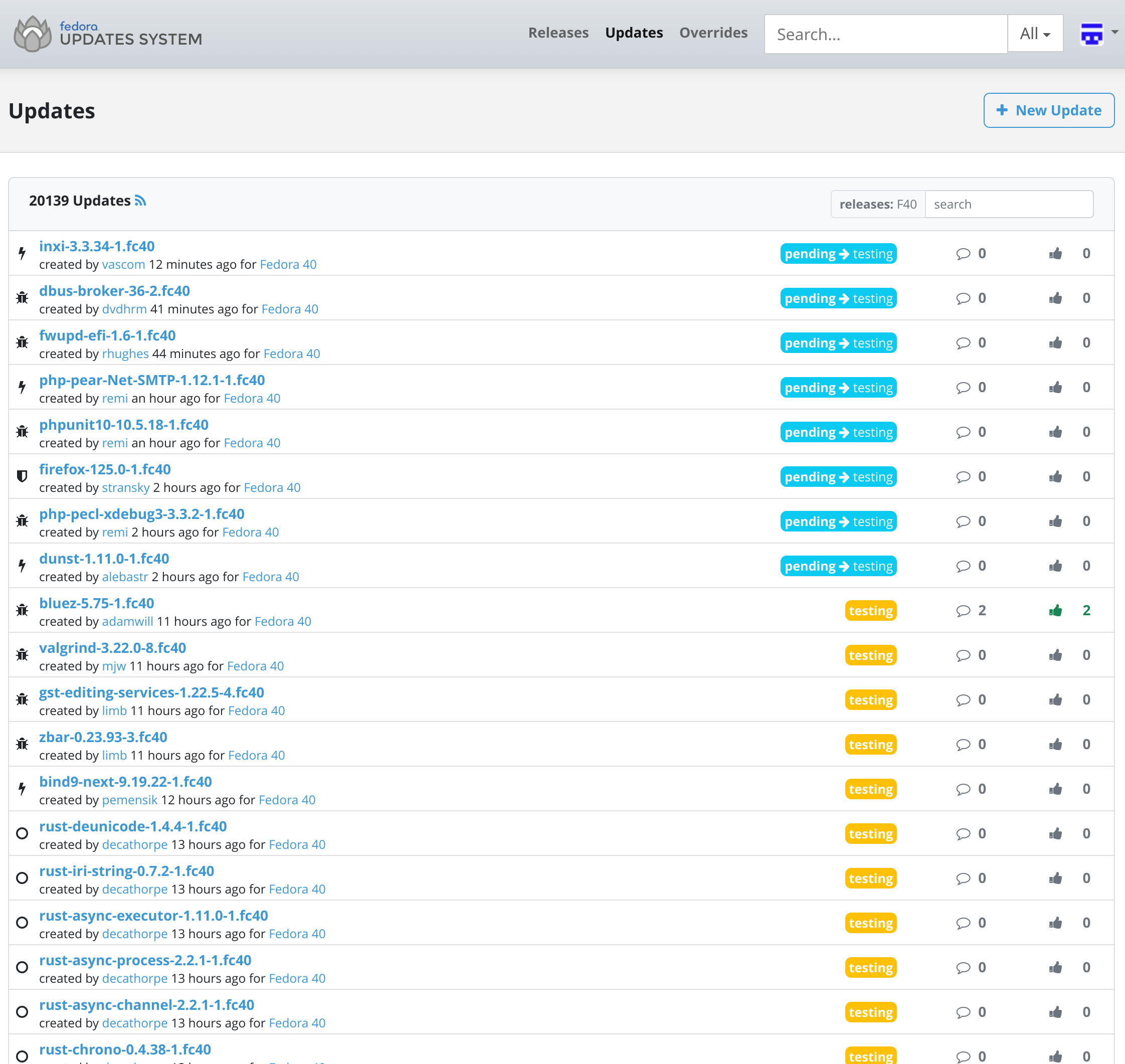
You can also actively participate in testing new packages — for example, using the bodhi command to download a test build:
bodhi updates download --updateid ID
After downloading, update manually with:
sudo dnf update *.rpm
Likewise, you can track the latest packages in Fedora’s koji build system. For example, this link tracks the latest kernel:
https://koji.fedoraproject.org/koji/packageinfo?packageID=8 Once you’ve found the latest package name, download it directly:
koji download-build --arch=x86_64 kernel-6.8.6-300.fc40
After downloading, update manually with:
sudo dnf update *.rpm
If there are issues, report and rate them on the bodhi page promptly — it affects whether the package gets pushed to the stable channel.
You can also keep an eye on Fedora’s latest logs, including testing activities for new software and modules:
https://pagure.io/fedora-qa/issues
And don’t forget the official announcement blog:
https://fedoramagazine.org/ It has the latest technical articles and announcements.
Fedora also has third-party repos similar to Ubuntu PPAs, called Copr
https://copr.fedorainfracloud.org/ You can find some temporary packaging there, but I wouldn’t recommend casually trying it — and there’s no real need to right now anyway.
Doing a Fedora major version upgrade
Whenever Fedora releases a new version into Beta, you can upgrade your current system to the latest Beta. The method is very simple:
sudo dnf upgrade --refresh
sudo dnf install dnf-plugin-system-upgrade
sudo dnf system-upgrade download --releasever=40
sudo dnf system-upgrade reboot
The “40” is the version number you’re upgrading to. For example, going from Fedora 39 to Fedora 40 uses the command above; going from Fedora 40 to Fedora 41 means changing “40” to “41.”
In principle, skipping versions isn’t supported. Some people have done it successfully, but I still wouldn’t recommend it. Upgrade one version at a time. Fedora itself only supports each version for 13 months — just over a year. Beyond that, your system version needs updating. And Fedora releases a new version every 6 months, so I recommend updating right after each stable release to enjoy the latest GNOME features and more functionality.
Check the current Fedora version lifecycle: https://docs.fedoraproject.org/en-US/releases/eol/
Upgrading Fedora major versions via dnf generally doesn’t cause problems, and if there are issues they’ll tell you before the upgrade. You can even create a btrfs snapshot first and restore if the upgrade fails.
Most problems are a package conflict, or a package installed via copr where that copr no longer supports the new version. The best approach there is to temporarily remove the software and reinstall after upgrading.
Another common situation: after a major update Fedora’s GNOME also upgrades, and your previously installed extensions all stop working. You’ll need to check for yourself — before upgrading, go to https://extensions.gnome.org/ and see whether your extensions list the new version as supported, or visit the extension’s GitHub link to see if the author plans to update. If nobody updates it, you’ll have to give it up.
This is also why I say use fewer obscure extensions, and fewer extensions in general — so your system doesn’t blow up on every upgrade.
Takeaway: with GNOME, submit — don’t fight it
When GNOME 3 launched, basically everyone hated it. On one hand the operation habits were anti-human; on the other, performance was problematic — constant stuttering and memory leaks. After all these years GNOME is basically stable now. Aside from their habit of randomly changing extension APIs, it’s fine for daily use.
But a lot of people refuse to adapt to GNOME Shell’s operating logic and always want to mod it into something else with extensions. The result is the opposite of what they wanted.
All I can say is: if you like Windows-style operation, use KDE. Even if you like macOS style, KDE is a good choice — highly customizable KDE can make itself look exactly like macOS.
With GNOME, that path doesn’t work. You have to submit to GNOME’s design philosophy to feel comfortable.
For example, GNOME has no minimize by default — it encourages you to open multiple workspaces, ideally one main window per workspace, and switch between windows by switching workspaces with keyboard or touchpad shortcuts.
Another example: GNOME hides the dock by default (they call it the Dash) because they want you to use the touchpad or the Win key (they call it Super) to quickly bring up the app grid. And many of the shortcuts are well thought out — Win + 1 2 3 4 5 6 7 maps to the first few apps on the dock, Win + up/down/left/right all have corresponding window actions. Once you’re familiar, efficiency improves a lot.
What I still can’t understand is why they removed “tray icons.” Maybe GNOME thinks programs shouldn’t minimize. Or maybe GNOME thinks all these programs should use extension-based handling like gpaste? At least for now we can implement it with an extension.
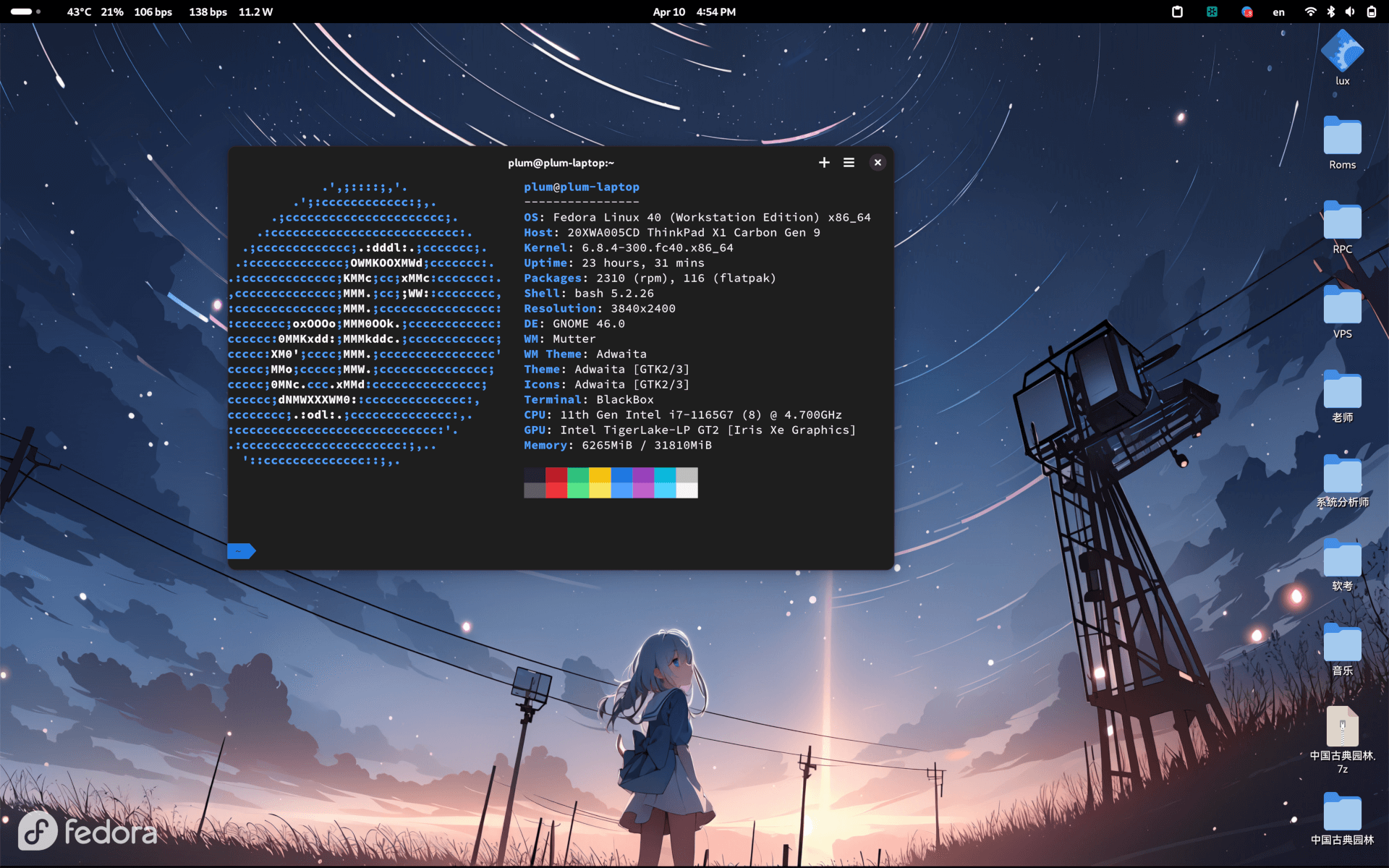
I’ve customized GNOME as little as possible — almost no changes to the original system config. Default fonts, default theme, default icons, default window layout.
The only modification is using vitals to display current system usage info, pinned to the left side of the top bar, because I felt it was too empty there. Something had to go there.
Oh, and if you’re a beginner: you don’t need to update your system every day, and use the “Software Center” to update your system components whenever possible. It’s safer that way and greatly reduces the chance of your system breaking.
Epilogue and some freebies:
I’ve been using Fedora for almost 3 years now, and GNOME for almost 4. Overall I’m satisfied — or maybe I’m just a masochist who’s gotten used to it.
After using it long enough, I’ve found Fedora is a genuinely good distro. The community vibe is straightforward, bugs get reported and someone actually fixes them, and software versions update fast. It’s extremely close to upstream — the kind of thing where you see a new feature in Linux news yesterday and maybe you can use it on Fedora a few days later. It’s basically GNOME’s “favored child.” Compared to Ubuntu, which leaves non-mainstream software bugs unfixed for ages, it’s way better.
Also, Fedora itself has no commercial baggage, so there’s none of Ubuntu’s weird ad inserts, updates go smoothly, and the more I use it the more natural it feels. Starting from Fedora 35 I’ve kept updating without ever reinstalling, all the way to Fedora 40 now, and it’s been smooth the whole way. It’s a system worth using properly.
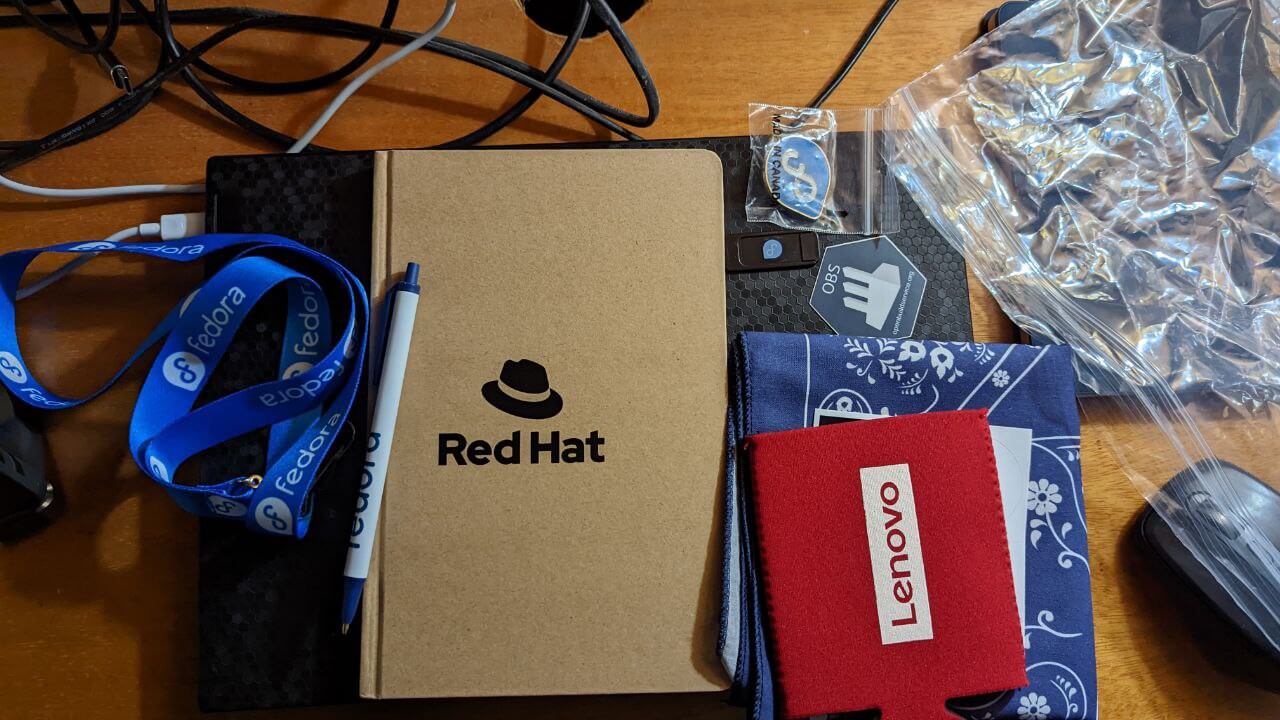
And because of Fedora’s relationship with Red Hat, there are plenty of freebies to score. Every so often there are Fedora conferences you can register for and watch online to win some souvenirs — I’ve gotten Fedora stickers, shirts, system USB drives, and various badges. That’s one perk of using Fedora: just keep an eye on Fedora’s official news and you can get these.
Here’s a look at the Fedora souvenirs I’ve received, plus the official shirt:

I hope this article helps people who want to use Fedora + GNOME.
Comments are hosted on the Chinese main site. This mirror is read-only.