Fedora 42 Installation Notes
Preface:
I wrote a Fedora 40 installation guide a while back, with notes on my own install and initial setup plus some thoughts on how to keep Fedora from being a pain. Those tips still hold up—arguably even more so now.
Short version: if you’re using Fedora (GNOME), try to adapt to GNOME’s logic and design philosophy. Otherwise, just use KDE.
This time it’s about Fedora 42. I’ve updated some parts, carried others over directly from the previous version, and dropped steps that are no longer necessary. My GNOME rants and key points stay in the Fedora 40 post. Maybe I’ll pull them out into their own piece someday—perhaps in the next Fedora guide.
For installing Fedora and doing basic setup, I recommend having a way to get around network restrictions—ideally a router-level global solution. Otherwise it’s either slow or some things just won’t connect.
System Installation:
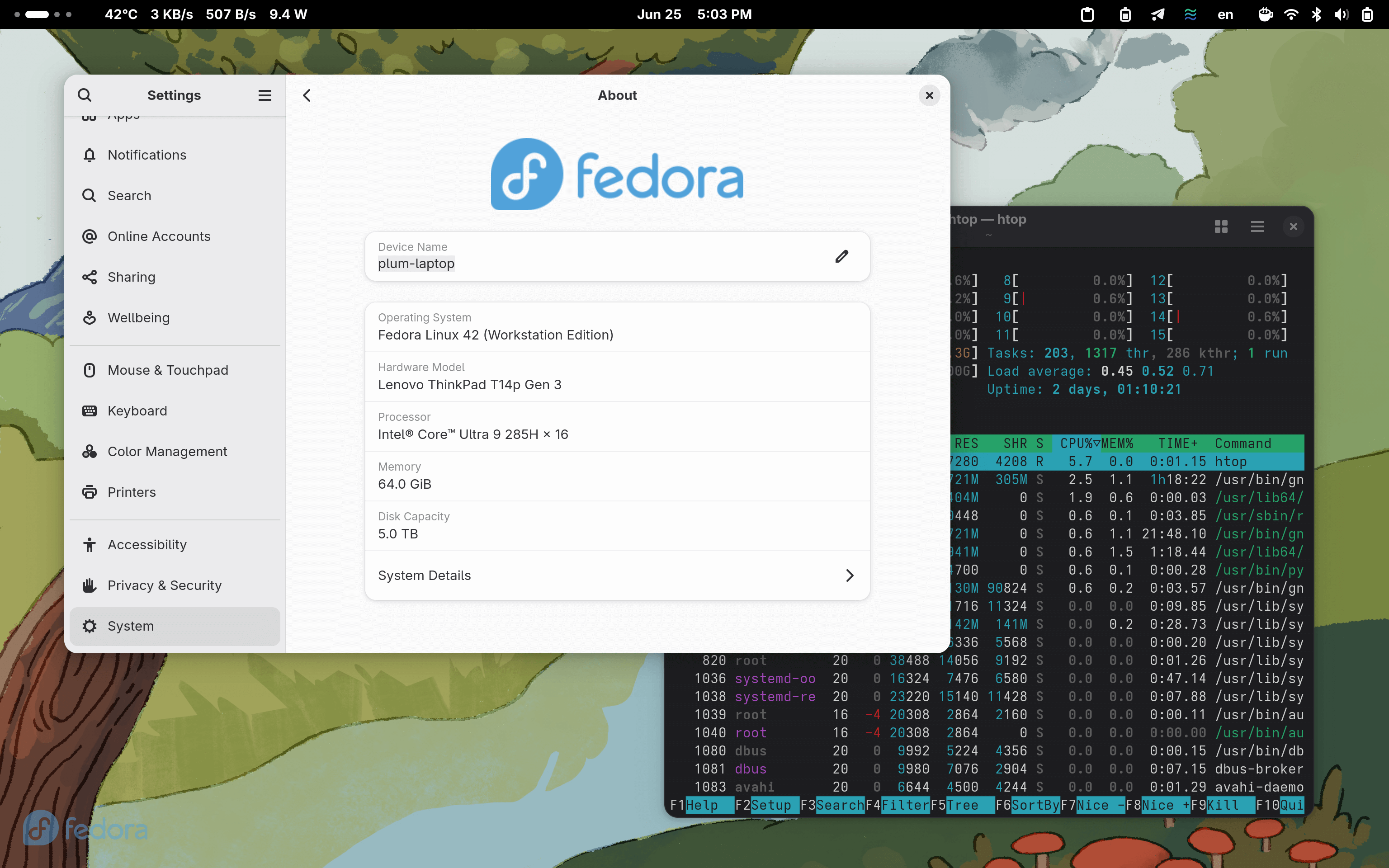
The Fedora 42 installer is new, web-based, evil, unbelievable. If your machine is weak or low on RAM, you’ll get popups about Firefox becoming unresponsive. If Firefox gets killed, the so-called installer shows “disconnected.” I don’t like it, but there’s not much I can do.
If your hardware isn’t great, don’t mess around during installation—just wait for the progress. If you suddenly get a “Firefox was killed” message during install, don’t panic. Wait a while, until CPU and memory usage drop, then just reboot. The system might already be installed. All that died was a web frontend showing a progress bar.
For disk partitioning, unless something unusual is going on, I recommend “use entire disk” and the default btrfs layout. I explained why before: btrfs has issues, but as long as you’re not using RAID it’s not a big deal, and the advantages of its new features clearly outweigh ext4’s remaining performance edge.
That said, I still don’t recommend blindly using btrfs on serious application machines—like a NAS storing important data—but for a PC, btrfs is more than good enough.
Unless you know what a swap partition is for, there’s no need to set up a separate swap partition. Zram is sufficient.
Basic Repository Setup:
After the first install of Fedora 42, you boot into the desktop and go through basic setup—creating a username and so on. There’s a prompt to “enable third-party repositories” or similar. Remember to enable it; that automatically configures the flathub repo, so you don’t have to do it yourself.
After connecting to Wi-Fi, update the system first:
sudo dnf update
If you’re feeling adventurous, you can update from testing-update first—usually gets you a newer kernel and Mesa. Worth trying if you’re on a laptop with the latest chip; otherwise skip it.
sudo dnf update --enablerepo=updates-testing --refresh
Next, enable rpmfusion:
sudo dnf install https://mirrors.rpmfusion.org/free/fedora/rpmfusion-free-release-$(rpm -E %fedora).noarch.rpm https://mirrors.rpmfusion.org/nonfree/fedora/rpmfusion-nonfree-release-$(rpm -E %fedora).noarch.rpm
If you didn’t enable “third-party software repositories” during first login and missed flathub, you can enable it manually.
flatpak remote-add --if-not-exists flathub https://dl.flathub.org/repo/flathub.flatpakrepo
flathub used to have a domestic mirror, but it went down and caused major problems. It seems to be working again now. Unless you really have trouble accessing the international internet, the original flathub is better than the mirror.
Installing Common Extensions:
Open the official GNOME Shell extensions site:
The first time you open it, it prompts you to install a browser extension. Click “Click here to install browser extension.” After installing, you can add common extensions. Currently supports Firefox and Chrome; Edge is unclear, probably not.
Here are some extensions I think are worth using:
Must-have:
Taskbar support—so minimized apps like Telegram show an icon https://extensions.gnome.org/extension/615/appindicator-support/
Caffeine—temporarily prevents sleep https://extensions.gnome.org/extension/517/caffeine/
GTK4 desktop icons—shows desktop icons (GNOME has none by default) https://extensions.gnome.org/extension/5263/gtk4-desktop-icons-ng-ding/
Auto-switch between dark and light mode based on time (also supports wallpaper switching) https://extensions.gnome.org/extension/2236/night-theme-switcher/
Shows Caps Lock and other lock key states; can be set to hide by default and only show when locked https://extensions.gnome.org/extension/36/lock-keys/
Displays RAM and CPU usage, temperature, and current power draw https://extensions.gnome.org/extension/1460/vitals/
Optional extensions:
Edge-triggered dock—moving the mouse to the bottom edge shows the dock. Prone to accidental triggers; better to get used to touchpad and Win key navigation. https://extensions.gnome.org/extension/4222/hot-edge/
Blur effects—can cause crashes and performance drops https://extensions.gnome.org/extension/3193/blur-my-shell/
Smart window tiling—if you’re using tiling, why not just switch to a WM like Hyperland? https://extensions.gnome.org/extension/3733/tiling-assistant/
Just Perfection—a highly customizable extension to toggle all windows and effects. Looks like lots of options but most are useless. https://extensions.gnome.org/extension/3843/just-perfection/
Legacy desktop icons—less integrated than the new GTK4 one, but better performance https://extensions.gnome.org/extension/2087/desktop-icons-ng-ding/
Adds a Windows 10/11-style dock to the top-left bar, but looks clunky https://extensions.gnome.org/extension/5180/rocketbar/
Installing Fcitx5 Chinese/Japanese Input Method
In theory, GNOME’s native input method should be iBus. I tried it, but iBus is just bad. Three main problems:
If you type too fast it often freezes. People keep reporting bugs, and the devs keep optimizing, but after all these years it still freezes…
Poor QT support—many QT apps can’t use the input method. Don’t ask; they’ll just tell you to switch to a GTK app.
Fedora’s default package doesn’t enable “cloud pinyin.” This is the most absurd part. iBus pinyin supports cloud input, but Fedora disabled it in packaging, citing “not open source, privacy concerns.” And they didn’t even give users a choice—like providing an open version on rpmfusion. If you want cloud input, you have to compile it yourself. That’s just stupid.
So after weighing everything, I recommend all GNOME users switch to fcitx5. It’s currently the best input method available.
Installation is simple:
sudo dnf install fcitx5-chinese-addons fcitx5-autostart
For Japanese input:
sudo dnf install fcitx5-mozc
After installation, logging out and back in should make the input method work, but the input window might look ugly. I suggest installing a GNOME extension to beautify it:
https://extensions.gnome.org/extension/261/kimpanel/
After logging out and back in, the input window will match GNOME’s default style and blend in better.
Fcitx5 has many settings and tricks—search online for details, including emoji input, importing large dictionaries, etc. Don’t forget to enable cloud input; you can choose Baidu cloud.
Installing Some Basic Software:
Time to install some basic software. For very fundamental stuff we use RPM; for the rest, use flatpak. Using flatpak as much as possible means fewer problems during upgrades.
Install Logitech mouse control software solaar (Logitech mice only)—skip if you don’t have a Logitech mouse/keyboard.
sudo dnf install solaar
Install Typora text editor:
flatpak install flathub io.typora.Typora
If you don’t like paying for Typora, try Ghostwriter:
flatpak install flathub org.kde.ghostwriter
Install common software:
sudo dnf install vlc filezilla remmina easytag file-roller showtime
VLC player, filezilla FTP tool, remmina remote desktop, easytag music ID tag editor, file-roller for archives, showtime is the new GTK4 video player—install as you like.
For a browser I recommend Firefox. For screenshots, GNOME’s own is powerful enough.
Some more useful tools:
GPU Screen Recorder (a streaming/recording tool that reads GPU info directly, low overhead)
flatpak install flathub com.dec05eba.gpu_screen_recorder
Rustdesk (a decent remote tool, similar to Sunlogin or todesk; recommend the flatpak version)
https://github.com/rustdesk/rustdesk/releases
WeChat Flatpak version
flatpak install flathub com.tencent.WeChat
Steam (RPMFusion has it too, but I personally think the flatpak version is better)
flatpak install flathub com.valvesoftware.Steam
LinuxQQ
flatpak install flathub com.qq.Discord
Video editor KdenLive
flatpak install flathub org.kde.kdenlive
A temporary notepad Buffer
flatpak install flathub org.gnome.gitlab.cheywood.Buffer
And Microsoft’s two: Edge and Vscode
https://www.microsoft.com/en-us/edge/download
https://code.visualstudio.com/download
Plus Google Chrome
https://www.google.com/chrome/
All can be installed directly via RPM downloads.
For special needs, some settings-related apps:
sudo dnf install gnome-tweaks gnome-extensions-app dconf-editor
Enabling VA-API Video Acceleration
Honestly, unless you’re having video playback problems, I don’t recommend messing with this.
Due to licensing, Fedora removed a lot of video acceleration support, but RPMFusion can add it back:
sudo dnf install mesa-va-drivers-freeworld mesa-vdpau-drivers-freeworld
$ sudo dnf swap mesa-va-drivers mesa-va-drivers-freeworld
$ sudo dnf swap mesa-vdpau-drivers mesa-vdpau-drivers-freeworld
Install other codecs:
$ sudo dnf groupupdate multimedia --setop="install_weak_deps=False" --exclude=PackageKit-gstreamer-plugin
$ sudo dnf groupupdate sound-and-video
$ sudo dnf install @multimedia @sound-and-video ffmpeg-libs gstreamer1-plugins-{bad-\*,good-\*,base} gstreamer1-plugin-openh264 gstreamer1-libav lame\*
Reference: https://kcore.org/2022/12/01/fedora37-codecs/
Worth noting: every time Mesa updates, the corresponding freeworld package from rpmfusion lags behind and can cause dependency errors. Just wait a few days before updating.
Installing AV1 Video Thumbnail Support
sudo dnf install libheif-tools
See: https://plumz.me/archives/13985/
Installing BTRFS Snapshot Management
First install the tool:
sudo dnf install btrfs-assistant
After that you’ll see the program in your apps.
Since btrfs is COW (Copy on Write), snapshots and backups are very easy. This tool makes snapshot backups convenient.
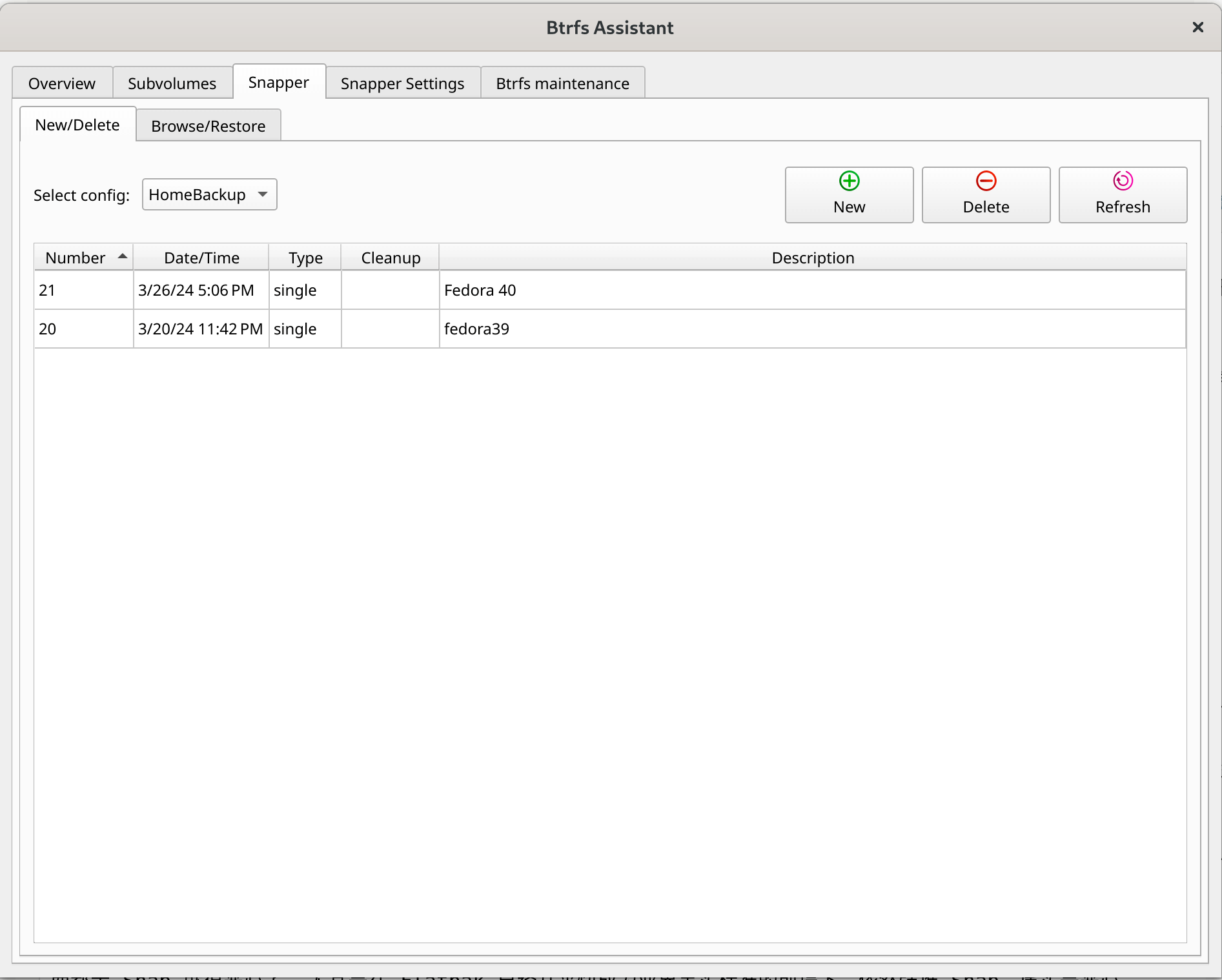
The default btrfs install mounts two volumes: root and home. Both can be snapshotted, backed up, and restored independently. This tool makes it dead simple.
It even supports automatic backups and snapshots, but I don’t recommend that—sometimes snapshots slow down flatpak apps, requiring a reboot to recover.
Virtual Machine Choice: GNOME Boxes
There are many VM options on Linux: VirtualBox, VMware, and GNOME’s own GNOME Boxes.
Why GNOME Boxes is my choice: if you use VirtualBox or VMware, you need to disable Secure Boot, otherwise kernel module compilation fails. Either manually sign after every kernel update or don’t use it.
GNOME Boxes is based on KVM, so it’s not affected.
If your system doesn’t have it, install:
sudo dnf install gnome-boxes
And in theory KVM performance beats VirtualBox, so use KVM. The biggest problem with KVM right now is mediocre Windows emulation. Not that it can’t emulate, but graphics drivers are still lacking. For Windows, use a 2D accelerated driver like QXL. If you really need high-end 3D, you’ll need GPU passthrough.
As for emulating Linux, performance is great.
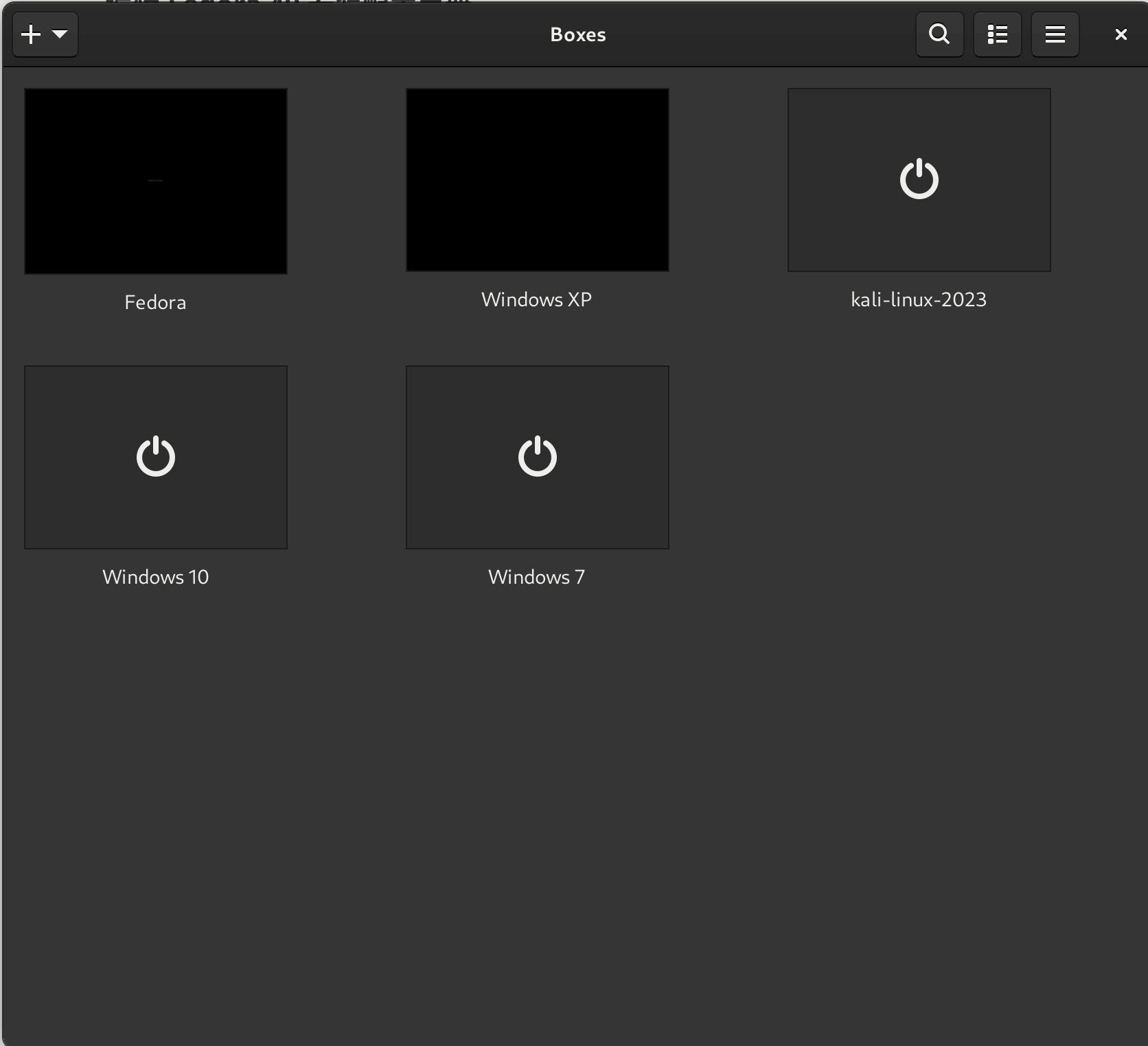
If GNOME Boxes’ interface is too minimalist for you, install another GUI:
sudo dnf install virt-manager
Then it’ll make sense.
Installing Clipboard Manager Gpaste
There are many clipboard managers on Linux: cross-platform CopyQ, various extensions, but I highly recommend Gpaste.
Simple reason: it’s stable, runs as a background service rather than just an extension recording, and integrates deeply with GNOME. As a GNOME user, it’s the natural choice.
Installation:
sudo dnf install gpaste
sudo dnf install gnome-shell-extension-gpaste
Then remember to enable the gpaste extension in Extensions.
Three Ways to Install Telegram
Telegram, as a cross-platform chat app, has three installation methods on Fedora:
- Via RPMFusion:
sudo dnf install telegram-desktop
This is a Fedora repackage, seems to miss some new features and can’t enable Beta.
- Via Flatpak:
flatpak install flathub org.telegram.desktop
- Direct from official site:
https://desktop.telegram.org/
Download the Linux package and write your own shortcut. This is what I use; it can enable Beta channel auto-updates. You need to put the executable in /opt and give write permissions.
Installing Oh-My-ZSH
sudo dnf install zsh
sh -c "$(curl -fsSL https://raw.githubusercontent.com/ohmyzsh/ohmyzsh/master/tools/install.sh)"
Installing VPN/Proxy
sudo dnf copr enable spyophobia/shadowsocks-rust
sudo dnf install shadowsocks-rust
Optimization: Enable Rust-based Scheduler
New Linux kernels support many Rust-based schedulers. The benefit is better multitasking and some energy efficiency gains, so try it if interested.
sudo dnf copr enable bieszczaders/kernel-cachyos-addons
sudo dnf install scx-scheds
Then change the default scheduler:
sudo vim /etc/default/scx
I recommend setting these two:
SCX_SCHEDULER=scx_lavd
SCX_FLAGS='--autopower'
Here autopower switches automatically based on AC/battery.
Finally, don’t forget to enable the service:
systemctl enable scx
Optimization: Use iwd as Wi-Fi Backend
iwd is Intel’s official Wi-Fi management module, offering better performance and stability for Intel wireless cards. Only recommended for Intel wireless card users—if you’re not sure whether your card is Intel, don’t blindly change it.
$ sudo dnf install iwd
$ echo -e "[device]\nwifi.backend=iwd" | sudo tee /etc/NetworkManager/conf.d/10-iwd.conf
$ sudo systemctl mask wpa_supplicant
Reboot to take effect. You may need to re-add previously added wireless networks. Old and new wireless might have name conflicts; delete the old and add the new.
If after reboot the results aren’t satisfactory, you can revert to the default backend:
$ sudo rm /etc/NetworkManager/conf.d/10-iwd.conf
$ sudo systemctl unmask wpa_supplicant
Reference: https://thedestitutedeveloper.blogspot.com/2021/01/enabling-iwd-on-fedora-33.html
Optimization: Laptop Battery Life Configuration
Currently the main way to optimize laptop battery life on Linux is TLP; most others are similar.
On Fedora, especially GNOME, I think just enabling the built-in Powertop optimization service is enough.
First install Powertop:
sudo dnf install powertop
Then enable the service:
sudo systemctl enable powertop.service
You can check current power consumption:
sudo powertop
Also, Fedora 42 no longer uses power-profiles-daemon; it uses Red Hat’s own Tuned as backend, which gives much better battery life than power-profiles-daemon. Just select the appropriate power mode in settings.
Optimization: Font Rendering
Fedora 42 uses the new Adwaita Sans and Adwaita Mono fonts, actually modified from other fonts. Some minor issues remain, but most old display problems are fixed, making optimization easier.
Still using grayscale instead of RGB; I explained why before, won’t repeat.
Just create the config file:
mkdir ~/.config/fontconfig/
gnome-text-editor ~/.config/fontconfig/fonts.conf
Paste the following config:
<?xml version="1.0"?>
<!DOCTYPE fontconfig SYSTEM "urn:fontconfig:fonts.dtd">
<fontconfig>
    <!-- 设置字体渲染方式,使用灰度,不使用 rgb -->
  <match target="font">
    <edit mode="assign" name="rgba">
      <const>none</const>
    </edit>
  </match>
   <match target="font">
<edit name="autohint" mode="assign">
	<bool>false</bool>
	</edit>
 </match>
<match target="font">
<edit name="hinting" mode="assign">
	<bool>true</bool>
	</edit>
	 </match>
	     <!-- 设置字体渲染方式,可以使用 none,也可以使用 slight -->
  <match target="font">
    <edit mode="assign" name="hintstyle">
      <const>hintslight</const>
    </edit>
  </match>
  <match target="font">
    <edit mode="assign" name="antialias">
      <bool>true</bool>
    </edit>
  </match>
    <!-- 针对 Emoji 字体单独设置,防止无法显示的问题,emoji 字体不能使用 none 渲染 -->
  <match target="font">
    <test name="family" qual="any">
      <string>Noto Color Emoji</string>
    </test>
        <edit name="rgba" mode="assign">
      <const>none</const>
    </edit>
        <edit name="embolden" mode="assign">
      <bool>false</bool>
    </edit>
         <edit mode="assign" name="lcdfilter">
    <const>lcddefault</const>
  </edit>
    <edit name="scalable" mode="assign">
      <bool>true</bool>
    </edit>
    <edit name="embeddedbitmap" mode="assign">
      <bool>true</bool>
    </edit>
    <edit name="hinting" mode="assign">
      <bool>true</bool>
    </edit>
        <edit name="autohint" mode="assign">
      <bool>false</bool>
    </edit>
  <edit name="antialias" mode="assign">
      <bool>true</bool>
    </edit>
        <edit name="hintstyle" mode="assign">
      <const>hintslight</const>
    </edit>
  </match>
  <!-- Default system-ui fonts -->
   <match target="pattern">
    <test name="family">
      <string>system-ui</string>
    </test>
    <edit name="family" mode="prepend" binding="strong">
      <string>sans-serif</string>
    </edit>
  </match>
  <!-- 默认 emoji 字体。 -->
  <match target="pattern">
    <test name="family" qual="any">
      <string>emoji</string>
    </test>
    <edit name="family" mode="prepend" binding="same">
      <string>Noto Color Emoji</string>
    </edit>
  </match>
  <!-- 替换 Apple Color Emoji 字体。 -->
    <match target="pattern">
    <test name="family" qual="any">
      <string>Apple Color Emoji</string>
    </test>
    <edit name="family" mode="assign" binding="same">
      <string>Noto Sans</string>
    </edit>
  </match>
  <!-- 替换 Apple Color Emoji 字体。  -->
    <match target="pattern">
    <test name="family" qual="any">
      <string>SF Pro Icons</string>
    </test>
    <edit name="family" mode="assign" binding="same">
      <string>Noto Color Emoji</string>
    </edit>
  </match>
  <!-- 替换 Apple 字体。 -->
    <match target="pattern">
    <test name="family" qual="any">
      <string>PingFang SC</string>
    </test>
    <edit name="family" mode="assign" binding="same">
      <string>Noto Sans CJK SC</string>
    </edit>
  </match>
  <!-- 替换 Windows 字体。 -->
    <match target="pattern">
    <test name="family" qual="any">
      <string>Microsoft Yahei</string>
    </test>
    <edit name="family" mode="assign" binding="same">
      <string>Noto Sans CJK SC</string>
    </edit>
  </match>
  <!-- 替换 MS 字体。 -->
    <match target="pattern">
    <test name="family" qual="any">
      <string>arial</string>
    </test>
    <edit name="family" mode="assign" binding="same">
      <string>Noto Sans</string>
    </edit>
  </match>
  <!-- 替换 Apple字体。 -->
    <match target="pattern">
    <test name="family" qual="any">
      <string>SF Pro</string>
    </test>
    <edit name="family" mode="assign" binding="same">
      <string>Noto Sans</string>
    </edit>
  </match>
  <!-- Map fonts that are commonly used by web pages to our preferred fonts -->
  <match target="pattern">
    <test qual="any" name="family"><string>Liberation Sans</string></test>
    <edit name="family" mode="assign" binding="same"><string>sans-serif</string></edit>
  </match>
  <match target="pattern">
    <test qual="any" name="family"><string>Tahoma</string></test>
    <edit name="family" mode="assign" binding="same"><string>sans-serif</string></edit>
  </match>
  <match target="pattern">
    <test qual="any" name="family"><string>Arial</string></test>
    <edit name="family" mode="assign" binding="same"><string>sans-serif</string></edit>
  </match>
  <match target="pattern">
    <test qual="any" name="family"><string>Liberation Mono</string></test>
    <edit name="family" mode="assign" binding="same"><string>monospace</string></edit>
  </match>
  <match target="pattern">
    <test qual="any" name="family"><string>Droid Sans Mono</string></test>
    <edit name="family" mode="assign" binding="same"><string>sans-serif</string></edit>
  </match>
  <!-- Default sans-serif fonts-->
  <match target="pattern">
    <test name="family">
      <string>sans-serif</string>
    </test>
    <edit name="family" mode="prepend" binding="strong">
      <string>Noto Sans CJK SC</string>
      <string>Noto Sans</string>
      <string>Noto Color Emoji</string>
    </edit>
  </match>
  <!-- Default serif fonts-->
  <match target="pattern">
  <test name="family">
    <string>serif</string>
  </test>
  <edit name="family" mode="prepend" binding="strong">
      <string>Noto Serif CJK SC</string>
      <string>Noto Serif</string>
      <string>Noto Color Emoji</string>
    </edit>
  </match>
  <!-- Default monospace fonts-->
  <match target="pattern">
    <test name="family">
      <string>monospace</string>
    </test>
    <edit name="family" mode="prepend" binding="strong">
      <string>Noto Sans Mono</string>
      <string>Noto Sans Mono CJK SC</string>
      <string>Noto Color Emoji</string>
    </edit>
  </match>
    <!-- Default font for the zh_CN locale (no fc-match pattern) -->
    <match target="pattern">
    <test name="lang" compare="contains">
      <string>en</string>
    </test>
    <test name="family" compare="contains">
      <string>Noto Sans CJK SC</string>
    </test>
    <edit name="family" mode="prepend" binding="strong">
    <!--      <string>HarmonyOS Sans SC</string>-->
      <string>Noto Sans CJK SC</string>
      <string>Noto Sans</string>
      <string>Noto Color Emoji</string>
    </edit>
  </match>
  <match target="pattern">
    <test name="lang" compare="contains">
      <string>en</string>
    </test>
    <test name="family" compare="contains">
      <string>Noto Serif CJK SC</string>
    </test>
    <edit name="family" mode="prepend" binding="strong">
      <string>Noto Serif CJK SC</string>
      <string>Noto Serif</string>
      <string>Noto Color Emoji</string>
    </edit>
  </match>
  <match target="pattern">
    <test name="lang">
      <string>zh-CN</string>
    </test>
    <test name="family">
      <string>Noto Sans CJK SC</string>
    </test>
  </match>
  <match target="pattern">
    <test name="lang">
      <string>zh-CN</string>
    </test>
    <test name="family">
      <string>Noto Serif CJK SC</string>
    </test>
  </match>
  <match target="pattern">
    <test name="lang">
      <string>zh-CN</string>
    </test>
    <test name="family">
      <string>Noto Sans Mono CJK SC</string>
    </test>
  </match>
  <match target="pattern">
    <test name="lang">
      <string>zh-HK</string>
    </test>
    <test name="family">
      <string>Noto Sans CJK SC</string>
    </test>
    <edit name="family" binding="strong">
      <string>Noto Sans CJK HK</string>
    </edit>
  </match>
  <match target="pattern">
    <test name="lang">
      <string>zh-HK</string>
    </test>
    <test name="family">
      <string>Noto Serif CJK SC</string>
    </test>
    <edit name="family" binding="strong">
      <!-- not have HK -->
      <string>Noto Serif CJK TC</string>
    </edit>
  </match>
  <match target="pattern">
    <test name="lang">
      <string>zh-HK</string>
    </test>
    <test name="family">
      <string>Noto Sans Mono CJK SC</string>
    </test>
    <edit name="family" binding="strong">
      <string>Noto Sans Mono CJK HK</string>
    </edit>
  </match>
  <match target="pattern">
    <test name="lang">
      <string>zh-TW</string>
    </test>
    <test name="family">
      <string>Noto Sans CJK SC</string>
    </test>
    <edit name="family" binding="strong">
      <string>Noto Sans CJK TC</string>
    </edit>
  </match>
  <match target="pattern">
    <test name="lang">
      <string>zh-TW</string>
    </test>
    <test name="family">
      <string>Noto Serif CJK SC</string>
    </test>
    <edit name="family" binding="strong">
      <string>Noto Serif CJK TC</string>
    </edit>
  </match>
  <match target="pattern">
    <test name="lang">
      <string>zh-TW</string>
    </test>
    <test name="family">
      <string>Noto Sans Mono CJK SC</string>
    </test>
    <edit name="family" binding="strong">
      <string>Noto Sans Mono CJK TC</string>
    </edit>
  </match>
  <match target="pattern">
    <test name="lang">
      <string>ja</string>
    </test>
    <test name="family">
      <string>Noto Sans CJK SC</string>
    </test>
    <edit name="family" binding="strong">
      <string>Noto Sans CJK JP</string>
    </edit>
  </match>
  <match target="pattern">
    <test name="lang">
      <string>ja</string>
    </test>
    <test name="family">
      <string>Noto Serif CJK SC</string>
    </test>
    <edit name="family" binding="strong">
      <string>Noto Serif CJK JP</string>
    </edit>
  </match>
  <match target="pattern">
    <test name="lang">
      <string>ja</string>
    </test>
    <test name="family">
      <string>Noto Sans Mono CJK SC</string>
    </test>
    <edit name="family" binding="strong">
      <string>Noto Sans Mono CJK JP</string>
    </edit>
  </match>
  <match target="pattern">
    <test name="lang">
      <string>ko</string>
    </test>
    <test name="family">
      <string>Noto Sans CJK SC</string>
    </test>
    <edit name="family" binding="strong">
      <string>Noto Sans CJK KR</string>
    </edit>
  </match>
  <match target="pattern">
    <test name="lang">
      <string>ko</string>
    </test>
    <test name="family">
      <string>Noto Serif CJK SC</string>
    </test>
    <edit name="family" binding="strong">
      <string>Noto Serif CJK KR</string>
    </edit>
  </match>
  <match target="pattern">
    <test name="lang">
      <string>ko</string>
    </test>
    <test name="family">
      <string>Noto Sans Mono CJK SC</string>
    </test>
    <edit name="family" binding="strong">
      <string>Noto Sans Mono CJK KR</string>
    </edit>
      </match>
  <!-- Fallback fonts preference order -->
  <alias>
    <family>sans-serif</family>
    <prefer>
      <family>Noto Sans</family>
      <family>Noto Sans CJK SC</family>
      <family>Noto Sans CJK TC</family>
      <family>Noto Sans CJK JP</family>
      <family>Noto Sans CJK KR</family>
      <family>Noto Color Emoji</family>
      <family>Noto Emoji</family>
    </prefer>
  </alias>
  <alias>
    <family>serif</family>
    <prefer>
      <family>Noto Serif</family>
      <family>Noto Serif CJK SC</family>
      <family>Noto Serif CJK TC</family>
      <family>Noto Serif CJK JP</family>
      <family>Noto Serif CJK KR</family>
      <family>Noto Color Emoji</family>
      <family>Noto Emoji</family>
    </prefer>
  </alias>
  <alias>
    <family>monospace</family>
    <prefer>
      <family>Noto Sans Mono CJK SC</family>
      <family>Noto Sans Mono CJK HK</family>
      <family>Noto Sans Mono CJK JP</family>
      <family>Noto Sans Mono CJK KR</family>
      <family>Noto Color Emoji</family>
      <family>Noto Emoji</family>
    </prefer>
  </alias>
     <selectfont>
    <rejectfont>
      <pattern>
        <patelt name="family" >
          <!-- This font is causing problem with GitHub -->
          <string>Nimbus Sans</string>
        </patelt>
      </pattern>
    </rejectfont>
  </selectfont>
</fontconfig>
You can also install common Microsoft fonts, since some sites’ CSS still relies on them:
sudo dnf install curl cabextract xorg-x11-font-utils fontconfig -y
sudo rpm -i https://downloads.sourceforge.net/project/mscorefonts2/rpms/msttcore-fonts-installer-2.6-1.noarch.rpm
And common Linux fonts like WenQuanYi, which some sites target:
sudo dnf install "wqy-*"
Also, I highly recommend copying a “Microsoft YaHei” font and installing it. Just open the ttf and choose install. Although my fontconfig includes substitution rules, many webpages hardcode this font, and some apps force it (yes, WPS, I’m talking about you). Without it, you’ll get boxes and garbled text.
Optimization: Flatpak Font Rendering
After setting up font rendering correctly, you’ll notice flatpak apps still have ugly fonts—they don’t seem to apply your rendering settings.
Try running:
flatpak --user override --filesystem=~/.config/fontconfig:ro
To let flatpak apps read your fontconfig.
If that doesn’t work, open the flatpak app’s config path:
~/.var/app/[程序名字]/config
Create a fontconfig directory inside, copy your ~/.config/fontconfig/fonts.conf there, and restart the flatpak app.
Optimization: Disable Fractional Scaling for Performance
Starting with Fedora 42, fractional scaling is enabled by default, and independent scaling control for Xwayland is on. This solves the old problem of GNOME not doing 125%, 150% scaling, and Xwayland apps no longer get blurry when scaling.
Sounds good, but it brings new problems. GNOME’s fractional scaling works by supersampling: for 150%, it renders UI at 300% then downscales by half to get 150%. This demands more performance. On a mediocre machine, especially with a weak GPU and janky closed-source discrete drivers, the system feels laggy.
So if your screen resolution is standard (e.g., 14" 1080p, or you can do perfect 200% scaling) and the UI is usable without scaling, I recommend disabling this feature for better performance and smoother UI response.
If you must scale, I’d suggest font scaling instead, since performance impact is real.
Disabling is easy:
gsettings set org.gnome.mutter experimental-features "[]"
You can also disable scaling in GDM to avoid repeated black screens after login:
sudo -u gdm dbus-launch gsettings set org.gnome.mutter experimental-features "[]"
Comments are hosted on the Chinese main site. This mirror is read-only.