Living with Lenovo Chromebook Flex 5
Got a Lenovo Chromebook Flex 5 and Installed Fedora on It
Foreword:
A while back I got bored and decided I needed a computer, a “tinkering” toy, with two main goals:
- Try out the latest system updates — an aggressive platform
- Try out all kinds of new distros
After weighing things back and forth, my requirements for this device gradually became clear:
- It has to be cheap, the cheaper the better, and the specs as high as possible
- Ideally it supports various form factors — a keyboard, a touchscreen, and Linux-friendly. I mainly use Linux, since I’m already tired of Windows
- Durable and light, because after testing I’ll usually just toss it in a corner to gather dust
- Ideally some expandability and serviceability, like a ThinkPad
- Occasionally usable for emergency work — the kind of thing you can toss anywhere without feeling bad
Choosing the machine:
With the requirements roughly settled, I started browsing eBay aimlessly. At first I targeted used ThinkPads, but annoyingly the ones within budget were all expensive — 1000+ yuan, and used on top of that. The “cheap and good” clearance machines I craved were nowhere to be found.
Later I looked at those clearance “cloud computers” recommended on YouTube — at least N5100-level performance. But they were either out of stock or the price shot up after some YouTuber recommended them. The cloud computers on eBay were either RK3566 machines or brand-new Loongson 3A4000 — not that I can’t accept Loongson, but installing systems on it is too limited and doesn’t meet my needs. Maybe another time.
Eventually I went back to the old lane and started looking at cheap secondhand junk Chromebooks. The price range here is huge — from 300 yuan up to 1600, almost every option exists. But they’re all junk of unknown origin, retired from foreign universities or companies, either with cosmetic damage or dead batteries. Cheap is king, and I expected this, but deep down it still felt unsatisfying. Something this cheap — who knows what it’s been through. It wouldn’t surprise me if it died on me one day.
Finally, on Taobao I found a “brand new” Chromebook: a Japanese-version Lenovo Flex5 Chromebook 13, Intel Celeron 6305, 4GB RAM, supports NVMe SSD expansion, 1080p screen, convertible touchscreen, 51Wh battery, 500 yuan.
This machine isn’t without flaws. First, the CPU is “pure dual-core” — single-core performance looks a bit better than those routers, but multi-core isn’t great. Second, 4GB of RAM is a bit small. Screen brightness is only 250 nits. And the most awkward thing is the Japanese keyboard layout, which might be annoying to use.
But all of that is nothing compared to the “brand new” advantage. Brand new avoids a ton of problems, so I bought it in the end.
Unboxing and flashing:
After it arrived I checked and it was indeed brand new, packaging unopened, and it even came with a stylus. But the machine ships with Chromebook OS preinstalled, so I needed to flash the BIOS first. This machine’s codename is Lillipup, and MrChromebox already provides flashing support. You just need to open it up and disconnect the battery, enable developer mode, and enter the corresponding command in the terminal to flash — this enables UEFI and more third-party boot options. Then it can be treated as a normal Linux laptop and you can install a system. There are plenty of guides online, so I won’t repeat them.
Of course, this machine has some small issues. After flashing the SeaBIOS you can install Windows, but there’s no sound card driver — you have to buy it from a foreign site, and the price is a subscription, apparently. I don’t plan to install Windows for now, so I let it go, just marveling at how expensive it is.
When I opened the machine I saw it supports an NVMe SSD, so I shoved in an idle 512GB one and replaced the built-in 64GB eMMC SSD. Worth mentioning: this magical eMMC SSD can’t be read by other systems, so I can’t put it in an enclosure and use it as an external drive. Even more ridiculous, if you don’t add a third-party SSD and want to install a system directly on this eMMC, you’ll run into all sorts of problems. So swapping the SSD became mandatory, which added cost to this project. Fortunately I had an idle one, so whatever.
Installing Fedora and tuning
After the BIOS is flashed, installing a system is simple — you can even enable Secure Boot. I originally wanted to install Fedora Silverblue, but after thinking it over I went with Workstation first.
After installation I ran into some issues, mainly three: screen, performance, memory.
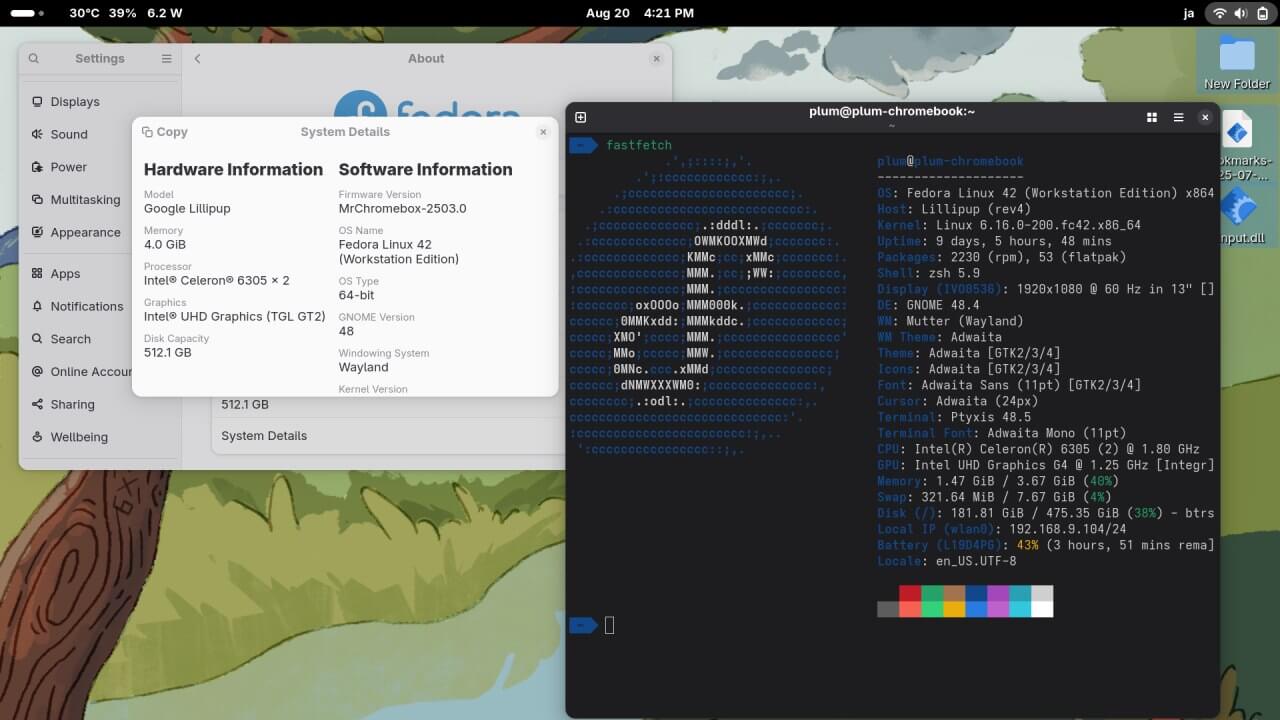
- Screen scaling. 1080p on a 13-inch is really weird — 100% makes fonts too small, 200% is obviously too big. Usually allowing 125% would be best. Fedora 42 supports this scaling by default, but as I said before, this scaling causes performance degradation, and this Chromebook’s performance is already mediocre, so no need to make it worse.
My final choice was 100% scaling with 1.25 font scaling, which looks acceptable.
This laptop’s performance isn’t strong, but not bad either. This dual-core CPU’s default TDP is actually 15W, and even the integrated GPU gets a good chunk of power, so playing older GPU-heavy games actually works decently. I used Steam + Proton to test some 2010–2013 AAA games and they were all fine, and older GoG games even more so. With good battery life and power efficiency, it can even serve as a retro PC gaming terminal — who can refuse a small laptop with 4 hours of gaming battery life?
The laptop only has 4GB of RAM, the biggest bottleneck, shared with video memory, making it even tighter. But we’re Linux users, so this isn’t unsolvable.
- First, enable Zram with maximum compression, sacrificing a little CPU for more memory space.
- Second, Fedora has many useless built-in services, like irqbalance — we only have two cores, don’t need it. Delete or disable them all.
- Kill Gnome-software, which keeps invading the background and eating memory. Kill Calendar, Weather, Evolution and other system components. Lighten the system. Disable things like fs-mine too — no need for global search. These can greatly boost memory.
- Don’t use third-party schedulers or third-party optimized kernels — with only two cores they’re meaningless.
- Keep extensions as minimal as possible, use none you don’t need. I ended up keeping only Vitals and AppIndicators, no desktop icons, since they add another process.
Anyway, after tuning, idle memory usage is about 300MB — and this is Gnome, so the effect is significant. It can even run games, and memory is just barely enough. Yes, just barely. But considering the Switch 1’s terrible hardware still lasts so long, a just-barely-enough memory running games seems reasonable.
Misc and conclusion:
This laptop actually works pretty well — all functions work. The only difference is that Chromebook + Japanese layout keyboard combo, which is a bit too absurd. But the docs on chrultrabook are detailed enough — from Linux audio drivers to subsequent keyboard shortcut support, there are one-click commands for everything. Just follow them.
But the Japanese layout — there’s no good solution. My choice was “calm acceptance” — I even changed the default keyboard in fcitx5 to JP, so at least I won’t fail to find symbols when typing. It’s just a test laptop, so whatever.
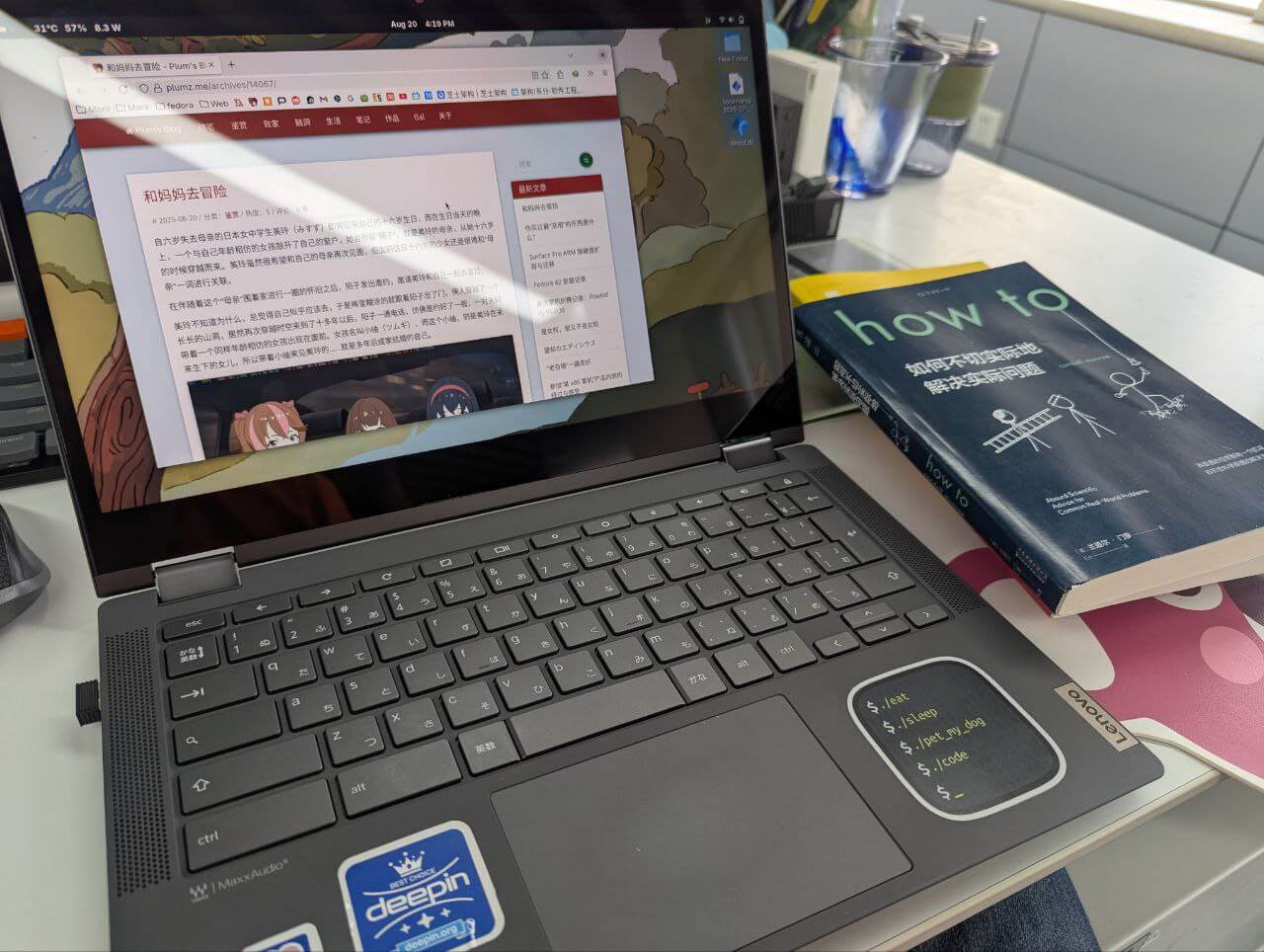
The machine itself is btrfs-based and can roll back, which is quite stable. Maybe in the future I’ll actually switch to Silverblue, hoping it solves GPU and printer driver issues.
For testing third-party systems you don’t even need to wipe and reinstall — just plug in a USB drive and you’re set, unplug it when done. As a third-string machine for testing and debugging, portable, sturdy, long-lasting, it’s really convenient. The only regret is the small memory — there was actually an 8GB upgraded version on eBay, but the markup was too high, so I gave up.
Comments are hosted on the Chinese main site. This mirror is read-only.