Surface Go 2
Using a Surface Go with GNOME as a Tablet: My Impressions
Preface:
I’ve never really had any particular need for a tablet, but it’s not like I have zero use for one either.
I do want a tablet. My needs are simple: use it as a reader, browse the web, watch videos, read PDFs, listen to something to fall asleep to at night. That’s it.
The tablet I’d been using was a cheap used LG I picked up from OK’s place. I don’t think I ever wrote about it, but for 300 yuan it’s worth the price — it does fine as a video machine. Its biggest problem is the system. It’s an Android tablet, and a Japanese Android tablet at that, packed with all sorts of junk that causes all sorts of problems, whether it’s system updates or app compatibility. For example, I ran into a situation where my proxy app wouldn’t work. If my home network didn’t have a global proxy, this thing really wouldn’t be able to watch YouTube.
So I had an idea: why not try using Linux as a tablet? GNOME, for instance, has been criticized for years for having a UI that’s too “touch-oriented” — so if you actually use it as a touch tablet, wouldn’t it be more suitable?
Once the idea was there, I got to work.
Choosing the machine:
There are Linux tablets with GNOME preinstalled on the market, but they aren’t sold in mainland China and they’re expensive, and their chassis look like some of the no-name tablets from the mainland, like the ones from Cube. And to use a tablet, naturally it has to meet the form factor and requirements of a tablet:
- It can run Linux and the hardware support is decent
- It has to be light and portable, max 10 inches — anything bigger is too heavy
- It needs a 3.5mm headphone jack, and the audio/video side (screen and speakers) has to be decent
- It has to be cheap, cheap, as cheap as possible, so that if the experience flops, I lose less
After weighing things up, I found there really are products that meet these requirements, but not many — basically just one: the heavily hyped Surface Go series.
Surface Go is already on its fourth generation, and honestly every generation supports Linux pretty much perfectly. But my bottom line was at least the second generation, because the second gen has thin bezels. The later ones have better performance, but the improvement is really negligible. Surface Go 2 prices on Xianyu vary a lot — from as high as 1600 down to 400-something. In the end I successfully snagged a Surface Go 2 for 400 yuan with free shipping and a keyboard, 8 + 128 storage, screen in good condition, but the rest of it was in rough shape. The seller said the keyboard “only works at certain angles,” but when it arrived it was basically unusable — I only got it to respond twice after wiggling it around. That was within expectations, of course. At that price, what more do you want for 400 yuan?
After it arrived I tested the battery: about 80% capacity. Since the Surface Go’s battery capacity is small to begin with, 80% doesn’t seem too terrible. Just a few watt-hours difference.
And even though the keyboard was broken, you can also find cheap Surface Go keyboards on Xianyu. I picked one up for 80 yuan in excellent condition — having the original keyboard makes installing and configuring the system much easier later.
As for the scratches all over the body, my advice is to just cover it in stickers. Cover it all in stickers and there won’t be any problem — you won’t see the scratches, and it’ll make people think you’re a hardcore geek, giving off an unfathomable vibe.
Installing Fedora
Since I’d decided to use GNOME, naturally I should pick a distro that treats GNOME as a first-class citizen — so Fedora it is. The installation process is actually simple. Here I’ll mainly talk about the Linux-Surface-kernel. The wiki has a “feature matrix” for this kernel showing the current hardware support — you can see most things work fine, but the price is that you need to install this specific kernel.
However, for the Surface Go 2, all the drivers have already been merged into the official mainline kernel, so third-party support is no longer needed. In other words, after installing Linux directly, it basically just works. Surface’s detachable keyboard, touch pen, and sleep are all natively supported. As for the software Fedora ships with, you can delete some of it — like the classic irqbalance, and various junk evolution server services.
Zram should of course be enabled, and Btrfs features can be used via the Btrfs assistant. Note that this software enables hourly snapshots by default — remember to turn that off manually. For other settings and installation, refer to my previous articles.
But after installing Linux on the Surface Go, I noticed the screen showed something like “burn-in” — ghosting that doesn’t go away after a reboot. Strangely, it doesn’t happen under Windows, and you can’t even see the ghosting in the BIOS screen. I can only assume it’s a problem with how Linux manages certain screen drivers. Whatever — this tablet is a lost cause anyway, it doesn’t affect much, I’ll just make do.
First touch experience
As I said at the start, the whole point of putting Linux on the Surface Go was to experience “whether GNOME can work as a tablet,” and in actual use I ran into a lot of problems.
Lots of people complain that GNOME is garbage, that for the sake of so-called touch and 2-in-1 features it sacrifices a ton of screen space, makes window title bars huge, and so on…
But when you actually use it with touch, you find that GNOME’s seemingly “touch-friendly” features have no significant touch optimization at all. It feels just as awkward as ever — even worse than Win11. GNOME’s overview requires a three-finger swipe up like on a laptop; you can’t bring it up with a “home bar” at the bottom like other tablet systems. You can only use three fingers. Even after entering the overview, if you want to switch workspaces, you can’t do it with one finger like on an Android phone — you need “three fingers” and you have to swipe on a part of the screen “with no windows,” otherwise you’ll touch a window and drag it instead of switching workspaces.
For a better touch experience, I even gave up Fcitx as my input method, just because I heard Ibus integrates tightly with the system, including the virtual keyboard and input methods. But in practice, GNOME’s virtual keyboard is far too primitive. As a Linux system, many system-related keys are missing — no tab, not even a slash, let alone the fact that Ibus can’t be brought up in most programs, and that abstract input box. At 200% screen scaling, the on-screen keyboard doesn’t scale at all. And the inscrutable keyboard pop-up logic: sometimes it keeps popping up, sometimes you swipe up and it won’t come out, and you can’t even find a button to force it to appear. It’s a complete disaster.
Especially after the user locks the screen and logs back in — you actually have to enter the full password, with no option to set a PIN. You can install something like howdy for face unlock, but this tablet’s performance is so bad that face scanning would probably lag for ages.
Another thing I need from a tablet is watching videos at night, or listening to videos as audio. On an Android tablet you can do this with “background playback” — the video plays, and after the screen locks you can still hear the audio, and sometimes when the video finishes the tablet goes to sleep by itself. Unfortunately, this seemingly ordinary feature obviously doesn’t exist on this Linux tablet. Actually you can’t blame the Linux system for this — this feature doesn’t exist on Windows either, or even on those so-called tablets running ChromeOS. Maybe it’s a difference at the system logic level.
Doing something about it
Although GNOME and Linux didn’t perform as well as expected on the Surface, things don’t have to be that bad — there are still remedies. In fact, after these fixes the experience is actually pretty decent, at least I’d say it reaches the level of a Chromebook tablet.
- Fixing the virtual keyboard and input method
First, uninstall the bundled ibus suite and install fcitx5, pick the 囧 face, done. Then install the gjs-osk extension. This extension lets you bring up a touchscreen keyboard at any time — a must for a tablet. When you need it, just swipe up from the bottom with a finger and the keyboard appears. It supports customization, you can drag the keyboard around, it has all the common keys, and you can use it to switch input methods too. It’s ridiculously good.
https://extensions.gnome.org/extension/5949/gjs-osk/
The only downside is that this keyboard always has a weird square bracket next to Z for some reason.
- Fixing video playback, screen-off playback, auto-sleep
First, refer to the rpmfusion wiki to enable hardware acceleration in Firefox — at least power consumption will be lower when you play YouTube. As for Bilibili, my advice is to install wiliwili, which supports flatpak, and it’s good enough to make do with.
https://discussion.fedoraproject.org/t/rpmfusion-hardware-accelerated-codec/117198
So what about screen-off playback? First enable a caffeine-like extension to prevent auto-sleep after locking the screen, then in settings set “turn off screen after locking.” Start playing a video, adjust the volume, then select lock from the menu, and you’ll find the audio still playing in the background while the tablet doesn’t go to sleep. That’s how you get “background playback.”
And auto-sleep?
Install an auto-timer shutdown extension: shutdowntimer. You can set it to automatically suspend after a period, and I chose one hour.
https://extensions.gnome.org/extension/4372/shutdowntimer/
For example, I need to listen to ASMR to fall asleep, and I want the tablet to play audio in the background and automatically sleep or shut down after playback ends.
I start the video, enable shutdowntimer to auto-suspend after an hour (depending on video length), enable caffeine, select lock — and it works. It’s a pain in the ass, but it is a workaround.
Conclusion
Looking back now, using a Surface Go with Linux + GNOME as a tablet — after all the initial discomfort, I found it’s actually surprisingly decent once adjusted. Maybe my tablet needs are just low: watching videos, browsing the web, reading PDFs, listening to videos and podcasts — it handles all the work tasks perfectly. Sometimes it can even double as a normal computer, since with the keyboard attached it’s a standard Fedora laptop.
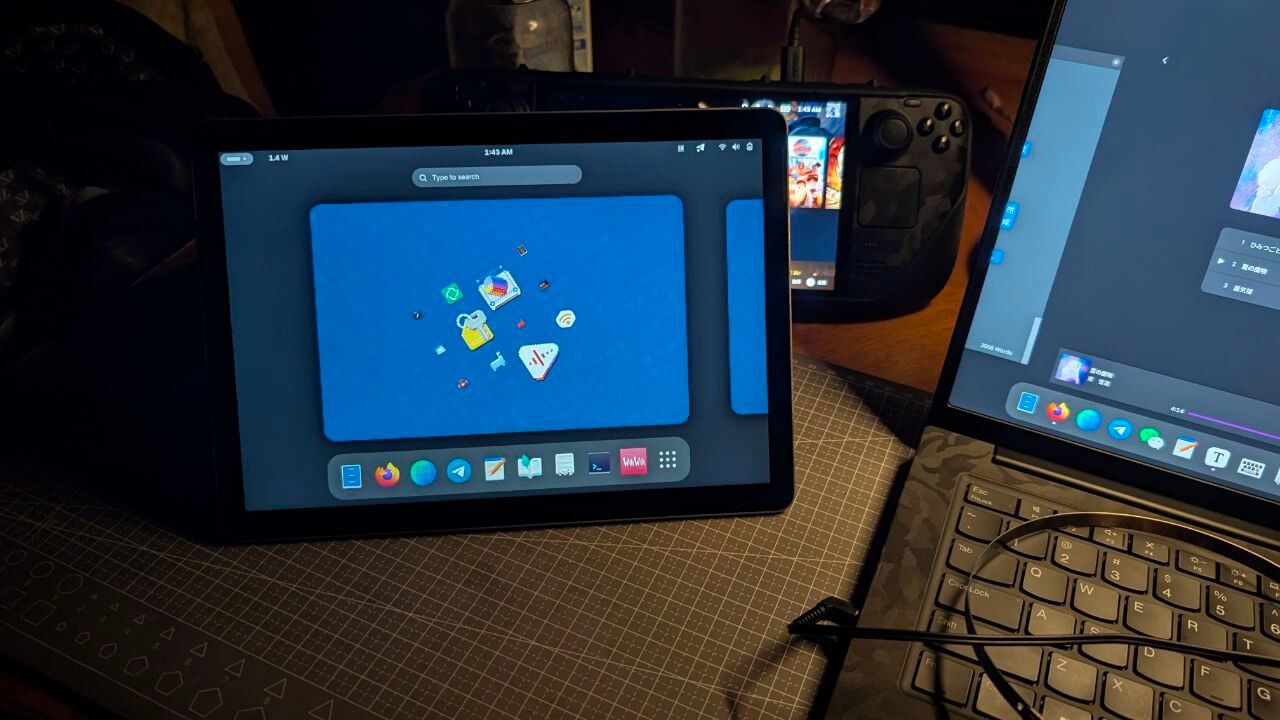
The only shortcoming is that I don’t know how to solve the burn-in problem I mentioned earlier. Actually this problem is a bit of a common issue — if it could be solved, that would be great. Another thing is that its “auto-rotate” is too sensitive, but you can disable it at any time, so it’s not really a problem.
https://github.com/linux-surface/linux-surface/issues/1759
For 400 yuan, a usable-enough touch tablet that runs the full x86 architecture — what more do you want?
Comments are hosted on the Chinese main site. This mirror is read-only.