A Few Days with Gal Touch
I Built a Helper Tool for Playing Galgame
I’ve been playing Galgame again lately, but I got fed up with my old device and went back to the Windows tablet camp. This time it’s a Lenovo 10-inch tablet with an N200 — performance and keyboard are nothing to write home about, but the screen is decent and the battery holds up. Personally I’d say it’s a bit better than the Surface Go 4. I’ll save the tablet talk for another time; today it’s about the software side.
Going back to a Windows tablet for Galgame, my old workflow felt a bit off. So I sorted out what I actually need when playing Galgame:
- Fast Ctrl-to-skip, and easy access to the game’s backlog
- Toggle between fullscreen and windowed
- Easy one-tap screenshots
- Show current power draw so I know how much battery time is left
With the requirements clear, I outsourced it — to AI, for free — and called the result Gal Touch.

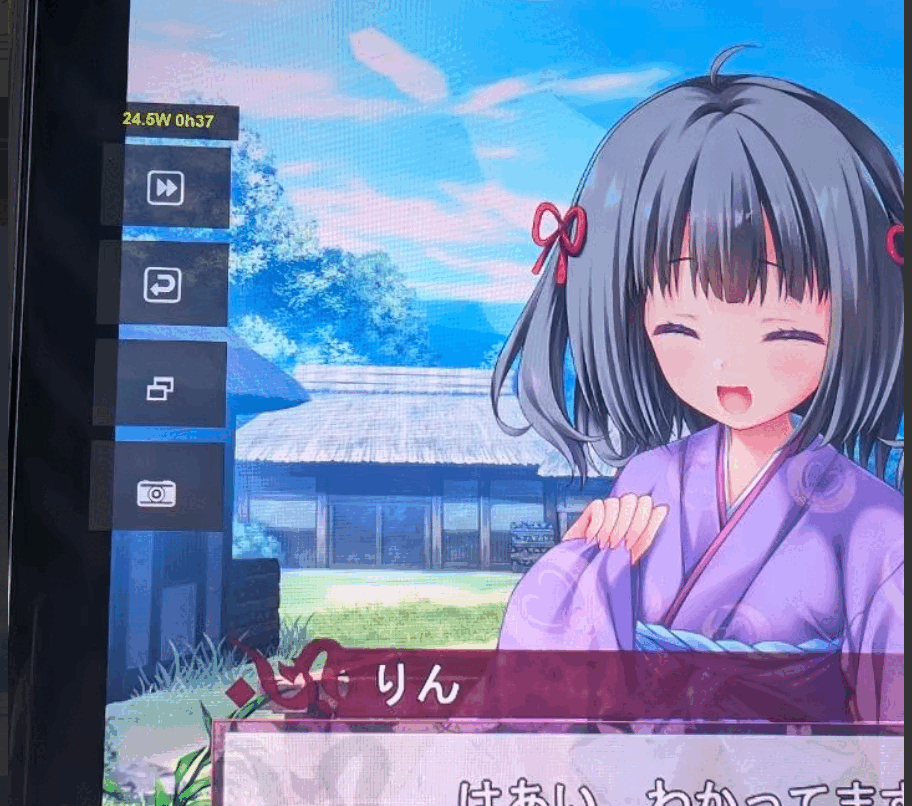
Gal Touch is a helper tool built for Windows touchscreen devices (tablets, handhelds, etc.). It puts a global floating window on screen so you can do the common high-frequency visual novel (Galgame) operations by touch, no physical keyboard needed.
Floating Window
The floating window has a drag area on top and four function buttons below.
- Move it: press and hold the drag area on top to drag the window anywhere on screen.
- Lock/unlock position: right-click (long-press on touch) the drag area to lock the window in place so you don’t nudge it mid-game. Right-click/long-press again to unlock.
Button Functions
All four buttons support two distinct actions: “left-click/tap” and “right-click/long-press”:
- ⏭️ Skip****Left-click/tap: turn skip on or off. Depending on your settings, it simulates “holding Ctrl” or “repeatedly pressing Enter”. Note: while skipping, tapping anywhere on screen interrupts and stops the skip by default. If you don’t want that, enable “Lock Skip Click” in settings.
- **↩️ Text Log (Backlog)**Left-click/tap: open the game’s dialogue history. You can bind it to Up arrow, Backspace, or Page Up in settings depending on the game. Right-click/long-press: simulate the ESC key (usually opens the game’s system menu or backs out of the current screen).
- 🖥️ Desktop & Fullscreen****Left-click/tap: minimize all windows and show the desktop (simulates Win + D). Right-click/long-press: toggle the current game between fullscreen and windowed (simulates Alt + Enter).
- 📷 Screenshot****Left-click/tap: capture the entire screen and auto-save it to the configured folder. Right-click/long-press: region screenshot. The screen dims; drag to select the area you want, and it saves automatically on release.
Settings
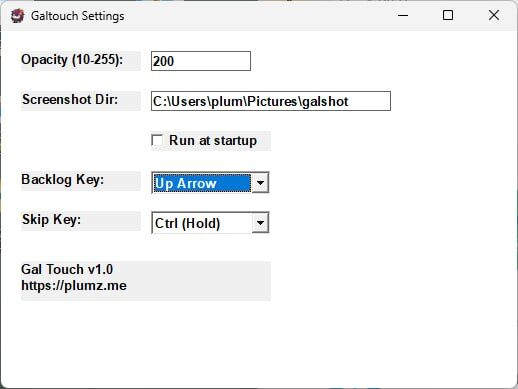
The tray icon in the bottom-right lets you hide the interface with a click, and there’s also a settings window where you can switch a few button behaviors:
- Skip button: choose between Ctrl and rapid Enter taps
- Text log: choose Page Up or Up arrow
- Built-in Keep screen on, basically Caffeine-style; supports auto-start on boot.
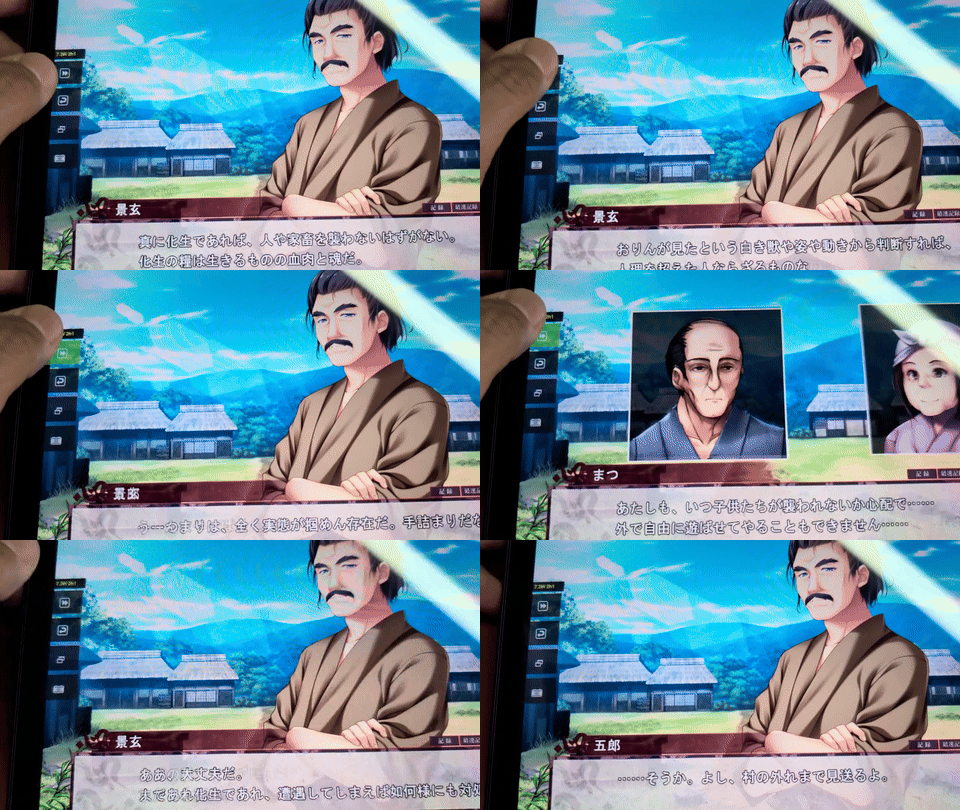
Anyway, after testing it on the tablet, I’m pretty happy with it. Give it a try if you’re interested. It covers most common games — though some weird publishers and engines, like Lump Of Sugar’s crippled engine, will lose a few functions. But at least “long-press Ctrl to speed up” is a consensus among most developers, so it’s fine.
Updated to v1.0.9
- Added lossless screenshot compression
- Settings window uses a more modern UI
- Fixed the program being launchable multiple times
- Added visual feedback on whether a screenshot succeeded
[download url=“https://plumz.me/usr/uploads/2026/08/4166977217.7z” title=“Gal Touch 1.0.9” size=“17KB”]
[download url=“https://plumz.me/storage/galtouch/GalTouch_v1.0.7z” title=“Gal Touch 1.0” size=“17KB”]
Comments are hosted on the Chinese main site. This mirror is read-only.