Impressions: Dell Latitude 3340
I Got a "New Old Laptop" to Relive Windows 7
Preface
Maybe you get old and start getting nostalgic. Lately everything new feels boring to me, and I’ve been missing the past. So I got the urge to build an “old computer” — install Win98, WinXP, or even Windows 7 on something. The Win9X and XP eras seemed like a hassle, so I decided to start with Win7.
The other reason I went with Win7 is that I spotted a batch of cheap new-old-stock laptops on eBay: the Dell Latitude 3340, the first generation, the Haswell one. Stock config is 4GB RAM and a 500GB HDD, and the key point is “brand new old stock” — compared with those ThinkPads that have been flipped who-knows-how-many times, that’s one advantage.
After some research I found this thing drives Windows 7 perfectly. Even the weird Intel integrated HD4600 can utterly demolish retro games from the Windows 7 era, so it’s a solid choice for revisiting stuff from around 2010. With that beautiful fantasy in mind, I bought this new-old-stock machine.
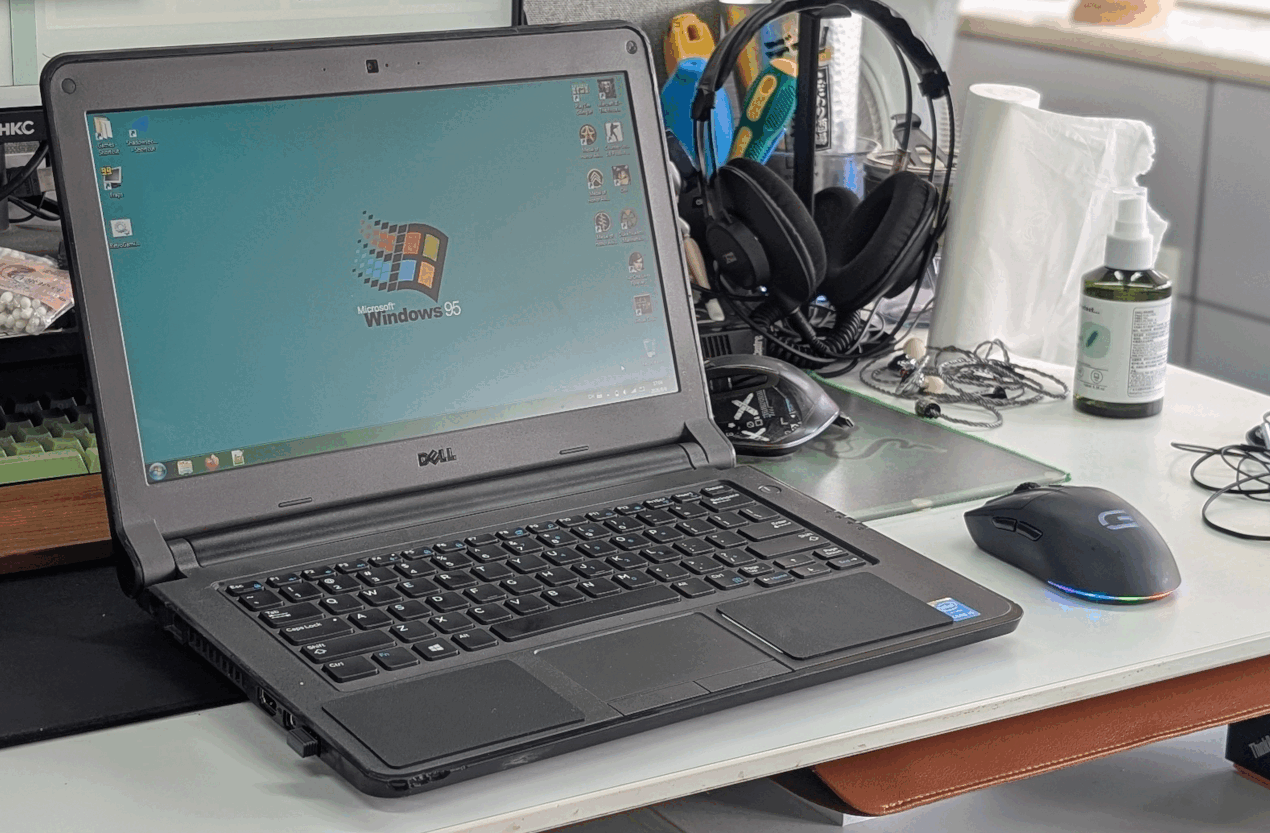
“Brand New” but Not Really “Brand New”
When the machine arrived it really did look new. Apart from the seal being cut open (the seller said it was an inspection), everything was mint.
But the problems showed up fast. Sure, it’s “new,” but it’s also a new-old-stock machine that’s been sitting around for over a decade, and some problems from long storage are unavoidable. First, the battery was completely dead and unusable, with even a slight leak. The screen was badly aged and washed out to white. And the thing that pissed me off most: the edges of the machine use a lot of rubberized coating, presumably for drop protection, and after ten-plus years in storage it’s gone sticky, and is even cracking and peeling off. The rubber feet on the bottom have snapped off entirely too.
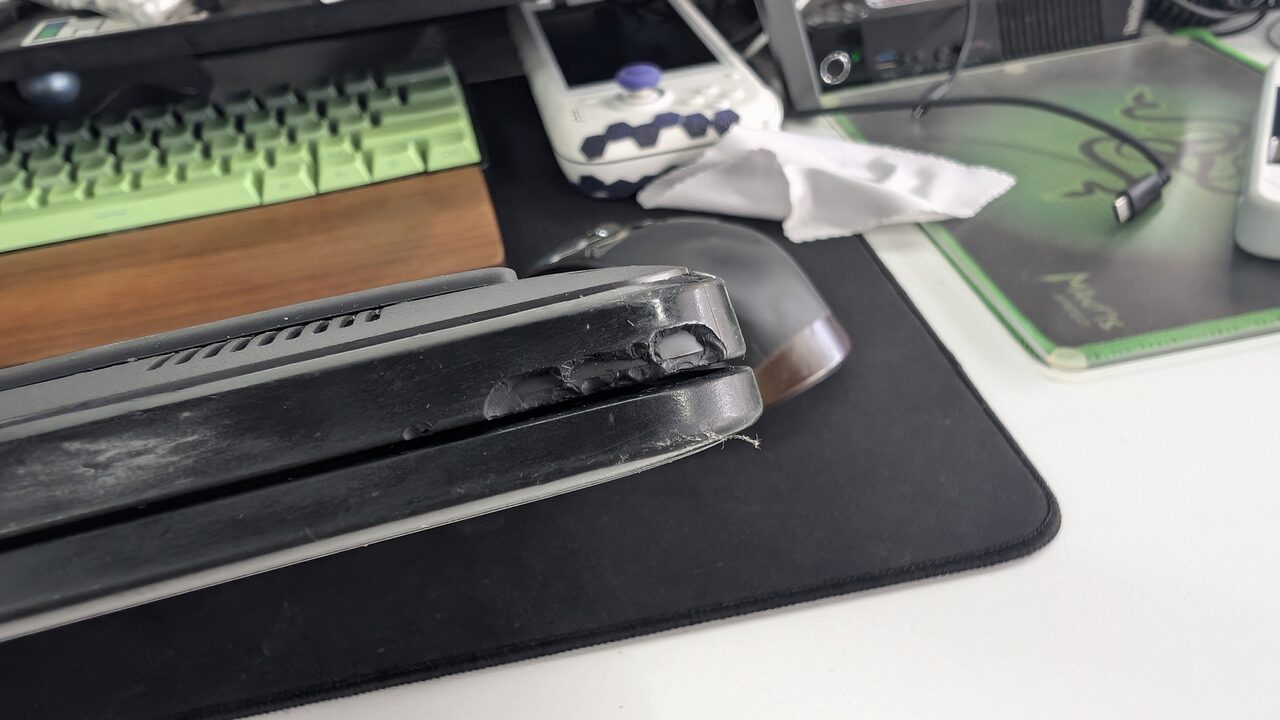
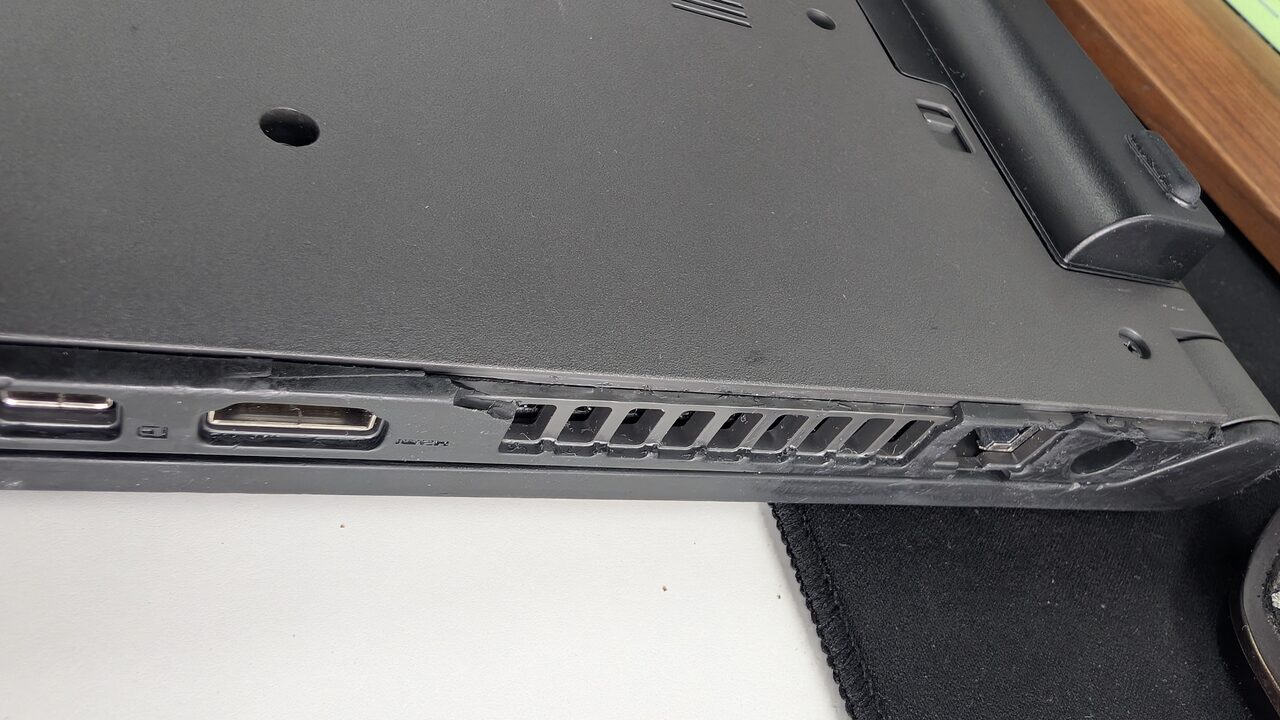
So I really don’t get why anyone would slather rubberized coating all over a laptop. There’s clearly some planned obsolescence at work there.
Hardware-wise the laptop has two RAM slots, and this 4GB version uses one of them. The default BIOS is from 2013, ancient. As a fourth-gen Intel product — nicknamed Hotwell for its heat — this new-old-stock machine definitely needs its thermal paste redone. While taking it apart I also found the built-in Wi-Fi module is a cut-down version with no 5GHz, worse than even a bargain Realtek card. So replacing that is mandatory too.
I have to mention that the keyboard on this laptop feels genuinely great. Thin-and-lights weren’t really a thing back then, and with that chunky body, plenty of business laptops had long key travel and were super comfortable to type on. Shame we can’t go back to that.
Anyway, inspection done, time to start modding.
Necessary Upgrades and Mods
First the screen. This panel isn’t worth repairing, it has to be replaced. But this machine uses an eDP 30-pin connector, so I wasn’t sure a good 1080p panel would work, and at 13.3 inches the options are limited anyway. After weighing things I went with the LP133WH2 SPB3: 1366x768 IPS, 80% sRGB. The upside is the viewing angles are obviously better than the original TN, and it’s dirt cheap — you can even find cheaper slightly-flawed panels on eBay pulled from modded ThinkPads. Another point: this panel is warm-toned and doesn’t shift colors. Some people might wonder why I’m so picky about screen color normally but so lenient here. Well, back when I used a ThinkPad x230 years ago, it had a screen with about the same color gamut, and I never felt uncomfortable with it. The key is that the color looks pleasant and there’s no color shift, so it’s still a good screen. The other thing is that I bought this laptop specifically to play Win7-era and older games. For games from that era, 1366x768 and this panel are the better choice. Go 1080p and either the old game UI doesn’t support it or the integrated GPU can’t drive it, and the games’ own colors sometimes don’t look right on these newer panels. They were made for screens from that era, ghosting and all. Retro games deserve retro methods, so I went with the retro option in the end.
Swapping the panel on this laptop is very easy, and there are teardown guides online. When replacing it, note that you need to cut off the two tabs at the bottom inside the B-cover, otherwise the screen won’t snap in — it can even crush the voltage board. Other than that the size fits perfectly.
Screen sorted, next is the battery. Easy: just buy one on eBay, real or fake doesn’t matter, as long as it works. You can even get a high-capacity one, and paired with Haswell it can game for a long time — that I didn’t expect, a nice bonus.
Last is the rubberized coating. I wiped it down with 60% ethanol to clean off the sticky surface layer, though a lot of it flaked off during cleaning. As long as it doesn’t affect using the machine I decided to ignore it. An old computer like this isn’t worth making perfect. If it really bothers you, you can buy a full set of shells on eBay for about 300 yuan, nearly more than the machine itself costs. The missing feet are even simpler: just stick something on. Of course, if you care, you can pay more for a shell swap.
By the way, I also bought a 4GB RAM stick on Pinduoduo for 23 yuan with free shipping and put it in the machine’s empty second slot, bumping it to 8GB. 4GB would’ve been enough, but 23 yuan for 8GB is obviously better.
Though the machine has a built-in 500GB Seagate drive, and for nostalgia purposes an HDD isn’t strictly necessary. But considering this is a new-old-stock machine with a decade-plus history, a drive sitting unused for ten years still risks suddenly dying, and I happened to have a 240GB Micron SSD on hand (also an old drive), so I swapped it in.
For wireless, since I was going to install Win7, I checked and Dell doesn’t seem to have a whitelist. After research the best replacement is the 7265, so I bought one on Pinduoduo and swapped it in — no difficulty at all. I also found a USB-C trigger cable left over from when I was using a Dell Chromebook, and it works straight away. Perfect.
Installing and Configuring Windows 7
Installing Windows 7 on this laptop isn’t complicated; Haswell is probably the last generation that still supports Windows 7. Some might say this config could easily run Win10 LTSC and there’s no need for Win7 for old games. The answer is simple: if I wanted Win10 I have better machines, no need to use this one. Plus Win10 and later put restrictions on the disc-based copy protection some old games use. Generally, for retro gaming, Win9X/WinMe is one tier, Win2000-WinXP is another, WinVista-Win7 is another, and Win8-Win11 is a whole different generation — in a way it’s divided by DirectX version.
Windows 7 ISOs are everywhere online, installing Ultimate and activating it is easy. And Dell’s official Latitude 3340 page still has the full driver downloads. First order of business should be updating the BIOS to the latest, which fixes a huge number of hardware bugs and the power/fan scheduling for Hotwell, so at least it won’t run so hot. But even with updated hardware, Win7 really has been abandoned by Microsoft — you can’t just turn on Windows Update and patch it like back in the day. Still, there’s a way: a site called Legacy Update runs its own servers at their own expense, providing update archives and ISOs for everything from WinXP to Win11. Install the app and your system’s built-in Update comes back to life. Another site called Windows Update Restored even provides Windows 98 update support. A blessing for retro players.
With a channel for patches sorted, next is software. For antivirus I’d suggest MSE, used together with Legacy Update. Though if you’re on Win7, security is hard to guarantee anyway — just don’t go online.
Virtual drive: WinCDEMU (completely free virtual drive tool, a full replacement for Daemon Tools)
Input method: Google Pinyin (you can find the last version online; the login feature is dead but otherwise it works. Of course the best would be Ziguang, but that’s nowhere to be found)
Browser: Firefox ESR 135 (probably the last Firefox version that supports Windows 7, highly recommended — with it you can access most normal modern sites, like this blog)
Archiving: 7Zip
Player: In theory something like MPC-HC would work, but I think VLC is enough
Office: Office 2013 / 2016 (if you really intend to do office work on this junk computer)
Messaging: Telegram (yes, Telegram works on Win7, even the latest version)
Looking at it this way, Windows 7 doesn’t feel that far out of date. Plenty of it is still usable.
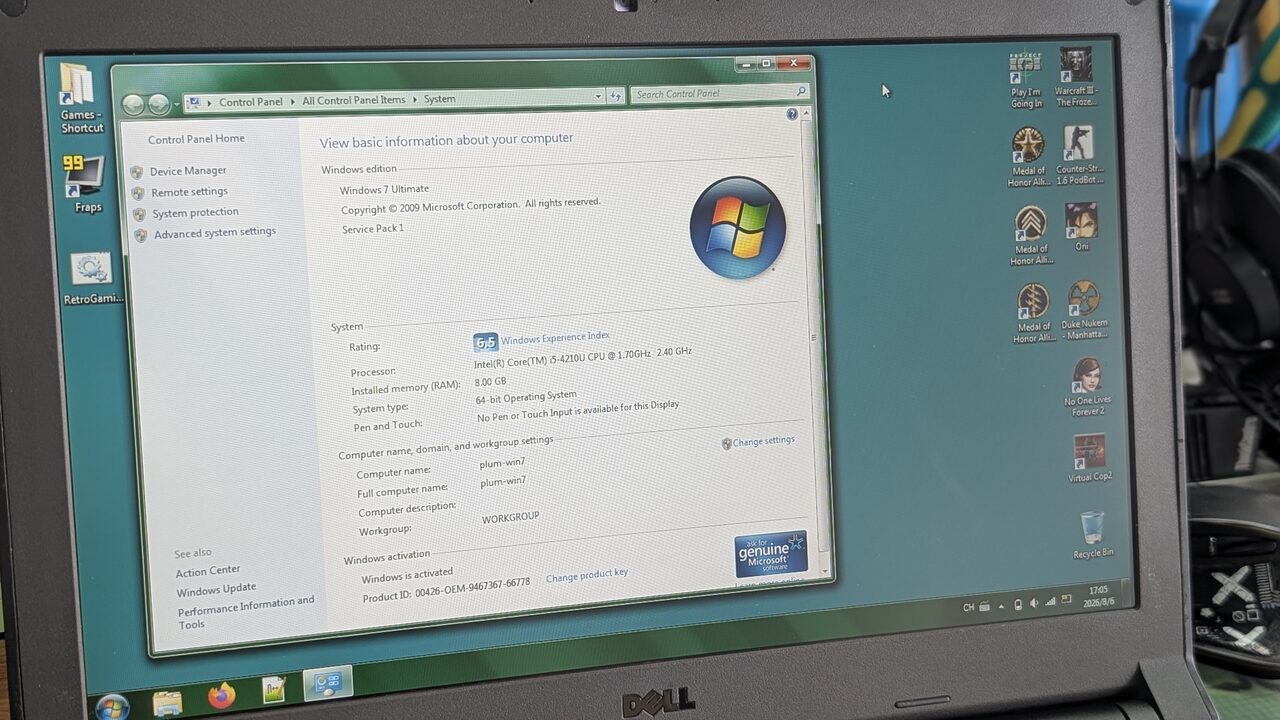
Time to Play
Since we said from the start that this computer is for retro games, where do you find the resources? A few years ago I’d recommend amule + ed2k, but now that Internet Archive exists, most resources are simpler — you can find tons of old games to download there, all direct links. It’s so generous I sometimes worry the site will go down.
I installed games on this machine including War3, Oni, IGI, No One Lives Forever 1/2, and the first Medal of Honor. Most run smoothly and look good. I bought a Dell gaming mouse on Pinduoduo for 30 yuan, and using them together is authentic down to the plate. I have to admit my screen choice was right, because this warm-toned panel clearly presents games better than my modern computer, and it feels more like back when I played them.
That said, some old games have plenty of problems. IGI, for instance, launches fine but won’t play smoothly, even with help from a project like dgvoodoo. From what I looked up, only WinXP can solve it.
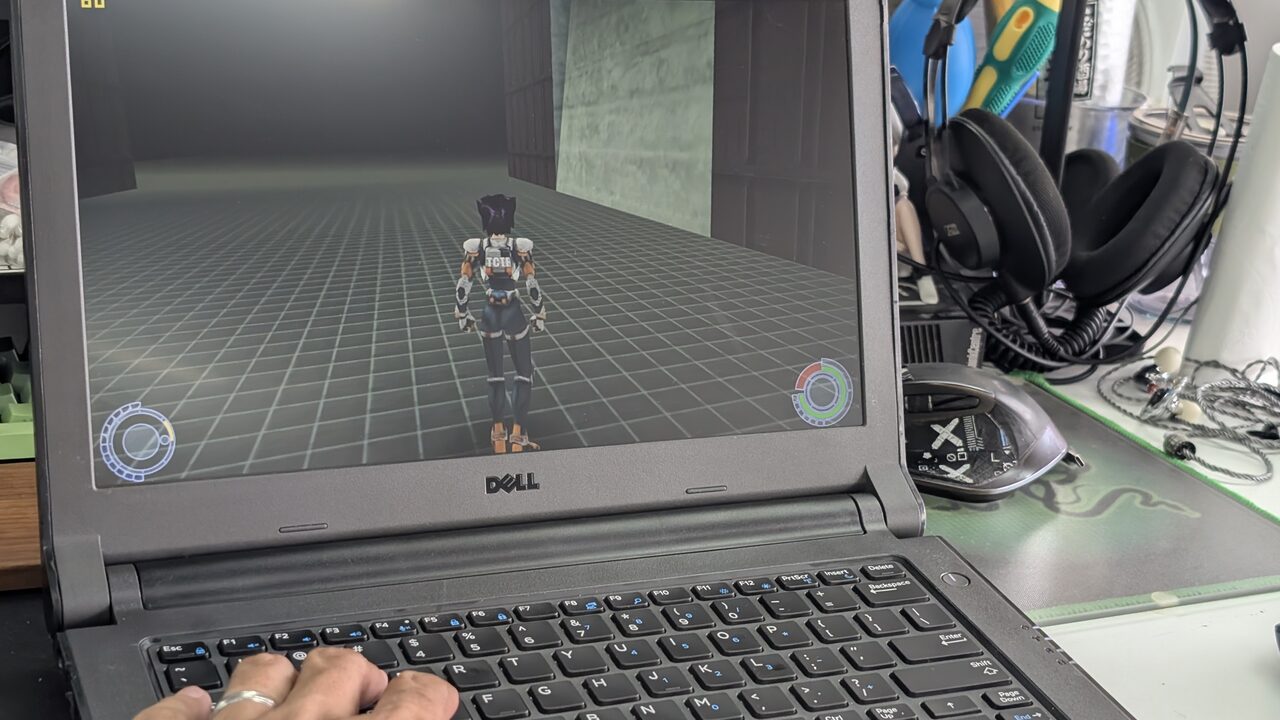
Anyway, this round of tinkering paid off. I’m replaying Oni and am nearly done with it, and after revisiting old games I’ll have a pile of moldy nostalgia posts to write.
As for IGI not running, I think I’ll have to build an XP retro gaming machine after all.
Comments are hosted on the Chinese main site. This mirror is read-only.