Flashing Android 5.1.1 onto a Nexus 6 via fastboot on Ubuntu, Data Intact
The Nexus 6 should in theory be a device you can keep OTA-ing forever. I shouldn’t need to flash it manually.
But you know how it is, I rooted it, because without root you can’t comfortably enable Location Report. The quickest way to turn on Location Report, I recommend Location Report Enabler from Neo’s buddy (the cyclist big bro). Just root and install it. The principle is simple: it fakes your carrier. Incidentally, if you’re using a Nexus tablet rather than a phone, there’s no carrier problem to begin with, so you don’t need root to enable these features.
After rooting, OTA just gives you the little robot lying on its back, so manual flashing is the only option. And earlier, under the guidance of Neo (the cyclist big bro, now the boyfriend of the guy known as Meat Stick Fungus), I learned you can flash without losing data. The 5.1.1 build had been out for a while, but mine is the Google Play Edition, and all those TMobile and whatever packages that got released didn’t seem to work for me. So today the official 5.1.1 factory image finally dropped, and I figured I’d just flash it and be done.
So the goal is clear: get the Nexus 6 in hand up to the latest 5.1.1 while keeping data, and root it again on the way.
First, go grab the Nexus factory image from Google:
https://developers.google.com/android/nexus/images
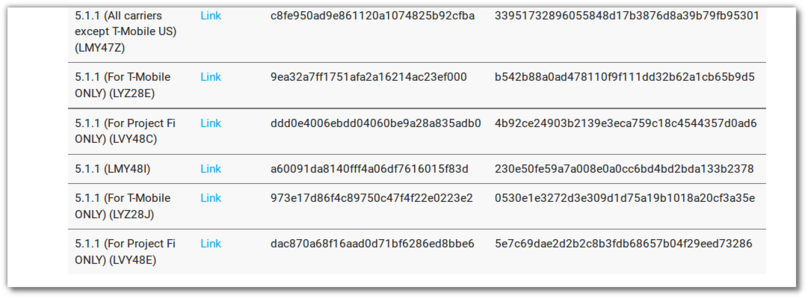
After downloading, power the phone off, hold volume down and power to boot into Fastboot mode.
Don’t rush to plug it into the PC yet. Install the fastboot tools on your Ubuntu first. Because of the platform, using fastboot to flash Android on Linux couldn’t be simpler, whereas on Windows you have to wrestle with drivers. Look that up yourself.

Once installed, connect the phone and type in the terminal:
fastboot devices
If you get a device list, you’re good.
Next, extract the factory image you downloaded, and be sure to also extract the other archive inside it, because the official script is basically useless for upgrades and will throw errors.
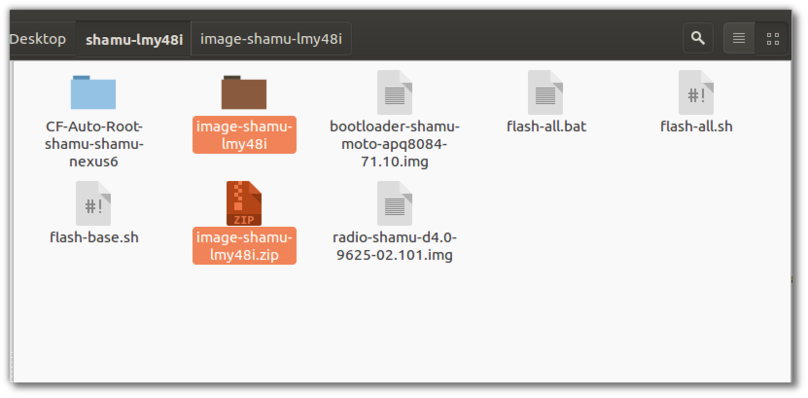
Don’t flash yet. First go download the root package:
https://autoroot.chainfire.eu/
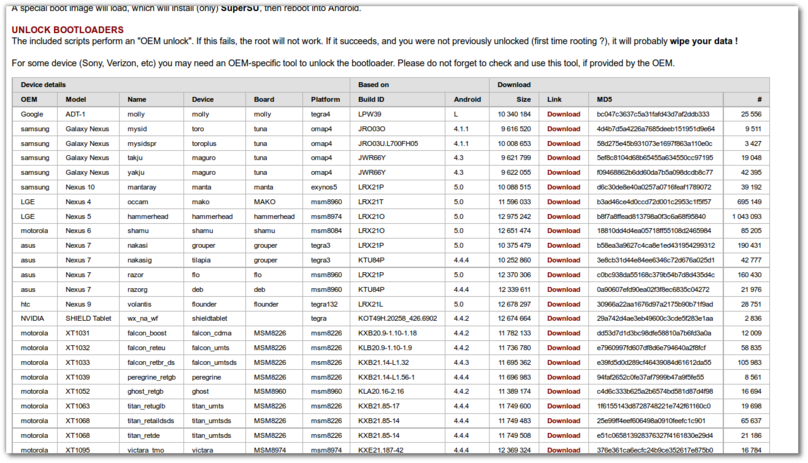
Extract that too, and don’t forget where the path is.
So let’s start flashing. In the terminal, cd into the directory with the flash files: (what you’re doing is basically what the flash script does)
fastboot flash bootloader bootloader-shamu-moto-apq8084-71.10.img
fastboot reboot-bootloader
Wait 5 seconds.
fastboot flash radio radio-shamu-d4.0-9625-02.101.img
fastboot reboot-bootloader
In theory the last step should be running:
fastboot update image-shamu-lmy48i.zip
Remember, not:
fastboot -w update image-shamu-lmy48i.zip
With -w it wipes data, and we don’t want to wipe data.
But you’ll get an error:
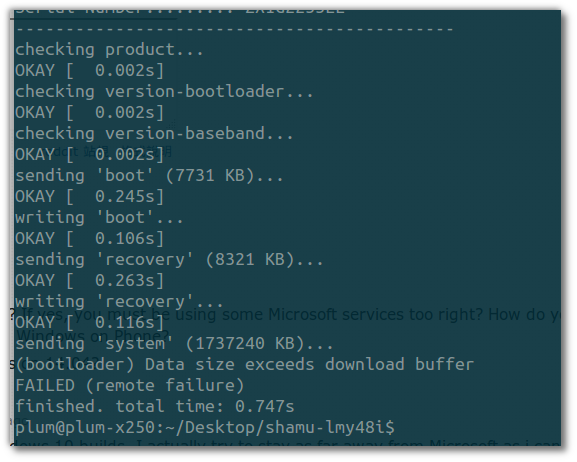
And that’s where extracting those img files earlier pays off. cd into the directory and flash manually.
fastboot flash recovery recovery.img
fastboot flash boot boot.img
fastboot flash system system.img
Leave userdata.img and cache.img alone. Flash those and you wipe data. If you do want to wipe data, you can try flashing:
fastboot flash cache cache.img
fastboot flash userdata userdata.img
Don’t rush now. Extract the CF-Auto-Root directory you downloaded and look at its script:
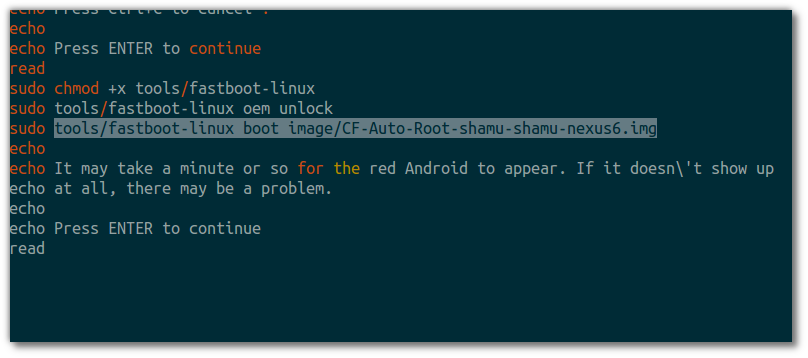
So it’s essentially just flashing a boot.img in there. We can do the same:
fastboot boot CF-Auto-Root-shamu-shamu-nexus6.img
It’ll reboot automatically, the phone upgrades and root is done. Basically nothing else to do.
Comments are hosted on the Chinese main site. This mirror is read-only.