Configuring DNSCrypt on Windows and Ubuntu
I only use Ubuntu and Windows 10, so getting DNSCrypt configured on those two is all I need.
On Ubuntu you can add a PPA and install dnscrypt
sudo add-apt-repository ppa:anton+/dnscrypt
sudo apt-get update
sudo apt-get install dnscrypt-proxy
Once it’s installed, edit the config first — the default isn’t OpenDNS’s server.
sudo vim /etc/default/dnscrypt-proxy
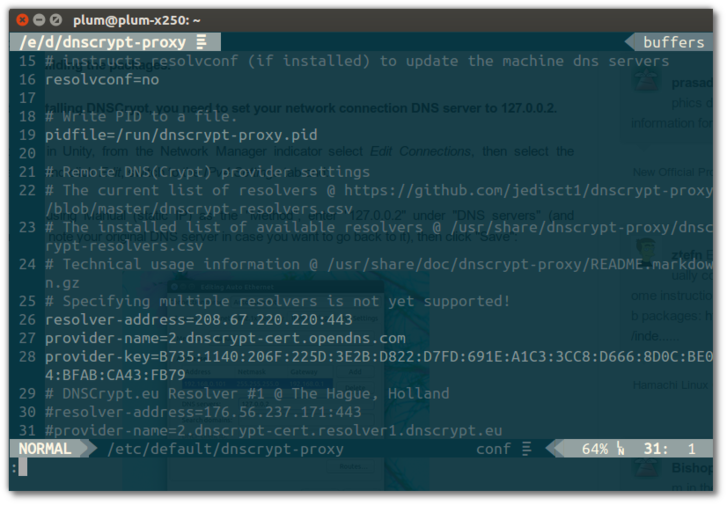
Comment out the original DNS server in there and uncomment the OpenDNS server above it. You don’t have to do this, it’s just that speed might be a bit slow otherwise.
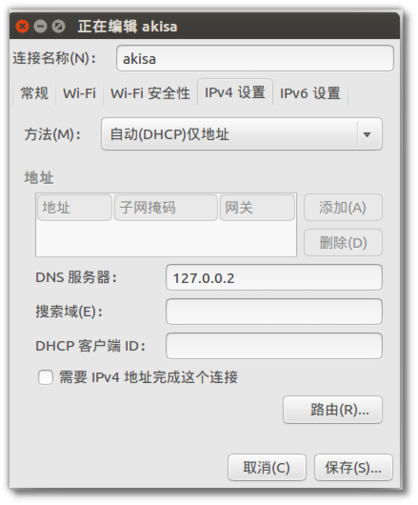
After that, set your own DNS to 127.0.0.2 — you have to do this for every wireless AP, one at a time.
On Windows, by contrast, DNSCrypt is stupidly easy.
Just use dnscrypt-winclient.
And you can grab it directly: https://github.com/Noxwizard/dnscrypt-winclient/blob/master/binaries/Release/dnscrypt-winclient.exe
You’ll also need the base DNSCrypt files:
http://download.dnscrypt.org/dnscrypt-proxy/dnscrypt-proxy-win32-full-1.6.0.zip
Drop the dnscrypt-winclient.exe you downloaded into the folder where you extracted the base files, then right-click and run it as administrator.
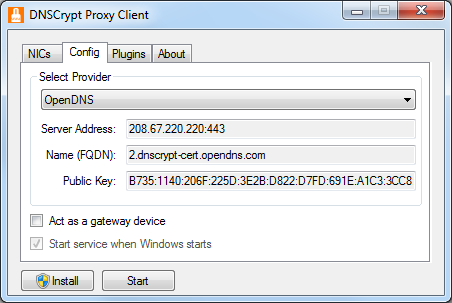
The GUI is simple and clear. Remember to pick cisco OpenDNS as the server, then change the DNS for your Windows network connection’s TCP/IP to 127.0.0.1.
Also remember to click “Install as service” in dnscrypt-winclient so you don’t have to run it again after every reboot.
Comments are hosted on the Chinese main site. This mirror is read-only.