HP MicroServer Gen 8: First Thoughts
New NAS Build Log
The first NAS I used was an HP N40L, so I’ve got a soft spot for that little chassis. Then the motherboard died…
So I built my own case, stuffed some drives in it and called it a NAS. Installed OMV, set up a garbage storage stack — a RAID 1 made of junk, then a RAID 0 on top of that, then another RAID 0. It ran fine for over a year, but that pathetic 3TB capacity ran out fast, so I started looking at a new NAS.
I like small cases like the HP N40L, and I saw that a German site had the HP MicroServer Gen 8 on sale again, so I figured I’d do a German import. After ordering I assumed it’d arrive around the end of November, but it showed up surprisingly fast — 12 days to my door, and no customs fee.
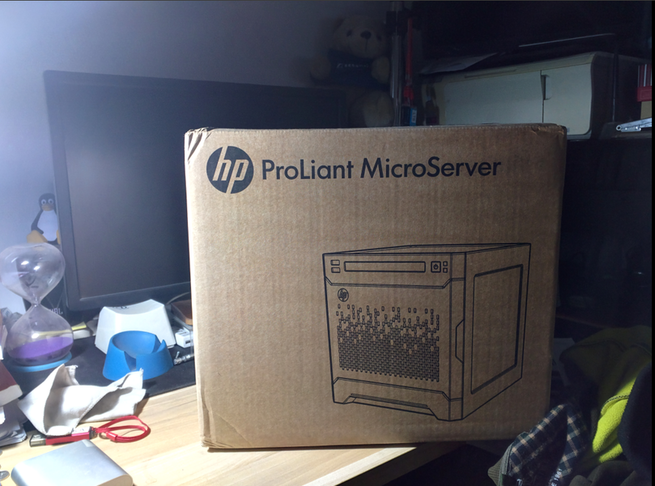
Three things to note here:
- The €180-something sale price only shows up after you register and log in on that site.
- Definitely pay with PayPal — saves you a lot of hassle.
- When writing the address, cram your phone number into the address field even if it looks wrong. That phone number gets lost when it’s forwarded to EMS, and the Chinese courier won’t be able to reach you.
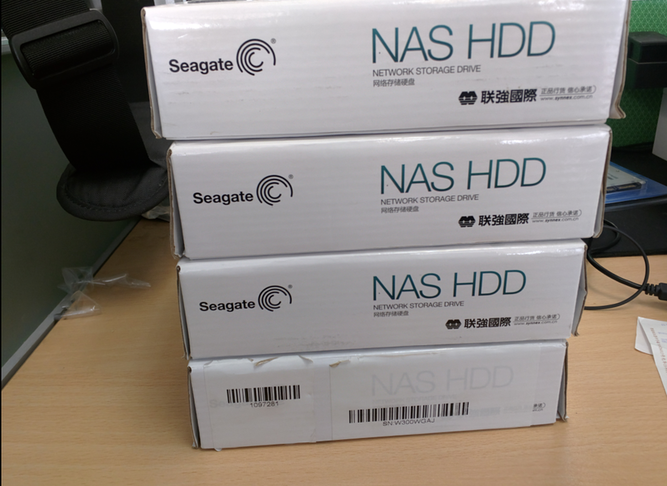
Once the machine arrived I obviously needed drives. I used a JD.com credit coupon; the candidates were Western Digital’s 4TB Red NAS drive and Seagate’s 4TB NAS drive. On the subject of buying drives, I firmly believe whether a drive dies has nothing to do with the manufacturer and everything to do with your luck; and that warranties have nothing to do with technology and everything to do with the warranty period. That’s why I’ve always been a diehard Seagate fanboy — at least in benchmarks Seagate beats WD Red, and it comes with a three-year warranty. Nothing more to say.
The JD.com drives arrived quickly:
And a group shot:
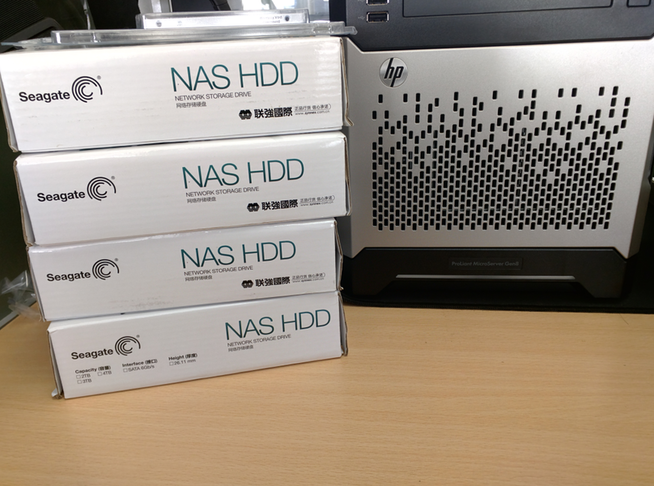
One thing to mention:
- Fucking JD.com shipped four hard drives in a single nearly-burst plastic bag. Even the courier said it was the packer’s fault and suggested I check the drives carefully — if there was a problem they’d replace them. I ran a check and found nothing wrong. Lucky, I guess.
Besides the machine and drives, there were a few other add-ons to buy:
To support the drives, I bought a RAID card. HP’s official compatibility list for the Gen 8 includes the P222, so I went with that for compatibility.
The Gen 8 ships with 2GB ECC RAM, clearly not enough. Bought two 8GB ECC sticks from Micron on Taobao to expand.
The stock CPU is a 1610T, which is a bit weak. But the Gen 8 has no active fan cooling, so you don’t want to shove a power-hungry CPU in there either. According to the best-CPU lists floating around online, I bought an E3-1265L.
Besides the four-drive cage, the Gen 8 has a SATA port 5. I bought a 64GB KingSpec SSD from JD.com as a system disk, dedicated to the OS.
Even though it’s an SSD and can go anywhere, mounting it in the top optical drive bay is clearly tidier. Taobao sells a Gen 8-specific laptop optical bay adapter; once installed it fits perfectly in the Gen 8, apart from a tiny gap.
So everything I bought together looks like this…
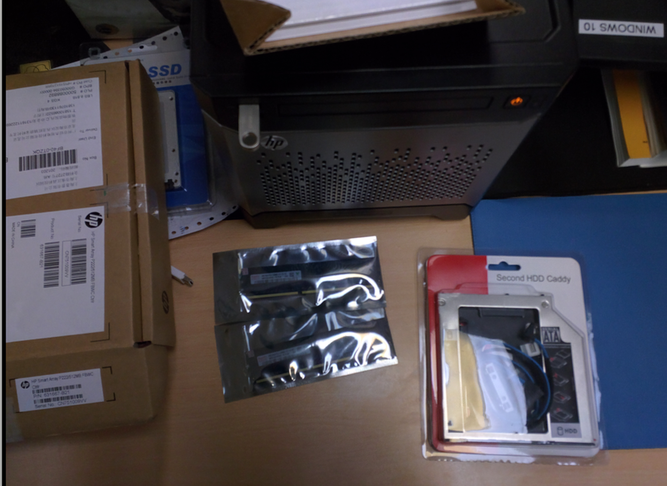
Now for the install. Pulling the motherboard out is easy — just slide it out…
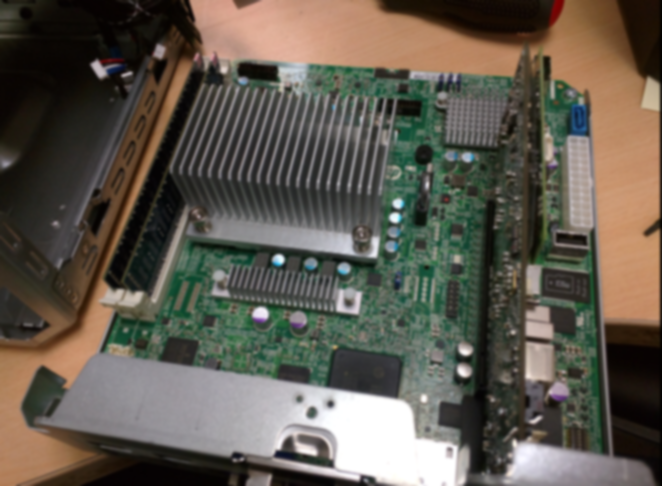
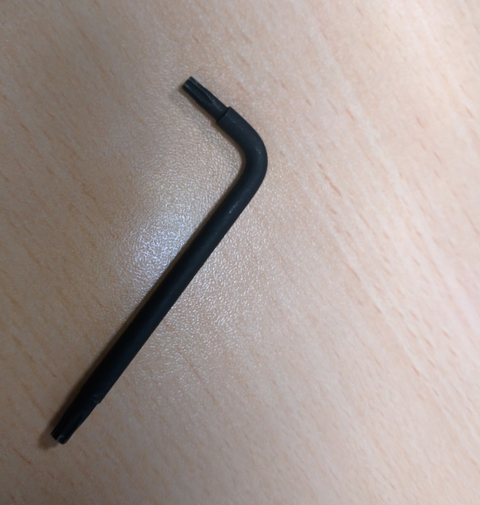
Swap in the RAID card and RAM directly. CPU replacement is also simple: remove the heatsink, put the new one in. By the way, you don’t need any special screwdrivers for the Gen 8, because the tool that comes attached to the front of the machine handles everything.
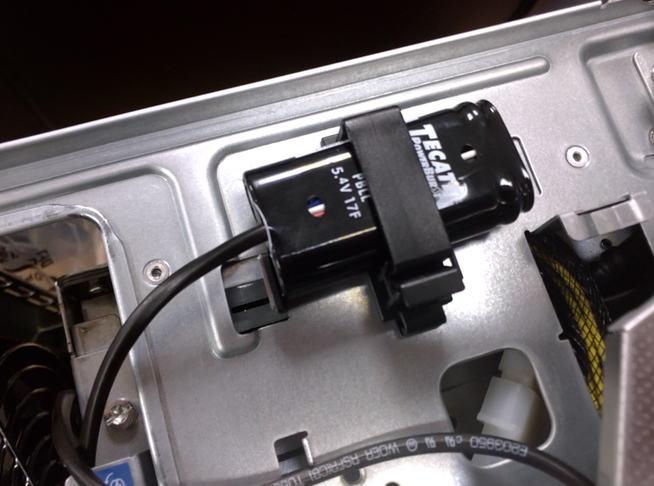
The RAID card battery can be fixed in the clip next to the optical bay.
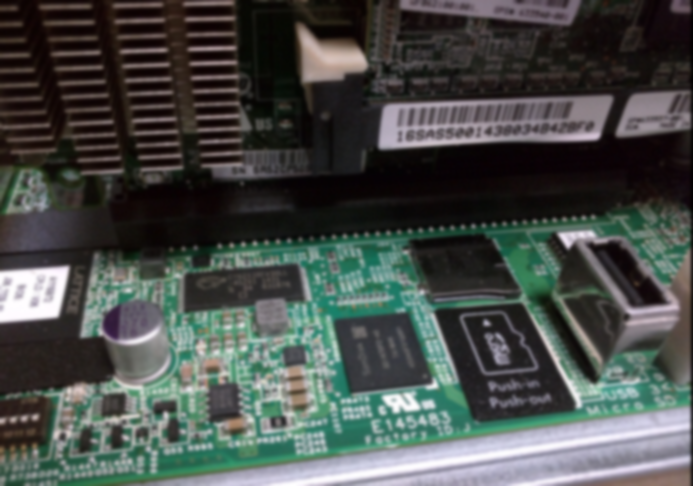
Surprisingly, there’s a MicroSD slot on one side of the motherboard. The USB port next to it is still very useful though.
Final top layout. The optical bay needs a metal shim to stay firmly in place.
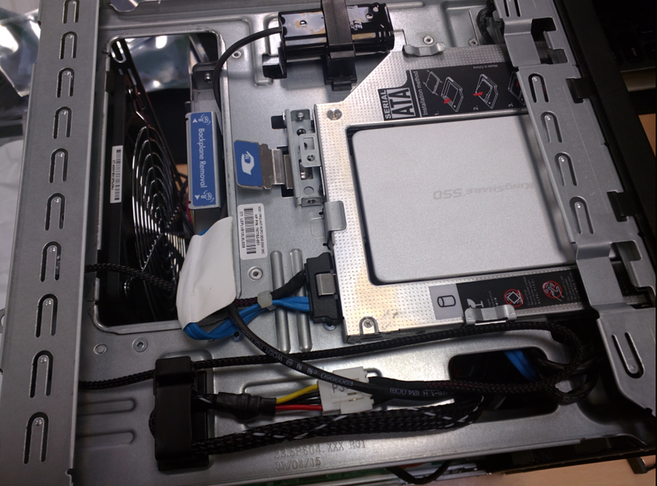
Last check that the cables are connected. Here’s the left side, PCI-E area:
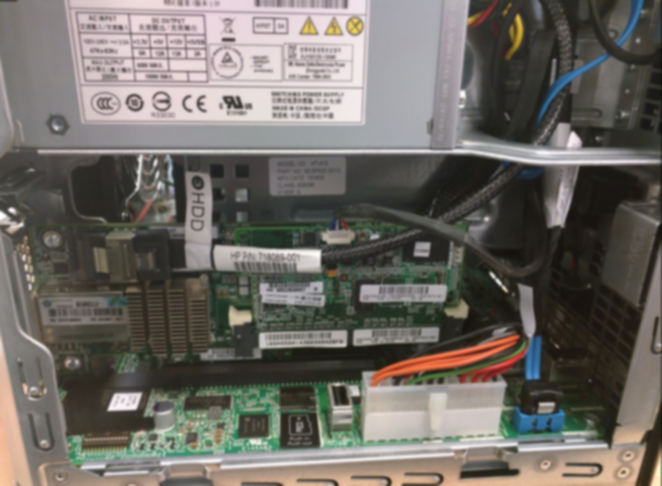
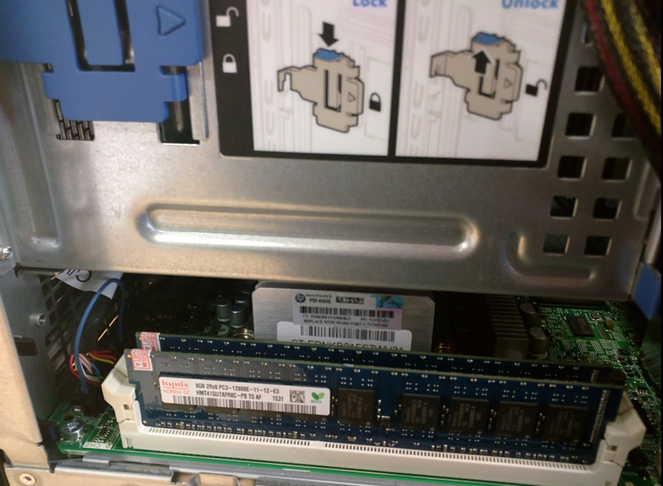
Right side, memory area:
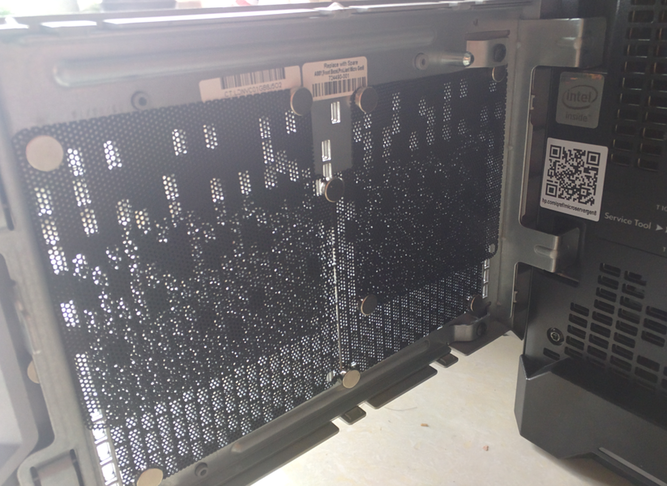
The front of the machine has no dust filter, so you need to prepare one yourself. I only had small filters on hand, so I had to piece them together.
At this point the machine is assembled. Originally I wanted to set up virtualization, but I’m too lazy, so I figured I’d just install OMV, download some eroge first — October had a lot of new releases.
Installing OMV, I ran into a bunch of problems. Briefly:
First, I planned to install the system on that SSD, but discovered it absolutely refused to boot from it. At first I disabled the motherboard’s built-in RAID and set SATA to AHCI, still no good.
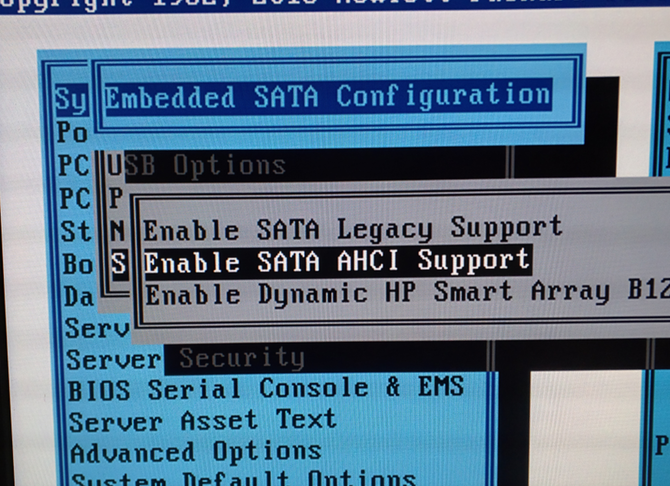
Later, reading the docs, I found the Gen 8 by default prohibits booting from that SATA 5 port. Only after the four drive bays fail to boot will it consider booting from there. So foreigners came up with many methods — some said write the boot sector to a USB stick and then chainload the system on SATA 5, others said add a RAID card.
But I already added a RAID card! Why still no boot? Eventually I found you need to fiddle with the RAID. Whether or not you added a separate RAID card, this step is necessary, and it’s the best solution to the SATA 5 boot problem:
First, disable SATA AHCI and switch back to RAID mode, then enter the RAID setup screen — the motherboard’s built-in one.
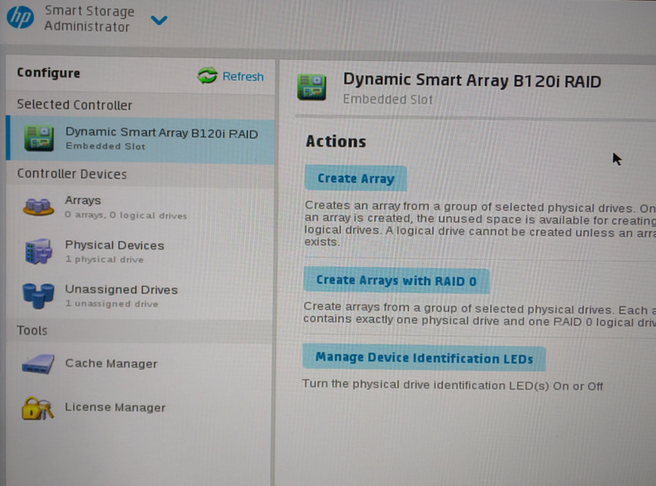
Create a RAID array: make your SSD its own RAID 0. Even if you haven’t added a separate RAID card, this doesn’t stop you from creating a second array. Then set that RAID 0 containing the SSD as the boot entry, and select boot from the built-in array in the motherboard boot order. Done.
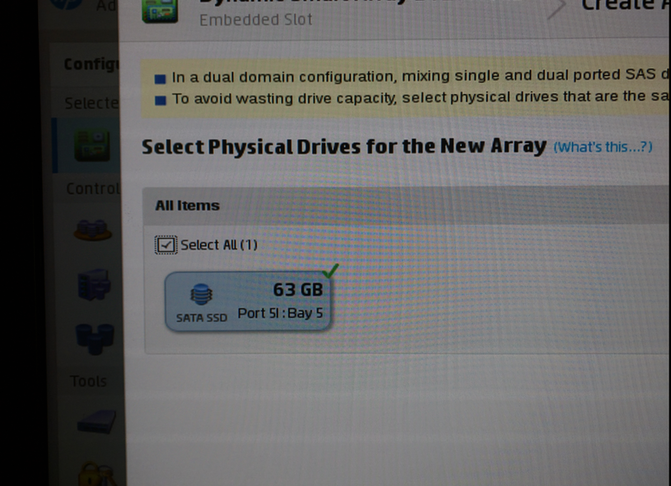
I swear I ran into this exact fucking problem when setting up servers at work, and I completely forgot. Getting old.
But then installing OMV hit a new problem…
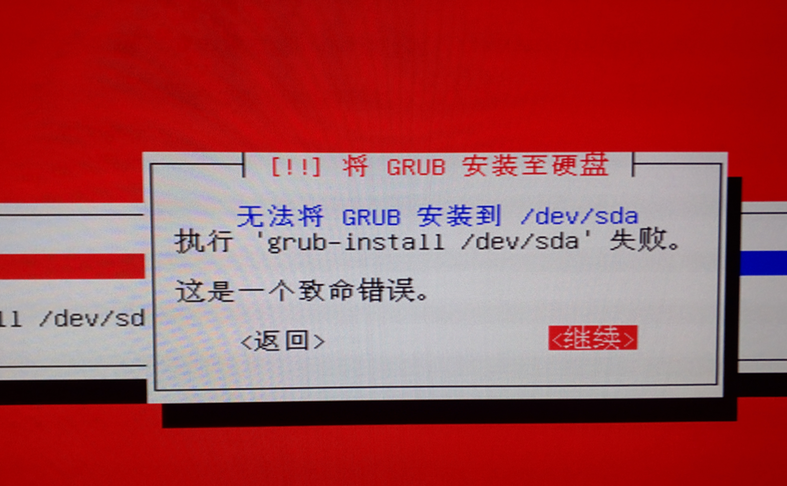
What the hell is this? “Failed to execute grub-install /dev/sda”? I remember when I booted the OMV installer from the USB stick, /dev/sda was the USB stick itself, and the real hard drive was /dev/sdb. I tried Alt+F2 to switch to a terminal and force grub-install /dev/sdb, but it failed. According to foreign analysis, this is an installer bug: Debian identifies the BIOS-emulated USB boot itself as a hard drive, so by default it only installs to the first one and won’t install Grub to the second /dev/sdb — infinite loop.
Foreigners researched many solutions: some suggested modifying the script, some suggested filing a bug. But this solution caught my eye:
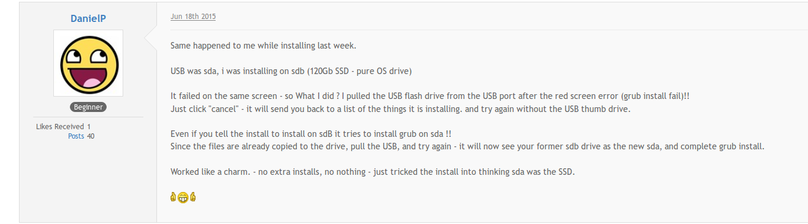
Tried it, worked… So those electrical engineers still need to learn. Always using rigid theoretical knowledge to show off and make a big news, not knowing that pulling out the USB stick and continuing is way above their level.
The solution is: when the error appears, pull out the USB stick, click continue installing. Since /dev/sda is gone, the system will install to the second /dev/sdb. Problem solved…
Duh.
OMV booted successfully:
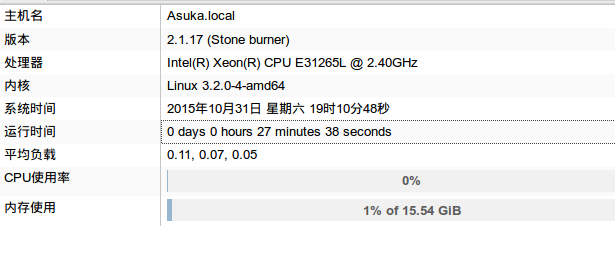
By the way, if you’re interested, plug another network cable into the iLO4 port and you get real-time monitoring of the Gen 8 server on another address. The content is detailed and worth checking:
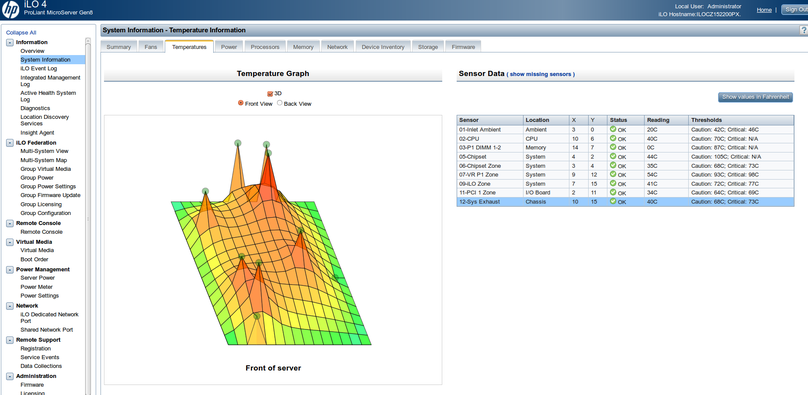
You can also arrange your drive arrays in the iLO4 interface; it fully supports my P222 RAID card. I set up a RAID 5, combined with a sync tool, to back up across multiple locations at work and home.
And that’s the end of the NAS build.
Comments are hosted on the Chinese main site. This mirror is read-only.