Hands-on: GH60
GH60 Project: Building a Custom 60% Keyboard with Blue Switches
The GH60 project is a tutorial and process for letting users assemble their own mechanical keyboard. There’s a decent intro here, and you can dig into foreign sites for the details.
For us users, though, all you really need to know is that GH60 is the process of assembling a mechanical keyboard yourself.
GH60 itself is just a keyboard PCB. Once you have the PCB, all that’s left is soldering switches, adding a case, and deciding whether to throw in LEDs. At first I stuck to the principle of “if you’re gonna do it, do it big” when picking parts, and by the end I found that an original Cherry switch + aluminum case + steel plate + custom purple-black-orange three-color keycap combo had already shot the price past 900.
Damn it, at that price why wouldn’t I just buy a Filco?
So I took another look at what I actually needed: I just wanted to build a 60% mechanical keyboard, something portable that I could use with a laptop as much as possible, so no need for an aluminum case, no need for a steel plate — to save weight and… save money. Also no need to go straight for Cherry switches; legend has it that Gateron switches are already 80% of what Cherry is. So after some compromise, I went with a GH60 60% PCB, Gateron blue switches (since I type a lot), a plastic case (for portability), and a red-and-white keycap set I managed to grab all at once on one budget.
The color scheme was red, white, and black. At first I wanted to do a ThinkPad colorway, but there’s no standard kit for that, and doing it myself would mean buying two keycap sets. To save money, forget it.
The Taobao seller shipped fast. I placed the order on Friday and got it Saturday afternoon — as expected from a Beijing shipment.
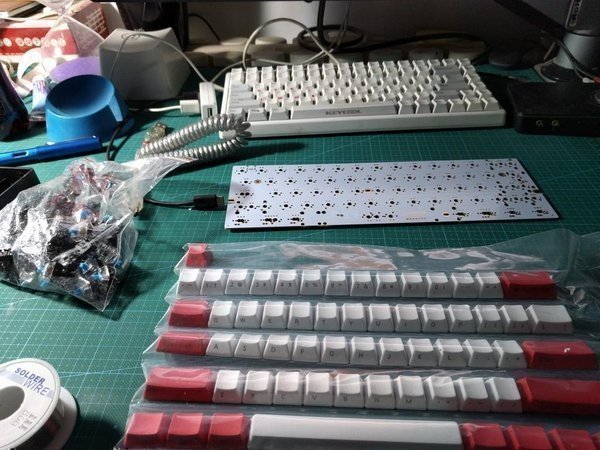
First thing is to use tweezers to test whether every key position on the PCB works. The seller told me to use Windows, but of course there’s testing software on Linux too.
sudo apt-get install xkeycaps
Just run xkeycaps. The UI is ugly, but testing works fine.
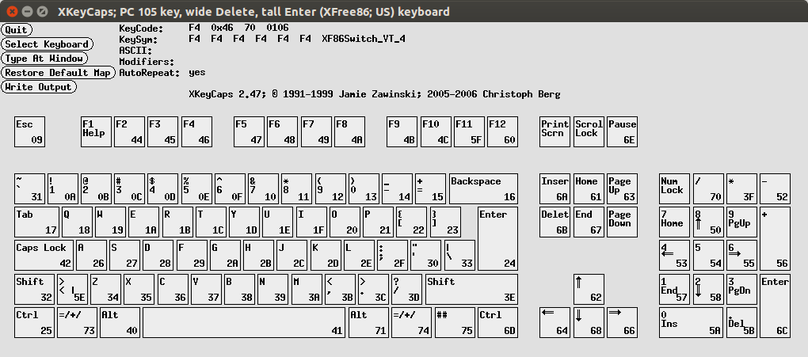
The way to test is to use tweezers and see whether the corresponding key on the keyboard lights up. The seller stressed again and again that I had to do this test first — after all, if you find out the PCB is broken halfway through soldering, your switches are wasted.
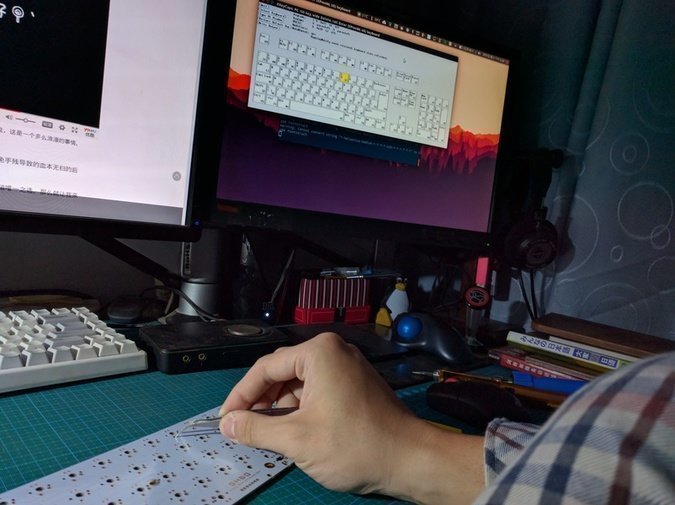
To my surprise, all my tests passed. Plenty of reviews on the Taobao store mentioned testing problems, so the fact that mine had none actually felt weird.
Next is putting on the switches. Simple — just press them in. Every switch has clips.
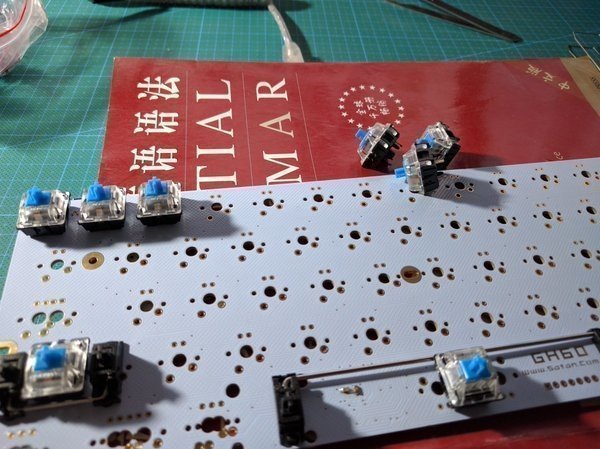
After putting them all on it looks like this. Damn, my fingers hurt from pressing.
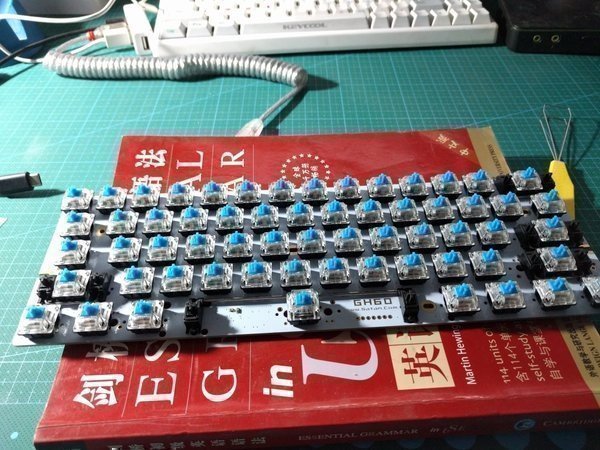
You can put keycaps on the corners first, mainly to check whether any switches are too close together because of positioning offsets. Find and fix it early — if you discover after soldering that two switches are too close, you’re an idiot.
Once you’re sure the switches are fine, it’s time for the soldering iron. The method is simple: solder all the pins on this thing. Soldering isn’t that simple, but it’s not that hard either. Find a video online and watch it, then try melting some material in a small spot yourself and you’ll get the feel.
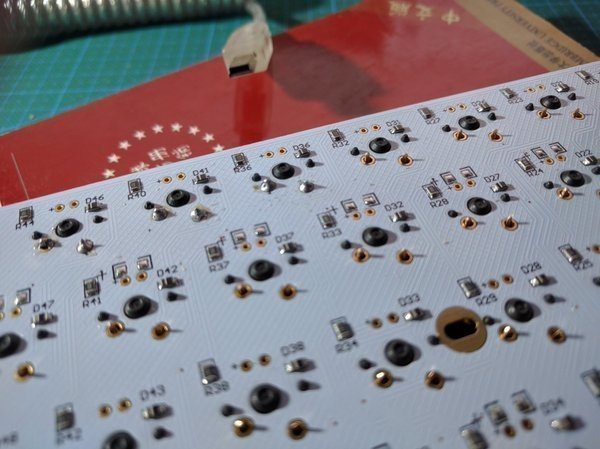
At first my solder joints were uneven, but I gradually got the feel, and some I could finish with a nice single touch. To be safe I added a bit extra — good looks matter less than good function. The Taobao seller strongly recommended testing each one while soldering to avoid cold joints. Personally I tested once per row. Maybe I got lucky, but no problems came up.
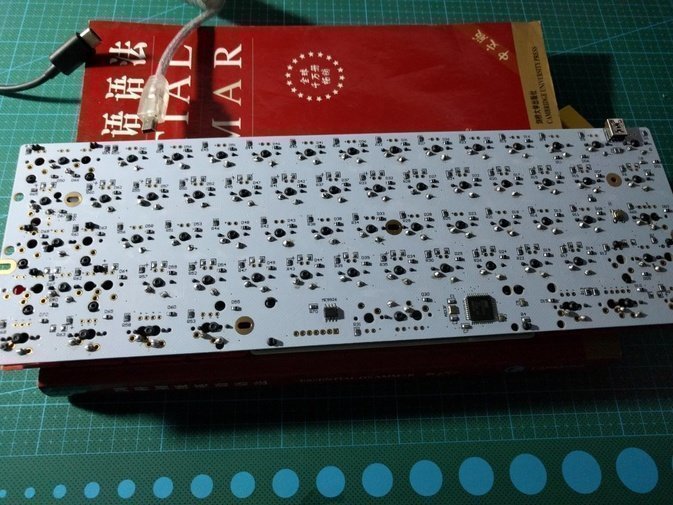
Once soldering is done, flip it over and get ready to put it in the case. Be sure not to put all the keycaps on first — there are still some screws inside the case to tighten.
The final product looks like this. You can also buy a mechanical-keyboard-specific cable and a carrying sleeve on Taobao.
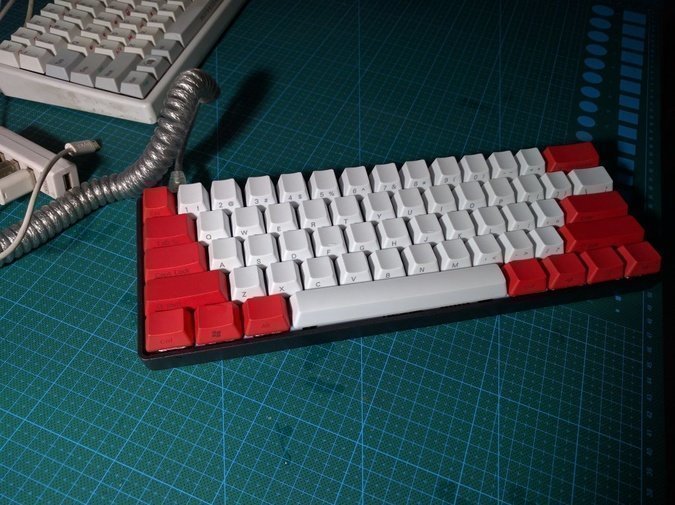
I used it for a bit and the feel is good. I haven’t used blue switches much — the Keycool at home is actually brown switches, which I only found out later. I’d always thought it was blue. This domestic blue switch didn’t give me any problems in use: smooth, no stuck keys, no response issues. Mind you, that Keycool sometimes double-registers. Without a steel plate the feel is a bit less solid, but the whole thing is light, and most importantly it’s cheap — the whole keyboard came to just over 350. Pretty good deal, thinking about it.
The 60% layout takes some getting used to. The only thing that feels off is probably the arrow keys — GH60’s default mapping is FN + WASD for up/down/left/right, and once you’re used to it there’s no problem.
Last thing: the sense of accomplishment from assembling this keyboard is nice, and the result feels great too. I’m satisfied using it, and I even have the urge to never buy a brand-name keyboard again and just build everything myself. Since it was my first time I didn’t bother with LEDs, and I figure I won’t need them on this keyboard anyway. Also, at first I wanted blank keycaps, but the seller’s standard kit didn’t have a color I liked, and to save money by buying everything at once I went with side-printed ones. I was a bit scared at first about whether I could touch-type, but once I started I realized it’s not a problem at all…
If I get the chance I’ll build another one — an 87-key with a steel plate, aluminum case, and brown switches. And I can use Cherry switches then too.
Comments are hosted on the Chinese main site. This mirror is read-only.