Surface Pro 3: First Thoughts
Surface Pro 3 and Windows 10
Yesterday — no, actually today — Microsoft released the Windows 10 developer preview. As a half-hearted Microsoft supporter, I couldn’t resist giving it a shot.
First I played around with it in a VM, but it felt off. Not satisfying, not happy. So I wanted to try it on real hardware. Commercial OS dev builds are usually somewhat reliable — more reliable than the betas of quite a few Linux distros (no offense) — so on this fine afternoon I upgraded my Surface Pro 3 to Windows 10.
The download page is straightforward: http://windows.microsoft.com/zh-cn/windows/preview-iso Pick the version you need.
For existing Windows 8/8.1 users, just mount the ISO and run Setup to upgrade. Like I did, playing with fire.
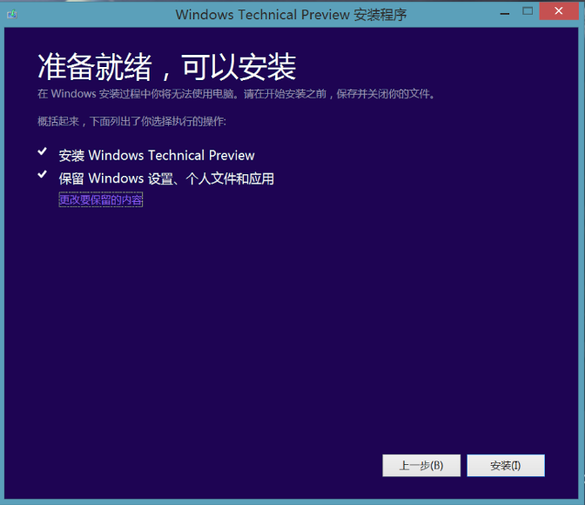
It installs and reboots a bunch, and then you find yourself on Windows 10.
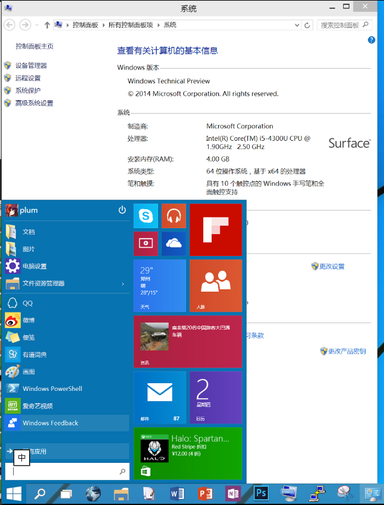
Here’s the state of things after upgrading:
Touchscreen works fine.
The pen works, but pressing the purple button to instantly open OneNote no longer works.
Metro apps are fine, but they all launch in windowed mode, and you can’t resize those windows however you like.
Photoshop is completely broken after the upgrade.
After upgrading, clicking the Windows button gives you a shrunken Start menu. No matter what you do, you can’t get the old full-screen Start back. According to Microsoft, this release is mainly for laptops and desktops — no tablet optimization.
Battery drain skyrocketed after the upgrade. 30% in half an hour — the main reason I gave up on Win10.
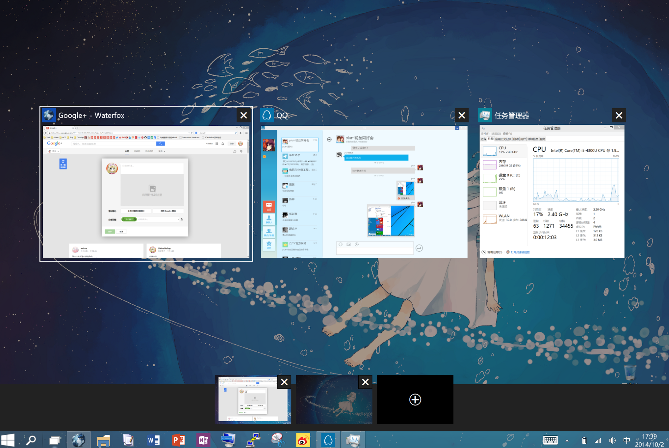
The new virtual desktops can be added infinitely, but! They’re not great. You can’t drag windows into virtual desktops freely (at least not now). You can only switch and add, then launch programs in the corresponding desktop. What the hell kind of feature is that? Compiz, GNOME Shell, KDE, OS X all wipe the floor with it…
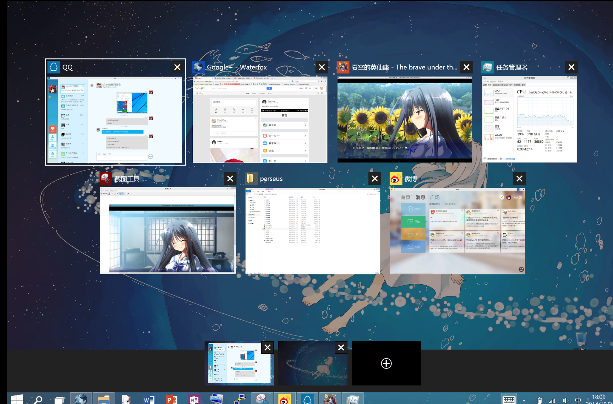
Swiping from the left edge to switch apps now shows all running programs spread out. Hmm, GNOME Shell and Unity’s Super+W, and whatever OS X has…
Auto-rotate doesn’t work.
Most of the time the on-screen keyboard doesn’t pop up.
Virtual desktops
App switcher
Afterwards I naively thought selecting the recovery partition in the system would restore things. It restored — to Windows 10. But there were surprises: battery drain wasn’t quite as brutal (still fast though!), and the Start screen came back (but launching programs still drops you to the desktop).
Anyway, I’d had enough and wanted to go back to the original system. Here’s how.
Go to Microsoft’s official site and download the recovery image for your Surface model.
You may need to enter your product serial number and sign in with a Microsoft account. Then write the downloaded image to a USB drive and boot from it to recover.
What? You’re not a Surface user? You have some other Win8 tablet? You also played with fire?
If you play with fire, you get burned. Why don’t you get it?
Comments are hosted on the Chinese main site. This mirror is read-only.