Playing Blu-rays on Ubuntu Linux
Playing Blu-rays on Linux is a pain in the ass… but I got it working. The disc is the Japanese release of Kimi no Na wa (君の名は。).
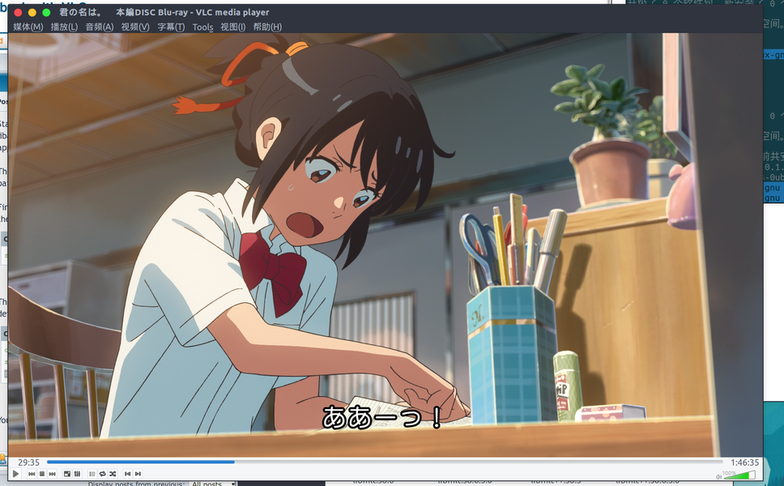
First you need a Blu-ray drive, then you need to figure out which encryption type your disc uses. Kimi no Na wa uses AACS V62.
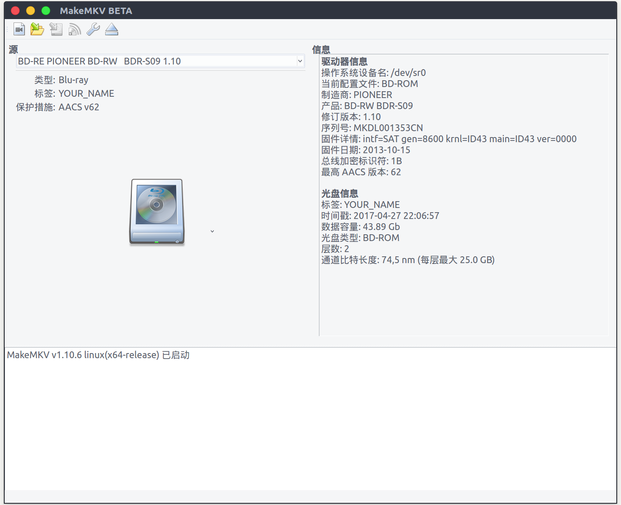
There are plenty of guides online for playing Blu-rays on Linux. Most tell you to install VLC + libaacs0 and drop in the AACS files, but I tried that and none of it worked.
The method that actually worked needs makemkv. Yes, an MKV ripping tool — we just want its Blu-ray decoding library.
sudo add-apt-repository ppa:heyarje/makemkv-beta
sudo apt-get update
sudo apt-get install makemkv-bin makemkv-oss
Of course, you’ll need VLC installed too:
sudo add-apt-repository ppa:videolan/master-daily
sudo apt-get update
sudo apt-get install libdvd-pkg vlc browser-plugin-vlc
Next, pull down the AACS key files:
mkdir -p ~/.config/aacs/
cd ~/.config/aacs/ && wget http://www.labdv.com/aacs/KEYDB.cfg
Then create the symlinks, forcing VLC to use makemkv’s libraries.
cd /usr/lib/x86_64-linux-gnu
sudo ln -s libmmbd.so.0 libaacs.so.0
sudo ln -s libmmbd.so.0 libbdplus.so.0
Last step: open your installed makemkv, click register at the top of the “About” screen, and enter the free beta registration key from the official site.
Then just run VLC, click “Media” - “Open Disc” - select “Blu-ray” at the top and hit play.
Menus work too.
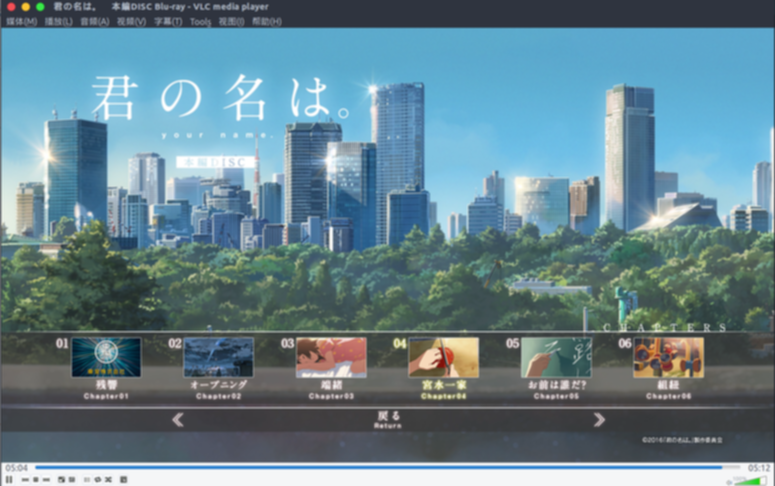
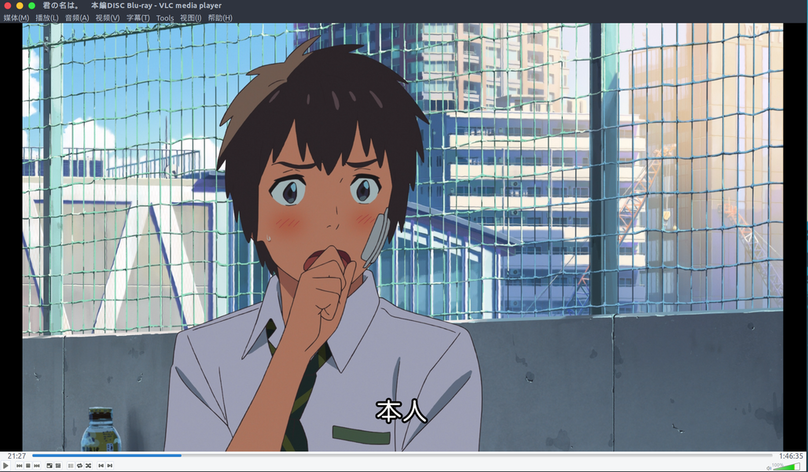
One last gripe: the official Chinese subtitles really are different from the theatrical ones. A bit better, actually.
References:
Comments are hosted on the Chinese main site. This mirror is read-only.