Review: ThinkPad X1 Carbon 2017
Buying a ThinkPad X1 Carbon 2017 WQHD Top Spec from Japan
I was using a ThinkPad X250 before this, and I upgraded it bit by bit over time, but I had a few complaints about that laptop:
- Cooling was terrible. Hook it up to a dock and it hits 90°C in no time, and breaking 100°C was routine. I tried modding it, but it was basically useless.
- Performance was lacking. With the dock running dual 1080p displays, it just couldn’t handle it—open YouTube and performance explodes.
- Build quality was so-so. The ThinkPad X250 was a step back from the X230 in terms of build. It’s all fiberglass, even though every media outlet hypes it as carbon fiber. It’s not, and there’s no metal either. Fiberglass, plainly put… is plastic.
Overall, the laptop was okay at first, but later it started to annoy me, so I planned to upgrade after two years. This time I looked at the X270, but found nothing new, and it seems the ThinkPad series has given up on the X200 line. So my targets were the ThinkPad X1 Carbon and Yoga.
In the end I chose the Carbon for a few reasons:
- The Carbon has dual heat pipes.
- The Carbon has narrow bezels.
- The Carbon’s WQHD screen is wide-gamut and flicker-free.
- The Carbon uses a new chassis.
- The Yoga has IRIS, but a single heat pipe can’t handle it, and it seems the IRIS version was cancelled anyway.
- The Carbon is smaller.
- The Yoga’s touchscreen is useless.
So I placed an order through a Taobao proxy buyer, because the overall experience was excellent and the seller was very responsible, so I’ll give them a shoutout:
The ordering process was just: ask the seller to check the config on the Japanese ThinkPad website, pick your specs, get a price, pay, and wait for delivery.
My chosen specs:
i7-7600u 16G RAM 128G SSD Intel 18265 Wi-Fi Bluetooth with WiG NFC chip 2560 x 1440 top-spec screen English keyboard 65W power adapter
After ordering, the proxy buyer shipped it directly from Japan via SF Express… yes, SF Express. I saw he declared it as a “ThinkPad keyboard,” which might be a way to avoid tax.
Shipping from Japan to China was fast, but my machine took almost three weeks just to leave the factory. From China to Japan and back took about a week.
When the package arrived, I was asked to pay 300 RMB in tax. Still much less than expected—if you use a forwarding service yourself, and it’s unreliable, you might get taxed over 1000.
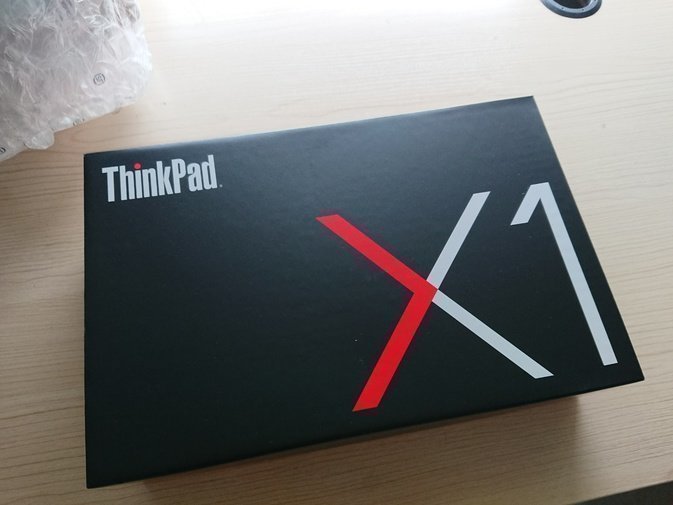
Then the unboxing. A custom-ordered X1 Carbon from the official site comes in a red gift box, much nicer than the beat-up corrugated box from Taobao Hong Kong sellers.
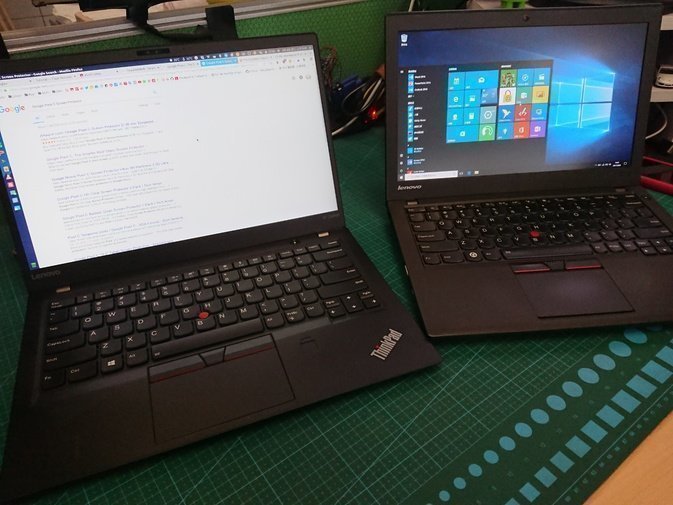
Here’s a comparison with the X250:
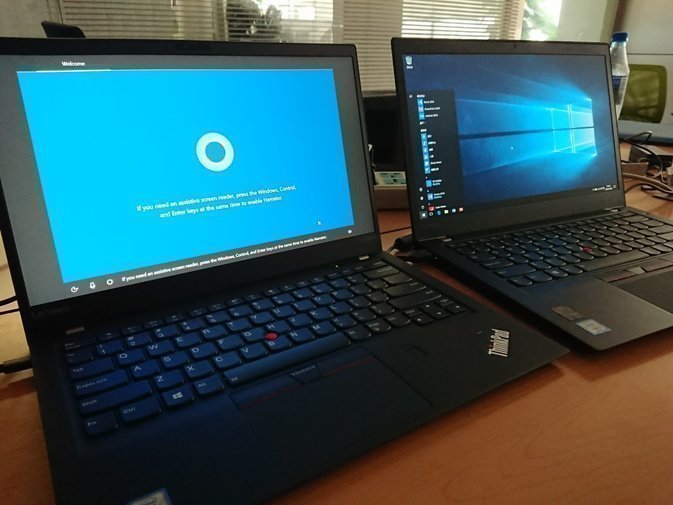
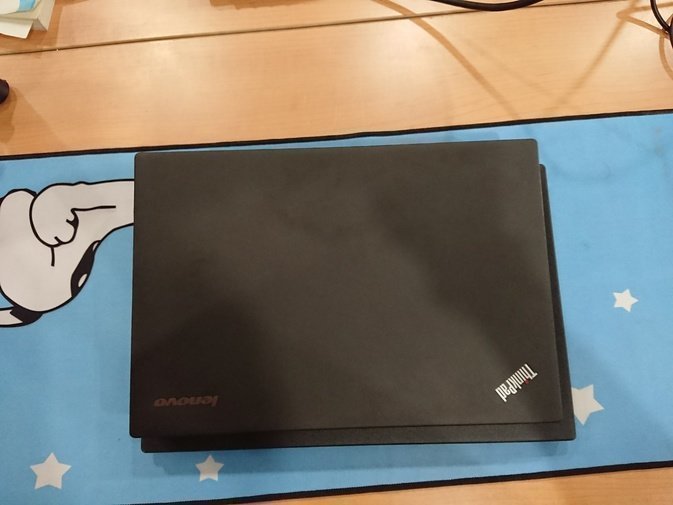
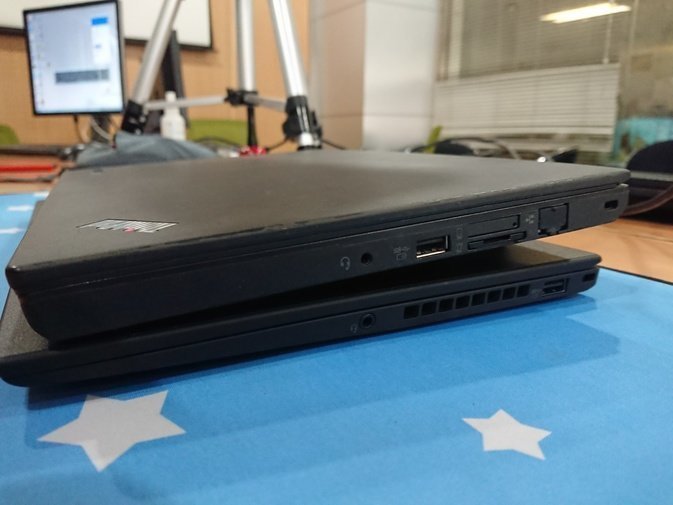
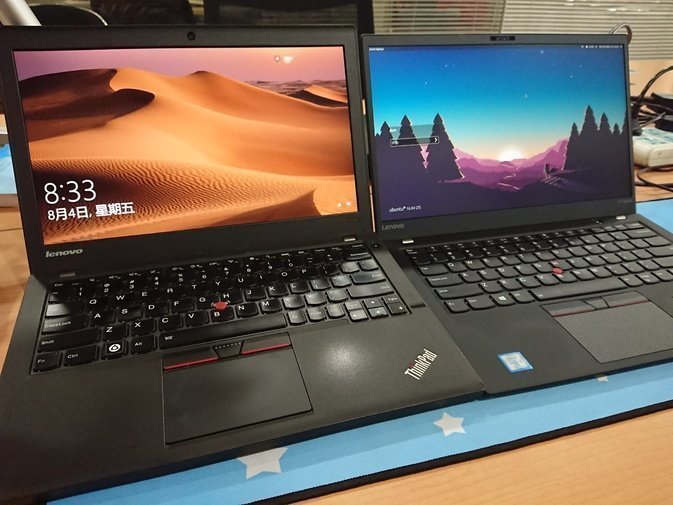
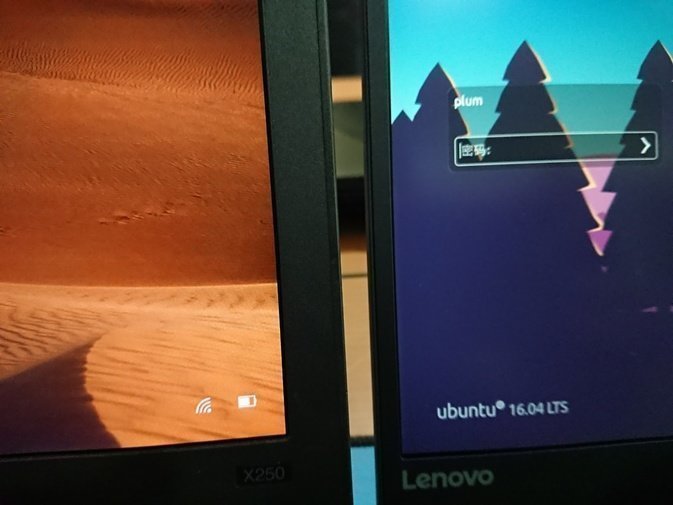
After checking the machine, no issues, no dead pixels—basically a perfect screen. Now the fun begins.
Network adapter
The ThinkPad X1 Carbon 2017 doesn’t have a built-in Ethernet port; instead it uses a tiny connector that requires an adapter. If you buy it with the machine, it’s very expensive, but on the all-mighty Taobao it’s only 80 RMB.
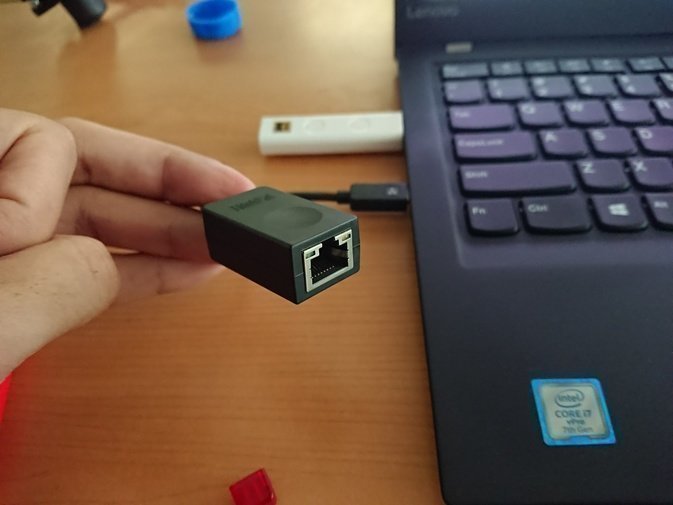
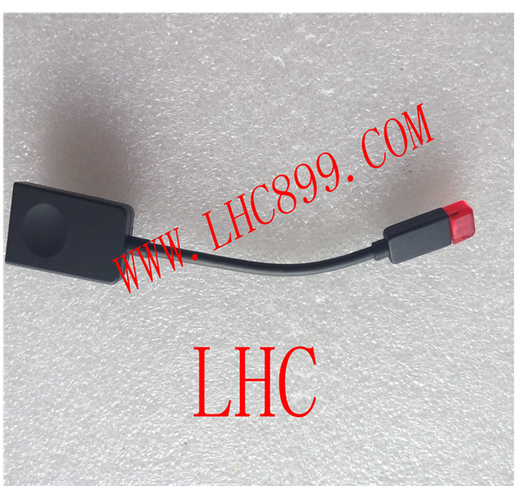
SSD upgrade
As you can see, my so-called “top spec” has only a 128GB SSD, because the official 1TB SSD option is too expensive. I chose to buy my own.
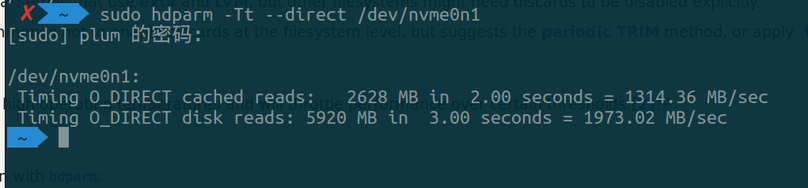
Since the ThinkPad X1 Carbon supports NVMe, I went for a one-step upgrade. Options included OEM drives like the SM961 and PM961, but warranty is a concern, so after thinking it over I bought a Samsung 960 EVO.
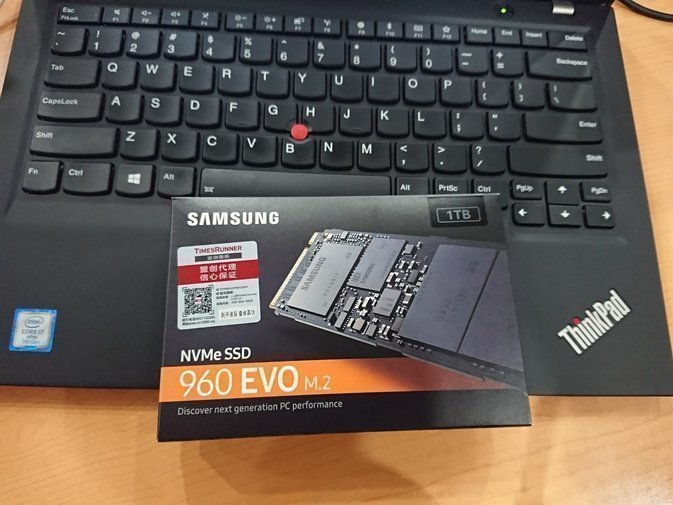
Installation is simple—just plug it in.
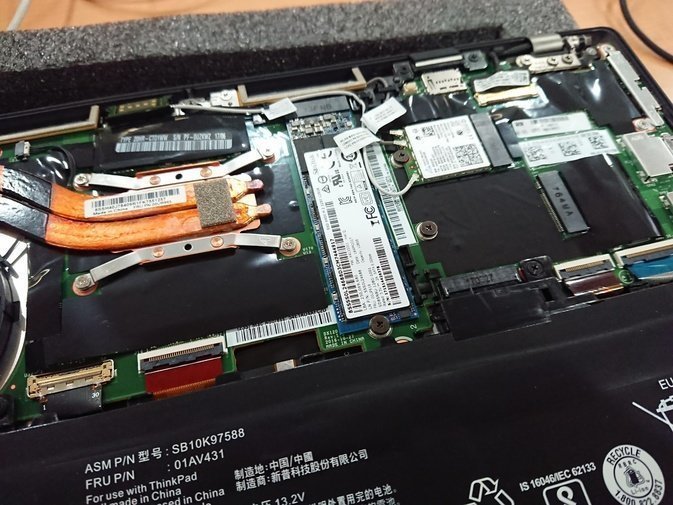
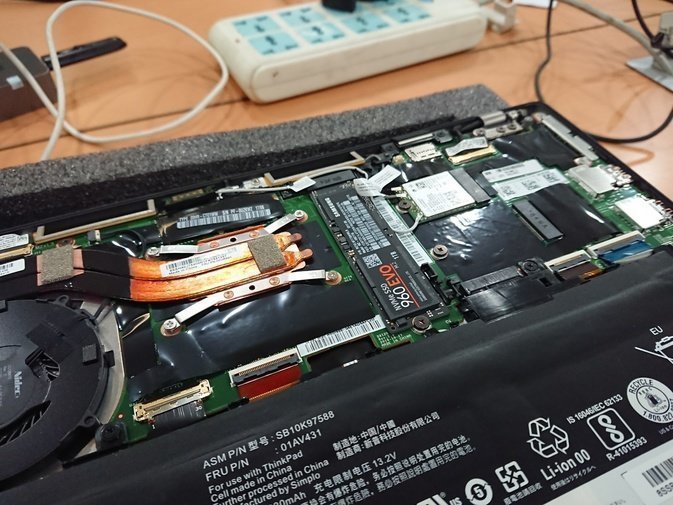
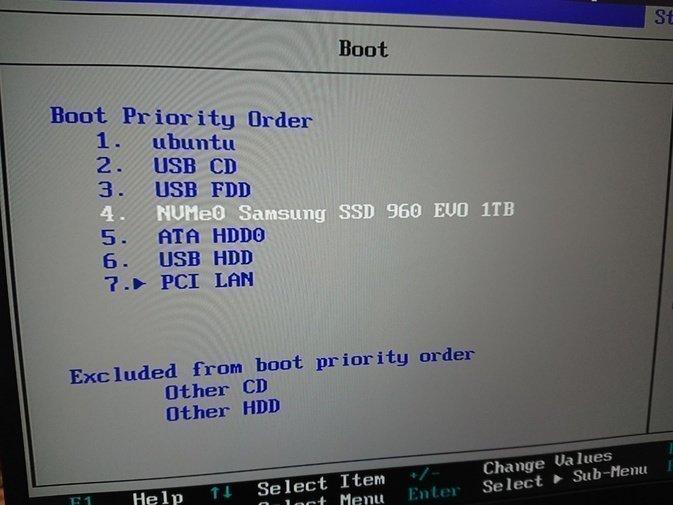
On boot you can see it’s already NVMe, and the speed boost is obvious—as is the heat increase.
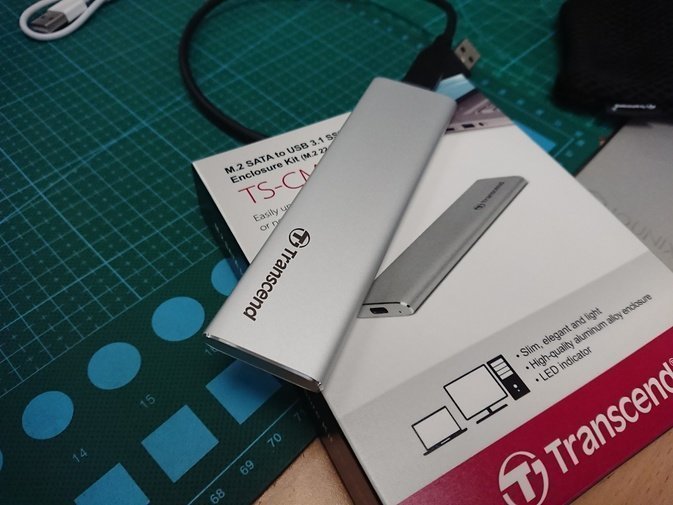
As for the original SSD, a Transcend enclosure might be nice, and you could even install Windows on that SSD.
Thermal mod
The ThinkPad X1 Carbon has a 75°C temperature wall. So a proper thermal mod can keep your i7 running in high-performance mode longer.
There are many articles about this mod online, and they generally go two ways: replace the thermal paste, or block the cooling vents.
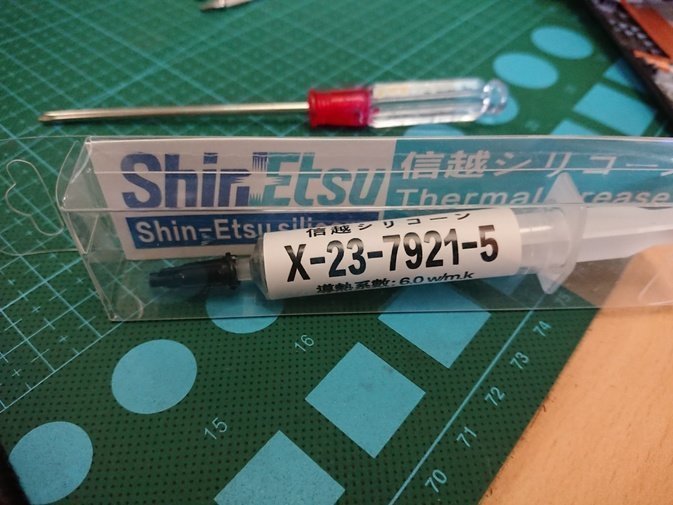
Replacing the paste is straightforward—just swap it out. A good choice right now is Shin-Etsu 7921:
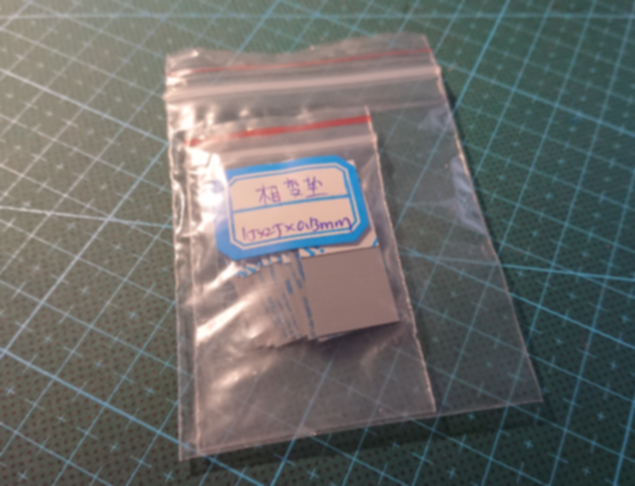
And the phase-change thermal pad that someone on Reddit was raving about:
Whichever you use, you have to clean the copper plate first. The thing on the left—northbridge or southbridge—doesn’t need paste or thermal mods:
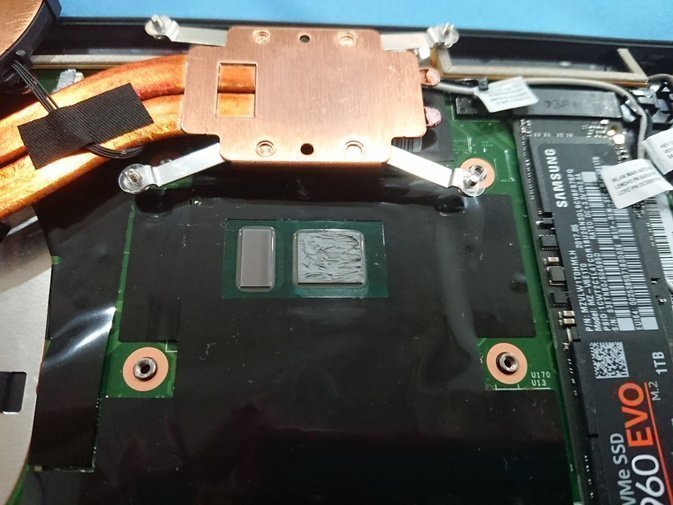
From my own testing, replacing the paste doesn’t improve cooling much, but there is some temperature improvement. Under full load the core still spikes to 75°C and hits the wall, but for a shorter time and it drops quickly.
After using both, I feel: phase-change pad is better than Shin-Etsu. First, Shin-Etsu is hard to apply, while the phase-change pad is just stick-on. Second… the phase-change pad seems to cool down faster under high load? Maybe it’s my imagination. I’d recommend the phase-change pad for clumsy people—easy maintenance and cheap.
As for the “block the vents” advice online, most of it refers to blocking the screw holes near the fan exhaust:
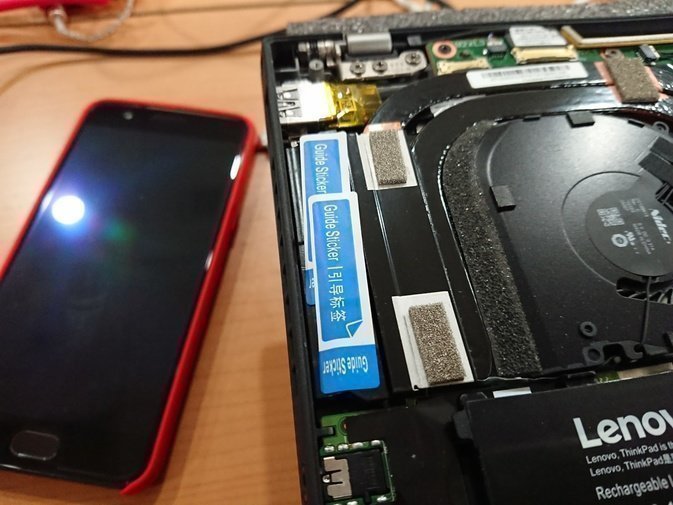
But it’s unnecessary, because the back cover already has foam pads that seal those holes.
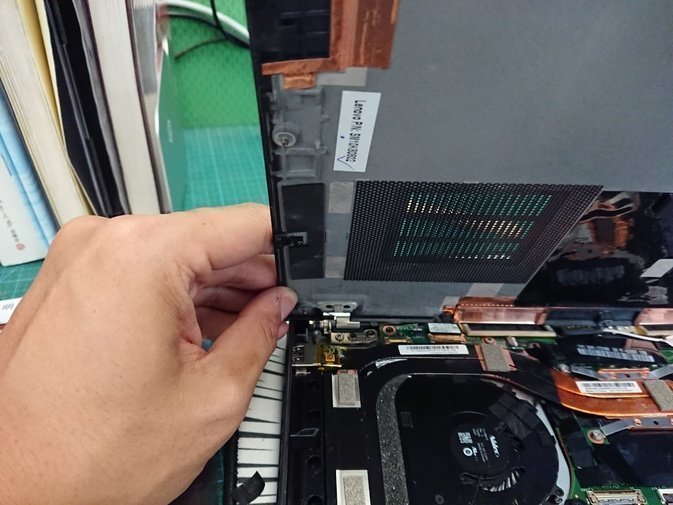
People online say it works… probably placebo.
Thunderbolt 3 dock
The ThinkPad X1 Carbon 2017 has two Thunderbolt ports, which means older docks won’t work—you need a new Thunderbolt dock.
You can buy Dell’s TB15 or ThinkPad’s own dock. The former can be found for as low as 280 RMB, while the latter starts at 1500 RMB.
I chose the Dell TB15. It works well. Although people online say this generation has defects, I think… it’s precisely because of the defects that it’s so damn cheap!
I tested it under Windows and found no issues, and it’s perfectly compatible with Linux too—you just need to upgrade the kernel to 4.11 or 4.12.
With a Thunderbolt dock, you can use an iQunix stand—looks good and works well.
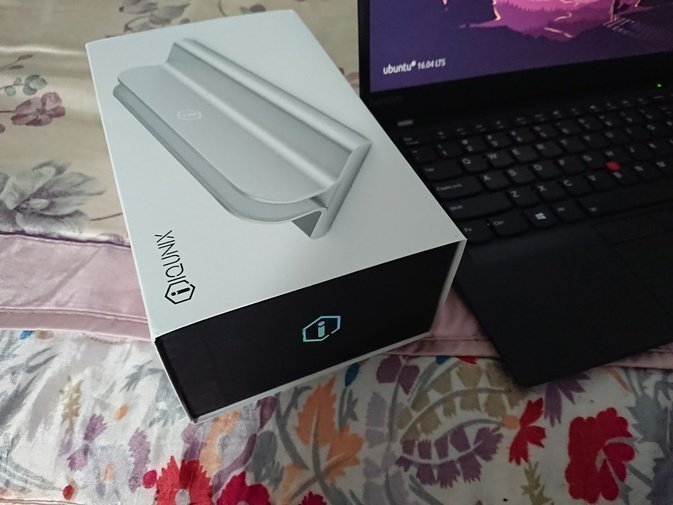
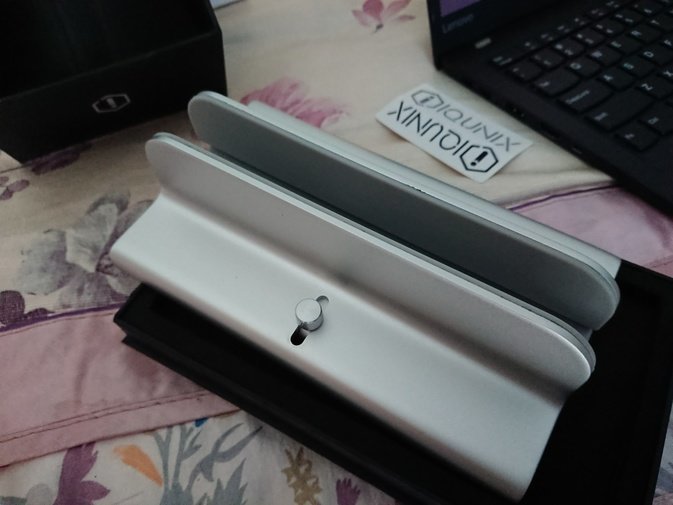
The final setup looks like this:
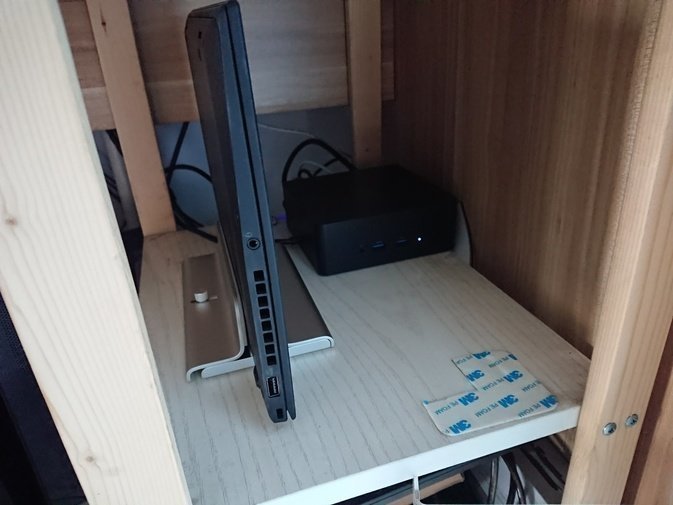
The only downside is that the power button on the dock doesn’t work—only the official ThinkPad Thunderbolt Dock supports that.
Adding a 4G module
I didn’t buy the 4G module, but you can add it. There are two steps: first add the antenna, then add the module.
The antenna looks like this:
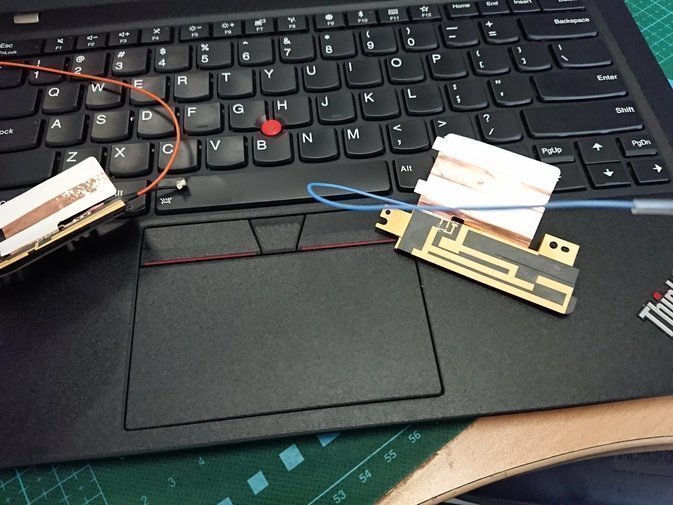
For adding the module, you can refer to this:
The suitable 4G module for the X1 Carbon is the GOBI6000 EM7455. It’s sold on Taobao but too expensive. I don’t need it for now, so I’ll leave it—just the antenna.
By the way, the antenna is very cheap…
Installing Ubuntu Linux
Simply put, installing and running Ubuntu 16.04.3 on the ThinkPad X1 Carbon is basically no problem, except for the pointing stick.
For display scaling I recommend 150%. Actually, Unity is currently the best system for HiDPI.
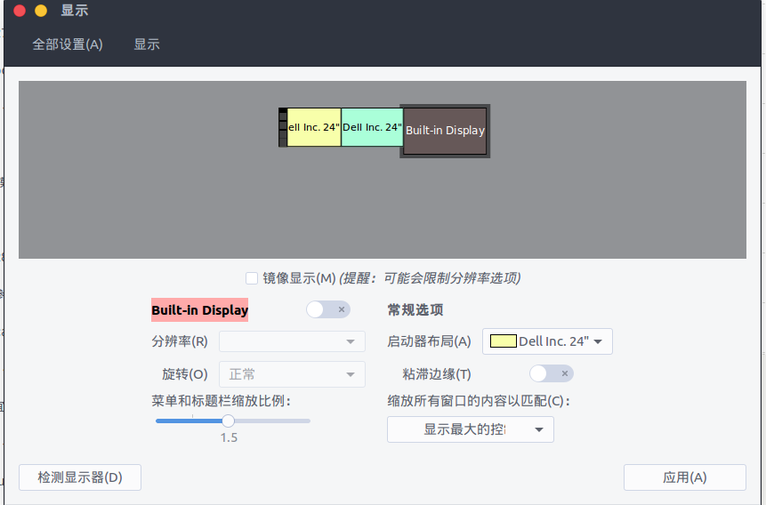
Gnome Shell said it would support Fractional Scale, but it got delayed. Of course, you can enable this experimental feature via command in Gnome Shell 3.6.
gsettings set org.gnome.mutter experimental-features "['scale-monitor-framebuffer']"
Then you can enable Fractional Scale under certain conditions:
- You’re using Wayland
- You’re on the latest Gnome Shell 3.26
- You’re using the latest distro Fedora 27 / Ubuntu 17.10
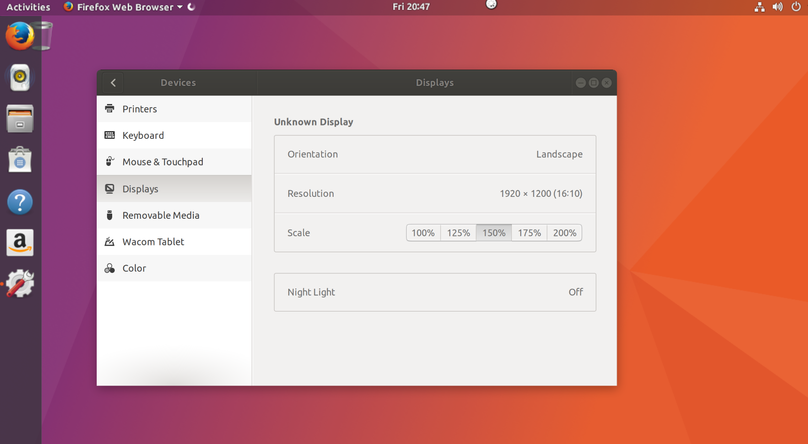
Although this scaling has fewer problems than Unity, in many cases 1.5x is more like the original 3x divided by 2, which means programs like Firefox that don’t yet support Wayland well will appear blurry—just like running old programs on Windows. Oh, and early OSX and iOS didn’t support Retina apps—they ran without even blur, all pixelated:
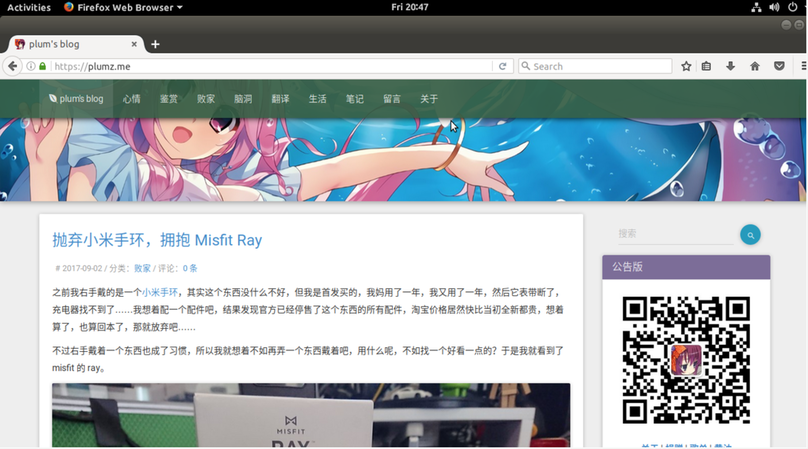
So my advice is: either use the crappy KDE, or stick with Ubuntu 16.04.3 (which still has support). The latest Gnome-shell support isn’t ready yet, so wait—probably by Ubuntu 18.04 LTS it’ll be fine. And since Ubuntu has returned to Gnome-shell, Fedora’s “true son” bloodline isn’t so attractive anymore.
If I had to name one problem with running Linux on the ThinkPad X1 Carbon…
It’s that… the pointing stick doesn’t work.
This seems to occur only on the new batch of ThinkPad X1 Carbon 2017; earlier ones are fine. According to research by foreign users, it seems the new batch uses newer pointing stick hardware. Many people have looked into this and published kernel patches. I tried compiling and installing them.
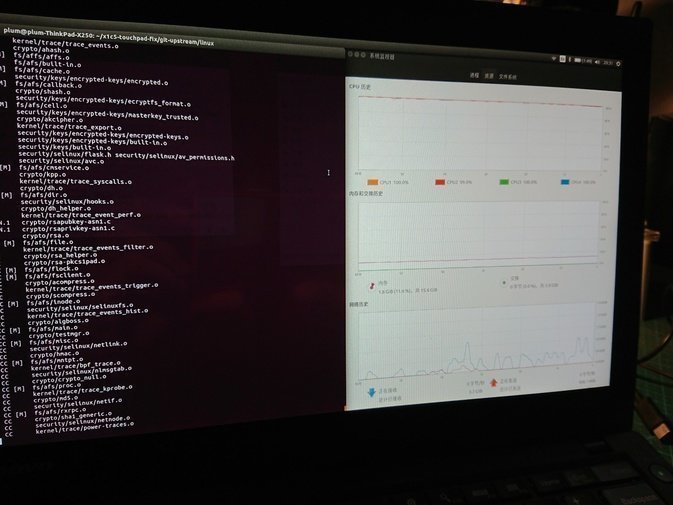
But it was useless—still doesn’t work, still a bunch of errors:
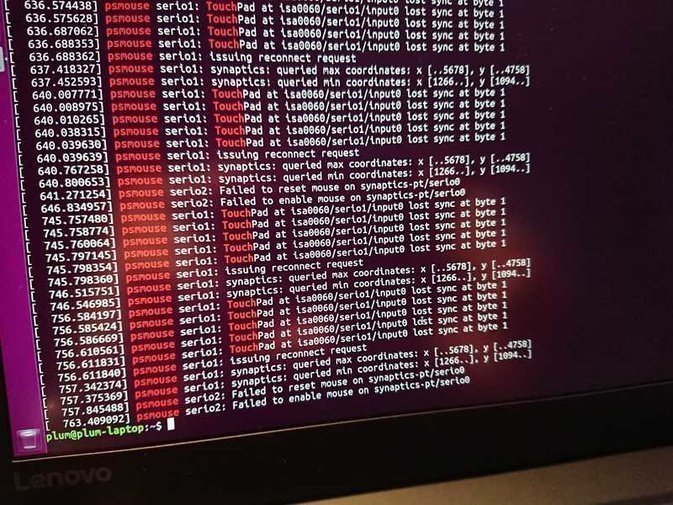
Of course there are temporary workarounds, like forcing the imps driver in the GRUB boot options.
sudo vim /etc/default/grub
Add at the end of the boot line:
psmouse.proto=imps
Then update GRUB and it works, but your touchpad loses multitouch.
sudo update-grub
So I chose to disable the pointing stick and use the touchpad.
Registering IWS
Since I bought through a proper channel and have a tax receipt (the proxy seller was kind enough to send it proactively), I tried to register for IWS.
According to what others say, the main thing is to log in at:
https://lpos.lenovo.com/home/iws/regindex.do
Fill in your registration info and wait for Lenovo’s reply.
I registered too, but got a reply from Lenovo saying “no need to register for now.”
They meant: if your machine isn’t broken, no need to register; if it breaks, bring your tax receipt and proof of purchase, and register when you get it repaired.
So keep your receipts—you still have warranty.
Overall, I’m very satisfied with the machine. Build quality is excellent (since it’s the second batch, no common issues), the screen is crisp, battery life is amazing, and you can even attach an external battery. Most importantly, the keyboard travel returns to the feel of the original X230, much better than the castrated X250 series. And it fits a 14-inch screen into a 13-inch chassis—big screen is good.
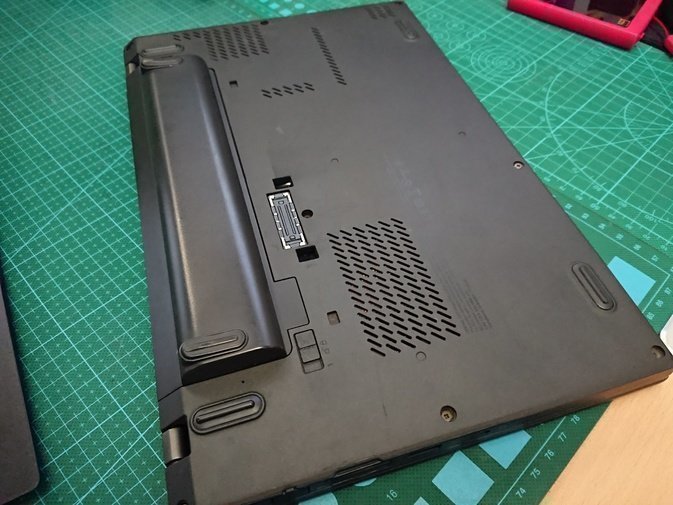
Battery life is truly amazing. I can’t imagine this thing outlasting the X250 with its dual-battery big butt, but it does—maybe dual hard drives drained too much power.
Although Intel has released 8th-gen processors, it feels more like a glued quad-core Kaby Lake, and with a 15W power limit, I doubt there’s much improvement.
By the way, the ThinkPad X1 Carbon has a 25W power limit, so performance is far above the stupid 15W version of the X250.
Overall satisfied. Next upgrade might catch a stable low-voltage quad-core.
Comments are hosted on the Chinese main site. This mirror is read-only.