Hands-on: Raspberry Pi 3 Model B+
Raspberry Pi 3 Model B+ Hands-On
I bought a Raspberry Pi before, left it powered on for half a year, and then it just up and died for no reason…
Once it died I had no idea how to fix it, and I don’t think it was covered by any warranty, so it just sat there collecting dust.
Recently, for certain reasons, I needed a small computer to use as a server. Originally I was thinking of buying one of those recycled thin clients, but with electronics you always buy new rather than old. The server didn’t need high performance anyway, so I just went with the newer Raspberry Pi.
The latest Raspberry Pi: Raspberry Pi 3 Model B+ . Compared with the previous version, the CPU is improved and the network card performance is expanded—it’s now a gigabit NIC!
Sure, it’s still routed through the USB bus, but that’s better than not having it, right? The price was fairly low when I got it, and Taobao has all sorts of cheap bundles—basically a simple case and a simple heatsink, but that’s about enough.
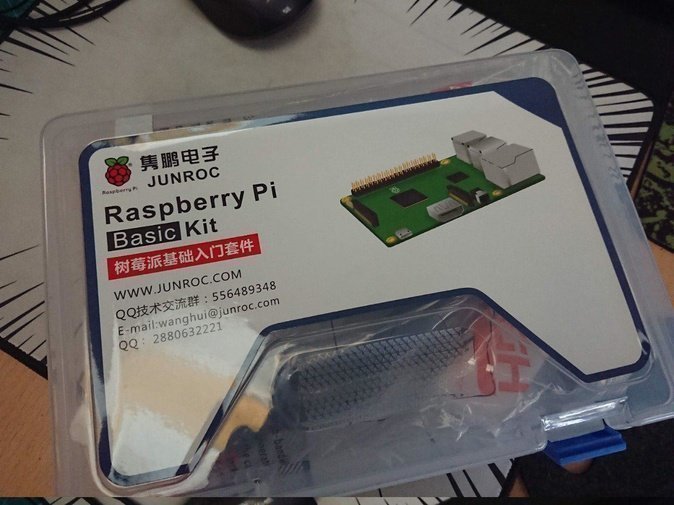
Actually, when I bought the Raspberry Pi 3, I somehow ended up contacting the Chinese general distributor. This time the distributor just ignored me, saying they don’t accept retail and telling me to find their sub-sellers on Taobao, so I had no choice but to buy on Taobao. It even came with a case that looked like a big gift pack.
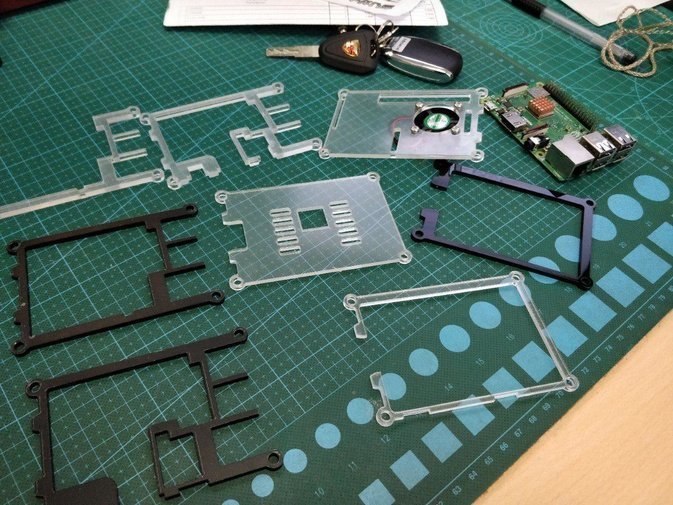
When it arrived and I opened it up, everything was in pieces—especially that nine-layer case, which was a pain. There were no instructions either, so I had to stack it myself. I only figured out how to put the case together after looking at the official Taobao images.
Once assembled it actually looked pretty legit:
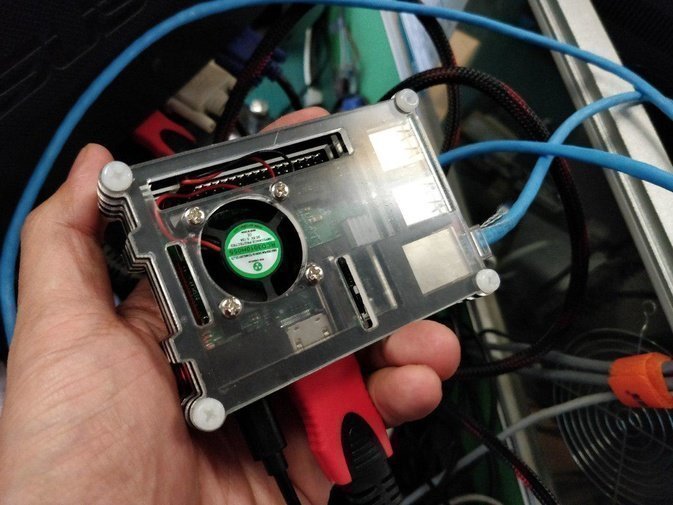
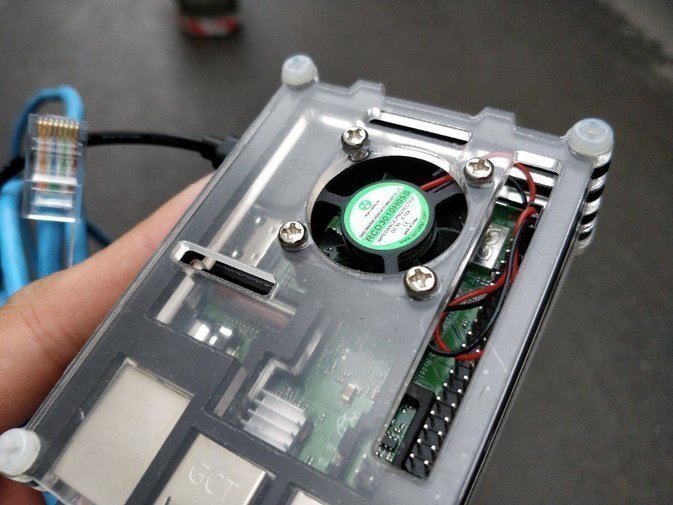
The copper heatsink that came with it—I first thought it went on the CPU, but later found it fits better on the back:
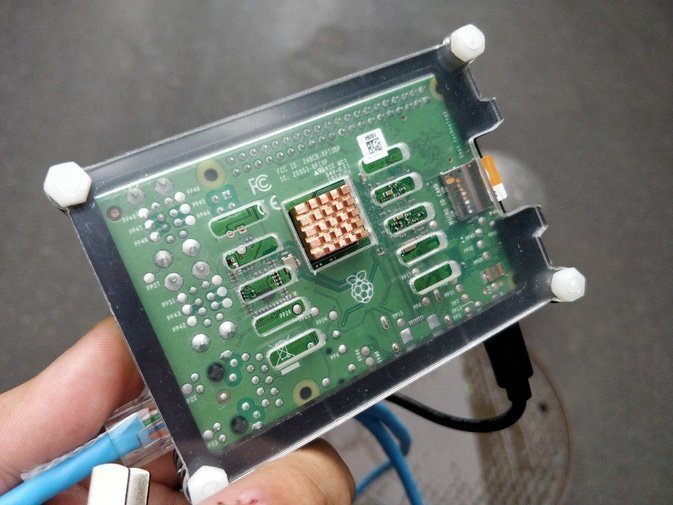
The fan can also go straight inside. You need to look up the fan pinout yourself—it should be the 4–5 section on the right side; there are diagrams online:
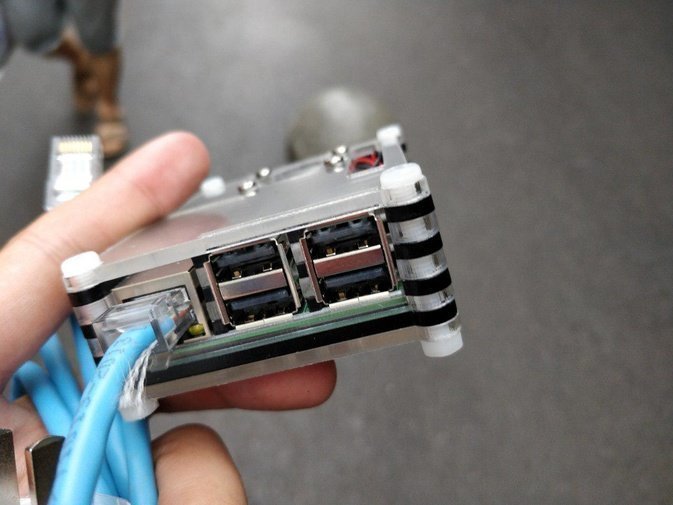
The network card is gigabit now. Sure, it’s still on the USB bus, but for a simple server it’s enough. I’d recommend disabling Wi-Fi, Bluetooth, and anything else you don’t need.
For the system I went with the standard Raspbian. Configure it and you can use it just like Debian. Raspbian’s default username is pi and the password is raspbian—it’s all over the internet. A few things to note here:
First, Raspbian comes with only 100MB of swap, which is too small. Remember to increase it in the Raspberry Pi configuration. Raspbian already provides a config file for this, so you don’t need the dumb methods floating around online:
sudo vi /etc/dphys-swapfile
The config file has comments; edit, save, restart the service and it takes effect.
sudo /etc/init.d/dphys-swapfile restart
Even after expanding swap, based on my testing, this Raspberry Pi 3 thing will freeze up from swap after about 5 days of continuous running—roughly, releasing and managing swap causes the system to stop responding…
I don’t know why. Basically the swap management process gets slower and slower, CPU usage climbs higher and higher, and a lot of programs get pushed into swap, making everything slower overall. Could it be the TF card?
The fix is either to disable swap or to schedule reboots. For my service I chose scheduled reboots:
sudo crontab -e
Then add at the end:
0 4 * * * sudo -u root reboot
Restart for it to take effect:
sudo service cron restart
It’s been running for two weeks with no problems so far (assuming scheduled reboots), so this thing isn’t bad? I hope it doesn’t burn out mysteriously like the last one.
Links: 【Raspberry Pi】Set up scheduled reboots for Linux devices with crontab The right way to change the Raspberry Pi swap partition
Comments are hosted on the Chinese main site. This mirror is read-only.