Pinebook: First Thoughts
Impressions: Pinebook
I decided to buy a Pinebook at least a year ago, back when all the Linux news sites started covering it. Most of them called it “the $99 Linux laptop,” and sure enough it really does cost $99. But there’s nothing especially novel about it, because the so-called Pinebook is just the Pine64 dev board that was crowdfunded on Indiegogo, shoved into a laptop shell. There are already plenty of similar products out there, mostly “Raspberry Pi laptops”—a Pi stuffed into a laptop case, or a 3D-printed shell with a battery and so on.
Let’s look at the main specs of the Pinebook first.
- 11-inch or 14-inch 1366x768 screen (11-inch is IPS, 14-inch is TN)
- 2 GB RAM
- 16GB eMMC
- Wi-Fi and Bluetooth
- MicroSD card reader
- USB port, headphone jack, HDMI output
Nothing impressive there, and none of it is what got me interested in the Pinebook. The biggest selling point of the Pinebook—and its biggest appeal—isn’t performance. It’s that it looks good.
Yes, compared to the whole flood of similar “Raspberry Pi laptops” on the market, the Pinebook is drop-dead gorgeous. Combined with the fact that it’s not expensive at all, I decided to buy one to play with. It’s cheap, and Pine64 claims to be a more advanced 64-bit ARM processor than the original Raspberry Pi (back when Pine64 was crowdfunding, the Pi was still on gen 1, if I remember right). At the very least it should make a decent toy.
But I never expected that from deciding to buy it to actually holding it in my hands, it would take me a full year and more.
Once the machine arrived I played with it for almost two weeks. There were pleasant surprises and disappointments. Picking up shells on the beach, sorting out my thoughts, let me sum up the sweet and the bitter for you.
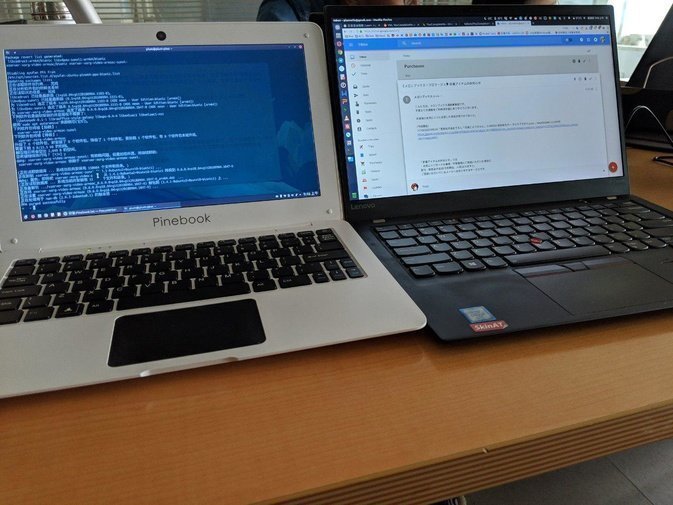
Buying:
Buying a Pinebook is no easy task. In some ways, the various monkey-bait marketing phones in China are far easier to buy than a Pinebook.
Why do I say that? Because the Pinebook uses a very special purchase method that the company calls BTO: Book To Order. Put plainly, you pay first, then they take your money and go to the manufacturer to place the order.
It sounds a bit like buying a cake: you pick the style, then the chef makes it for you. But the Pinebook isn’t as simple as baking a cake—it needs a production line, at minimum. That means when you go to a contract manufacturer, you need orders. One or two, or a hundred or two hundred, and they probably won’t even give you the time of day. You need at least “a certain considerable quantity” of orders before any factory is willing to produce.
So the Pinebook sales model becomes quite delicate.
First, there are two Pinebook models: an 11-inch version and a 14-inch version. To buy either, you first go to the official website and fill in your email, which product you’re interested in, and so on, to join the BTO Waiting List. After that you can only wait for an official email notification. If Pinebook official collects enough interested customers, they’ll batch-send payment links to those inboxes, letting you place an order on the official site and pay. Then the company takes the money and goes to the factory to produce—“no need to guess, it’s Shenzhen again.”
I can’t even remember when I applied for the BTO. I think I applied for both the 11-inch and 14-inch BTO at the same time. But apparently the 11-inch was “too popular” according to the official line, so I never received the 11-inch BTO application email at all—only the 14-inch one. After thinking it over, I felt the 14-inch was too big, and without the 11-inch I’d rather not bother, so I chose to keep waiting on the BTO List. That wait lasted over a year. Occasionally I’d check the Pinebook official forum for reactions, but the company seemed to have no movement, unhurried. Online I gradually started seeing some Pinebook reviews, most saying it was okay, but there were very few reviews and I didn’t know the details. The official Pinebook BTO was still open, and I tried joining the List a few more times, still no reply.
Until a few months ago, around August, I saw someone on the official site asking why they’d been on the BTO List for so long with no movement. Someone below suggested emailing them directly to ask what was going on—the person got a reply, and also shared more BTO List waiting info, some even got purchase codes directly.
Seeing that, I decided to try it myself, so I emailed the official address asking why there’d been no BTO news for so long. Sure enough, within half a day a reply came. The official told me the next batch of Pinebook 11-inch would start in September, there might be movement soon, and also told me I was still on the BTO list and to keep an eye on my inbox.
I felt the email’s implication was pretty obvious, so at the end of August my inbox received a purchase invitation from Pinebook official, saying the next batch of Pinebook 11-inch would start in September, please use the official purchase code to buy the machine and fill in shipping info.
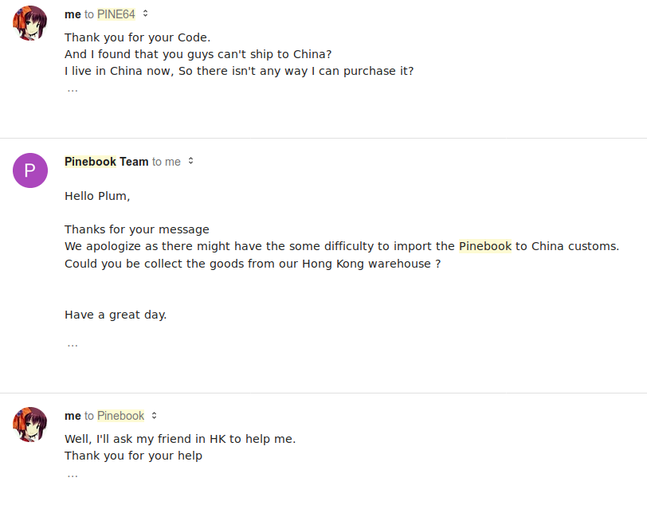
One thing I found strange when buying: the machine is produced in Shenzhen and ships from Hong Kong, but it can’t be sent to mainland China. Pinebook’s official explanation was “they can’t handle electronics customs clearance,” so even though it comes from Hong Kong, you still have to use a forwarding service. Many forwarding companies have pickup points in Hong Kong, or if you’re in Shenzhen you can just go pick it up yourself.
Receiving:
After placing the order I kept caring about the Pinebook’s production status, so I emailed to ask. Credit where due: Pinebook’s email response speed has always been very fast, and they’re responsible. They told me the Pinebook 11-inch would finish production in early October and then ship.
Of course things weren’t that smooth. Early October came, no news. The official said it was delayed to mid-to-late October, but by the end of October there was still no shipping news.
First they apologized, then told me that because the Pinebook 11-inch had switched to a 1080p IPS screen, the preinstalled system drivers needed modification and work, so it would take a bit longer than expected.
Naturally I chose to forgive them—or rather, this was a pleasant surprise. The original crappy 1366x768 screen was upgraded for free to a 1080p IPS panel, so waiting an extra week should be nothing.
Finally the machine shipped around November 2nd. The silly part was they sent it via Hong Kong SF Express, and I even emailed asking, “You’re already using SF Express, why not just send it to the mainland?” The other side still firmly said they really couldn’t handle customs clearance, so I ended up going through forwarding again.
It arrived via forwarding without tax. I’d written “Raspberry Pi electronic version” on the form—probably they didn’t think this was a real computer either.
At this point, more than a year had passed since I first joined the BTO on the Pinebook official website.
Unboxing:
When I received the Pinebook, my impression was that it was extremely crude.
How to put it—the packaging was a simple corrugated cardboard box, inside was an even simpler plastic box, and inside that was the laptop itself. It really couldn’t be simpler, and the laptop’s own charger was just scattered loosely outside the plastic box.
The machine itself wasn’t damaged, which was lucky.
After opening it up, I found the build quality was actually a pleasant surprise.
First, the Pinebook’s shell design is almost entirely imitating Apple’s MacBook Air, including the hinge, side ports, and the overall look and shape—except the MacBook Air has a metal body while this is plastic.
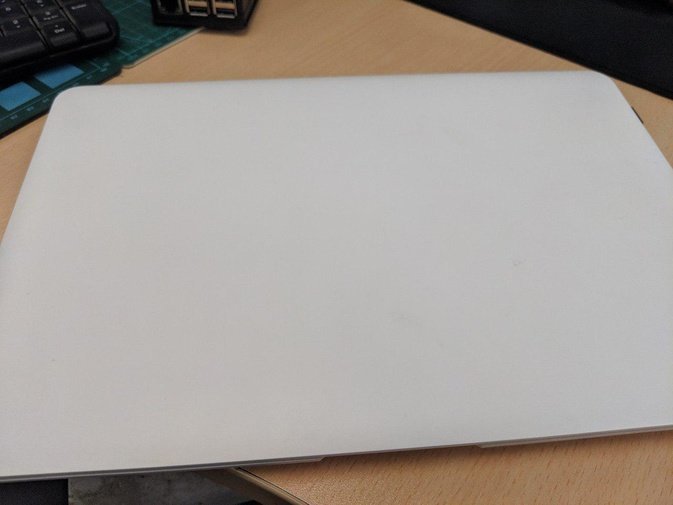
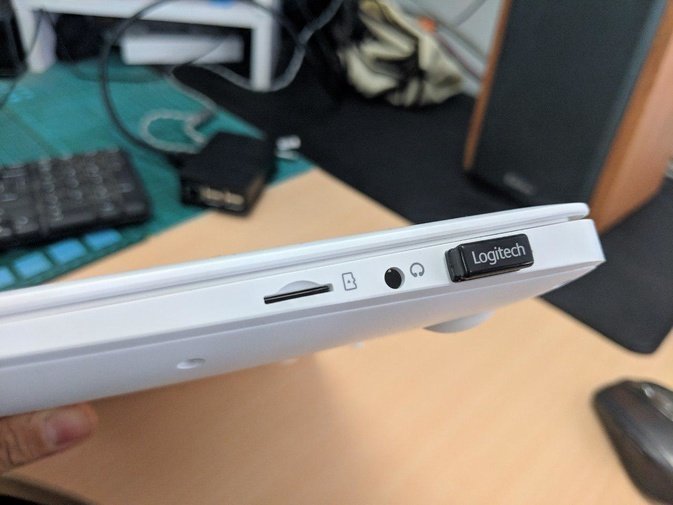
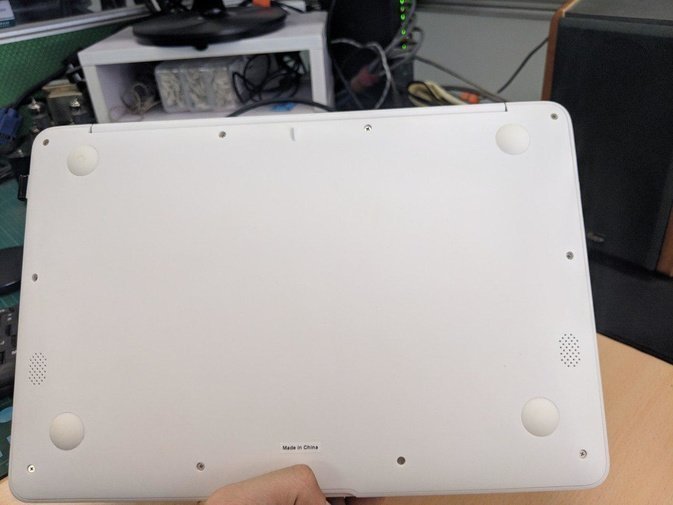
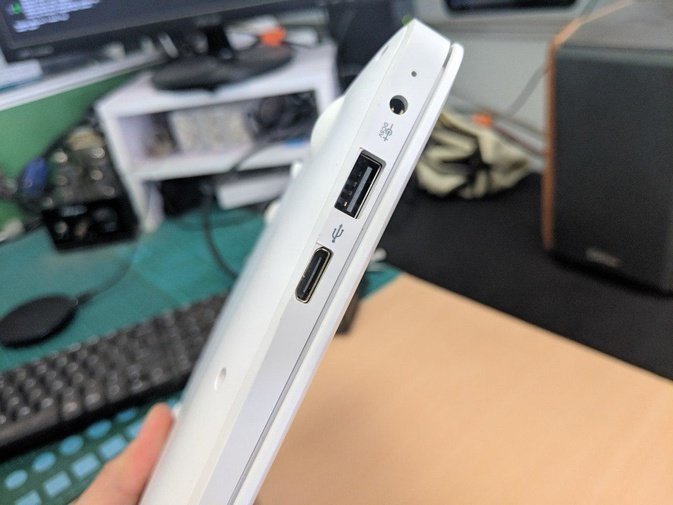
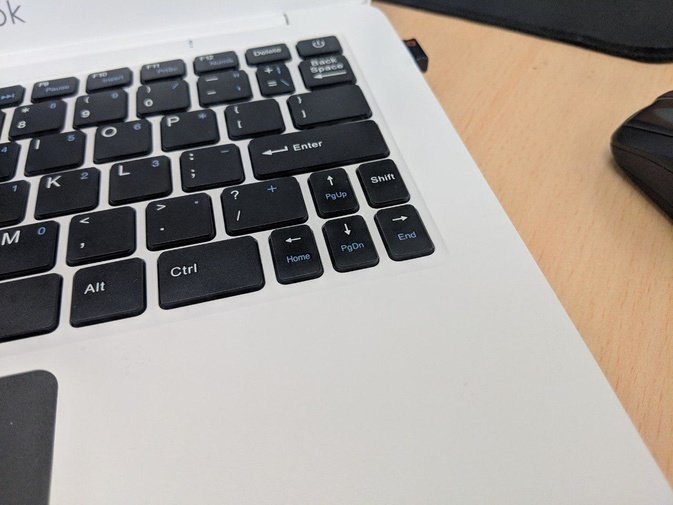
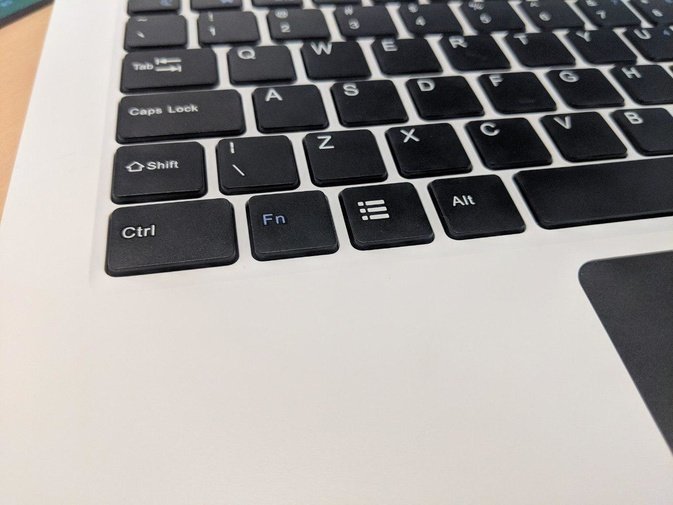
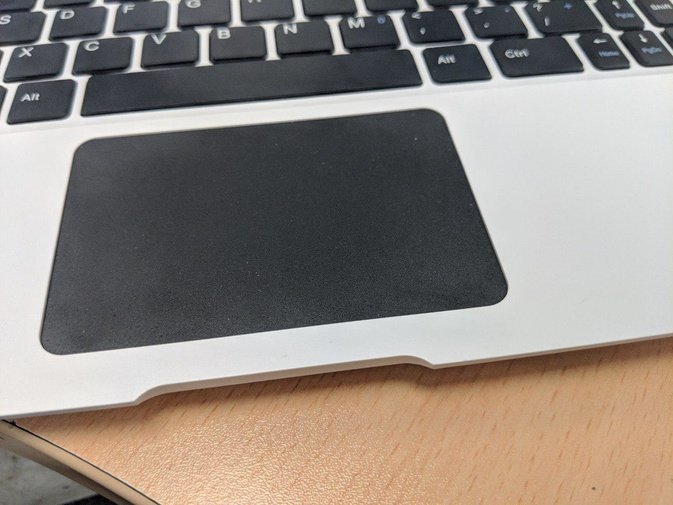
At first I thought this was just Pinebook’s design, but later I found it wasn’t. This so-called Pinebook probably used a generic mold from some Shenzhen knockoff laptop or tablet to save costs. If you look carefully, you can find many similar “Android laptop” unboxing videos on YouTube; their appearance is basically identical to the Pinebook, just without the Pinebook logo.
Not designing it themselves and directly using an off-the-shelf shell—maybe that’s one way to save costs and reach $99.
The body is plastic, but the seams are tight and it opens and closes smoothly—much better than the toy-like look of a bunch of so-called “Raspberry Pi laptops.”
The only thing I regret is the charging port. It’s not USB Type-C or Micro USB, but a round barrel plug. This plug could clearly be changed to Micro USB or similar, but they didn’t do it. I don’t know if it’s to emphasize the idea that “the Pinebook is a laptop.”
System:
The Pinebook comes preinstalled with KDE Neon. Yes, you read that right: an ARM-architecture laptop preinstalled with the very heavyweight KDE Neon. But this system has also been deeply optimized—almost everything works normally, including GPU acceleration, the various hardware devices, the front camera, and lid-close suspend. All tested fine.
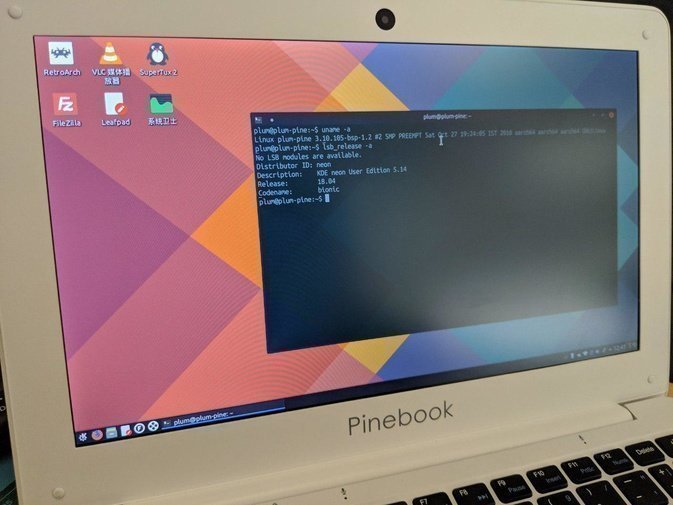
Of course not all devices work properly. The Pinebook’s HDMI Out is unusable under the default KDE Neon, and although GPU acceleration is enabled, the system still doesn’t fully utilize that performance—it still feels like 2D acceleration, and sometimes it’s a bit laggy.
And from what I know, the first batch of Pinebooks didn’t actually come with KDE Neon preinstalled, but another Mate-based distribution. This KDE Neon seems to have announced “semi-official” software support only in early 2018, and it can provide a kind of “out-of-the-box” experience. But KDE Neon isn’t the only system that supports the Pinebook. On the Pinebook official forum, the relevant admins compiled all the distributions currently usable on the Pinebook, and listed a table describing the differences between them.
After comparing, you’ll find…
KDE Neon is still the best to use, so it’s not without reason that it’s the official preinstall.
Here I need to talk about the Pinebook’s Linux support.
If you pay attention, you’ll notice the Pinebook uses a Pine64 platform that was first crowdfunded on Indiegogo. This platform’s CPU uses an Allwinner solution, and regarding Linux support, one community developer put it as “it feels like Allwinner is very resistant to open source and Linux.”
So this PineBook’s Linux support is in a very awkward position. Its CPU was originally designed to run Android. Running Linux, if you use the mainline kernel, many drivers and modules can’t keep up. If you want to enable more features and support, you have to use that ancient BSP kernel, still Linux 3.10. Under that kernel, most functions can get basic support through that Android low-level modification, including Wi-Fi, sound, GPU acceleration, and suspend/resume.
But many developers don’t buy it, and are committed to reverse-engineering or using other shady methods to make an open-source driver for the Pinebook’s Allwinner solution. On the graphics side there’s Mesa-lima, and other areas have made progress too. Sadly, lacking official company support, progress is still slow. According to the current pace, by the time the Linux 4.20 final kernel is released, the Pinebook’s processor will only achieve basic functionality in the mainline kernel. Until then, just use Linux 3.10 BSP honestly.
So the distributions running on the Pinebook fall into two categories: one uses the oldest but most stable BSP 3.10 kernel, the other tries the latest Mainline 4.19 kernel. The latter has speed and performance advantages but many functions missing; the former has good stability but performance is just so-so. Which to choose is up to you.
Personally I still recommend the Pinebook running the standard KDE Neon. First, because the screen is only 11 inches at 1080p, only KDE Neon can properly support fractional scaling here. Also, KDE Neon is the only distribution I tested that supports Suspend and Wakeup. For a laptop, only a system that supports these features makes the laptop comfortable to use.
Besides KDE Neon, another distribution I’m optimistic about is Armbian. This distribution has the fastest speed and best performance, but its flaw is that Suspend support isn’t enough yet. But Armbian says it will fix various issues in one go after the Linux 4.20 final release, and KDE Neon official also says it will switch the kernel to Mainline after Linux 4.20 is released. So wait a bit—the future may look very different.
Modding:
The Pinebook comes standard with 16G eMMC, and interestingly this storage can actually be upgraded. You can buy it on Taobao. Search “Pine64 emmc” and you’ll find it—the finished product is a simple eMMC chip plus a USB adapter for reading it.
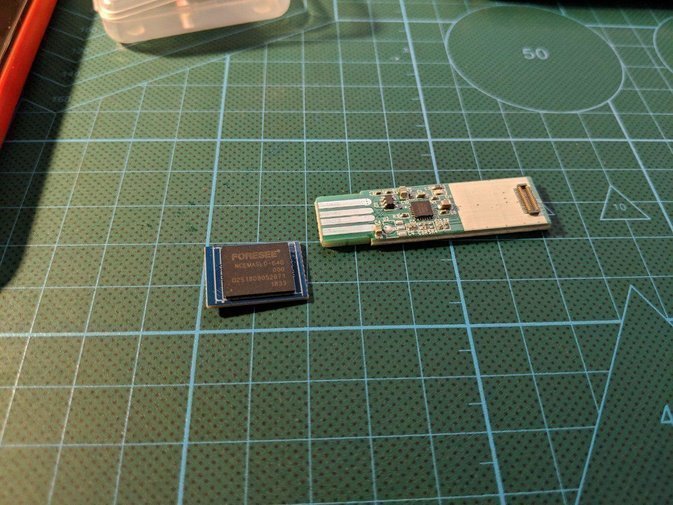
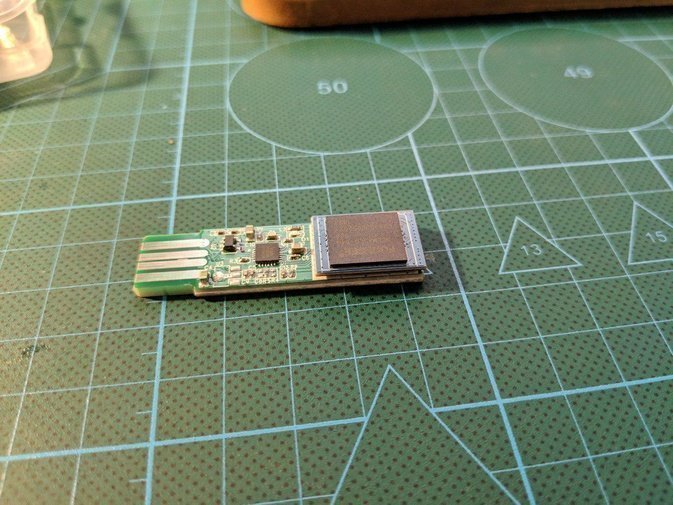
Upgrading and replacing the eMMC is also simple: open it up, peel off the graphite thermal pad on the motherboard, and you can see the eMMC module underneath. Swap it out.
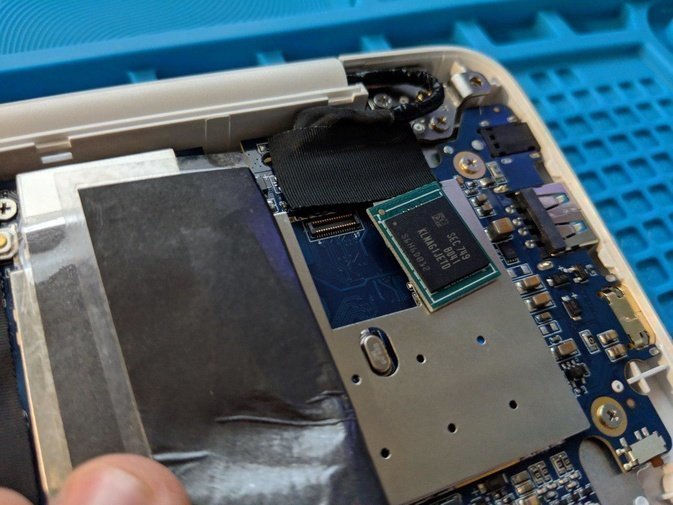
Meanwhile, prepare a TF card, download the official KDE Neon system installation image, write the system to the eMMC, and it’ll boot.
The Pinebook’s touchpad works fine, but it always feels not smooth enough. You can use a sticker to improve the feel. Since there’s no corresponding size on the market, you have to cut it yourself with a knife. The result feels pretty OK.
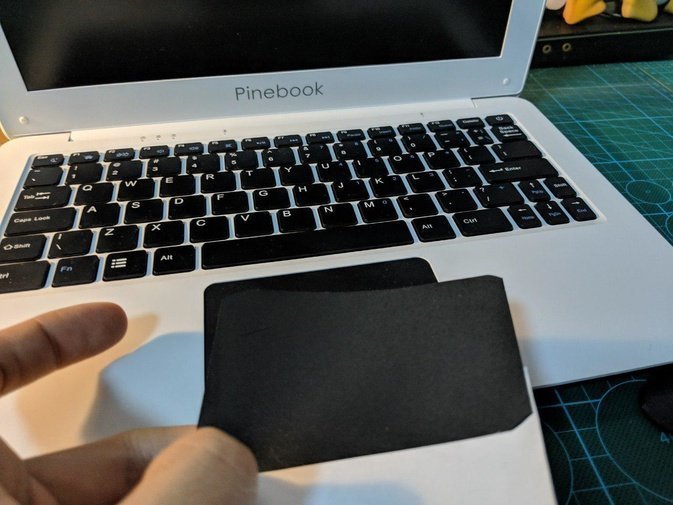
Oh right, under the BSP kernel, the Pinebook’s touchpad isn’t actually recognized as a touchpad but as a mouse. To get “two-finger reverse scrolling,” you need a bit of hassle. Use the command:
xinput set-prop 8 "Evdev Scrolling Distance" -1 1 1
And that’s it.
At this point the Pinebook is pretty much usable. Most Linux system configuration is the same as usual, except installation packages change from amd64.deb to arm64.deb. Many Ubuntu PPAs can also be added, as long as you see arm64 architecture packages in them. Pretty convenient, I’d say.
Conclusion:
The Pinebook is a laptop converted from the Pine64 dev board. Its performance is very ordinary, and most Chromebooks beat it—the Pinebook doesn’t even support 5G Wi-Fi. But it does have a very good 1080p IPS screen, which most Chromebooks can’t match, and the machine itself has strong system tinkering potential. After Linux 4.20 is released there will be new performance improvements. Overall it’s still worth experiencing more.
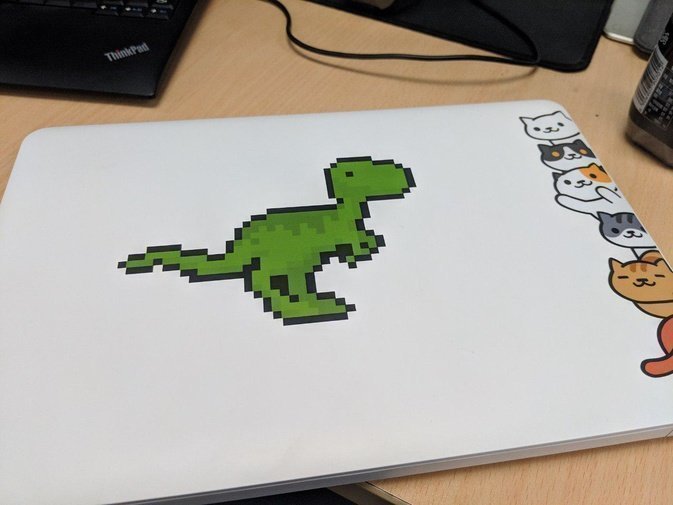
What can the Pinebook do? Personally I tried web browsing—barely works. Watching YouTube—barely barely works, and only below 720p. As for typing and word processing, sometimes there’s a certain amount of lag. I think it’s more because the Linux system itself doesn’t support GPU acceleration properly. You know, after the Pinebook uses Android, doing these things is much smoother.
At this stage the Pinebook is suitable for terminal work: connecting to a server via Terminal SSH, writing an article in VIM—these still feel fine.
Oh right, the Pinebook’s keyboard layout on the 11-inch version still has a few oddities, but you can solve them through mapping.
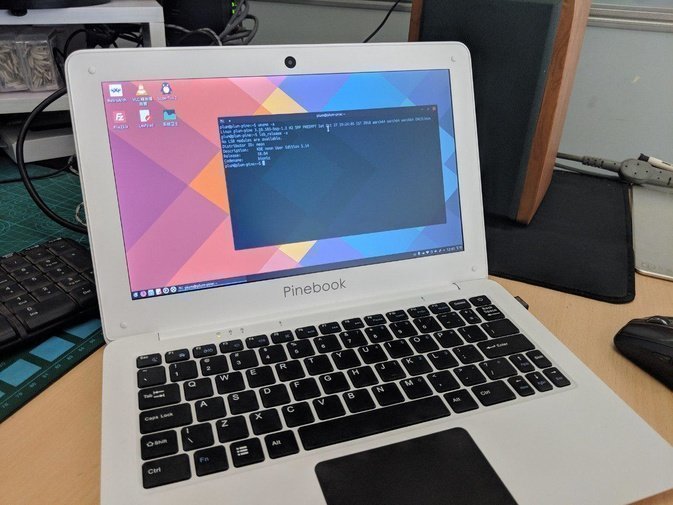
Despite various dissatisfactions and performance shortcomings, considering the $99 price and the active community atmosphere, the Pinebook as a “geek toy” is still quite qualified.
Comments are hosted on the Chinese main site. This mirror is read-only.