Running a Home LAN DNS Service on a Raspberry Pi 3 B+
The title is overselling it a bit. What I originally wanted was a transparent proxy for the LAN. But I’ve been short on time lately, and after poking at it on and off I ended up with just a DNS box. I’ll get around to compiling and installing the transparent proxy gateway another day.
That said, even running nothing but a DNS service taught me a fair bit, especially about how stable the Raspberry Pi is, so I figured I’d write it down in case it helps someone.

Prices for the Raspberry Pi 3 B+ on Taobao keep dropping. I was originally going to buy a Pine 64, but the former had an obvious price advantage and proper documentation, so I went with the Raspberry Pi.
Most sellers also throw in a bundle with a charger, a case, and some copper heatsinks. I doubt the heatsinks do anything, but hey, free is free.
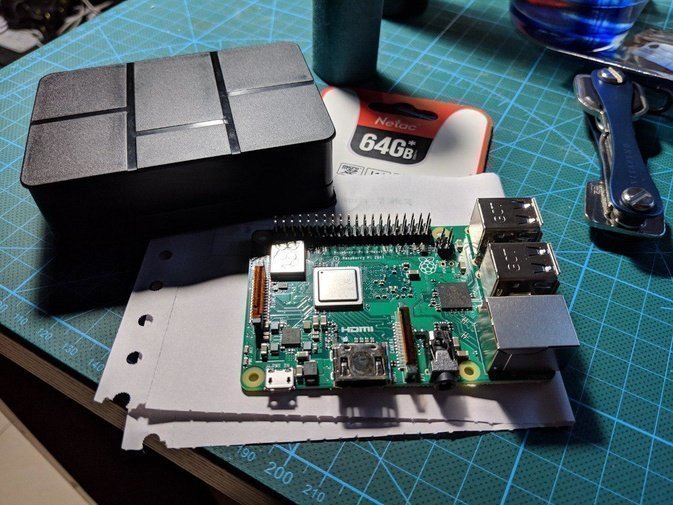
For the Raspberry Pi 3 B+ the default OS is Raspbian, a Debian-based Linux hack. Configure it the Debian way: download the official image, write it to a TF card, boot it, and your little server journey begins.
The DNS service I’m running on it is Overture, a DNS splitter made by a Chinese developer. The idea is simple: it routes queries by whitelist, sending domestic lookups to 114 or DNSPod and foreign ones to Google or OpenDNS. To dodge DNS poisoning, foreign lookups can go out over specific ports.
Overture’s config file is blunt and simple, and the default one spells everything out, including the split between domestic and foreign IPs.
{
  "BindAddress": ":53",
  "PrimaryDNS": [
    {
      "Name": "DNSPod",
      "Address": "119.29.29.29:53",
      "Protocol": "udp",
      "SOCKS5Address": "",
      "Timeout": 6,
      "EDNSClientSubnet": {
        "Policy": "disable",
        "ExternalIP": ""
      }
},
    {
      "Name": "114DNS",
      "Address": "114.114.114.114:53",
      "Protocol": "udp",
      "SOCKS5Address": "",
      "Timeout": 5,
      "EDNSClientSubnet": {
        "Policy": "disable",
        "ExternalIP": ""
      }
    }
  ],
  "AlternativeDNS": [
    {
      "Name": "openDNS",
      "Address": "208.67.222.222:443",
      "Protocol": "tcp",
      "SOCKS5Address": "",
      "Timeout": 5,
      "EDNSClientSubnet":{
        "Policy": "disable",
        "ExternalIP": ""
      }
    },
    {
      "Name": "openDNS2",
      "Address": "208.67.222.222:5353",
      "Protocol": "tcp",
      "SOCKS5Address": "",
      "Timeout": 5,
      "EDNSClientSubnet": {
        "Policy": "disable",
        "ExternalIP": ""
      }
    }
  ],
  "OnlyPrimaryDNS": false,
  "IPv6UseAlternativeDNS": false,
  "IPNetworkFile": {
    "Primary": "/opt/overture/china_ip_list.txt",
    "Alternative": "/opt/overture/ip_network_alternative"
  },
  "DomainFile": {
    "Primary": "/opt/overture/domain_primary",
    "Alternative": "/opt/overture/gfwlist.txt"
  },
  "DomainBase64Decode": true,
  "HostsFile": "/opt/overture/hosts",
  "MinimumTTL": 0,
  "CacheSize" : 4096,
  "RejectQtype": [255]
}
That alone won’t cut it, though. Files like china_ip_list.txt you’ll have to find yourself. They’re all over the internet, so I won’t bother reposting them.
Worth noting: for foreign DNS lookups, Overture supports routing through a SOCKS5 proxy, which helps with stability. In other words, you can run your tunnel on the same box and query through it.
Overture ships a Systemd service file. Just copy the provided file and enable it.
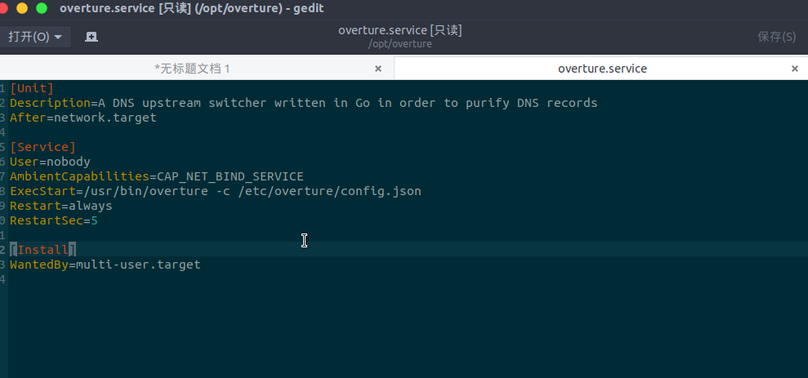
At this point the DNS service is configured. Do check the runtime logs to make sure those txt files and split lists you pointed at are actually being read, or you’re in for a bad time.
Next up is the annoying part. A service like this is supposed to run 24/7, but a machine the size of a Raspberry Pi has its limits.
- The LAN port hangs off the USB bus, so throughput is limited.
- As a small dev board, its stability is an open question.
Point one is a performance issue, nothing to be done. For a home setup I think it’s fine, especially since Overture caches, which takes a lot of pressure off queries. Even if I later add a transparent proxy gateway, traffic won’t look too bad, since it’s only splitting.
Point two I found out the hard way: on the third day, the thing froze.
Then I stumbled on the fix… add a swap partition.
For a small board like the Raspberry Pi 3 B+, one thing matters a lot:
This dumb thing barely touches swap while running, but if you don’t have swap, it dies
Now, the correct way to enable swap on Raspbian OS. There are plenty of other methods floating around online, but none of them follow the system’s design conventions:
sudo vim /etc/dphys-swapfile
Uncomment CONF_SWAPSIZE and set it to the size you want. 2G is about right.
Then reboot the system. I recommend rebooting rather than just restarting the service.
After that you can add a cron job with crontab -e to restart automatically at 4 a.m. every day, and that should keep it running.
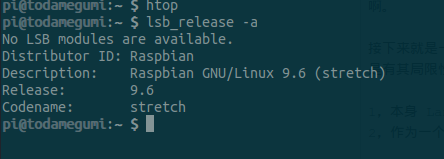
A Raspberry Pi 3 B+ I set up at work has been running for almost 3 months without issues.
The one at home has been up for half a month and the service is fine. Hopefully it stays that way.
Oh, and the Raspberry Pi 3 B+ wants 5V 3A. The seller usually bundles a LeTV charger. If it doesn’t meet that spec it’ll still run, just don’t hang too many peripherals off it.
After all, 5V 3A is for a Raspberry Pi 3 B+ going full tilt.
Comments are hosted on the Chinese main site. This mirror is read-only.